FAQ · Encryption
Why are some files encrypted while others stay as they are?
A Crypt remote is a locked door, not a storage box: only files that pass through it get encrypted. See why a folder can end up mixed, how to check it in 30 seconds, and how to fix plain files.
- Creating a Crypt remote never converts files that are already in the folder
- The path a file takes decides whether it is encrypted — not the folder it lands in
- Spot plain files with “Open target remote” and fix them by copying through the Crypt remote
The demo player couldn’t load. Use “Open in new tab” instead.
Watch next
See all demos →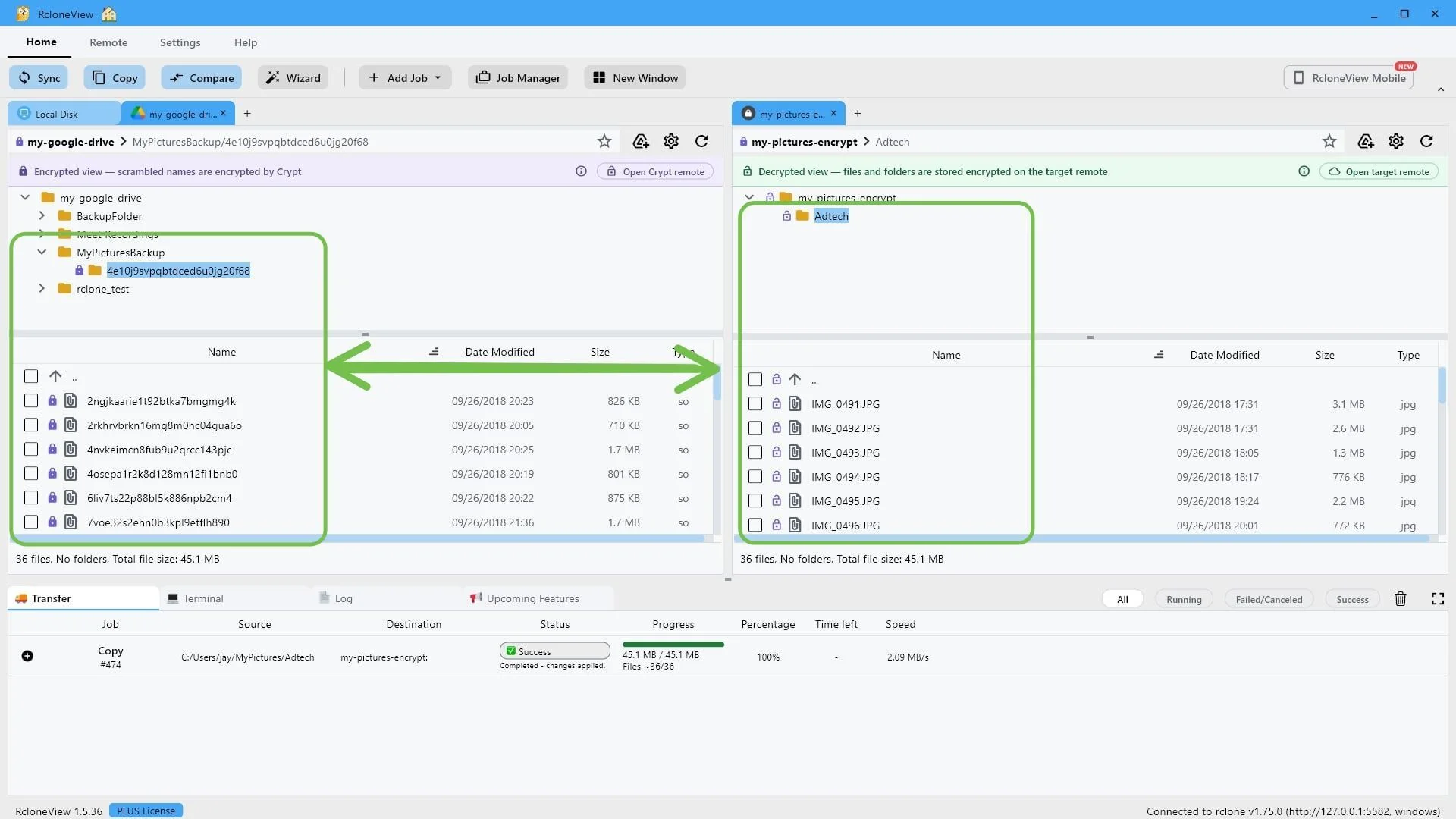
Step-by-step guide
Why some files in an encrypted folder stay unencrypted
The same 13 steps as the interactive demo, with screenshots — skim it, or jump into the demo at any step.
-
1Try this step ↗
Welcome. In this short guide, we will look at how RcloneView keeps your cloud files private with a Crypt remote.
And we will answer a question many new users ask. Why are some files in my encrypted folder encrypted, while others are not? By the end, you will know exactly how a Crypt remote works, and how to keep every file protected.
-
2Try this step ↗
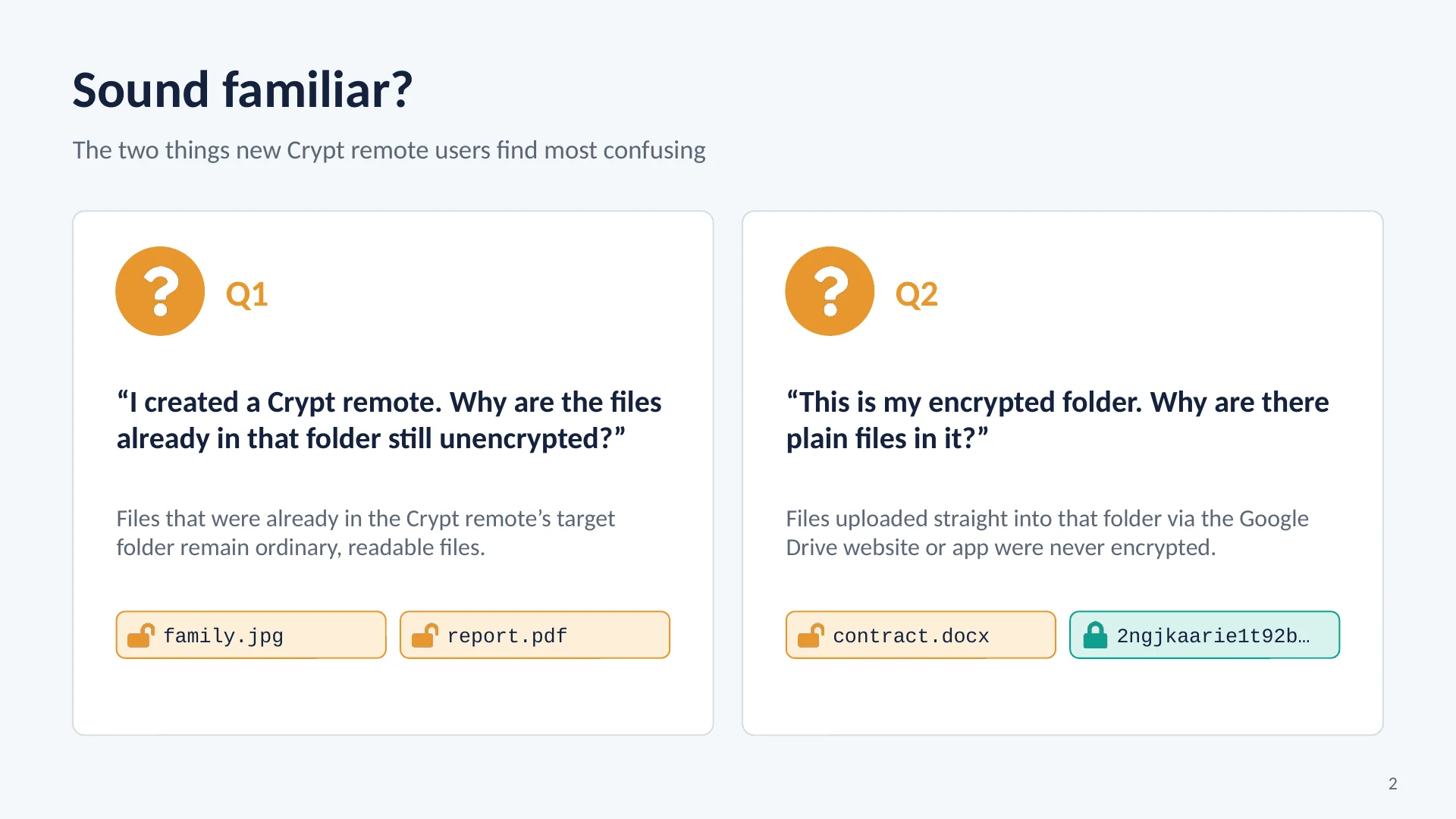
Let's start with two situations that confuse a lot of people.
First. You create a Crypt remote on a folder that already has files in it, and those files stay exactly as they were, unencrypted. Second. You open your encrypted folder in Google Drive, and find ordinary, readable files mixed in with the scrambled ones. These two questions have the same answer, and it comes down to one simple idea.
-
3Try this step ↗
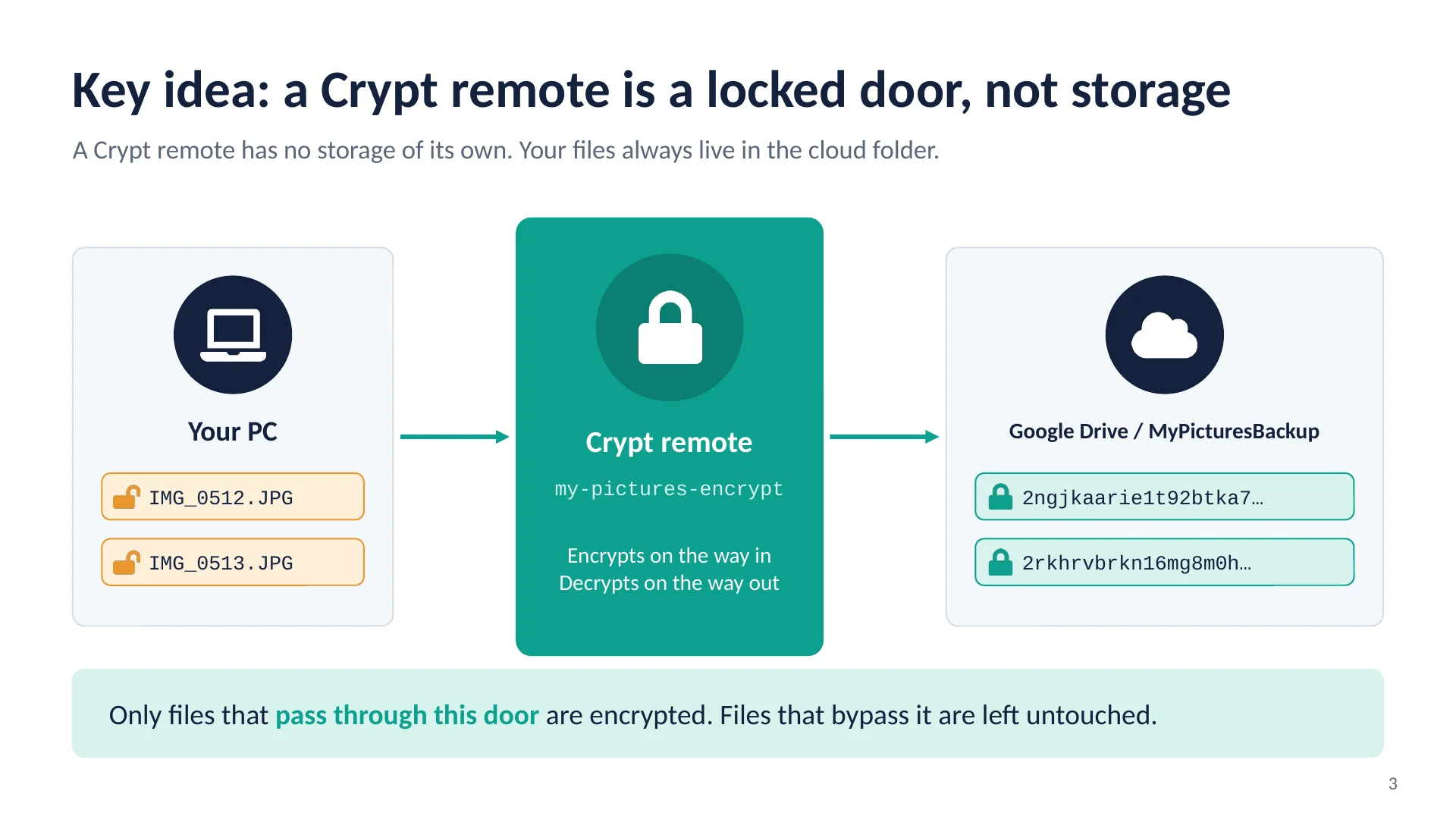
Here is that idea. A Crypt remote is not a place where files are stored.
It has no storage of its own. Think of it as a locked door in front of a folder in your cloud. Files that pass through this door are encrypted on the way in, and decrypted on the way out. The files themselves always live in the cloud folder behind the door. So only files that pass through the door are encrypted. Files that go around it are left untouched.
-
4Try this step ↗
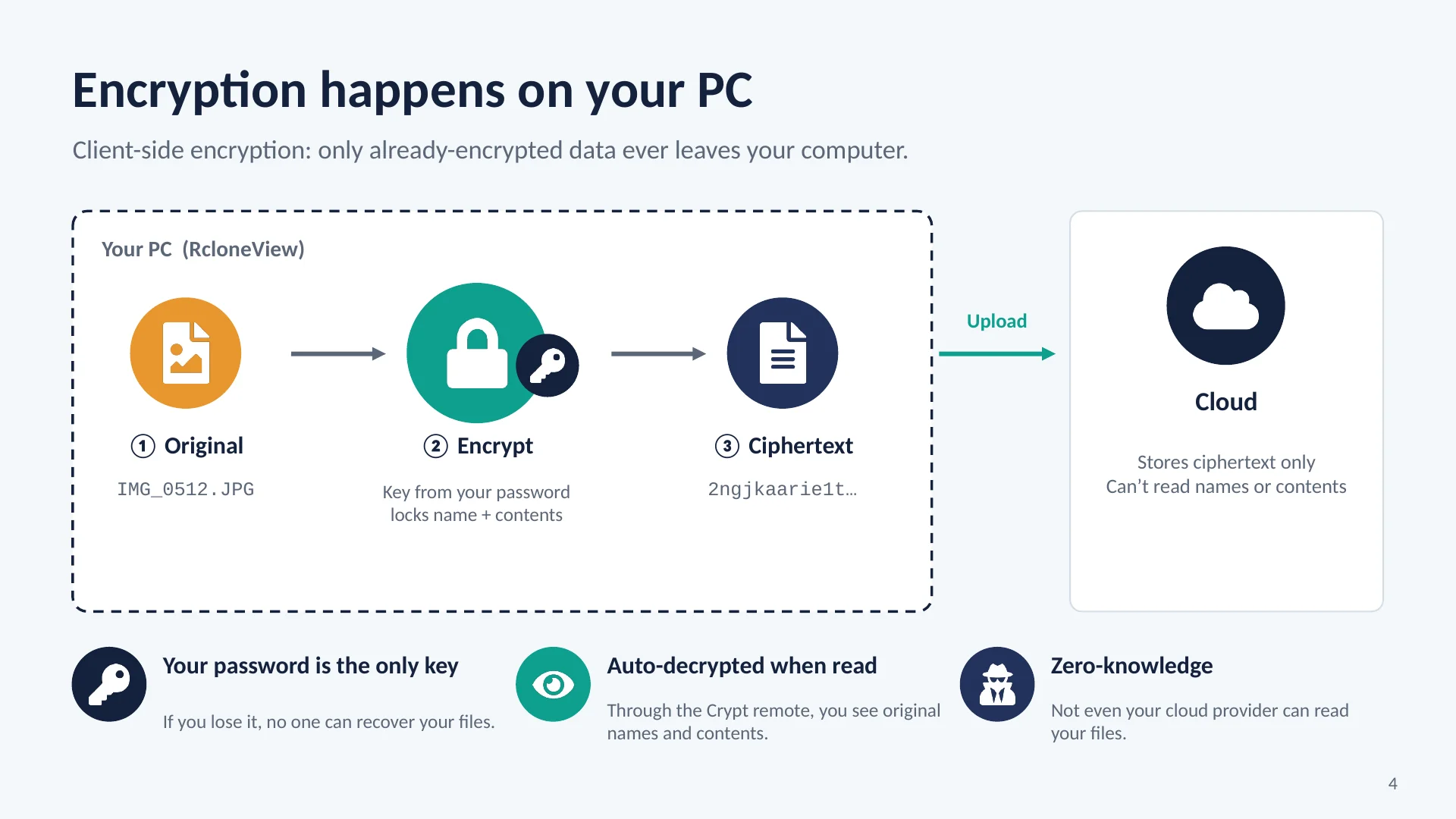
This is called client side encryption.
When you copy a photo into the Crypt remote, RcloneView encrypts it right on your own computer, using a key made from your password. Both the file name and the contents are locked. Only the encrypted result is uploaded, so your cloud provider stores data it cannot read. When you open the file again through the Crypt remote, RcloneView decrypts it for you automatically. Just remember, your password is the only key. If you lose it, no one can recover your files.
-
5Try this step ↗
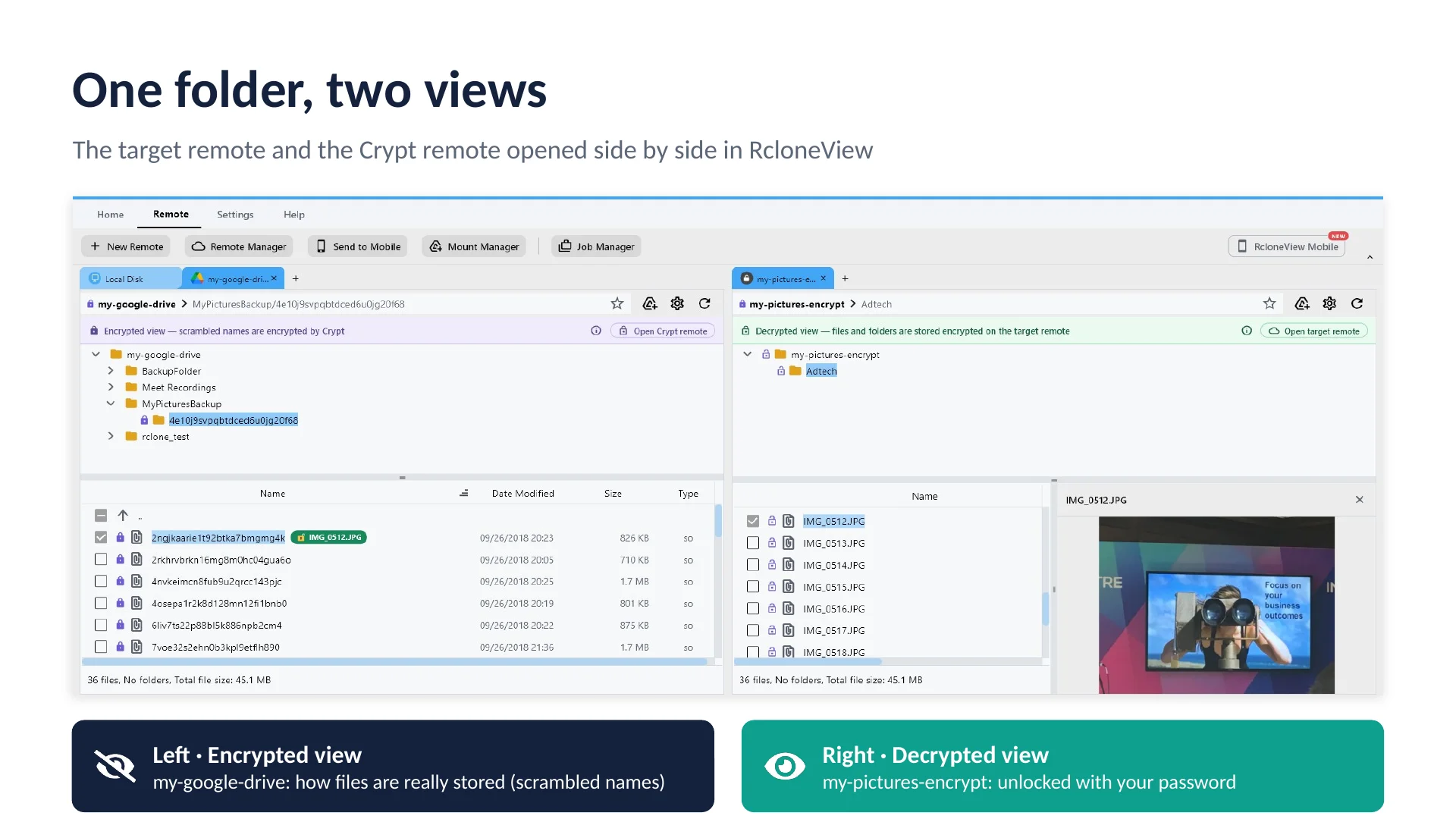
Here is what that looks like in RcloneView.
On the left is the target remote, your Google Drive folder, exactly as the files are really stored. Every name is scrambled, and the banner says Encrypted view. On the right is the Crypt remote, looking at the very same folder. Here you see your real photos with their original names, and the banner says Decrypted view. One folder, two views. Your password is what connects them.
-
6Try this step ↗
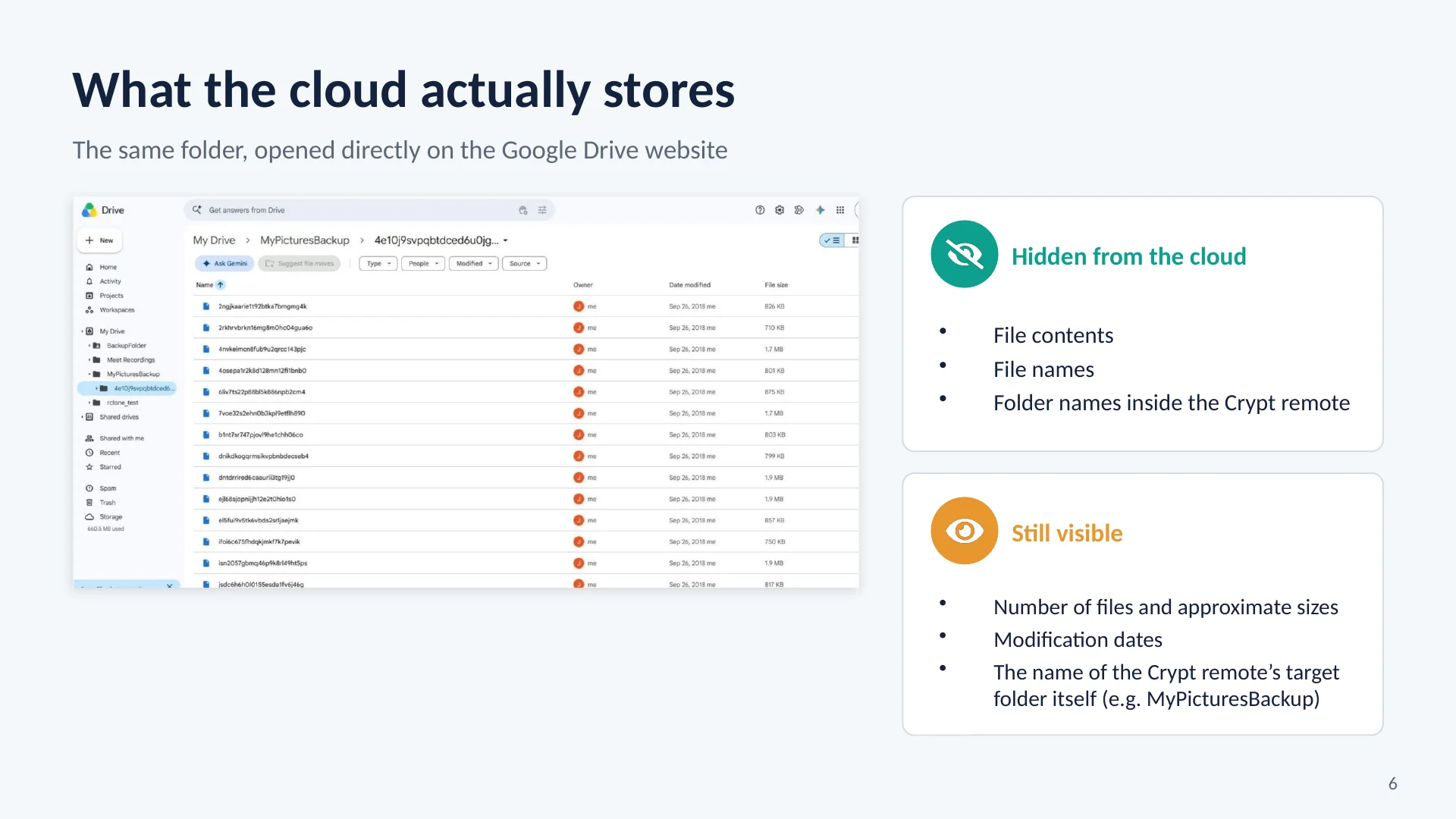
And this is the same folder opened directly on the Google Drive website.
File names are scrambled, folder names inside the Crypt remote are scrambled, and the contents cannot be read. Not even Google can tell what these files are. A few things do remain visible, though. The number of files, their approximate sizes, their modification dates, and the name of the target folder itself, which in this example is My Pictures Backup.
-
7Try this step ↗
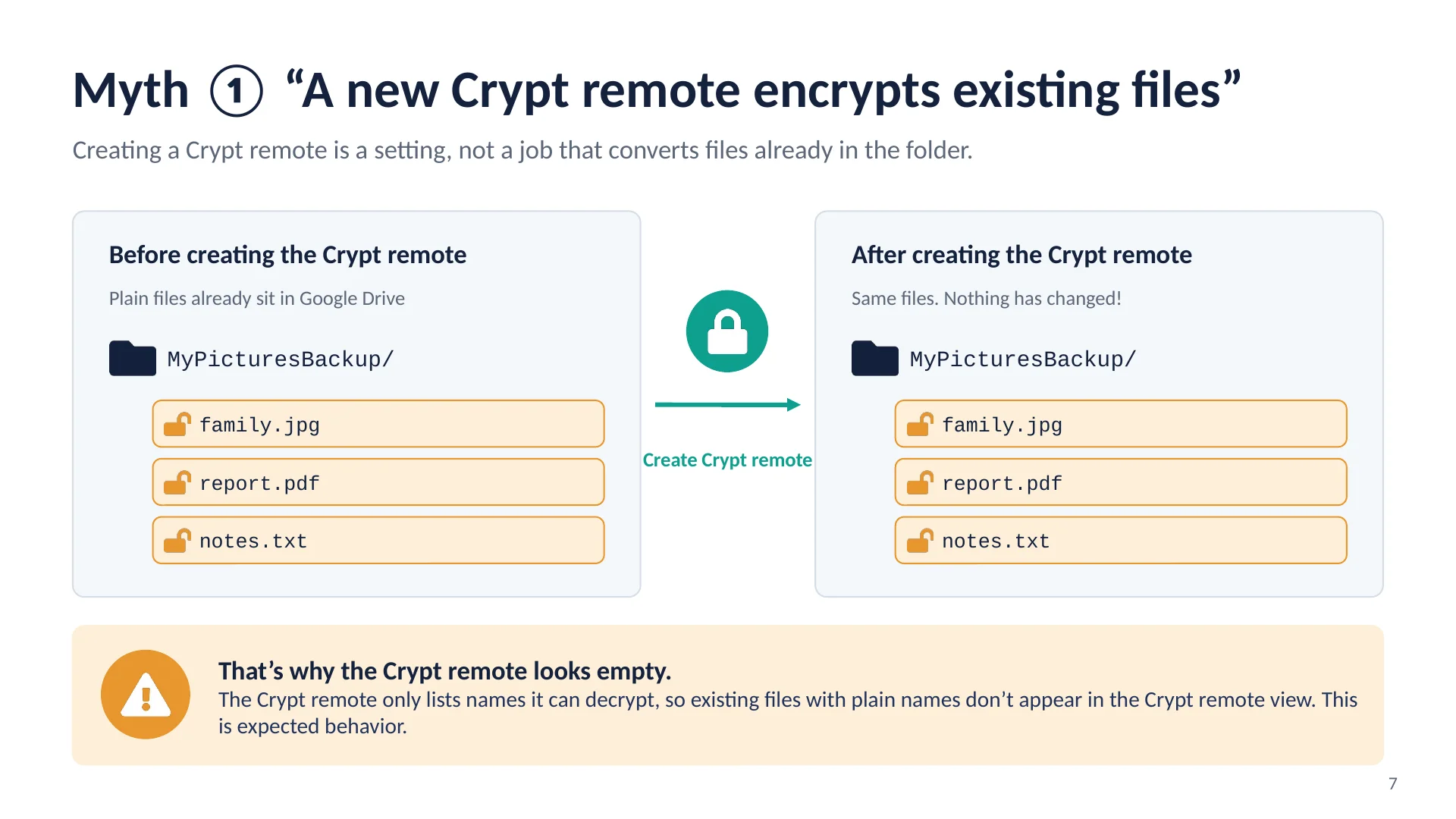
Now, let's clear up the first myth.
Creating a Crypt remote is a setting. It is not a job that goes back and converts the files already in the folder. So any files that were there before stay exactly as they were, as plain, readable files. This is also why a new Crypt remote often looks empty. It only lists names it can decrypt, so files with ordinary names simply do not appear in the Crypt remote view. That is expected behavior, not an error.
-
8Try this step ↗
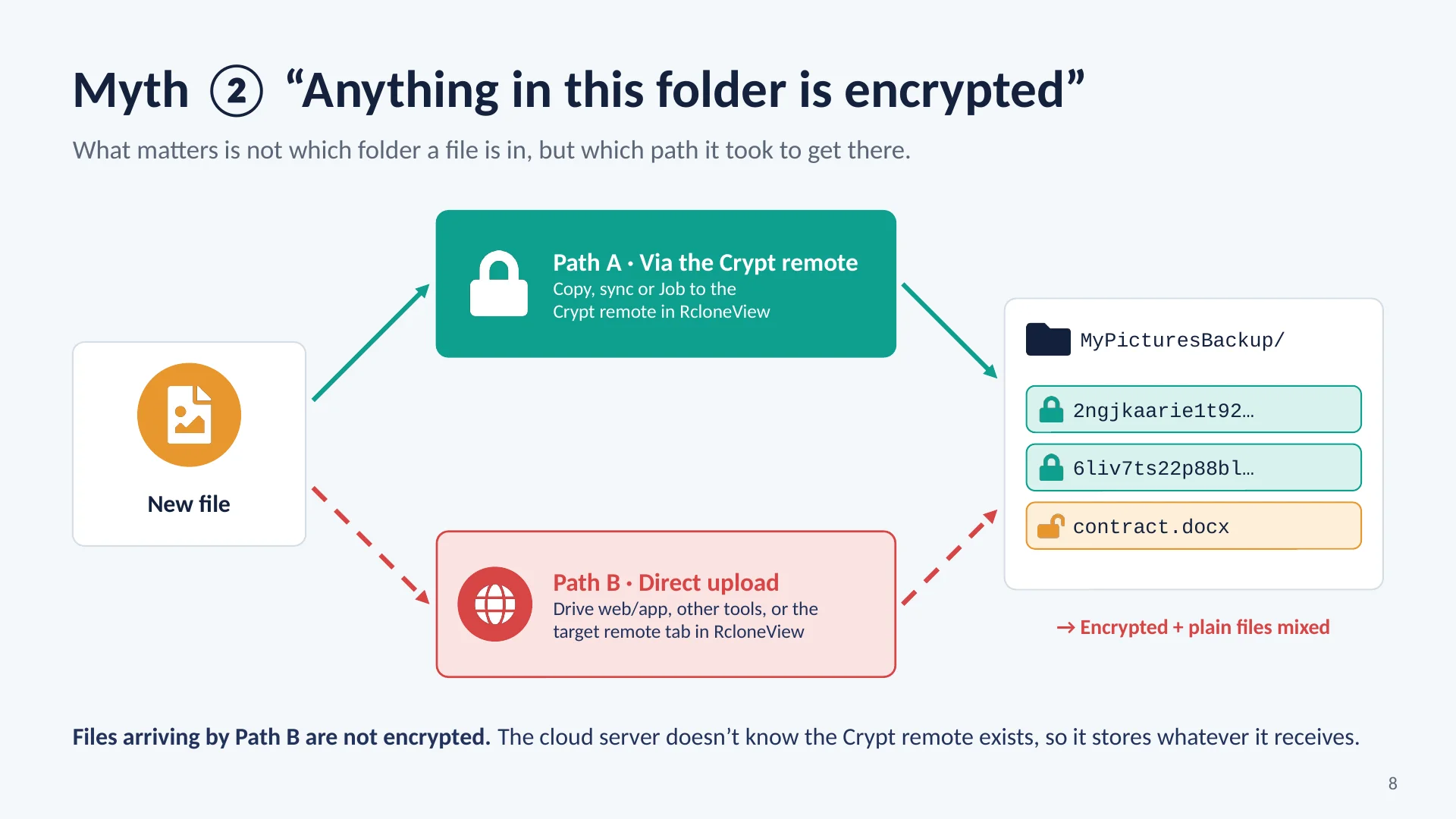
The second myth. What decides whether a file is encrypted is not which folder it ends up in.
It is the path it took to get there. Path A goes through the Crypt remote in RcloneView, with a copy, a sync, or a job. Those files arrive encrypted. Path B skips the door. For example, an upload from the Google Drive website or app, from another tool, or even to the target remote tab inside RcloneView. The cloud server does not know the Crypt remote exists, so it stores those files exactly as it receives them. And that is how one folder ends up with encrypted and plain files mixed together.
-
9Try this step ↗
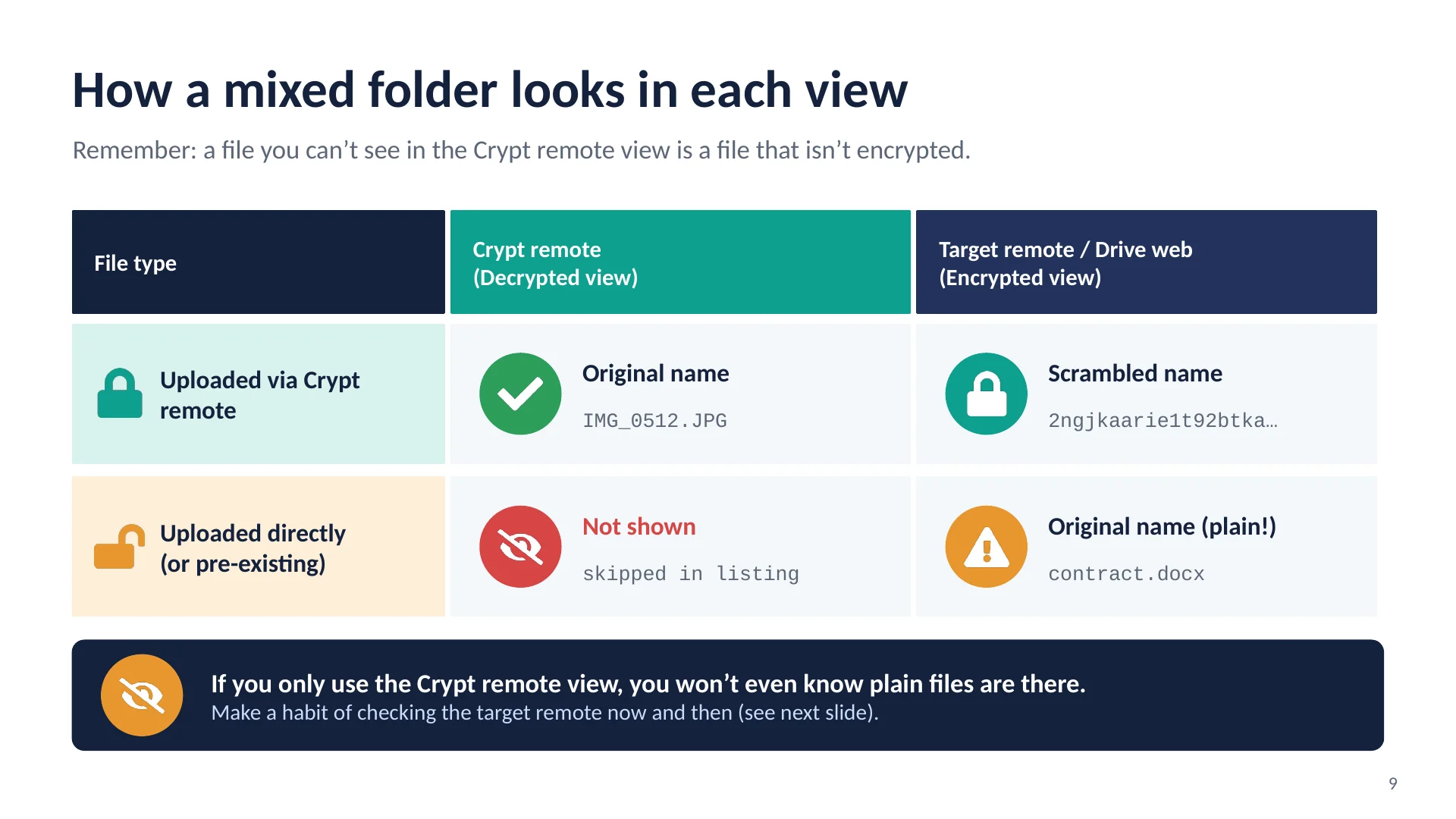
So what does a mixed folder look like?
A file uploaded through the Crypt remote shows its original name in the Crypt remote view, and a scrambled name in the target remote view. A file uploaded directly is the tricky one. In the Crypt remote view, it does not show up at all. In the target remote view, it appears with its original name, completely unencrypted. So remember this rule. A file you cannot see in the Crypt remote view is a file that is not encrypted. That is why it pays to check the target remote from time to time.
-
10Try this step ↗
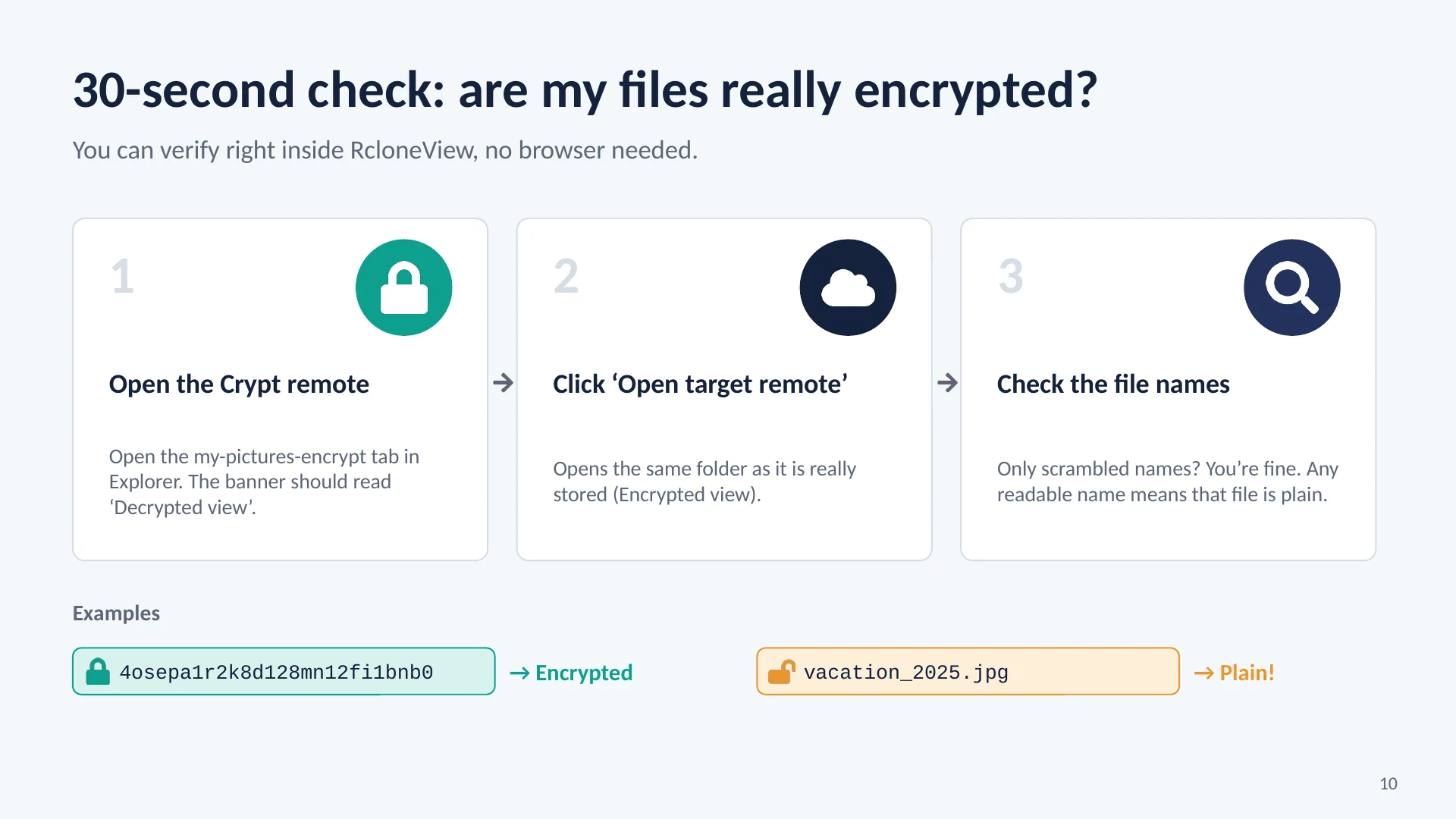
Checking takes about thirty seconds, and you never need a web browser.
Step one. Open the Crypt remote in RcloneView, and confirm the banner says Decrypted view. Step two. Click Open target remote, to see the same folder as it is really stored. Step three. Look at the file names. If every name is a scrambled string of letters and numbers, you are fine. If you see a normal, readable name, that file is stored as plain data.
-
11Try this step ↗
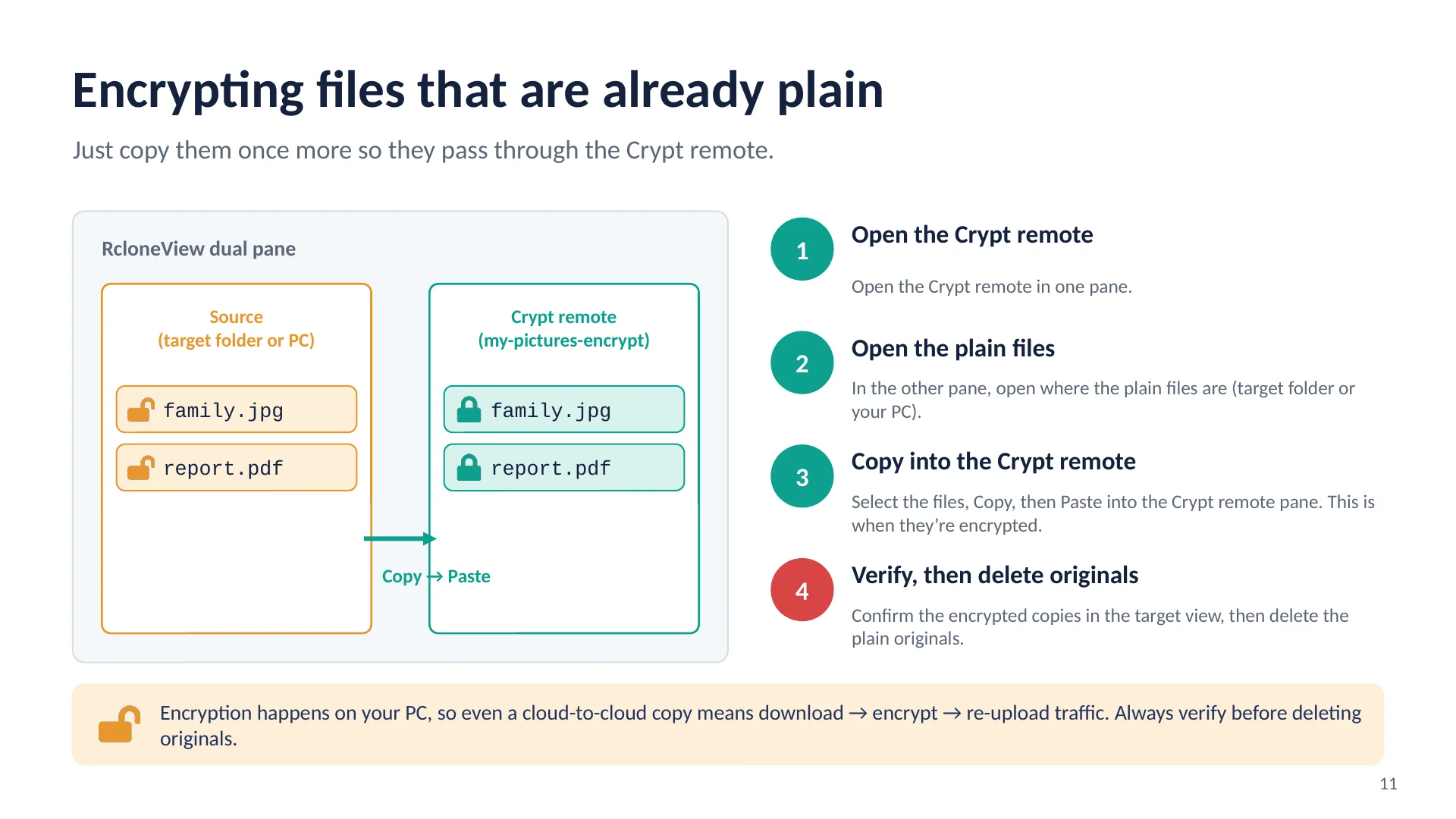
Found some plain files? The fix is simple.
Just send them through the door once more. Open the Crypt remote in one pane. In the other pane, open wherever the plain files are, either the target folder or your own computer. Select the files, choose Copy, and paste them into the Crypt remote pane. This is the moment they are encrypted. Then check the target remote view to confirm the encrypted copies are there, and only then delete the plain originals. Keep in mind that encryption always happens on your computer. So even a cloud to cloud copy means downloading, encrypting, and uploading again.
-
12Try this step ↗
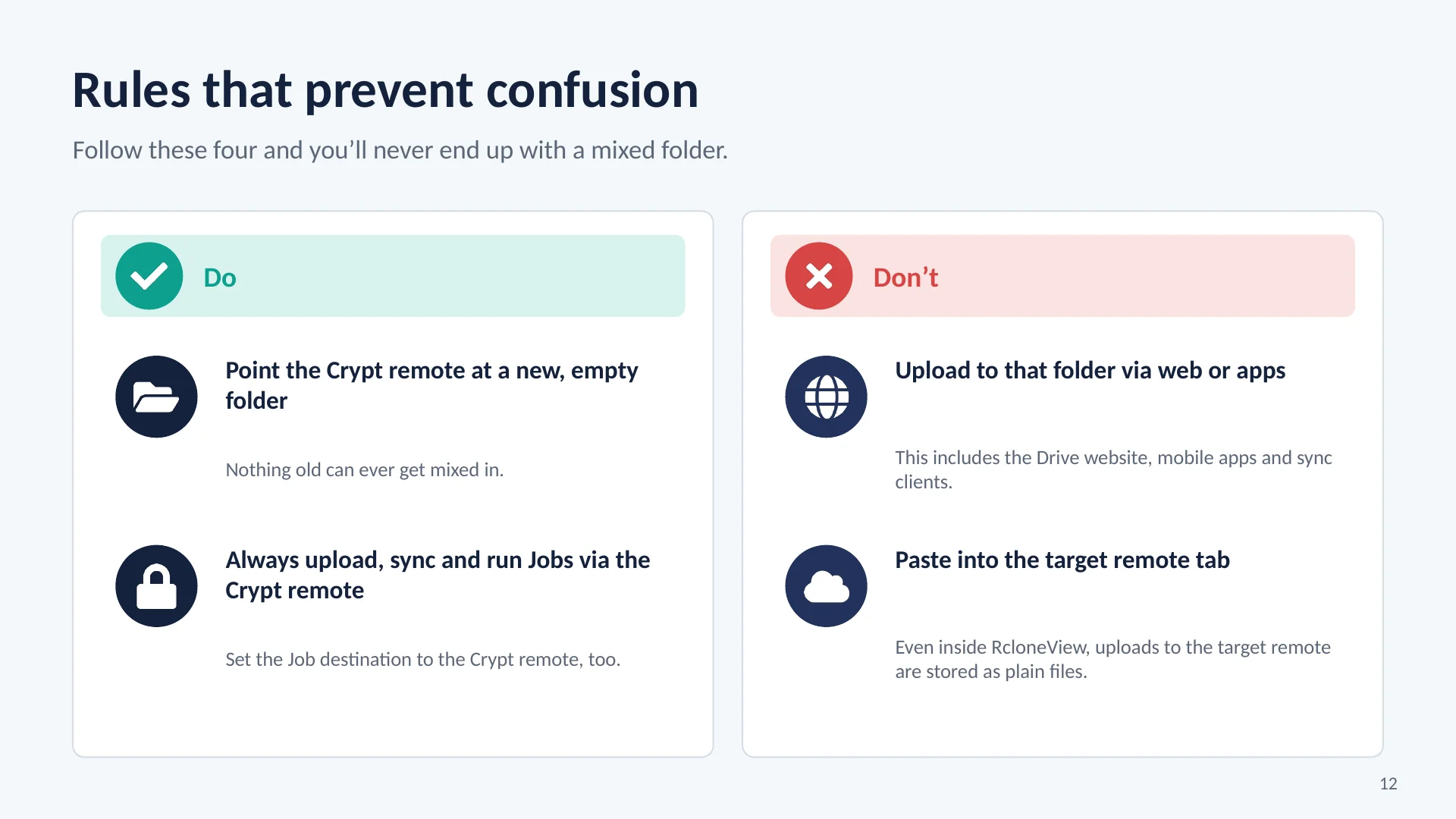
To avoid mixed folders altogether, follow four simple rules.
Do point the Crypt remote at a new, empty folder, so nothing old can get mixed in. Do upload, sync, and run jobs through the Crypt remote, and set it as the destination of your jobs. Don't upload to that folder with the website, a mobile app, or a sync client. And don't paste files into the target remote tab, even inside RcloneView. Those files will be stored as plain files.
-
13Try this step ↗
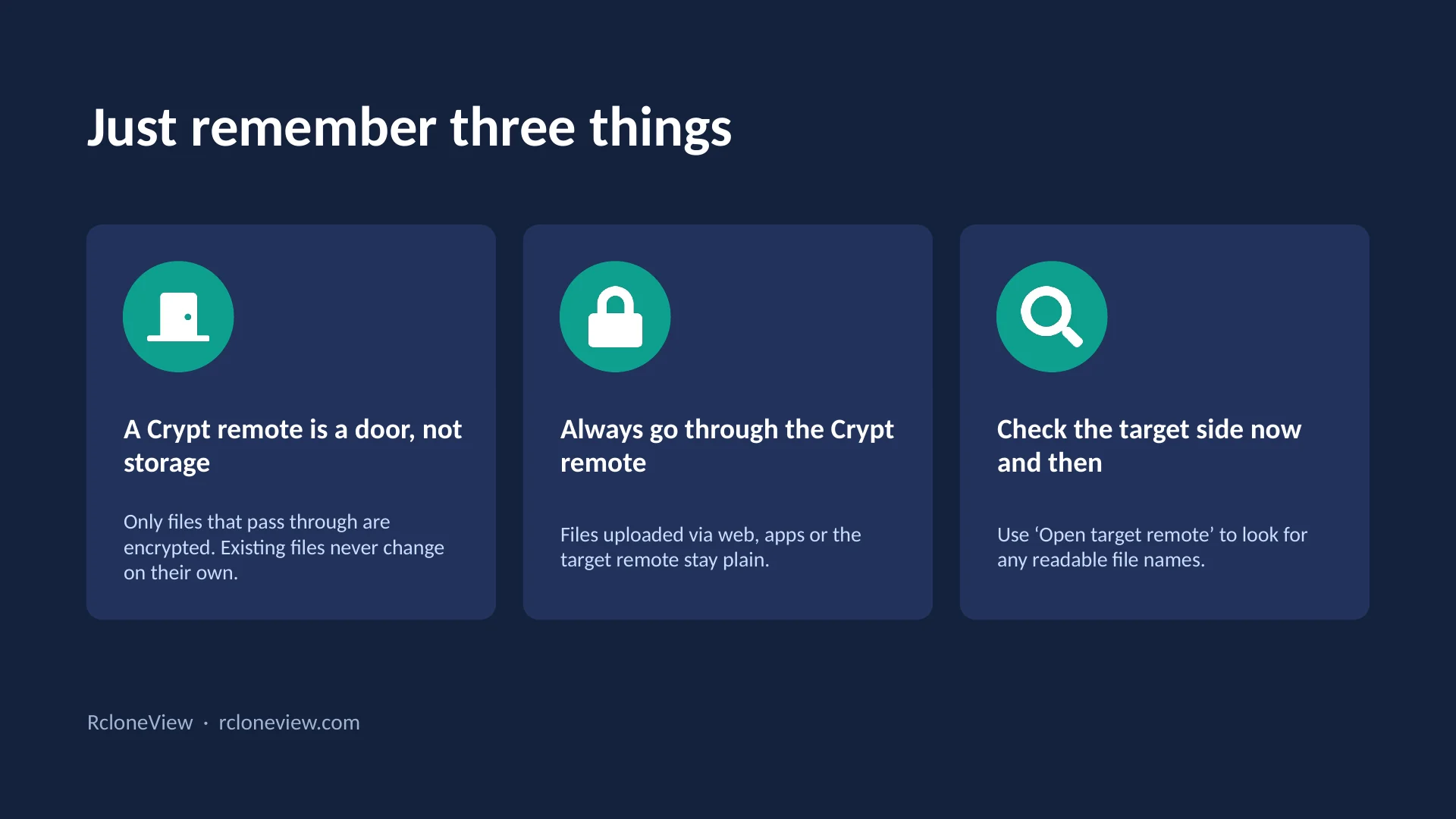
Let's wrap up with three things to remember.
One. A Crypt remote is a door, not storage. Only files that pass through it are encrypted, and existing files never change on their own. Two. Always go through the Crypt remote. Files uploaded any other way stay plain. Three. Check the target side now and then, using Open target remote, and look for any readable file names. That is RcloneView Crypt. Visit rclone view dot com to learn more, and secure your cloud in minutes.
-
Ready to try it yourself?Free for Windows, macOS and Linux.Get RcloneView Free