Migrate Dropbox to pCloud — Transfer Files with RcloneView

Move a Dropbox account to pCloud in one controlled, verifiable pass instead of download-then-upload by hand.
Switching providers usually means pulling gigabytes down to a laptop and pushing them back up. RcloneView avoids that: it connects Dropbox and pCloud side by side and runs the transfer cloud-to-cloud through rclone. RcloneView mounts AND syncs 90+ providers from one window, on Windows, macOS, and Linux.

Manage & Sync All Clouds in One Place
RcloneView is a cross-platform GUI for rclone. Compare folders, transfer or sync files, and automate multi-cloud workflows with a clean, visual interface.
- One-click jobs: Copy · Sync · Compare
- Schedulers & history for reliable automation
- Works with Google Drive, OneDrive, Dropbox, S3, WebDAV, SFTP and more
Free core features. Plus automations available.
Connect Dropbox and pCloud
Both services use browser-based OAuth login in RcloneView, so there are no API keys to paste. Open the Remote tab, click New Remote, choose Dropbox, and approve access in the browser window that opens. Repeat for pCloud. If you migrate a team account, Dropbox for Business needs the dropbox_business = true setting.

Once both remotes exist, open them in two Explorer panels. Seeing the Dropbox folder tree next to the pCloud destination makes it easy to decide whether to move everything or only selected folders.
Plan the Copy Before You Run It
Use a Copy job for a first migration, because it never deletes anything at the source. In the 4-step job wizard, pick Dropbox as the source and a dedicated pCloud folder as the destination. Under Advanced Settings you can raise the number of file transfers for large photo or document libraries, and enable checksum comparison if you want hash-and-size verification.

Filtering helps too. Set a max file size or exclude patterns such as .git/ so temporary files and build folders do not travel with the rest. Run a Dry Run first: it lists the files that would be copied without touching either account.
Run, Monitor, and Verify
Start the job and watch the Transferring tab for progress, speed, and file counts. Dropbox applies API rate limits, so a large transfer may slow down at times; RcloneView retries the sync (default 3 attempts) rather than abandoning it.
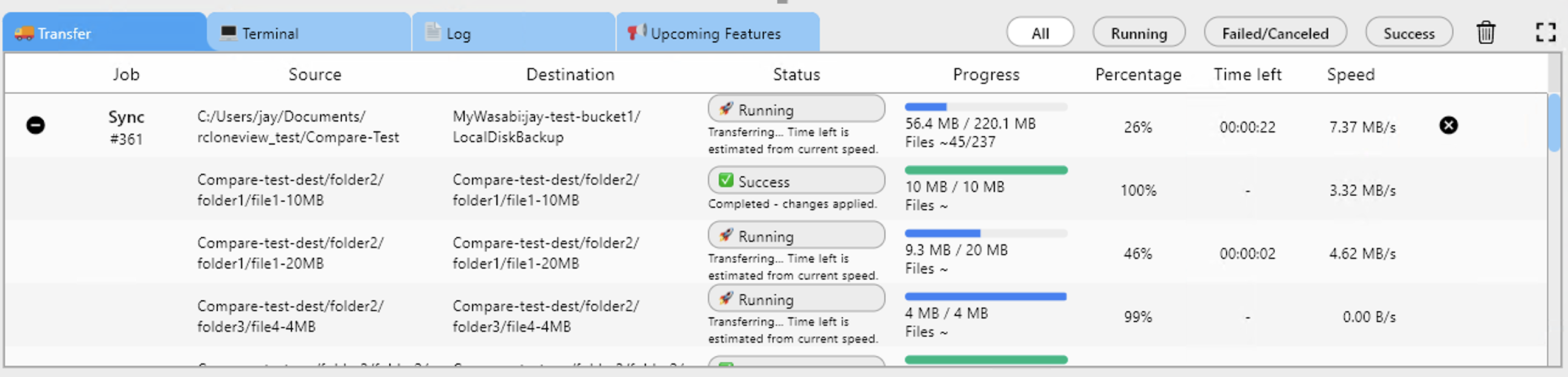
When the job finishes, open Compare on the Dropbox and pCloud folders. Left-only files are anything that did not arrive; "different" files differ in size. Copy the stragglers across with one click, then check Job History for the status, total size, and file count of every run.

Getting Started
- Download RcloneView from rcloneview.com.
- Add Dropbox and pCloud as remotes with New Remote.
- Create a Copy job with Dropbox as source, then run a Dry Run.
- Run the job, then verify with Folder Compare before retiring the old account.
Keep Dropbox untouched until Compare shows no left-only files, so the original stays available as a fallback.
Related Guides:
- Manage Dropbox Storage — Sync and Backup Files with RcloneView
- Manage pCloud Storage — Sync and Backup Files with RcloneView
- Migrate pCloud to Google Drive — Transfer Files with RcloneView
Supported Cloud Providers





























