Fix Mail.ru Cloud Sync Errors — Troubleshooting Guide with RcloneView

Most Mail.ru Cloud sync failures in RcloneView come down to credentials, concurrency, or a filter — each fixable in a few clicks.
When a Mail.ru Cloud job stalls or reports errors, the cause is rarely mysterious. RcloneView records every run in Job History and the Log tab, so you can match the message to a known cause. This guide covers the problems that come up most often and the settings that resolve them.

Manage & Sync All Clouds in One Place
RcloneView is a cross-platform GUI for rclone. Compare folders, transfer or sync files, and automate multi-cloud workflows with a clean, visual interface.
- One-click jobs: Copy · Sync · Compare
- Schedulers & history for reliable automation
- Works with Google Drive, OneDrive, Dropbox, S3, WebDAV, SFTP and more
Free core features. Plus automations available.
Authentication and Connection Failures
If a job that worked last week now fails immediately, the stored credentials are the first suspect. Open Remote Manager, select the Mail.ru Cloud remote, and edit it to re-enter the account details; if the account has extra security enabled, confirm the credentials you entered are the ones the service accepts for third-party access. After saving, browse the remote in an Explorer panel. If the folder list loads, the connection is healthy and the problem lies in the job itself.

Timeouts and Stalled Transfers
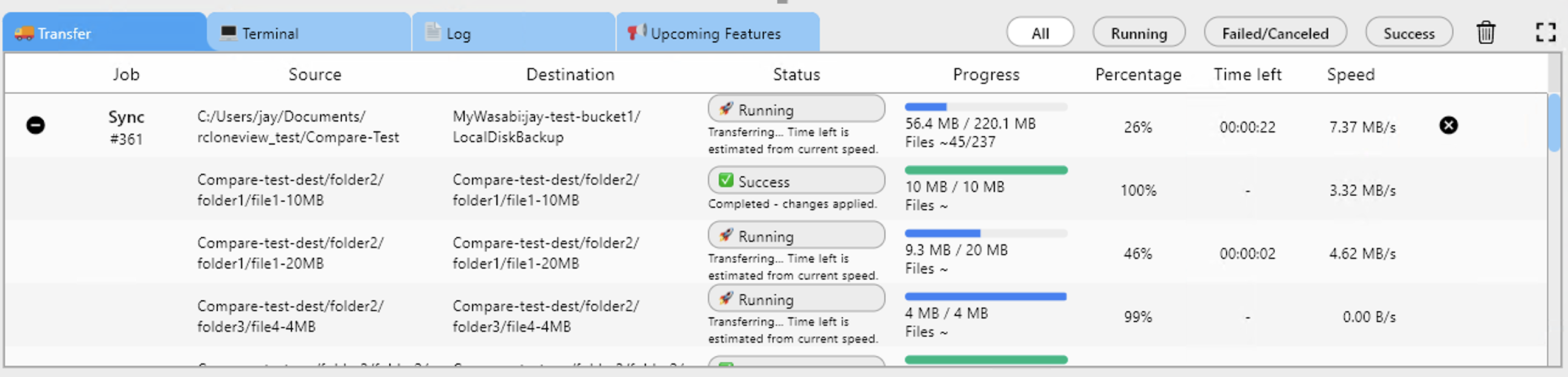
Slow or interrupted transfers usually mean too much concurrency for the connection. In the job's Advanced Settings, lower Number of file transfers and set Number of equality checkers to 4 or less, as slower backends handle fewer parallel checks better. Raise "Retry entire sync if fails" above its default of 3 for long jobs so transient network drops recover automatically. Watch the Transferring tab to confirm speed stabilizes.
Missing or Mismatched Files
If files look different after a completed sync, run Compare between the source and the Mail.ru Cloud remote. Show left-only files to find what never arrived, and copy them across directly from the comparison view. For content mismatches, enable the checksum option in Step 2 of the Sync wizard so files are compared by hash and size instead of timestamps alone.

Filters, Dry Run, and Job History
A job can also skip files by design. Review Step 3 Filtering Settings for max file size, max file age, or custom exclusion rules that you forgot about. Then run a Dry Run to see exactly which files would be copied or deleted before touching real data. Afterwards, open Job History to compare status, size, and file counts against earlier successful runs. RcloneView mounts AND syncs 90+ providers from one window, so you can also mount the Mail.ru Cloud remote to inspect its contents like a local drive.

Getting Started
- Download RcloneView from rcloneview.com.
- Open Job History and read the Log tab entry for the failed Mail.ru Cloud job.
- Apply the matching fix above: credentials, concurrency, checksum, or filters.
- Run a Dry Run, then re-run the job and confirm with Compare.
Methodical checks beat guesswork — fix the cause once and your Mail.ru Cloud jobs run cleanly again.
Related Guides:
- Manage Mail.ru Cloud — Sync and Backup Files with RcloneView
- Migrate Mail.ru Cloud to Backblaze B2 — Transfer Files with RcloneView
- Fix Cloud API Rate Limiting Errors with RcloneView
Supported Cloud Providers





























