Fix Box Sync Errors — How to Resolve with RcloneView

A practical checklist for diagnosing failed Box transfers using the tools already built into RcloneView.
Box sync jobs usually fail for a handful of repeatable reasons: an expired login, the wrong account type, throttled API calls, or files that Box handles differently from regular documents. RcloneView gives you the job history, logs, and built-in terminal needed to tell these apart quickly. As a bonus, RcloneView mounts AND syncs 90+ providers from one window, on Windows, macOS, and Linux, so you can test the same files against another remote.

Manage & Sync All Clouds in One Place
RcloneView is a cross-platform GUI for rclone. Compare folders, transfer or sync files, and automate multi-cloud workflows with a clean, visual interface.
- One-click jobs: Copy · Sync · Compare
- Schedulers & history for reliable automation
- Works with Google Drive, OneDrive, Dropbox, S3, WebDAV, SFTP and more
Free core features. Plus automations available.
Start with Job History and the Log Tab
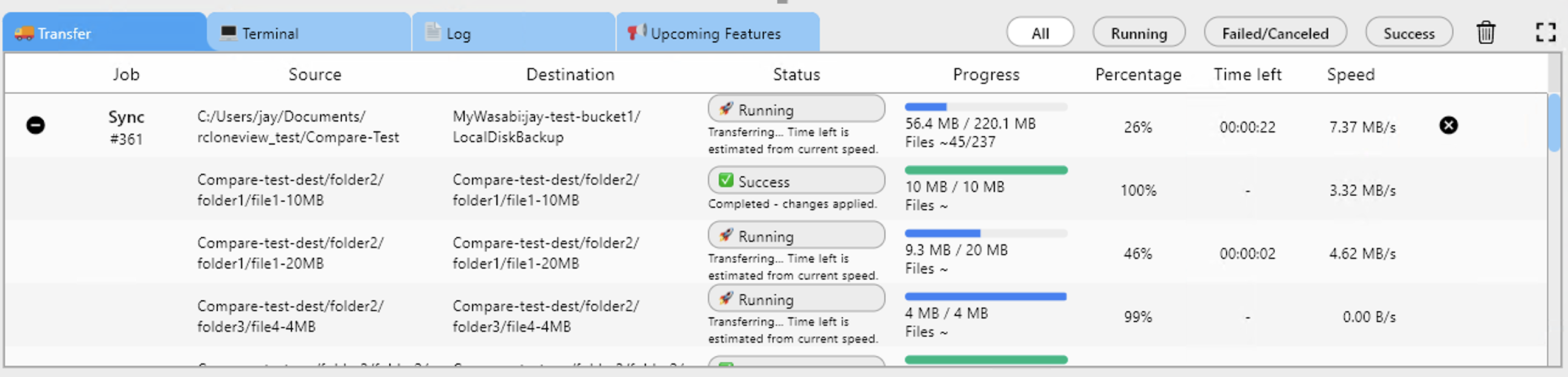
Open Job History and look at the status of the failed run: Completed, Errored, or Canceled, plus the size and file count transferred. A partial transfer points to a per-file problem. A job that fails immediately usually points to authentication or configuration.
For detail, switch to the Log tab at the bottom. To capture more, enable rclone logging under the Embedded Rclone settings, set the level to DEBUG, restart the embedded rclone, and reproduce the failure.

Re-authenticate and Check the Account Type
If every request fails, the OAuth token may have expired or been revoked. Open the Remote Manager, edit the Box remote, and sign in again through the browser.
If you can log in but see missing folders or permission errors, check the account type. Box for Business requires box_sub_type = enterprise on the remote. A personal-account configuration against a business account is a common cause of confusing results.

Handle Throttling and Large Jobs
When thousands of small files are processed at once, Box may throttle requests. In the job's Advanced Settings, lower the number of file transfers and the number of equality checkers (recommend 4 or less for slow backends). Leave retry at its default of 3 so transient failures recover automatically.
Filter Out Problem Files
Online-only items such as Box Notes are not ordinary files. The predefined Box Docs filter in the Filtering step excludes them so they stop failing the job. You can also add custom rules, set a max file size, or exclude a problem folder while you investigate. Run a Dry Run afterward to confirm what will be copied.

Getting Started
- Download RcloneView from rcloneview.com.
- Check Job History and the Log tab for the exact error.
- Re-authenticate the Box remote and confirm the Box for Business setting if it applies.
- Lower concurrency, apply the Box Docs filter, then Dry Run and re-run.
Most Box failures are configuration issues that a few minutes with the logs will reveal.
Related Guides:
Supported Cloud Providers





























