Migrate Gofile to Backblaze B2 — Transfer Files with RcloneView
Move files shared through Gofile into Backblaze B2 object storage, and check every file arrived, without writing a single command.
Gofile is convenient for handing files to other people, but it is a poor place to keep the only copy of anything important. Backblaze B2 is object storage built for long-term retention, with bucket-level control over what you keep. RcloneView connects both services in one window and copies between them from one interface, so you do not have to download and re-upload each file by hand.

Manage & Sync All Clouds in One Place
RcloneView is a cross-platform GUI for rclone. Compare folders, transfer or sync files, and automate multi-cloud workflows with a clean, visual interface.
- One-click jobs: Copy · Sync · Compare
- Schedulers & history for reliable automation
- Works with Google Drive, OneDrive, Dropbox, S3, WebDAV, SFTP and more
Free core features. Plus automations available.
Connect Gofile and Backblaze B2
Gofile authenticates with an Access Token. Copy it from the API token field on your Gofile profile page, then choose Gofile in New Remote and paste it in. Backblaze B2 needs an Application Key ID and an Application Key, which you generate on the Backblaze key management page. Create a key scoped to the destination bucket rather than a master key, so the migration credentials can only touch what they need.

Once both remotes exist, open Gofile in one Explorer panel and your B2 bucket in another. RcloneView shows up to four panels at once, so you can also keep a local folder open for spot checks. Connect S3, Azure, or Backblaze B2 with full read/write on the FREE license.
Plan the Layout Before You Copy
Decide how the Gofile content maps onto the bucket. A photography studio with client deliveries in a dozen Gofile folders might create one B2 bucket and mirror each folder as a top-level prefix, which keeps paths readable later. Create the destination folders first with New Folder in the B2 panel.
Drag folders from the Gofile panel to the B2 panel. Between different remotes, drag and drop performs a copy, so your Gofile originals remain untouched until you decide otherwise. For a repeatable, larger migration, use the Sync wizard instead: pick Gofile as the source, the bucket path as the destination, and give the job a name using letters, numbers, hyphens, or underscores.

Dry Run, Transfer, and Monitor
Before the real run, use Dry Run. It lists the files that would be copied and any that would be deleted, so a wrong source or destination is caught before it costs you anything. If you choose a one-way sync, remember it modifies the destination to match the source, so a dry run is worth the minute it takes.
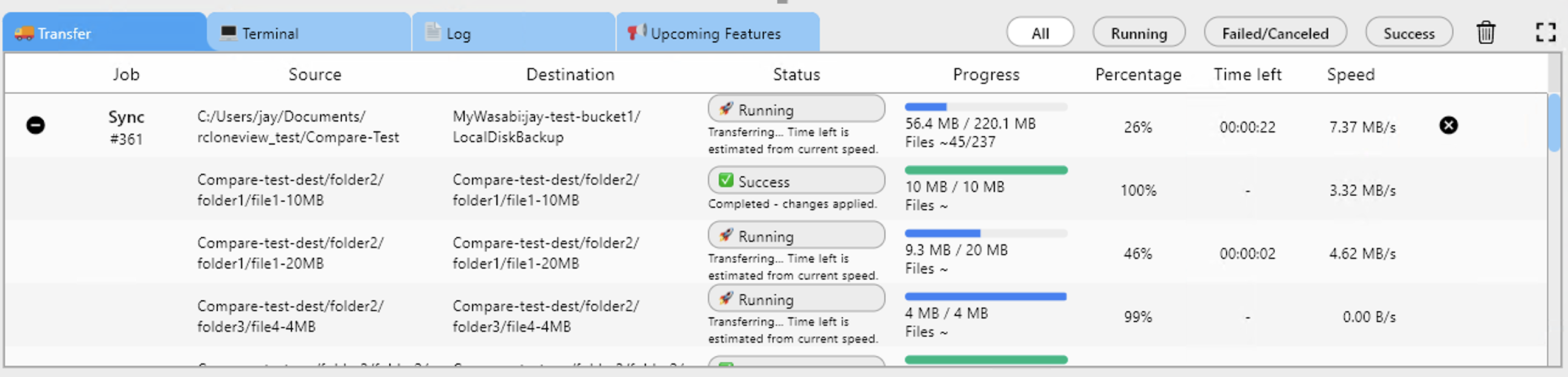
In Advanced Settings you can tune the number of concurrent file transfers and enable checksum comparison. Start conservatively for a first run, then raise concurrency if the transfer is stable. Watch progress, speed, and file counts in the Transferring tab at the bottom of the window.
Verify with Folder Compare
When the transfer finishes, open Compare from the Home tab with Gofile on the left and B2 on the right. Filter to left-only files to see anything that failed to arrive, and to different files to catch size mismatches. Copy right fills in the gaps without re-sending files that already match. Job History records each run with its status, size, and duration, which gives you a record of the migration.

Getting Started
- Download RcloneView from rcloneview.com.
- Add your Gofile remote with the Access Token and your Backblaze B2 remote with a bucket-scoped application key.
- Open both remotes side by side, run a Dry Run, then copy or sync the folders.
- Use Compare to confirm nothing is missing before you clean up the Gofile side.
A verified copy in B2 turns temporary shared links into a backup you control.
Related Guides:
Supported Cloud Providers





























