Migrate Google Drive to Mega — Transfer Files with RcloneView

Move a whole Google Drive library into Mega without downloading and re-uploading anything by hand.
Switching from Google Drive to Mega usually means exporting archives, waiting for downloads, and uploading again. RcloneView connects both services as remotes and copies between them from a two-pane window, with a dry run to preview the result before a single file moves. RcloneView mounts AND syncs 90+ providers from one window, on Windows, macOS, and Linux.

Manage & Sync All Clouds in One Place
RcloneView is a cross-platform GUI for rclone. Compare folders, transfer or sync files, and automate multi-cloud workflows with a clean, visual interface.
- One-click jobs: Copy · Sync · Compare
- Schedulers & history for reliable automation
- Works with Google Drive, OneDrive, Dropbox, S3, WebDAV, SFTP and more
Free core features. Plus automations available.
Connect Both Remotes
Google Drive uses OAuth: RcloneView opens your browser, you sign in, and the remote is created automatically. Mega uses an email and password, entered directly in the New Remote dialog. Once both remotes appear in the Remote Manager, you can open them side by side in two Explorer panels.

Consider a freelancer with 300 GB of project folders spread across Drive. Browsing both accounts in adjacent panels lets them confirm the source folders and the destination layout before starting.
Copy Between Clouds
Drag a folder from the Google Drive panel to the Mega panel. Dragging between different remotes performs a copy, so your Drive data stays untouched until you decide otherwise. For larger jobs, build a Copy job in the Job Manager instead, which gives you progress monitoring and a saved history.

If you do not want Google Docs files in the transfer, the predefined "Google Docs" filter in the filtering step excludes them. You can also cap file size or age so only relevant data moves.
Preview and Monitor the Job
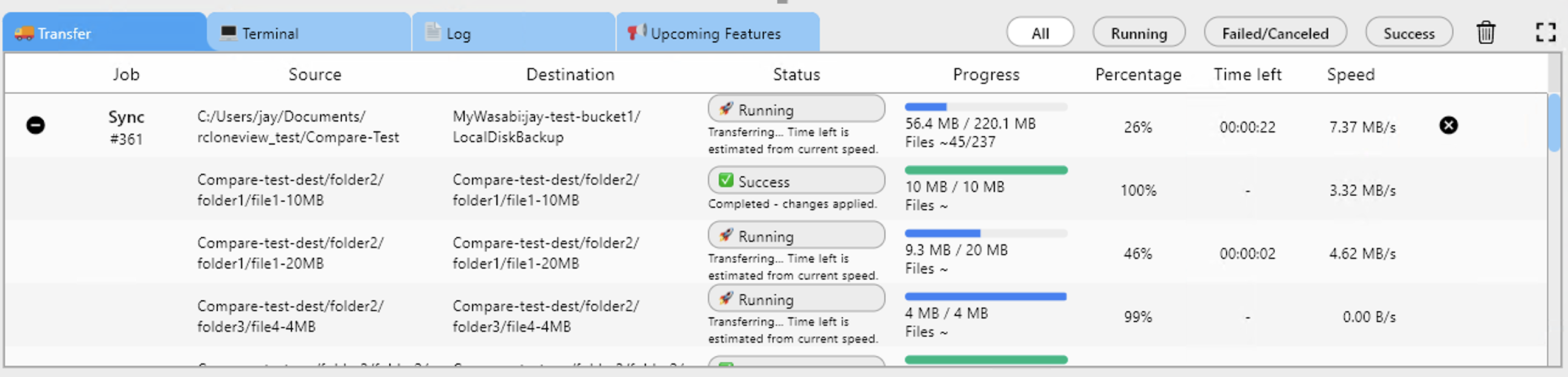
Run a Dry Run first. It lists the files that would be copied, so you can catch a wrong source folder before it costs you hours. Then start the job and watch the Transferring tab for speed, file count, and progress. If long runs struggle, you can adjust the number of concurrent file transfers in Advanced Settings.
Verify the Result
When the job finishes, open Folder Compare on the Drive and Mega folders. It highlights left-only, right-only, and different files, and you can copy anything that was missed directly from the comparison view. Job History keeps the status, duration, and size of each run.

Getting Started
- Download RcloneView from rcloneview.com.
- Add Google Drive (OAuth) and Mega (email and password) from New Remote.
- Open both remotes in two panels and run a Dry Run on a test folder.
- Create a Copy job for the full library, then verify it with Folder Compare.
A visual, no-script migration keeps your Drive intact until you are sure Mega has everything.
Related Guides:
Supported Cloud Providers





























