Migrate Mega to Cloudflare R2 — Transfer Files with RcloneView

Move a Mega library into Cloudflare R2 buckets with RcloneView, previewing the job before it runs.
Mega suits personal storage, but projects that need bucket-style access, an S3-compatible API, or a clear separation between storage and sharing often end up on object storage. RcloneView connects Mega and Cloudflare R2 as remotes and transfers between them in a single job, with previews, monitoring, and a history of every run.

Manage & Sync All Clouds in One Place
RcloneView is a cross-platform GUI for rclone. Compare folders, transfer or sync files, and automate multi-cloud workflows with a clean, visual interface.
- One-click jobs: Copy · Sync · Compare
- Schedulers & history for reliable automation
- Works with Google Drive, OneDrive, Dropbox, S3, WebDAV, SFTP and more
Free core features. Plus automations available.
Connect Mega and Cloudflare R2
Open New Remote and choose Mega. It uses account credentials: your email and password. Next, create the R2 remote. In the Cloudflare dashboard, create a bucket and generate an API token with Admin Read & Write permissions. RcloneView asks for the token credentials, your Account ID, and the endpoint, which follows the form https://<ACCOUNT_ID>.r2.cloudflarestorage.com.

RcloneView supports 90+ cloud storage services on Windows, macOS, and Linux, and both remotes sit side by side in the Explorer once they are saved.
Preview Before You Transfer
Open two Explorer panels, with Mega on the left and your R2 bucket on the right. Drag folders across for a quick copy, since dragging between different remotes copies rather than moves. For a full library, use the sync wizard instead: pick the Mega folder as source and the bucket as destination, then run a Dry Run to see which files would be copied or deleted.

Consider a video editor with 800 GB of project archives on Mega. In Step 2 you can raise the number of file transfers for many small files, and enable checksum comparison if you want hash and size checks. Step 3 filters can exclude folders or cap file size.
Monitor and Verify
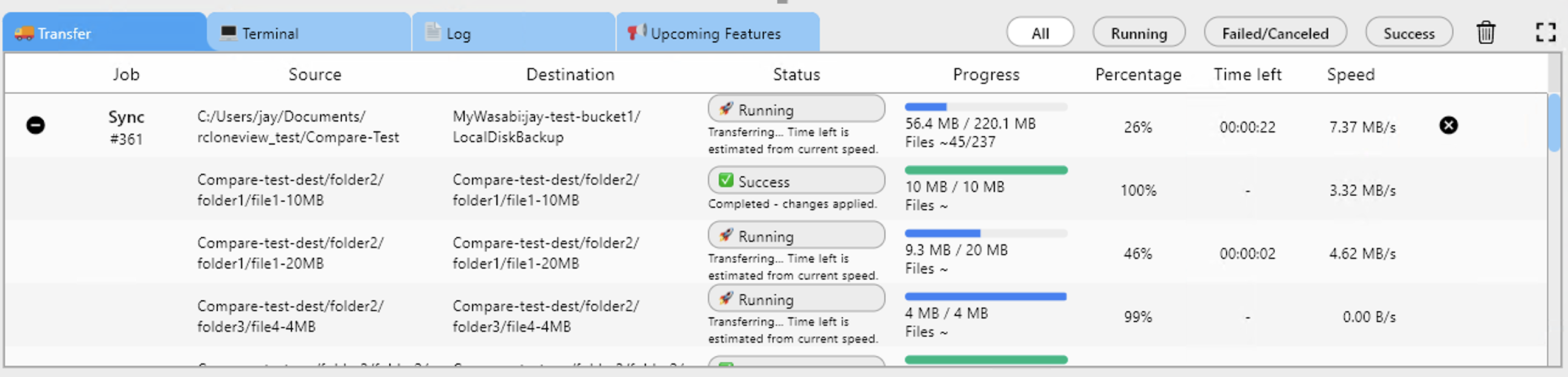
Once the job starts, the Transferring tab shows progress, speed, and file counts, and you can cancel a run if needed. Keep an eye on errors, and rerun the job if a session stops early. Job History keeps status, duration, size, and file counts.
When it finishes, open Folder Compare with Mega on one side and R2 on the other. Left-only files show anything missing from the bucket, and you can copy them across right from the comparison view.

Getting Started
- Download RcloneView from rcloneview.com.
- Add Mega with your email and password, and Cloudflare R2 with your API token, Account ID, and endpoint.
- Create a sync job from Mega to the R2 bucket and run a Dry Run.
- Start the transfer, then confirm the result with Folder Compare.
A previewed migration with a final Folder Compare check lets you confirm what reached R2.
Related Guides:
- Manage Mega Storage — Sync and Backup Files with RcloneView
- Manage Cloudflare R2 — Sync and Backup with RcloneView
- Dry Run — Preview Sync Before Transfer in RcloneView
Supported Cloud Providers





























