RcloneView on Windows 10 — Cloud Storage Sync and Backup

Windows 10 remains a daily driver for millions of desktops years after Windows 11 launched, and RcloneView runs on it just as fully — same mount, sync, and backup features, no missing functionality.
Plenty of businesses and home users are still running Windows 10, whether by choice, hardware limitations, or simply because an upgrade hasn't been a priority. RcloneView doesn't treat Windows 10 as a legacy afterthought — the installer, mount drivers, and full feature set behave identically to the Windows 11 build, so a studio running mixed Windows versions across its machines doesn't lose functionality on the older ones. RcloneView mounts AND syncs 90+ providers from one window, on the FREE license, regardless of which supported Windows version it's installed on.

Manage & Sync All Clouds in One Place
RcloneView is a cross-platform GUI for rclone. Compare folders, transfer or sync files, and automate multi-cloud workflows with a clean, visual interface.
- One-click jobs: Copy · Sync · Compare
- Schedulers & history for reliable automation
- Works with Google Drive, OneDrive, Dropbox, S3, WebDAV, SFTP and more
Free core features. Plus automations available.
Installing RcloneView on Windows 10
RcloneView for Windows ships as a single Inno Setup installer (setup_rclone_view-{version}.exe), built for x86-64 architecture, available only from the official download page at rcloneview.com — there is no Windows Store listing or package manager distribution. Before installing, make sure the Visual C++ 2015-2022 Redistributable is present on the machine; most Windows 10 systems already have it from other software, but a fresh or minimal install may need it added separately. RcloneView's own system requirements list Windows Vista as the practical floor, so a fully updated Windows 10 installation comfortably clears the bar with room to spare.

Once installed, RcloneView ships with an embedded rclone binary, so there's no separate rclone install or configuration step required to start connecting cloud accounts. The app talks to the embedded rclone instance over a local loopback address, and the footer bar at the bottom of the window confirms the rclone version and connection status once it's running.
Mounting Cloud Drives on Windows 10
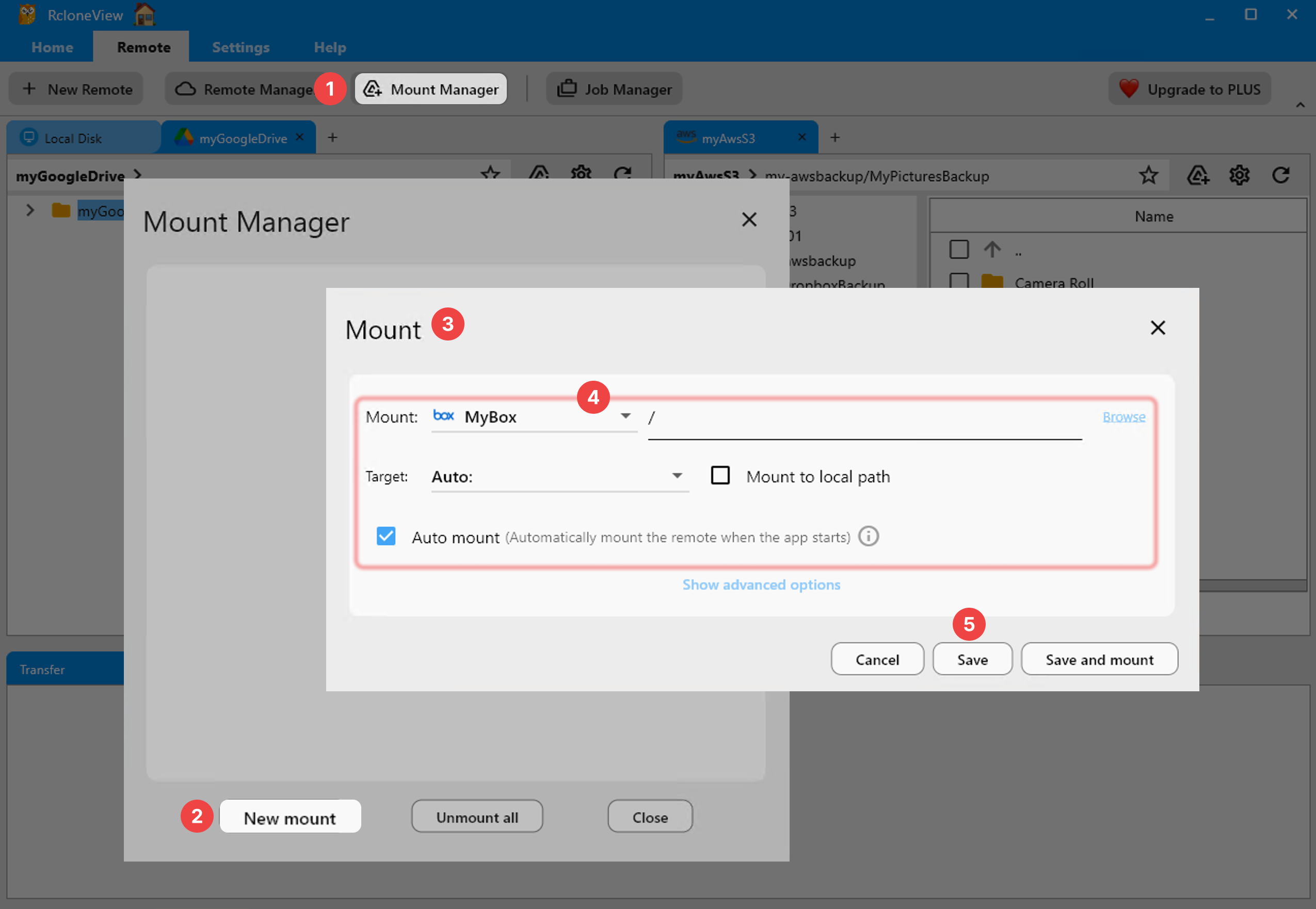
Windows 10's File Explorer treats an RcloneView mount the same way it treats a physical drive letter. From the Mount Manager or directly from a remote's panel toolbar, selecting a folder and choosing Mount assigns it a drive letter (auto-assigned or manually chosen) and makes it browsable like any local disk. The default mount type on Windows is cmount, and options like read-only mode, network drive display, and VFS cache mode (off, minimal, writes, or full) are all available exactly as they are on Windows 11 — nothing is scaled back for the older OS.
Scheduling Backups Without Windows Task Scheduler
Rather than wiring up Windows Task Scheduler and rclone command-line flags separately, RcloneView's Job Manager builds sync, copy, and backup jobs through a guided wizard: pick source and destination, set transfer and retry settings, apply filters for file size, age, or type, and — on the PLUS license — attach a crontab-style schedule directly in the app. Job History then keeps a running log of every execution with status, size transferred, and duration, which is easier to audit than digging through Task Scheduler's event log.

One caveat worth flagging for Windows 10 users specifically: RcloneView's in-app auto-update currently only runs on macOS via Sparkle. On Windows, including Windows 10, checking for updates points to the download page rather than installing automatically, so periodically re-downloading the installer keeps the app current.
Getting Started
- Download RcloneView for Windows from rcloneview.com.
- Run the installer and confirm the VC++ 2015-2022 Redistributable is present.
- Add your cloud remotes via Remote tab > New Remote — OAuth providers open a browser login automatically.
- Mount a remote as a drive letter or set up your first Sync job in the Job Manager.
Windows 10 machines don't need to sit on the sidelines of a multi-cloud workflow — RcloneView brings the same mount, sync, and backup toolset to them as it does to any other supported platform.
Related Guides:
- RcloneView on Windows 11 — Cloud Storage Sync and Backup
- How to Use RcloneView on Windows Server for Automated Cloud Backups
- Fix Mount Drive Letter Conflicts — Windows Cloud Storage Troubleshooting with RcloneView
Supported Cloud Providers





























