Fix Mount Drive Letter Conflicts — Windows Cloud Storage Troubleshooting with RcloneView

When a cloud mount grabs a drive letter your NAS or VPN already uses, RcloneView gives you the controls to fix it in seconds.
An office running mapped drives from a Synology NAS, a VPN client, and two cloud mounts through RcloneView can easily run out of free drive letters — or worse, have Windows silently reassign one out from under a running mount. On Windows, RcloneView mounts cloud storage using cmount and can assign a drive letter automatically or let you pick one manually, so a conflict is almost always fixable without unmounting everything and starting over.

Manage & Sync All Clouds in One Place
RcloneView is a cross-platform GUI for rclone. Compare folders, transfer or sync files, and automate multi-cloud workflows with a clean, visual interface.
- One-click jobs: Copy · Sync · Compare
- Schedulers & history for reliable automation
- Works with Google Drive, OneDrive, Dropbox, S3, WebDAV, SFTP and more
Free core features. Plus automations available.
Understand How RcloneView Assigns Drive Letters
Each mount in RcloneView has a Target setting that's either Auto or a manually chosen drive letter, configured when you create or edit the mount. Auto mode lets Windows pick the next available letter, which is convenient until another application — a NAS client, a VPN, or a USB drive — claims that same letter first on a later boot. Unlike mount-only tools, RcloneView also syncs and compares folders on the same FREE license, so fixing the mount doesn't cost you access to any other feature while you sort it out.
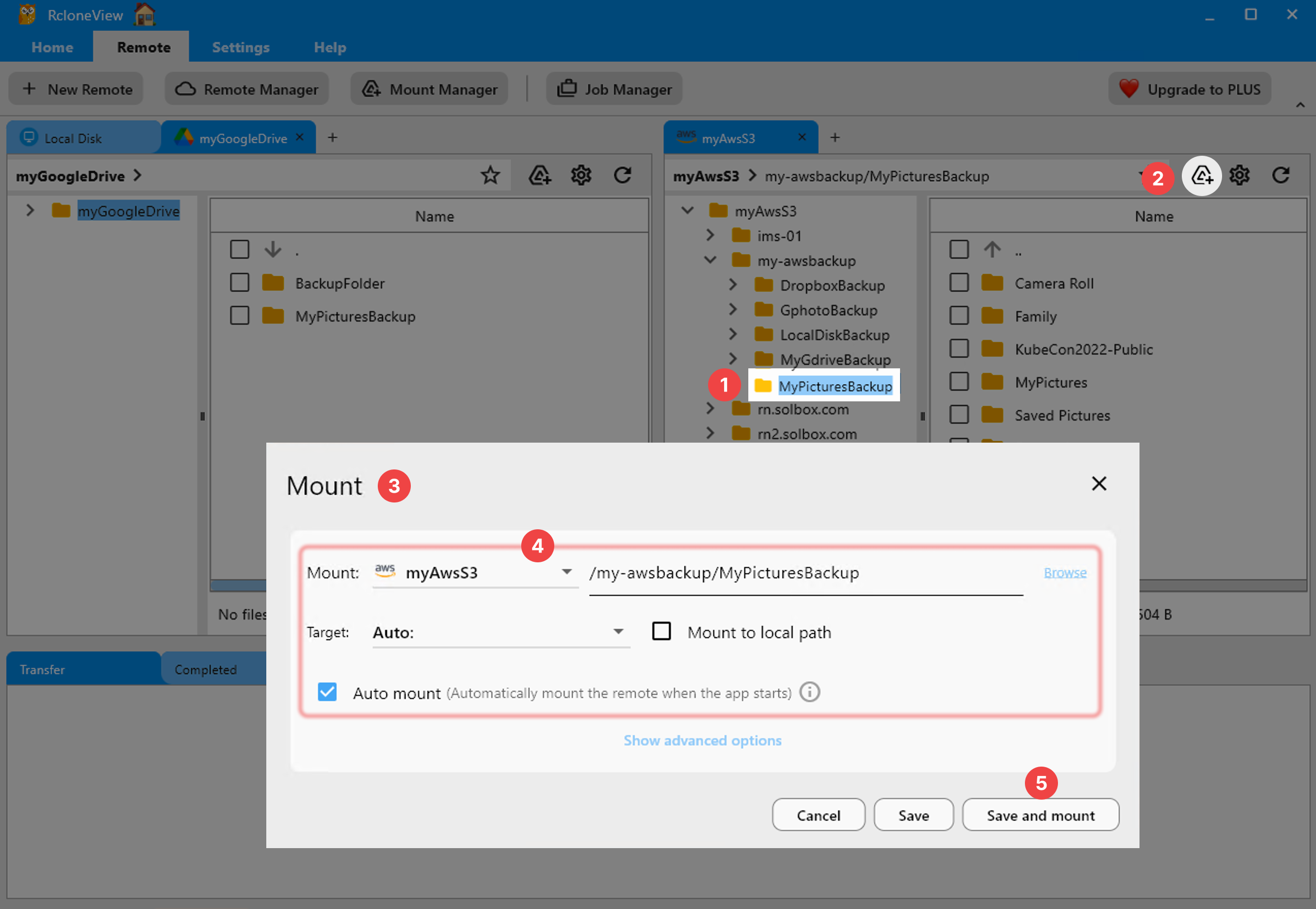
Manually Assign a Free Drive Letter
Open Mount Manager from the Remote tab to see every mount and its current status. A mount must be unmounted before you can edit it, so unmount the conflicting one first, then open its settings and switch Target from Auto to a specific, unused letter. Save the change and mount again — the conflict is resolved as soon as Windows confirms the letter is free.
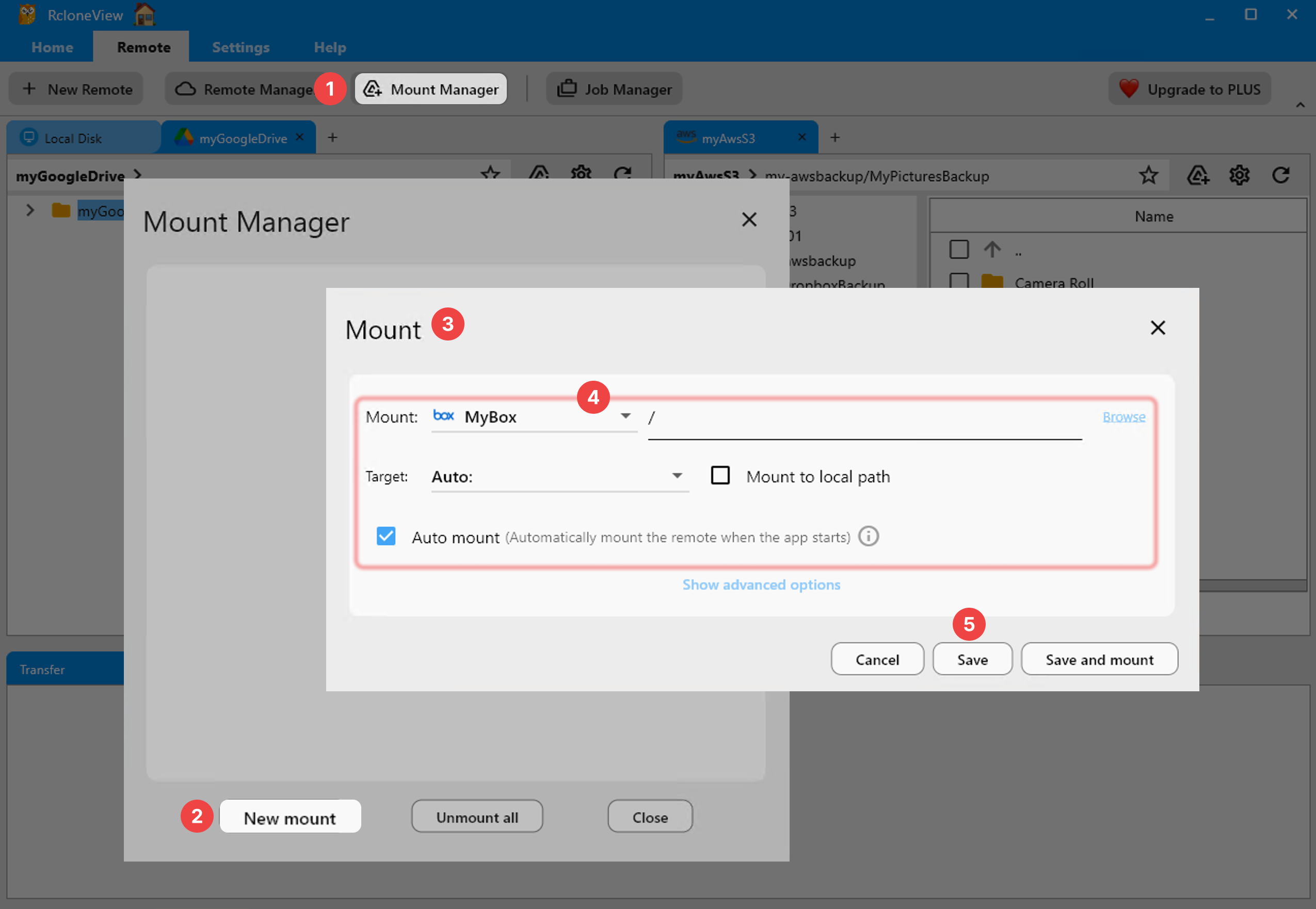
If you're unsure which letters are already taken, check File Explorer's This PC view or run wmic logicaldisk get caption in a Command Prompt before picking a replacement.
Use Network Drive Mode to Avoid Future Clashes
RcloneView's mount options include a Network drive toggle that changes how Windows registers the mount internally. Combined with a manually pinned letter, this makes the mount behave more predictably alongside NAS-mapped drives and VPN-assigned shares that also reserve specific letters at login.
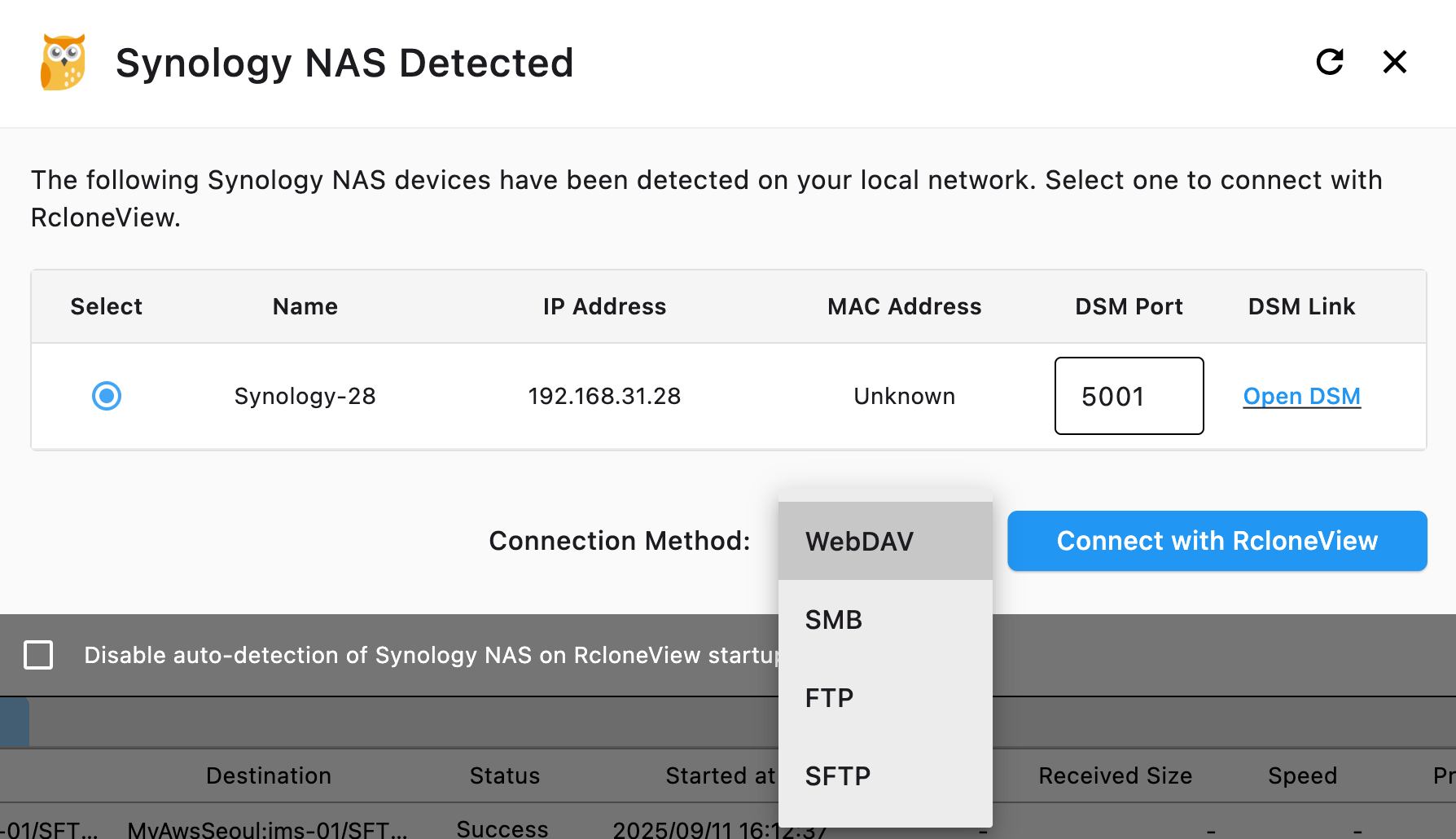
For environments with several NAS shares and cloud mounts running together, standardizing on manual letters for every mount — rather than mixing Auto and manual — removes most of the guesswork after a reboot.
Getting Started
- Download RcloneView from rcloneview.com if you haven't already.
- Open Mount Manager and unmount the mount showing the conflict.
- Edit its settings and assign a specific, unused drive letter.
- Save, remount, and confirm the drive appears correctly in File Explorer.
A few minutes spent pinning drive letters manually saves you from repeating this fix every time Windows reshuffles them.
Related Guides:
- Mount Cloud Storage as a Local Drive — Complete Guide with RcloneView
- Mount Google Drive as a Local Drive with RcloneView
- Fix Rclone Mount FUSE Errors with RcloneView
Supported Cloud Providers





























