Read-Only Mount — Protect Cloud Files from Accidental Changes in RcloneView

Mount a remote as a local drive that can be browsed and copied from, but never changed.
A mounted cloud drive behaves like any other disk, which means a stray delete, a drag in the wrong direction, or an application that rewrites files can change your cloud data. When the goal is only to read, such as reviewing an archive or opening reference files, a drive that cannot be written to is the lowest-risk choice. RcloneView's mount settings include a Read only option for exactly this. RcloneView mounts and syncs 90+ providers from one window on Windows, macOS, and Linux.

Manage & Sync All Clouds in One Place
RcloneView is a cross-platform GUI for rclone. Compare folders, transfer or sync files, and automate multi-cloud workflows with a clean, visual interface.
- One-click jobs: Copy · Sync · Compare
- Schedulers & history for reliable automation
- Works with Google Drive, OneDrive, Dropbox, S3, WebDAV, SFTP and more
Free core features. Plus automations available.
When Read-Only Makes Sense
Consider a compliance team that keeps closed-case records in a bucket. Staff need to open and copy documents, but nobody should be able to alter them. Another example is a shared backup destination you want to inspect from a desktop without risking the backup itself.
In both cases a read-only mount lets people use ordinary tools such as the file explorer, media players, and viewers, while write attempts are refused. It does not replace permissions on the storage service, but it adds a safeguard on your own machine.
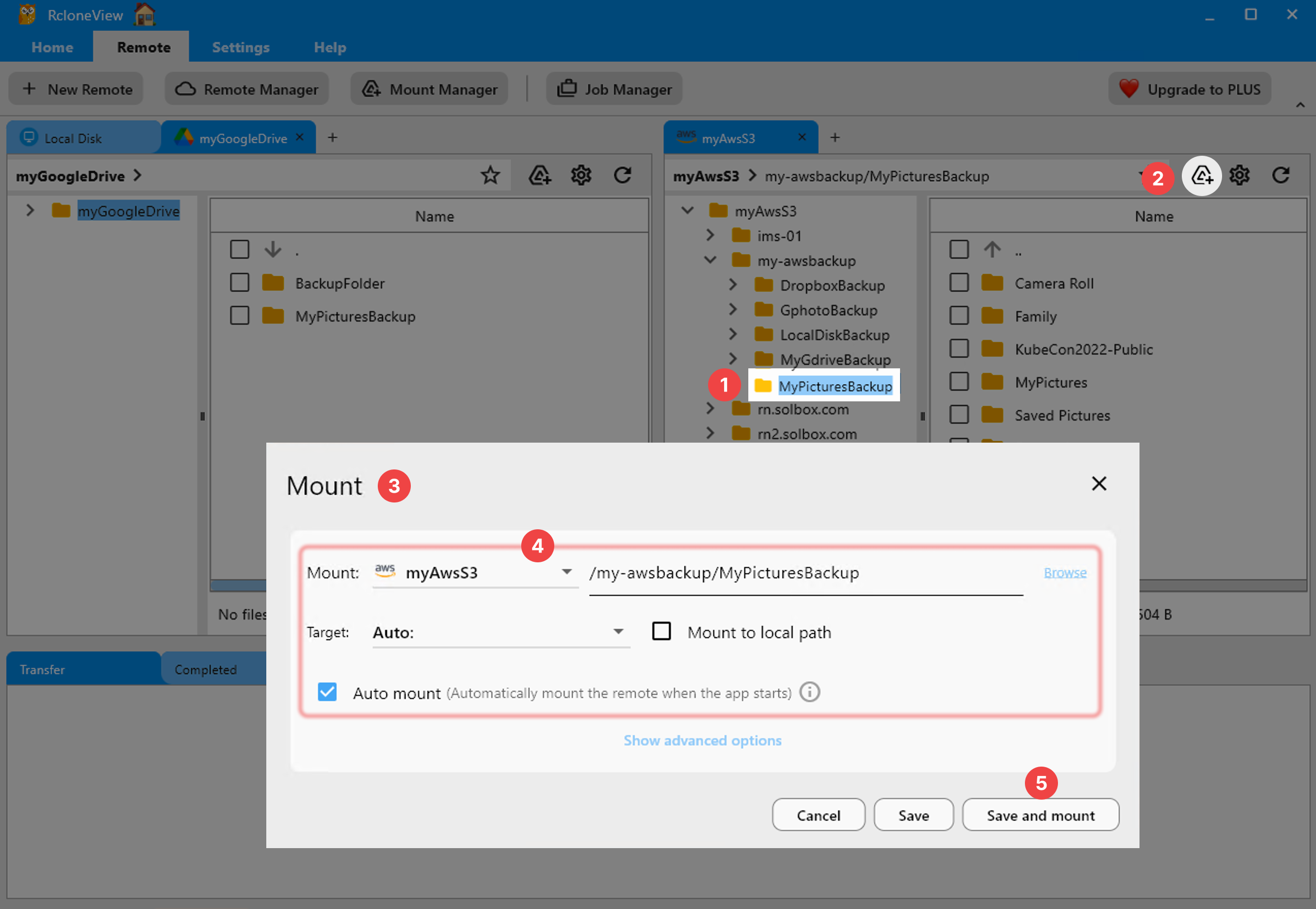
Enable Read Only in Mount Manager
Open Mount Manager from the Remote tab and choose New mount, or start from the Mount icon in an Explorer panel. Select the remote and subdirectory, then tick Read only in the options. On Windows you can pick a drive letter, and on macOS and Linux you set a local mount path. Choose Save and mount to attach the drive immediately.
Other options sit in the same dialog: volume name, cache mode (off, minimal, writes by default, or full), and on Windows a network-drive display. Because nothing is written, the default cache mode is rarely a concern for read-only use, though full can speed up repeated reads of the same files.
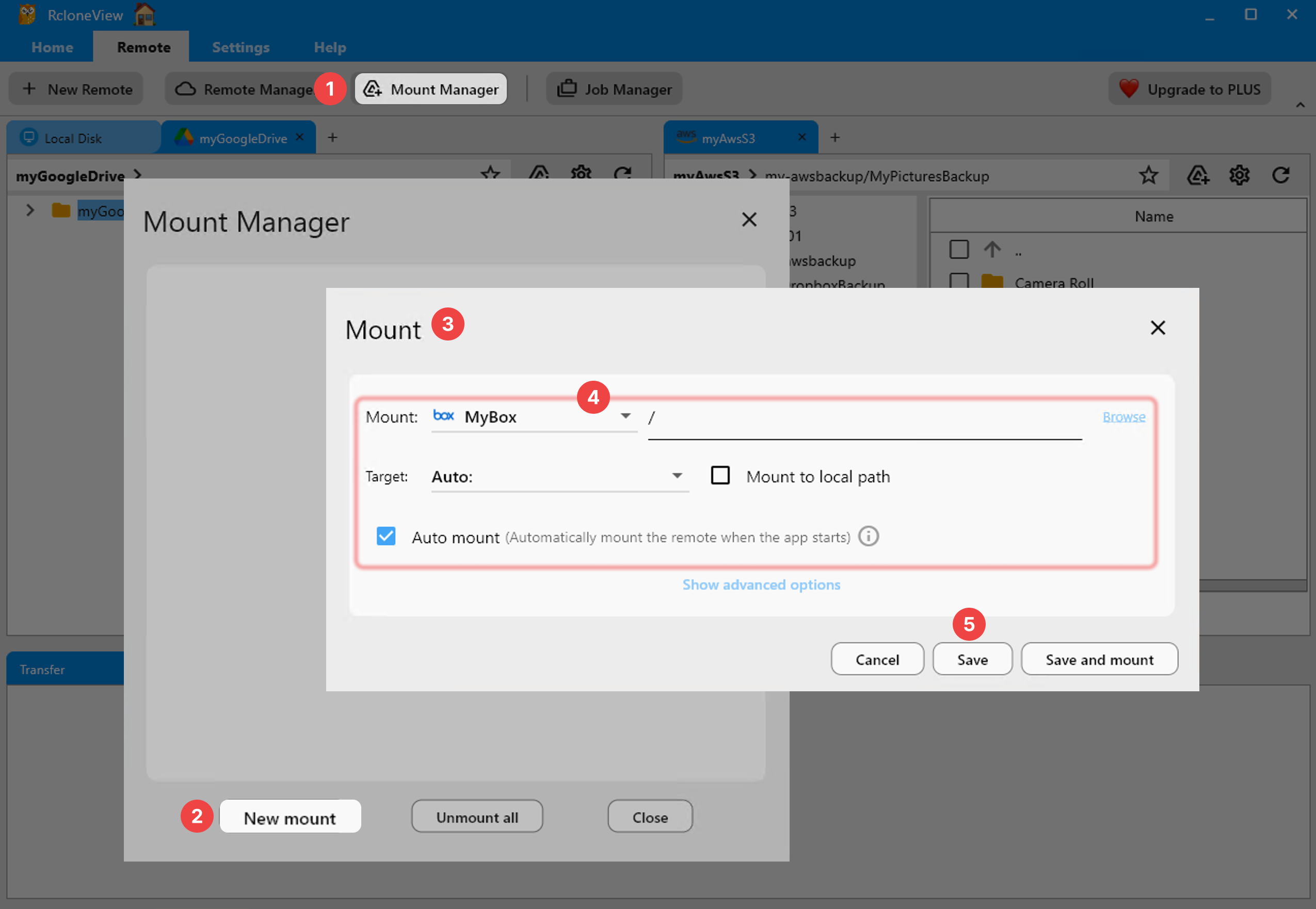
Changing or Removing the Mount
Edit and Delete are disabled while a mount is active, so unmount first from Mount Manager or the system tray menu. To make a drive writable later, unmount it, edit the entry, clear Read only, and mount again. You can keep two entries for the same remote, one read-only for browsing and one writable for deliberate work.
With a PLUS license, Auto mount can attach your drives at startup.

Getting Started
- Download RcloneView from rcloneview.com.
- Add the remote you want to browse, then open Mount Manager from the Remote tab.
- Create a new mount, select the remote and folder, and tick Read only.
- Save and mount, then open the drive from your file explorer.
Read-only access lets you open everything without risking changes.
Related Guides:
Supported Cloud Providers





























