I can't access an External SSD with RcloneView (macOS)
If RcloneView can’t reach your external SSD on macOS (you don’t see the drive or don’t know where to type its path), use this quick workaround. A temporary UX issue (fixed in the next release) hides the usual shortcut, but you can browse to the SSD manually and save it as an Alias (favorite) for one-click access later.
Quick fix options (pick one)
- Use the hotfix build (includes the UX fix): Download RcloneView 1.1.517 (macOS) and install it to get the SSD path fix immediately. This is a temporary build shared for users hitting this issue before the next official release.
- Stay on the current official release: Follow the manual steps below to browse
/Volumesand create an Alias to your SSD. This works on the current public build.
Step-by-Step: Add Your SSD from /Volumes
You can see Local Disk in left pane of RcloneView.
- In the path bar, type
/Volumesand press Enter. This is where macOS mounts external drives (e.g., Samsung T7). - In the
/Volumeslist, double-click your SSD (e.g.,SAMSUNG). Some drives take a moment to load—wait for the folder to open.
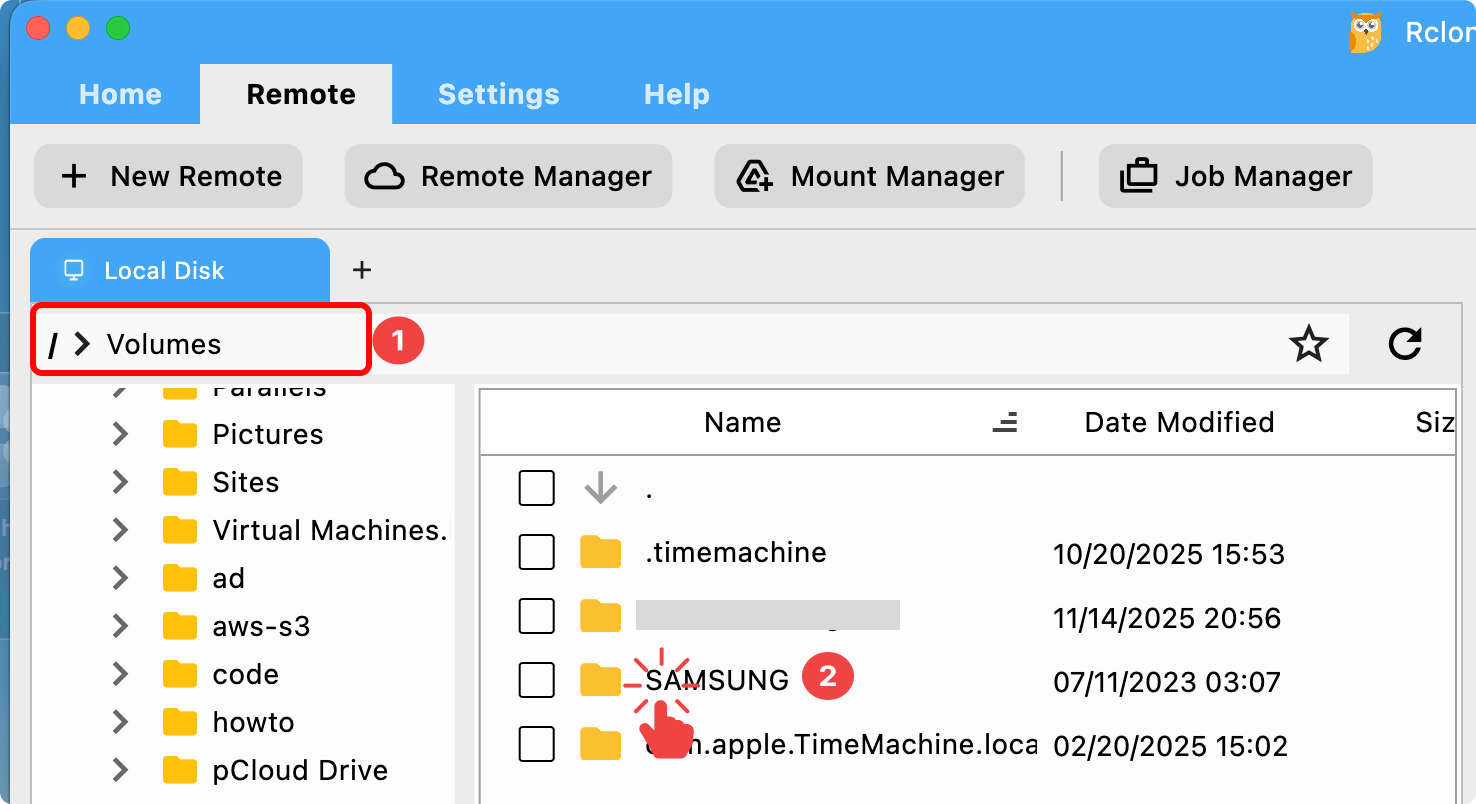
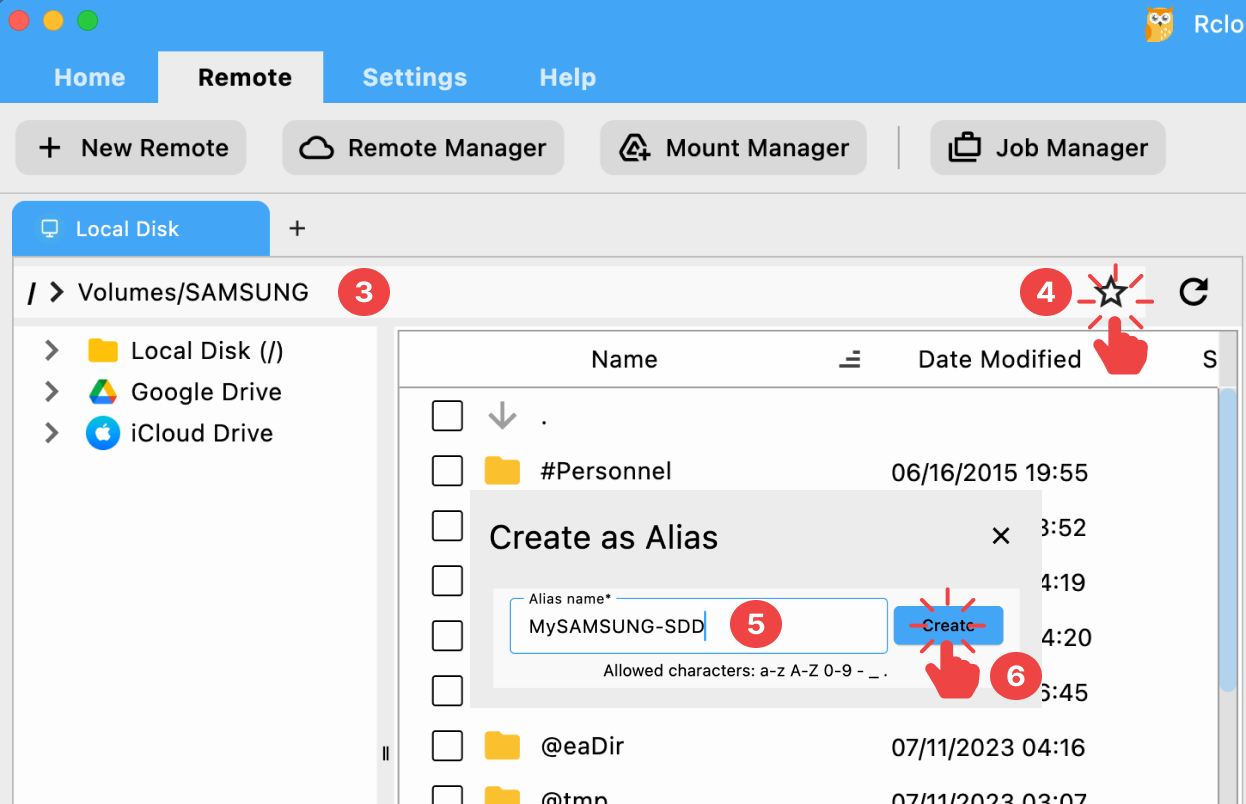
- Confirm you are inside the SSD (the path bar should read
/Volumes/<your-drive>). - Click the ☆ (Alias) icon in the path bar to bookmark this location.
- Enter a simple name (e.g.,
MySSD) and - click Create. This adds an Alias Remote that always opens your SSD root.
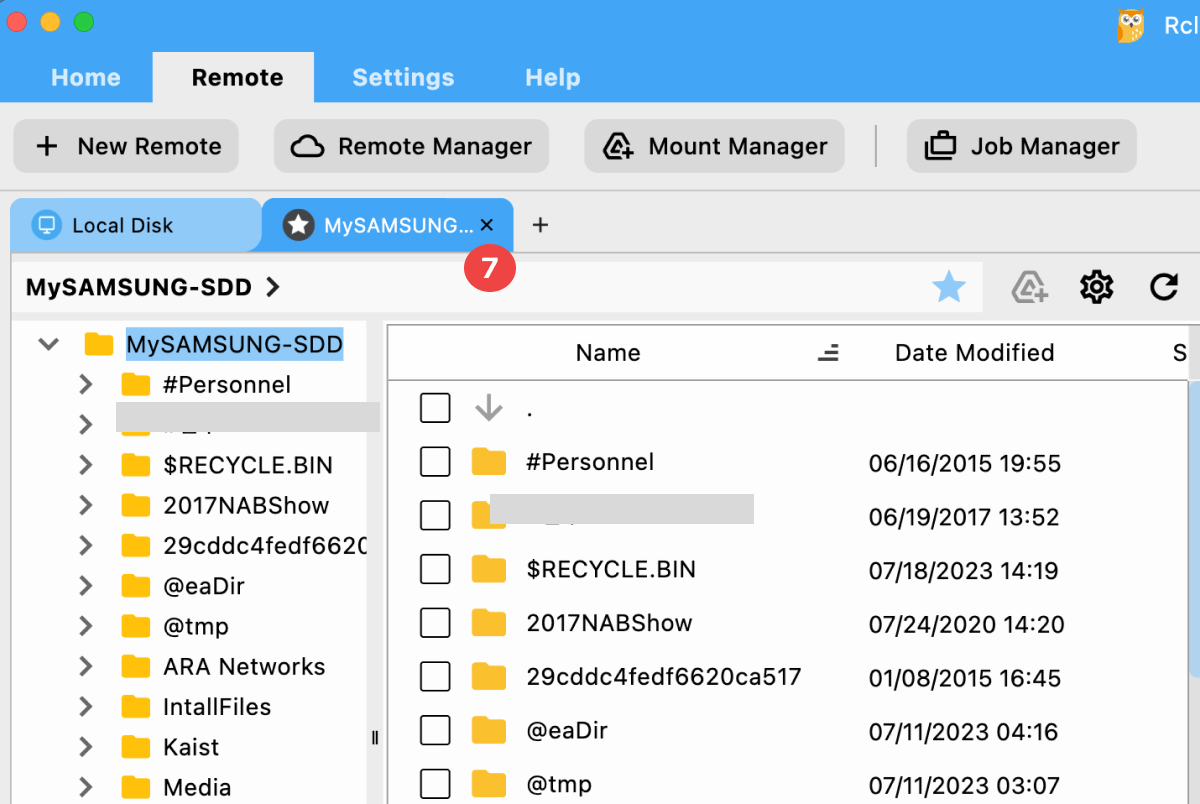
- The Alias opens in a new tab and also appears in the left list for fast reuse.
How to Use the SSD Alias in Backups
- When creating a Sync/Copy/Move job, pick the Alias remote you just made (e.g.,
MySSD) as the destination and your source remote (e.g., Google Drive, Dropbox, another local folder) as the source. - The Alias points to the SSD root; you can choose or create a subfolder in that tab before starting the job.
If the SSD Does Not Appear
- Make sure the SSD is mounted in Finder (unplug/replug if needed).
- Reopen
/Volumesin the path bar and wait a few seconds for the drive list to populate. - Still not visible? Restart RcloneView, then try
/Volumesagain. If it keeps failing, report it on the RcloneView forum.
Related Guides
- Alias overview and other virtual remotes: Alias Remote Guide
- General Explorer controls and tabs: Browse and Manage Remote Storage