Fix Firewall and Antivirus Blocking Cloud Sync — Resolve Connection Errors with RcloneView

When a sync job stalls at 0% or fails with a generic connection error, local security software is often the real culprit — not the cloud provider.
A sync job that never starts, hangs at 0% transferred, or dies with a vague timeout message doesn't always point to a bad remote configuration. On managed workstations and locked-down home networks alike, firewalls, antivirus suites, and endpoint protection agents routinely intercept the outbound connections RcloneView needs — both to the cloud provider's API and to its own local embedded rclone process — and the failure looks identical to a genuine network outage. RcloneView runs entirely on your local machine, so every one of these connections comes from a process you can inspect and whitelist directly.

Manage & Sync All Clouds in One Place
RcloneView is a cross-platform GUI for rclone. Compare folders, transfer or sync files, and automate multi-cloud workflows with a clean, visual interface.
- One-click jobs: Copy · Sync · Compare
- Schedulers & history for reliable automation
- Works with Google Drive, OneDrive, Dropbox, S3, WebDAV, SFTP and more
Free core features. Plus automations available.
Recognizing a Firewall or Antivirus Block
The telltale signs are consistency and immediacy: the job fails within a second or two of starting rather than after a slow struggle, the same job works fine on a different network, or a brand-new remote fails its connection test before ever reaching the provider. RcloneView's embedded rclone listens locally on 127.0.0.1:5582, and antivirus tools that inspect loopback traffic or block unrecognized executables from opening network sockets can quietly sever that link even though the app itself appears to be running normally.

If you're connecting to an external rclone instance instead of the embedded one, the same logic applies to port 5572 — corporate firewalls that only permit traffic on standard web ports (80/443) will silently drop it.
Isolating the Blocked Connection
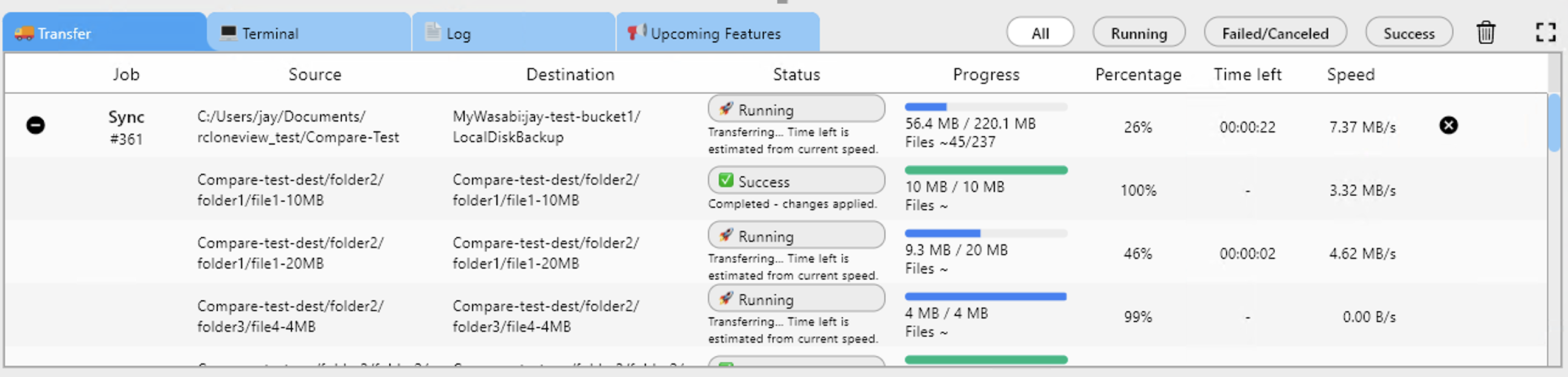
Start a manual transfer and watch the Transferring tab: a job that shows 0 B/s indefinitely, with no error and no progress, usually means the connection to the cloud provider's servers is being filtered outbound, not that the provider is down. Enabling rclone Logging in Settings at DEBUG level and reproducing the issue will often surface a connection reset or i/o timeout entry pointing at the exact host being blocked.

Job History is also useful here: jobs that consistently end in "Errored" at nearly the same elapsed time, across different remotes, point to a local network policy rather than a provider-specific issue.
Allowing RcloneView Through Security Software
Once you've confirmed the block, add RcloneView (and its bundled rclone binary) as an allowed application in your firewall and antivirus rules, rather than disabling protection entirely. On Windows, that means an inbound/outbound rule in Windows Defender Firewall or your third-party suite; on macOS, granting network access under Privacy & Security if prompted; on Linux, checking ufw or iptables alongside any endpoint agent your organization manages centrally. If you're on a corporate VPN or proxy, confirm the cloud provider's API domains are allowed through it too — a split-tunnel misconfiguration produces the same stalled-transfer symptom as a local firewall block.
Getting Started
- Download RcloneView from rcloneview.com if you haven't already.
- Reproduce the failure with DEBUG-level rclone Logging enabled and note the exact host or port in the error.
- Add RcloneView and its embedded rclone process as allowed applications in your firewall and antivirus settings.
- Re-run the job and confirm it now shows real transfer progress in the Transferring tab.
A single allow-list entry usually resolves what looks like a stubborn, unexplained sync failure — worth ruling out before assuming the cloud provider or the remote configuration is at fault.
Related Guides:
- Fix Proxy and VPN Cloud Connection Issues with RcloneView
- Fix Cloud Sync Timeout Errors with RcloneView
- Fix SSL/TLS Certificate Errors in Cloud Sync with RcloneView
Supported Cloud Providers





























