RcloneView on Garuda Linux — Cloud Storage Sync and Backup

Garuda Linux's performance-tuned desktop pairs well with RcloneView's lightweight Flutter GUI for managing cloud storage without touching a terminal.
Garuda Linux is built for people who want an Arch-based system without spending a weekend configuring it — a pre-tuned desktop, sensible defaults, and a focus on getting to work quickly. RcloneView fits that same philosophy for cloud storage: a native desktop app that mounts, syncs, and backs up 90+ cloud providers from one window, without requiring you to script rclone commands by hand. Since Garuda ships a full graphical desktop out of the box, RcloneView runs exactly as intended — no headless workarounds needed.

Manage & Sync All Clouds in One Place
RcloneView is a cross-platform GUI for rclone. Compare folders, transfer or sync files, and automate multi-cloud workflows with a clean, visual interface.
- One-click jobs: Copy · Sync · Compare
- Schedulers & history for reliable automation
- Works with Google Drive, OneDrive, Dropbox, S3, WebDAV, SFTP and more
Free core features. Plus automations available.
Installing RcloneView on Garuda Linux
RcloneView is distributed only from rcloneview.com — there's no AUR package to pull in with pacman or an AUR helper. Download the .AppImage build for a portable, install-free option, or grab the .rpm package if you prefer it registered with your system's package database. Both x86_64 and aarch64 builds are available, matching whichever hardware your Garuda install runs on.
RcloneView is built with Flutter and Dart, not Qt or Electron, so it skips a separate toolkit's dependency chain. It relies on GTK+3 and a tray indicator library (libayatana-appindicator3-1 or libappindicator3-1) for its tray icon, both standard on Garuda's KDE, GNOME, and other desktop editions. For mounting cloud storage as a local drive, make sure fuse3 is installed.

Setting Up Mounts and Remotes
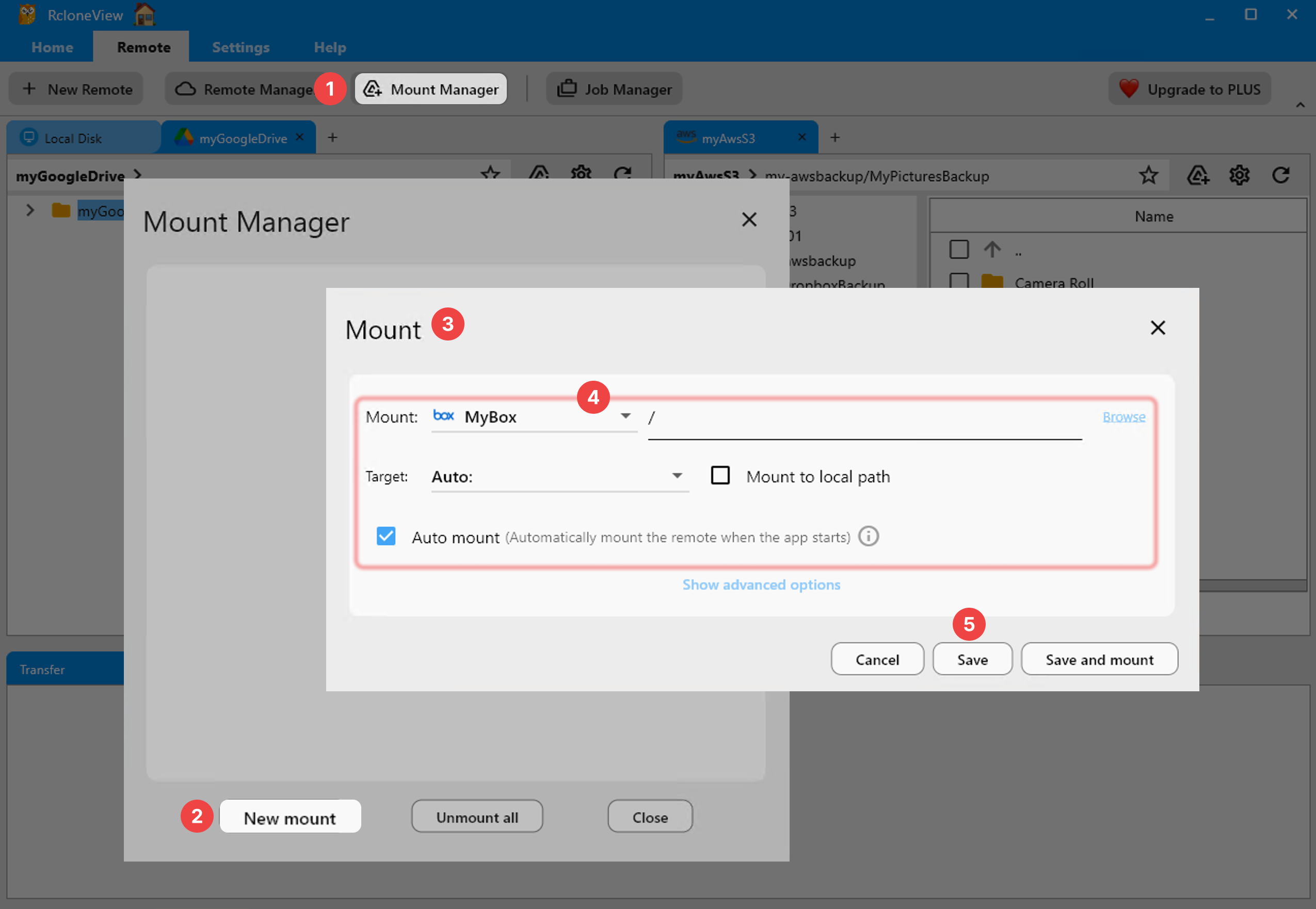
Garuda's desktop editions run X11 or Wayland, and RcloneView's mount feature works with either. Add a remote through the Remote tab, authenticate via OAuth for providers like Google Drive or Dropbox, or enter credentials directly for S3-compatible and protocol-based storage. Mount that remote as a local path using nfsmount, RcloneView's default Linux mount type, and browse your cloud files through Garuda's native file manager as if they were on disk.
Cache mode defaults to "writes," balancing responsiveness with memory use — worth checking if you're mounting a remote full of large files and want tighter control over local caching.
Automating Backups and Sync Jobs
Once your remotes are connected, Job Manager handles the repeatable work: back up a local folder to cloud storage, sync two providers against each other, or mirror one source to multiple destinations at once. Configure filters to skip unwanted file types, and run a Dry Run first to preview exactly what a job will change.
Job History logs every run — start time, duration, transfer speed, and file counts — so scheduled backups leave an audit trail you can check without digging through log files.

Getting Started
- Download the AppImage or .rpm from rcloneview.com — no AUR package exists, so install directly.
- Confirm fuse3 and GTK+3 are present on your system for mounting and tray support.
- Add your first cloud remote through the Remote tab and mount it or set up a sync job.
- Save recurring jobs in Job Manager so backups run the same way every time.
Garuda's out-of-the-box desktop and RcloneView's native GUI make a straightforward pairing — download once, connect your clouds, and manage everything without leaving the graphical environment Garuda is built around.
Related Guides:
- Install RcloneView on Arch Linux — Cloud Sync and Backup Guide
- RcloneView on Manjaro Linux — Cloud Storage Sync
- Install RcloneView on Fedora and RHEL — Cloud Sync Guide
Supported Cloud Providers





























