Migrate Mail.ru Cloud to Backblaze B2 — Transfer Files with RcloneView

Copy a Mail.ru Cloud library into Backblaze B2 object storage from one window, with a preview before anything moves and a comparison after.
If years of documents and photos live in Mail.ru Cloud, a second copy in an object store gives you an independent archive. RcloneView connects both services as remotes and runs the transfer as a cloud-to-cloud job, so files do not need to be downloaded to a laptop first. Connect S3, Azure, or Backblaze B2 with full read/write on the FREE license.

Manage & Sync All Clouds in One Place
RcloneView is a cross-platform GUI for rclone. Compare folders, transfer or sync files, and automate multi-cloud workflows with a clean, visual interface.
- One-click jobs: Copy · Sync · Compare
- Schedulers & history for reliable automation
- Works with Google Drive, OneDrive, Dropbox, S3, WebDAV, SFTP and more
Free core features. Plus automations available.
Connect Both Remotes
Open the Remote tab and click New Remote. Add Mail.ru Cloud first, following the prompts for that provider, then add Backblaze B2 with an Application Key ID and Application Key from the B2 console. Create the bucket in B2 beforehand so you have a destination to point at.
Open each remote in its own Explorer panel. Browse the Mail.ru Cloud folders on the left and the B2 bucket on the right to confirm both respond before you build a job.

Plan the Transfer
Decide whether to move everything or a slice. A studio archiving 400 GB of project folders might copy one top-level folder first as a pilot. In the sync wizard, choose Mail.ru Cloud as the source and a B2 bucket folder as the destination, then give the job a name using letters, numbers, hyphens, or underscores.
For a migration, a Copy job is the safer choice because it never deletes from the source. Use Sync only when you want the destination to mirror the source exactly.

Preview, Run, and Monitor
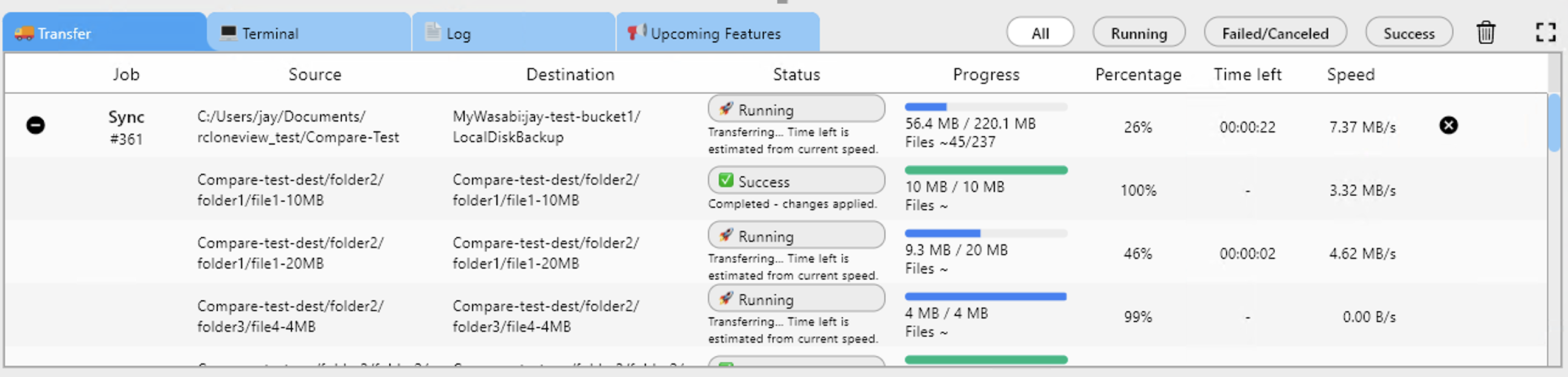
Run a Dry Run first. It lists the files that would be copied or deleted without changing anything, which catches a wrong destination path early. Then start the job and watch progress, speed, and file counts in the Transferring tab.
Object storage handles many parallel uploads well, but consumer clouds can be stricter. If you see errors, lower the number of file transfers in Step 2 of the wizard and keep equality checkers at 4 or less.
Verify and Keep It Current
When the job finishes, open Folder Compare with Mail.ru Cloud on one side and B2 on the other. Filter for left-only and different files to find anything that did not arrive, and copy only those items. Job History records status, duration, size, and file count for each run.

To keep the B2 copy fresh, save the job and, with a PLUS license, add a crontab-style schedule in Step 4.
Getting Started
- Download RcloneView from rcloneview.com.
- Add Mail.ru Cloud and Backblaze B2 as remotes in the Remote tab.
- Create a Copy job from Mail.ru Cloud to your B2 bucket and run a Dry Run.
- Start the transfer, then verify with Folder Compare.
A verified second copy in B2 turns a single-provider library into a backed-up one.
Related Guides:
- Manage Mail.ru Cloud Storage with RcloneView
- Manage Backblaze B2 Storage — Sync and Backup Files with RcloneView
- Migrate Yandex Disk to Backblaze B2 with RcloneView
Supported Cloud Providers





























