Fix Sync Filters Not Excluding Files — Correct Exclusion Rules with RcloneView

If files you meant to exclude still show up at the destination, the cause is usually how the pattern is anchored, not a broken filter.
A developer syncs a projects folder to Backblaze B2 and adds a .git exclusion. The next morning the bucket holds thousands of Git objects anyway. Filter rules follow rclone's matching logic, so one missing slash changes what the rule matches. RcloneView puts these rules in Step 3 of the sync wizard and gives you Dry Run to test them before anything moves.
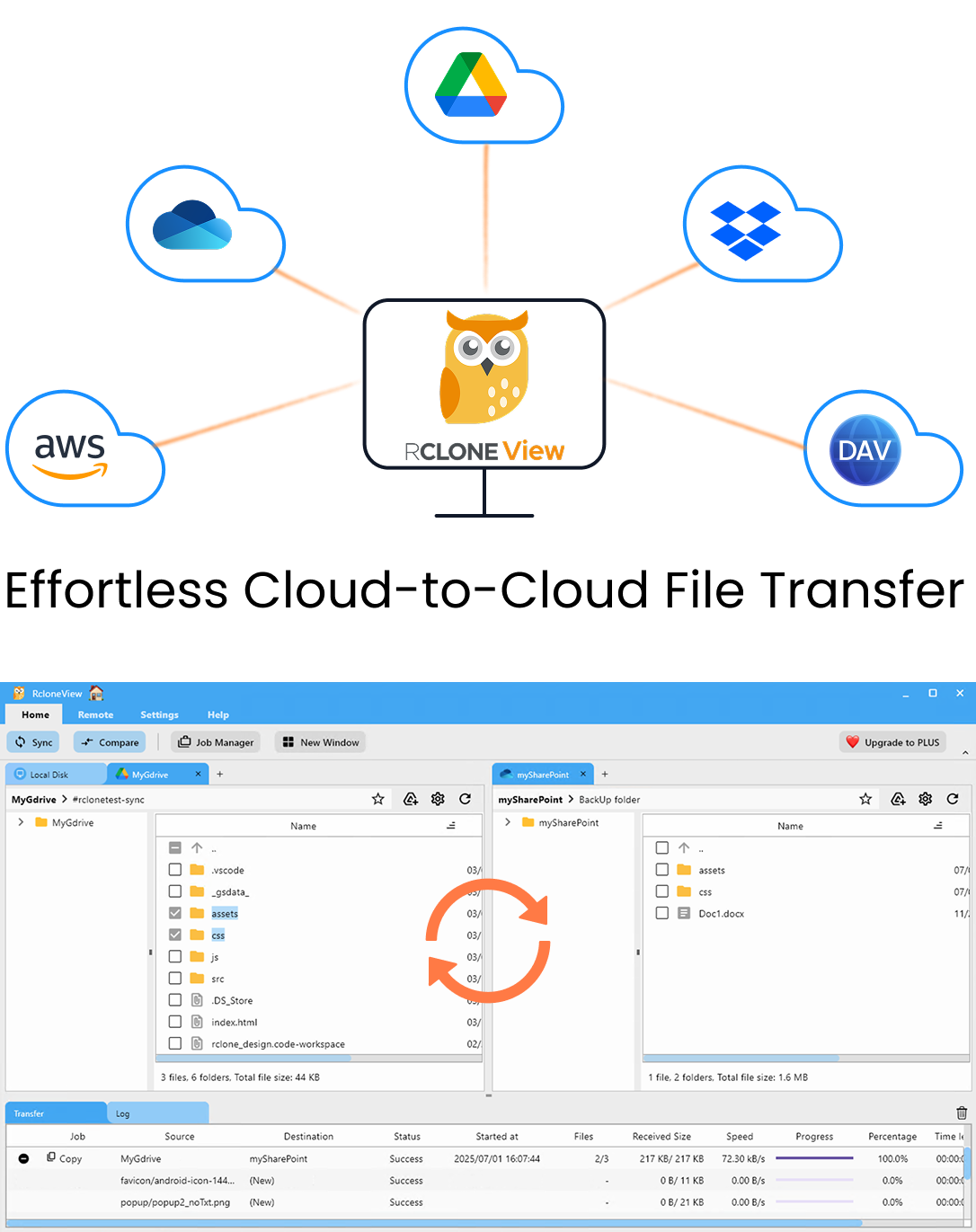
Manage & Sync All Clouds in One Place
RcloneView is a cross-platform GUI for rclone. Compare folders, transfer or sync files, and automate multi-cloud workflows with a clean, visual interface.
- One-click jobs: Copy · Sync · Compare
- Schedulers & history for reliable automation
- Works with Google Drive, OneDrive, Dropbox, S3, WebDAV, SFTP and more
Free core features. Plus automations available.
Why an Exclusion Rule Misses Files
Most filter problems come down to anchoring. A pattern that starts with / matches only from the root of the sync source. A pattern without it matches at any depth. The examples in RcloneView's filter settings show the difference:
.isoexcludes files with that extension anywhere in the tree./.git/*excludes only the files directly inside the.gitfolder at the source root..git/excludes every.gitfolder at any depth, which is what most developers want.
If you only wrote /.git/*, nested repositories such as client-a/app/.git still sync. Their subfolders do too, because * stops at the folder boundary. Switch to the unanchored folder rule and the nested repositories drop out.
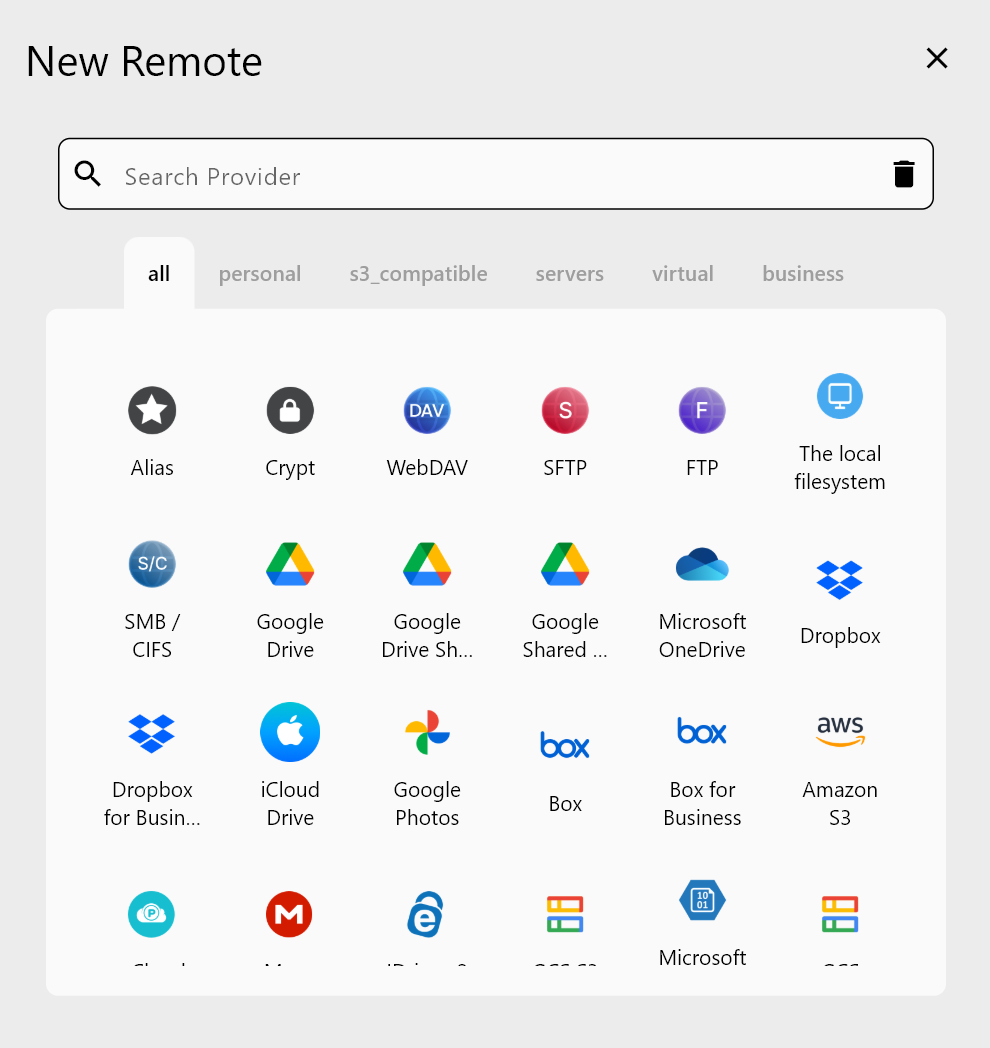
The second common mistake is choosing the wrong source folder. Root-anchored patterns are relative to the folder picked in Step 1, so moving the source one level up changes what they match.
Check the Other Filter Settings
Custom rules are not the only filters in the wizard. Step 3 also has Max file size (in MB), Max file age (with y, d, h, m, s units), Max folder depth, and predefined filters for Music, Video, Image, Document, Google Docs, and Box Docs. These combine, so an old copied job can behave unexpectedly.
A forgotten folder-depth limit from testing, for example, makes deeper subfolders silently skip. Before you rewrite custom rules, open the job in Job Manager and clear any limit you don't need.
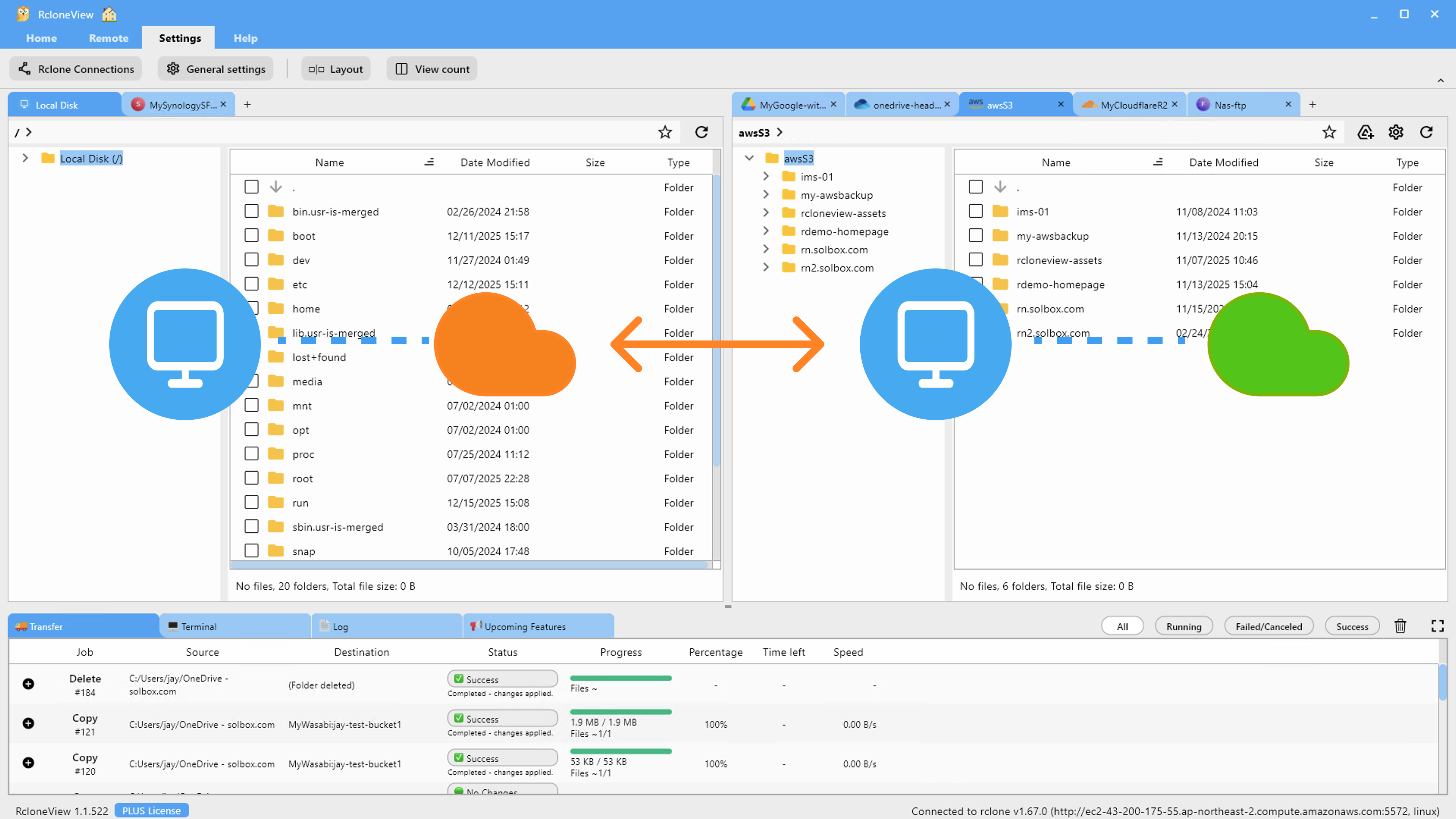
Prove the Fix with Dry Run and Compare
Never test a filter change on live data. Run the job in Dry Run mode first. It lists the files that would be copied and the files that would be deleted. If excluded paths still appear in the copy list, the pattern is still wrong.
Remember that excluded files are not touched on the destination either. If unwanted files already reached the bucket, a one-way sync with the new filter will leave them there. Use Folder Compare to find them, select the stray .git folders on the destination side, and delete them there. On the PLUS license, Folder Compare with Filter applies the same rules to the comparison, so the view shows only what the job actually manages.
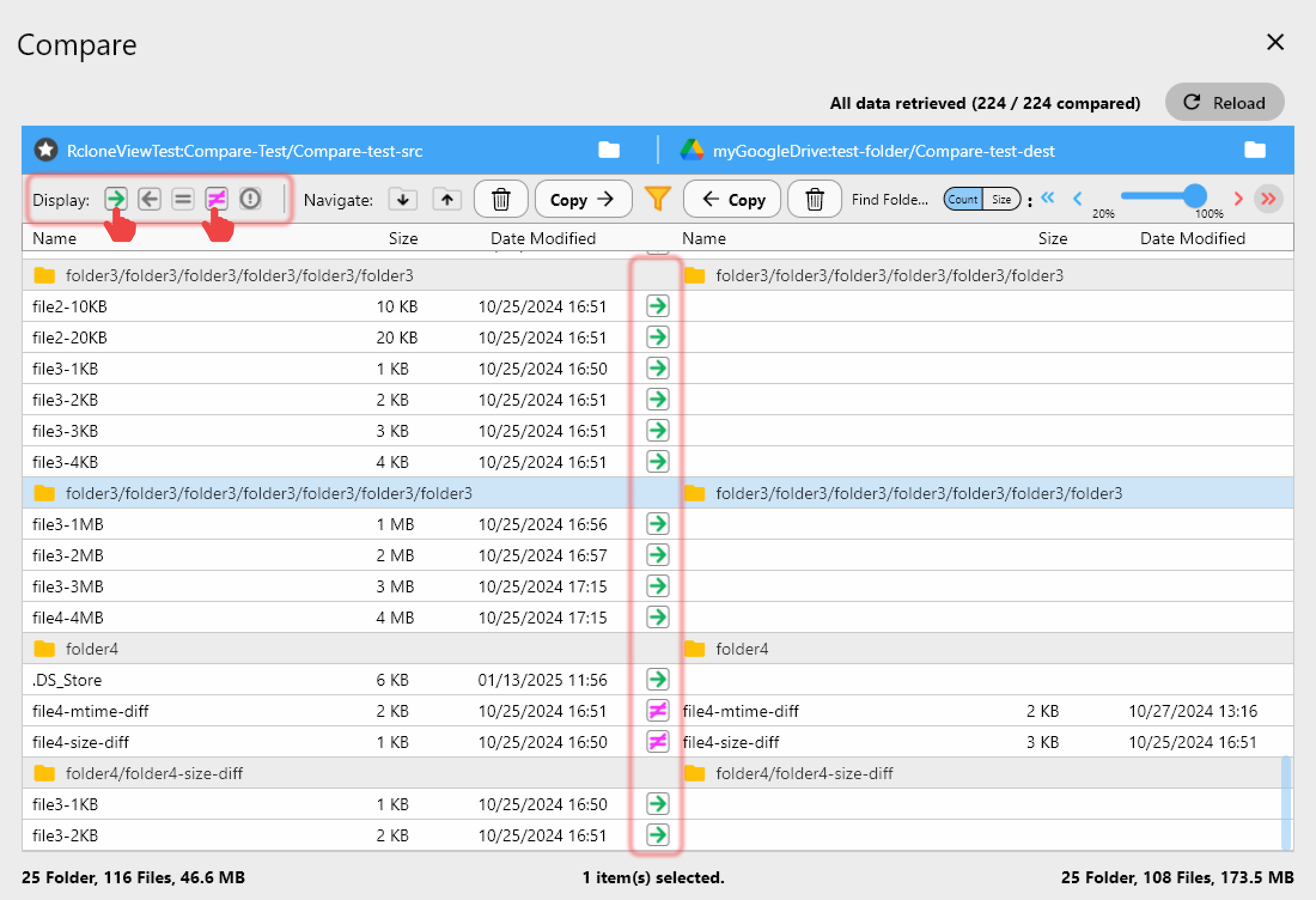
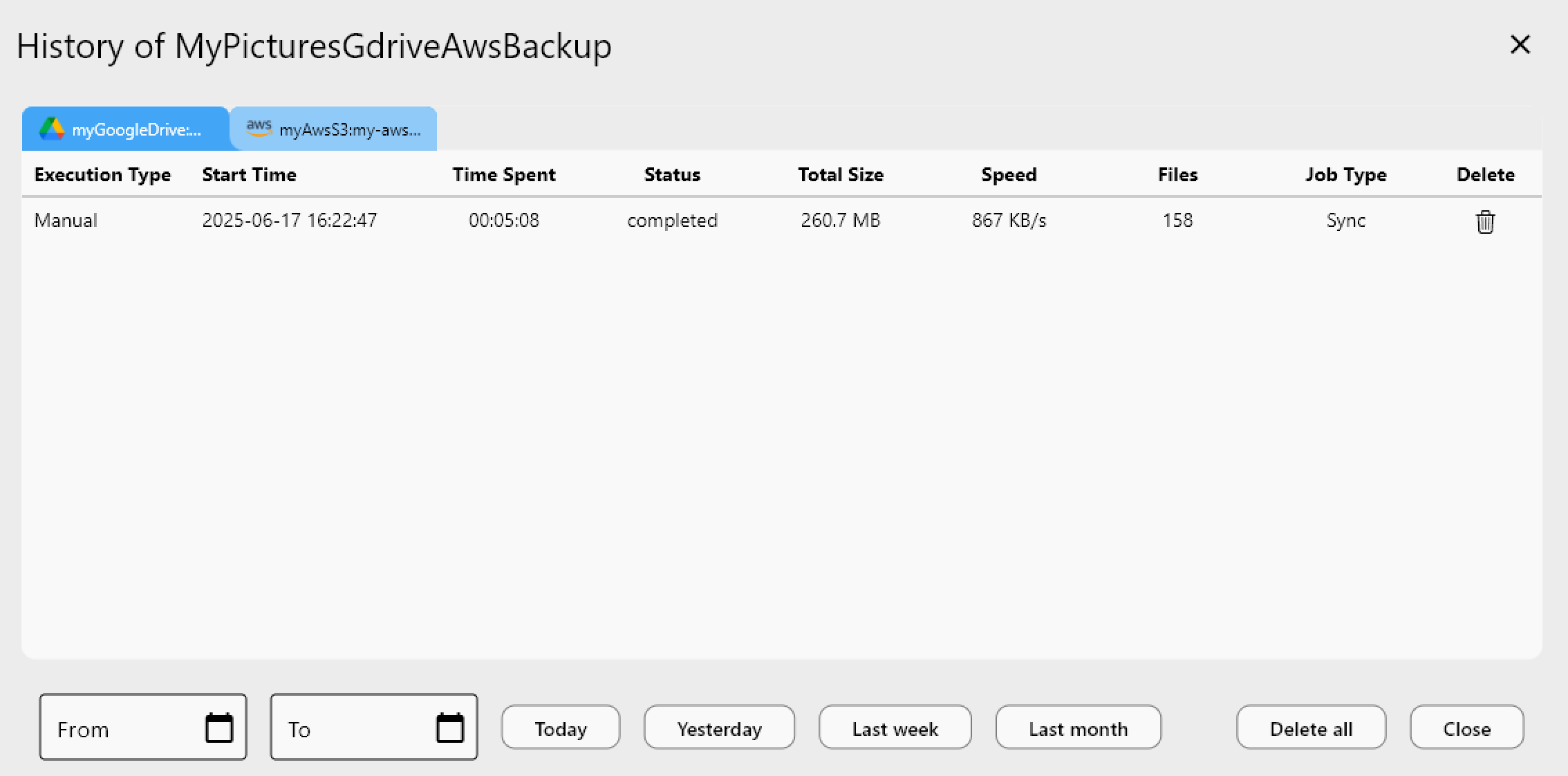
Once the dry run looks right, run the job and check the file count in Job History against the dry-run preview.
Getting Started
Sync jobs, filters, Dry Run and Folder Compare are all included on the FREE license.
- Download RcloneView from rcloneview.com.
- Open Job Manager, edit the job, and review Step 1's source folder and Step 3's filter settings.
- Replace root-anchored patterns like
/.git/*with.git/when the folder can appear at any depth. - Run a Dry Run, confirm excluded paths are gone, then clean up leftovers with Folder Compare.
Exact filter rules keep your backups lean and keep build artifacts and repository data out of your cloud bill.
Related Guides:
- Rclone Filter Rules Explained — Include and Exclude
- Dry Run — Preview Sync Before Transfer
- Folder Compare with Filter
Supported Cloud Providers