RcloneView on EndeavourOS — Cloud Storage Sync and Backup

EndeavourOS gives you a rolling Arch base with a ready desktop, and the official RcloneView AppImage runs on it without any third-party package.
EndeavourOS users usually want current software and little manual setup. Cloud storage is often the gap: Google Drive, OneDrive, and S3 buckets have no native desktop client here, and juggling several CLI configs gets tedious. RcloneView mounts and syncs 90+ providers from one window, on Windows, macOS, and Linux, and it ships with its own embedded rclone.
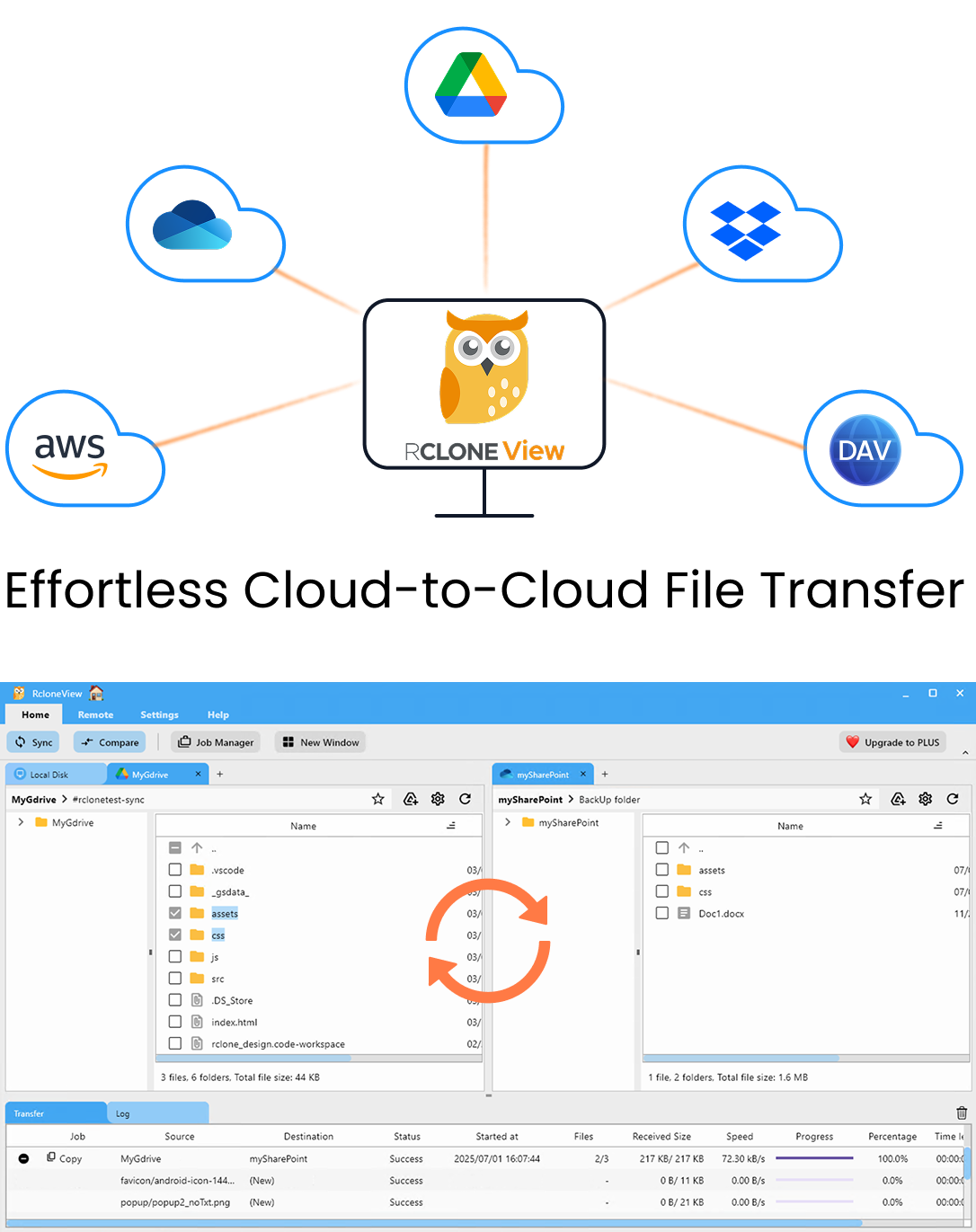
Manage & Sync All Clouds in One Place
RcloneView is a cross-platform GUI for rclone. Compare folders, transfer or sync files, and automate multi-cloud workflows with a clean, visual interface.
- One-click jobs: Copy · Sync · Compare
- Schedulers & history for reliable automation
- Works with Google Drive, OneDrive, Dropbox, S3, WebDAV, SFTP and more
Free core features. Plus automations available.
Installing with the Official AppImage
RcloneView is distributed only through rcloneview.com. There is no AUR package, so ignore any yay or paru instructions you find elsewhere. For an Arch-based system the AppImage is the natural choice. Download the build for your architecture (x86_64 or aarch64), make it executable, and launch it:
chmod +x RcloneView-*-x86_64.AppImage
./RcloneView-*-x86_64.AppImage
RcloneView is a Flutter desktop app, not a Qt app. It needs GTK+3, a running X11 or Wayland session, and an AppIndicator library for the system tray icon. The default EndeavourOS desktop editions (KDE Plasma, Xfce, GNOME and others) already provide a display server and normally GTK+3. Install FUSE for mounting: fuse3 is recommended (sudo pacman -S --needed fuse3).
Because the AppImage is self-contained, a rolling pacman -Syu won't replace it. Auto-update is macOS-only, so to update on Linux you download the newer AppImage from the same page.
Connecting Remotes and Mounting Drives
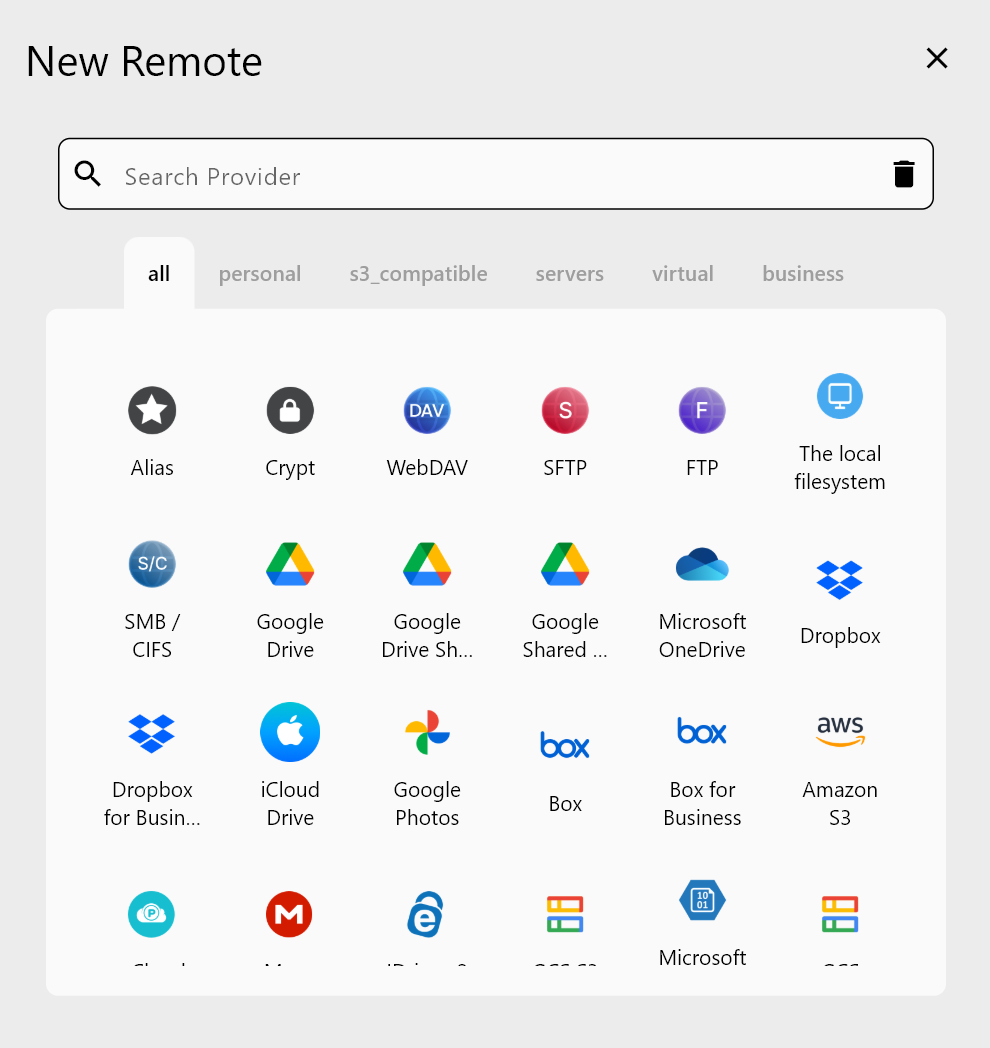
Open Remote > New Remote. Google Drive, Dropbox, OneDrive, Box, and pCloud sign in through your browser with OAuth. S3, Backblaze B2, and Cloudflare R2 take access keys. Your remotes appear as tabs in the Explorer, and you can split up to four panels to browse a NAS share next to a cloud bucket.
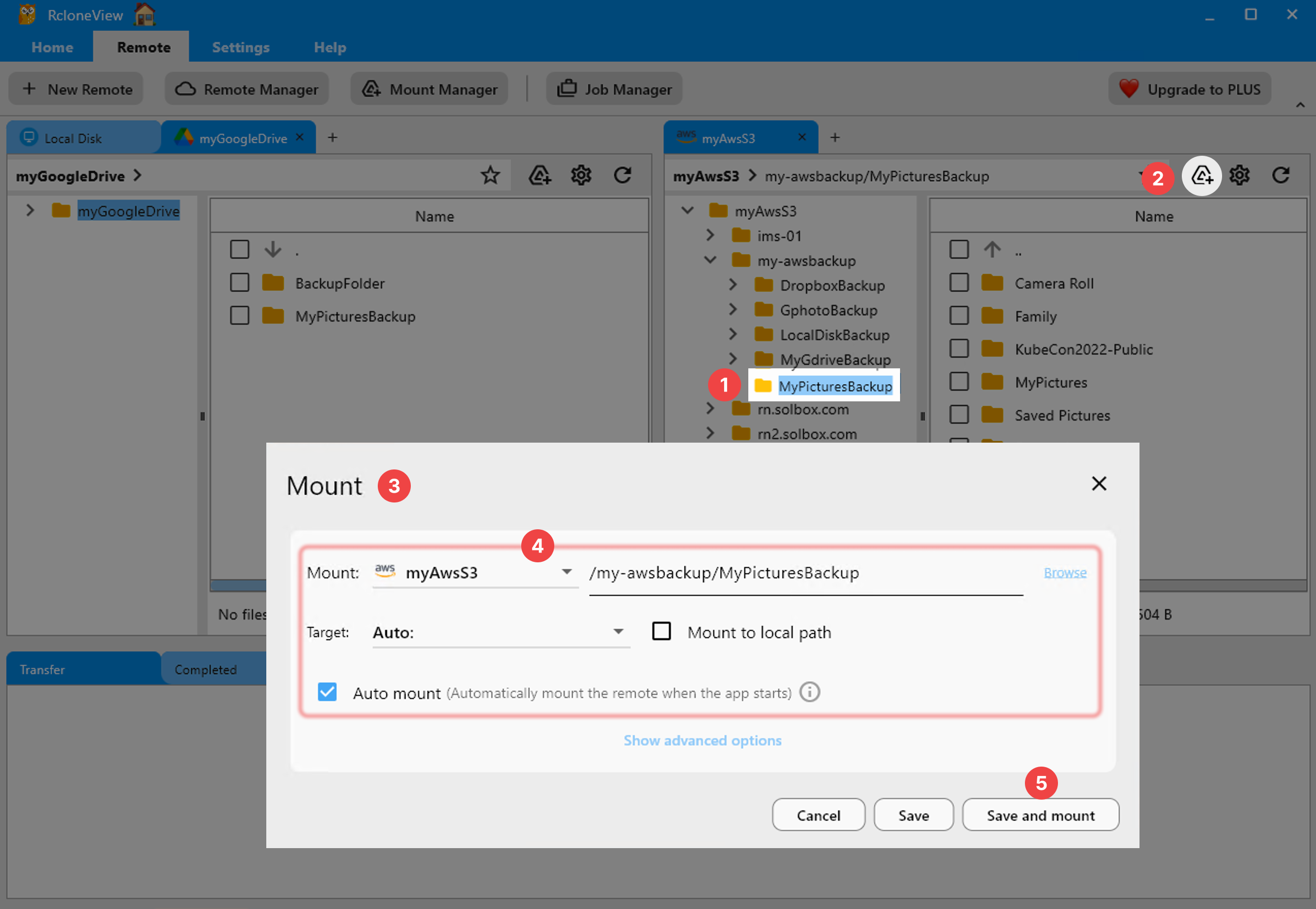
To work with cloud files in Dolphin or Thunar, mount the remote. Click the Mount icon in the panel toolbar, or open Mount Manager and create a new mount. On Linux you choose a local path such as ~/cloud/gdrive, and the default writes cache mode handles most editing. Enable Allow other only if other local users need access to the mount.
Syncing and Scheduling Backups
Picture a developer workstation with ~/Projects and ~/Documents. Create a sync job from the local disk to Backblaze B2, add a .git/ filter in Step 3, and run a Dry Run to see exactly what will transfer. One-way sync modifies only the destination. Bidirectional sync (Beta) is still experimental, so test it on non-critical folders first.
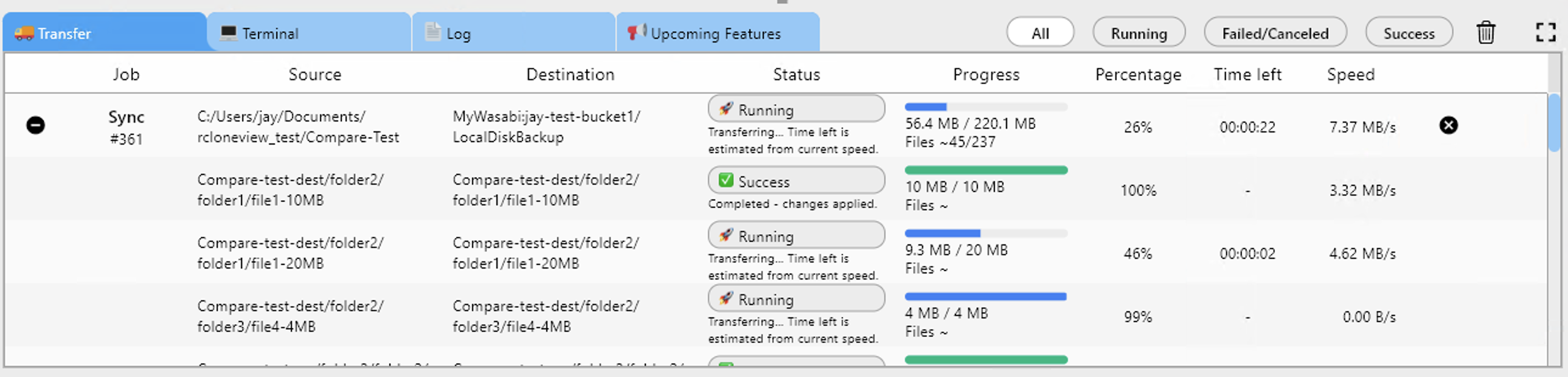
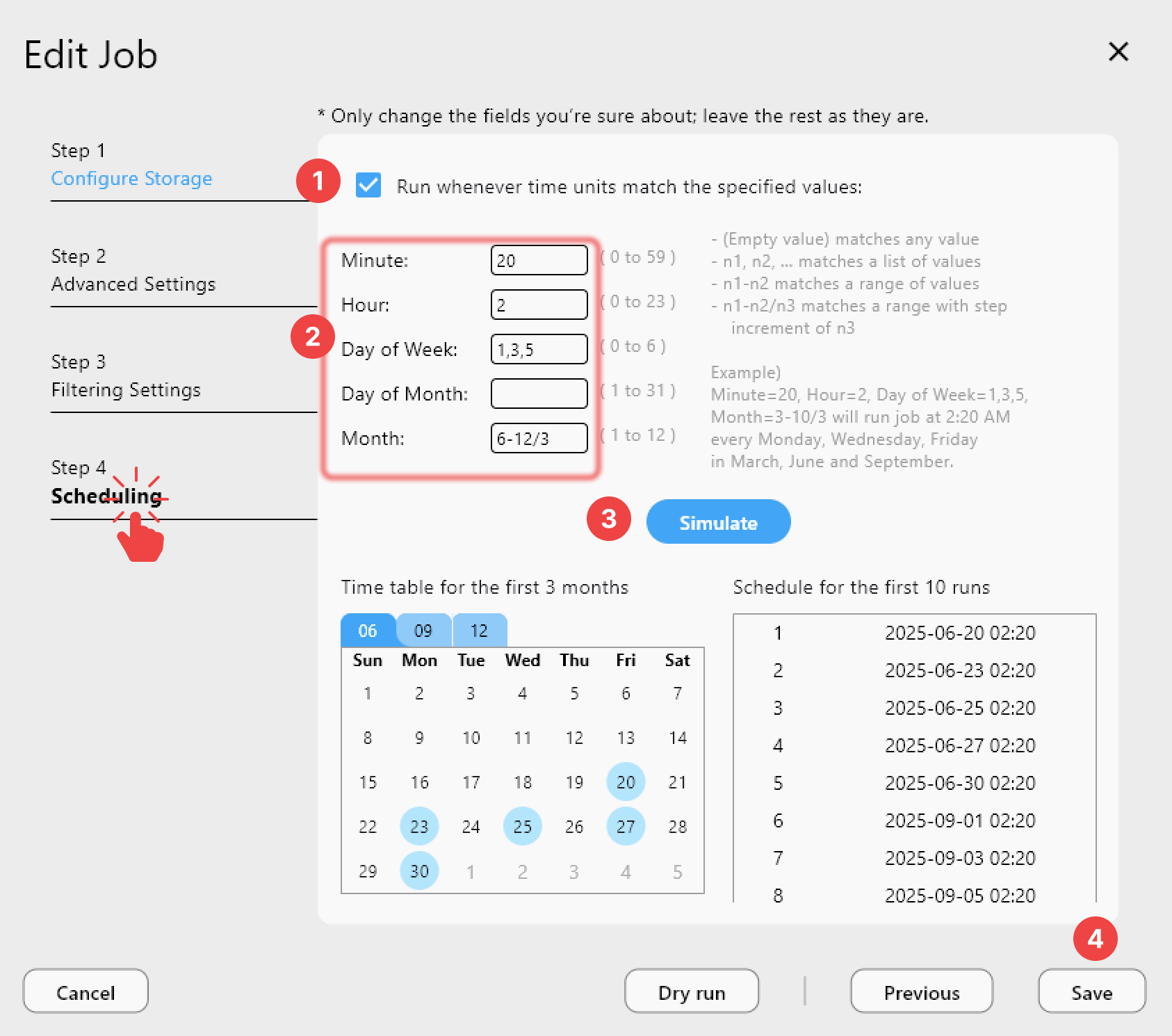
With a PLUS license, Step 4 adds crontab-style scheduling, so the job runs nightly while RcloneView sits in the tray. RcloneView needs your desktop session to run and cannot run as a systemd service. On a headless Arch server, run rclone rcd there and connect to it from your desktop through Connect Manager.
Getting Started
- Download RcloneView from rcloneview.com, picking the Linux AppImage for your architecture.
- Make the AppImage executable, install
fuse3if mounts are needed, and launch it from your desktop session. - Add your cloud remotes and mount the ones you want in your file manager.
- Create a sync job, test it with Dry Run, and schedule it if you have PLUS.
A rolling-release desktop and a single multi-cloud window make a low-maintenance backup setup.
Related Guides:
- VFS Cache Mount Performance
- Fix Rclone Mount FUSE Errors
- Connection Manager — Embedded and External Rclone
Supported Cloud Providers