Fix Synology NAS Detection and Connection Errors — Reliable Backups with RcloneView

When RcloneView won't find your Synology on the local network, the fix is usually a setting, not a broken NAS.
RcloneView can auto-detect a Synology NAS on your local network, but auto-detection depends on network visibility, not just on the NAS being powered on. A photography studio backing up 2TB of RAW files nightly can lose an entire backup window to a NAS that silently stops appearing in the explorer. This guide walks through the common causes of Synology detection and connection failures and how to resolve each one in RcloneView.

Manage & Sync All Clouds in One Place
RcloneView is a cross-platform GUI for rclone. Compare folders, transfer or sync files, and automate multi-cloud workflows with a clean, visual interface.
- One-click jobs: Copy · Sync · Compare
- Schedulers & history for reliable automation
- Works with Google Drive, OneDrive, Dropbox, S3, WebDAV, SFTP and more
Free core features. Plus automations available.
Why Auto-Detection Fails
RcloneView's Synology auto-detection setting scans the local network segment your machine is connected to. If the NAS sits behind a VLAN, a different subnet, or a VPN tunnel, the broadcast never reaches it and the NAS won't show up automatically — this is a network topology limit, not an RcloneView bug. Confirm the setting itself is on first: Settings tab > General > Auto-detect Synology NAS must be enabled, since it's toggle-controlled and easy to leave off after a fresh install.
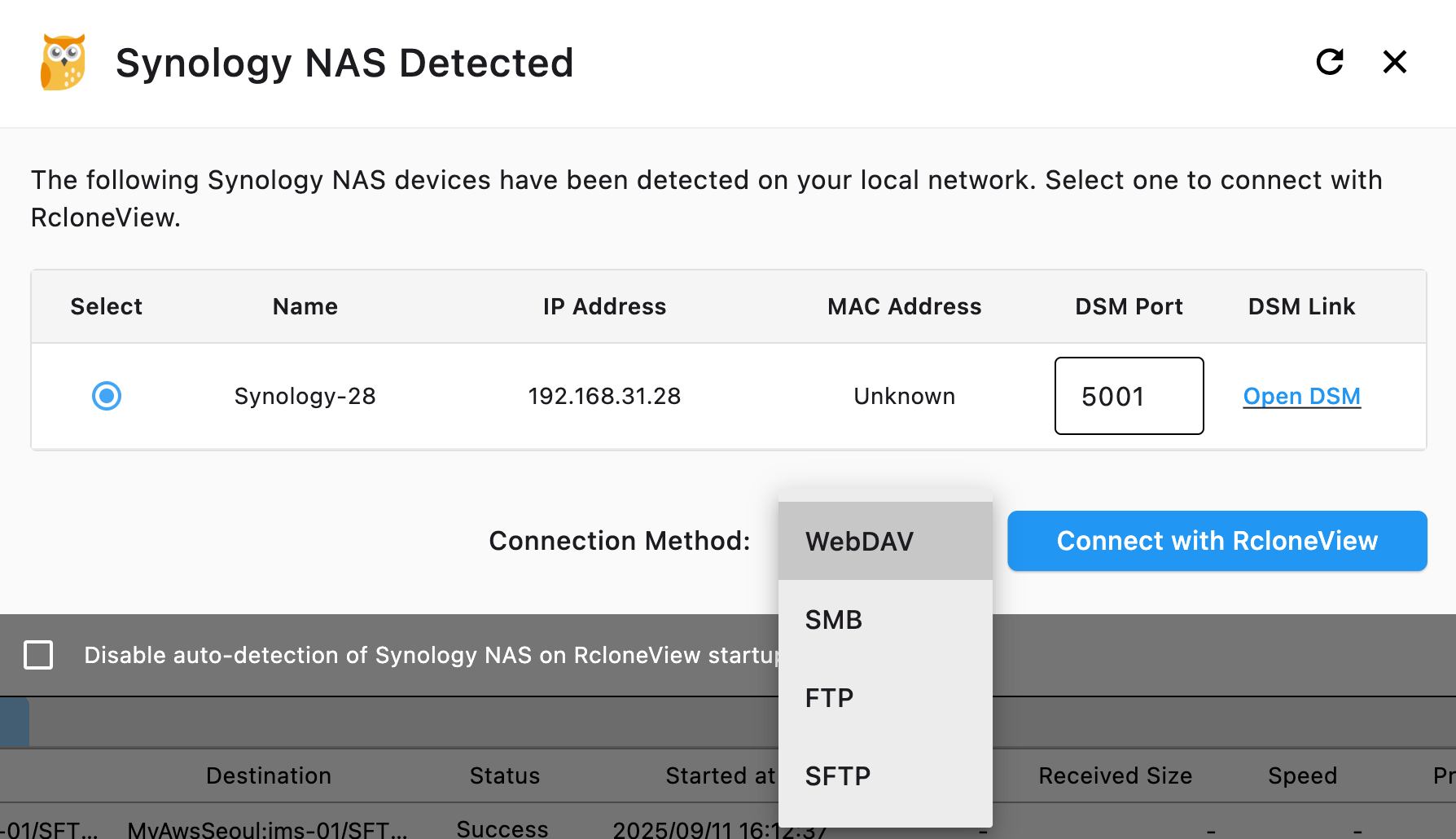
If the toggle is on and detection still fails, check that both the client machine and the NAS are on the same physical or virtual network segment. Corporate networks with client isolation enabled on the Wi-Fi access point block device-to-device discovery entirely, even though both devices show as "connected."
Manual Connection When Auto-Detection Can't Reach the NAS
When auto-detection isn't viable — remote offices, segmented networks, or NAS units on a different VLAN — connect manually instead of troubleshooting discovery. Add the Synology as an SFTP or SMB/CIFS remote in Remote Manager using its IP address or hostname directly, bypassing the local-network scan entirely.

This manual path also solves the most common secondary issue: connection timeouts that look like detection failures but are actually authentication problems. Double-check the NAS's SSH or SMB service is enabled in Synology's own control panel — RcloneView can't connect to a service the NAS itself isn't running.
Verifying the Connection and Automating Backups
Once the remote is added, use Test Connection before saving to confirm credentials and reachability in one step rather than discovering a failure mid-transfer. RcloneView mounts and syncs 90+ providers from one window, on Windows, macOS, and Linux, so once the Synology connects, it sits in the same explorer as your cloud remotes with no separate app required.

From there, build a sync job that mirrors the NAS to a cloud destination and check Job History after the first run — a job that completes with zero files transferred usually means the source path was wrong, not that the connection is broken.
Getting Started
- Download RcloneView from rcloneview.com.
- Enable Auto-detect Synology NAS in Settings, or connect manually via SFTP/SMB using the NAS's IP address.
- Run Test Connection before saving the remote.
- Set up a sync job to a cloud destination and confirm the transfer in Job History.
A NAS that connects reliably is worth the five minutes of network troubleshooting — automated backups only protect you if they actually run.
Related Guides:
- Sync Synology to Google Drive Without Data Loss
- Synology to Cloud Backup with RcloneView
- Fix SMB/Windows Network Share Mount Errors — RcloneView
Supported Cloud Providers





























