Sync Synology NAS with Google Drive Without Data Loss: A Compare-First Strategy
NAS-to-cloud sync is powerful, but one wrong direction can delete everything. A Compare-first workflow makes NAS sync predictable and safe.
Synology NAS + Google Drive (or OneDrive) is the most common small business and home setup. The problem is that sync feels easy until a wrong direction, a cleanup in the cloud, or a timing mismatch causes massive deletions. This guide shows how to keep sync safe with a Compare-first strategy in RcloneView.

Manage & Sync All Clouds in One Place
RcloneView is a cross-platform GUI for rclone. Compare folders, transfer or sync files, and automate multi-cloud workflows with a clean, visual interface.
- One-click jobs: Copy · Sync · Compare
- Schedulers & history for reliable automation
- Works with Google Drive, OneDrive, Dropbox, S3, WebDAV, SFTP and more
Free core features. Plus automations available.
Why NAS-cloud sync is popular and risky
NAS is the local source of truth. Cloud services add sharing and off-site protection. But sync is unforgiving:
- A wrong direction wipes the destination
- A cleanup in one side deletes the other
- NAS file semantics do not match cloud API behavior
That is why searches like "synology google drive sync delete" or "nas cloud sync problem" are so common.
DSM Cloud Sync is simple, but limited
DSM Cloud Sync is convenient, yet it lacks critical safety controls:
- No clear preview of deletions
- Limited filtering of NAS system files
- Fewer guardrails for large migrations
If you need more control, you need Compare-first workflows.
Why Google Drive and OneDrive are especially risky
- Google Drive uses a virtual file structure and API-based metadata.
- OneDrive introduces conflict files and lock behaviors.
- NAS expects local file semantics and immediate updates.
These differences amplify sync mistakes unless you validate changes first.
The core problem: blind sync
Blind sync means you hit Sync without seeing what will change. Typical accidents:
- Empty NAS folder -> sync -> cloud deletes everything
- Cloud cleanup -> sync -> NAS deletes everything
Compare-first eliminates this risk by showing the changes before they happen.
Compare vs Sync: different purposes, different risks
- Compare is read-only and safe. It shows what will change.
- Sync makes real changes that are hard to reverse.
Compare is not optional. It is the safety gate.

Step-by-step: safe NAS -> Google Drive / OneDrive sync
Step 1: define the scope
- Do not sync the entire NAS volume
- Pick specific shared folders
- Separate by team or project
Step 2: decide direction first
- NAS -> Cloud for backup
- Cloud -> NAS for restore
- Two-way sync is the most dangerous
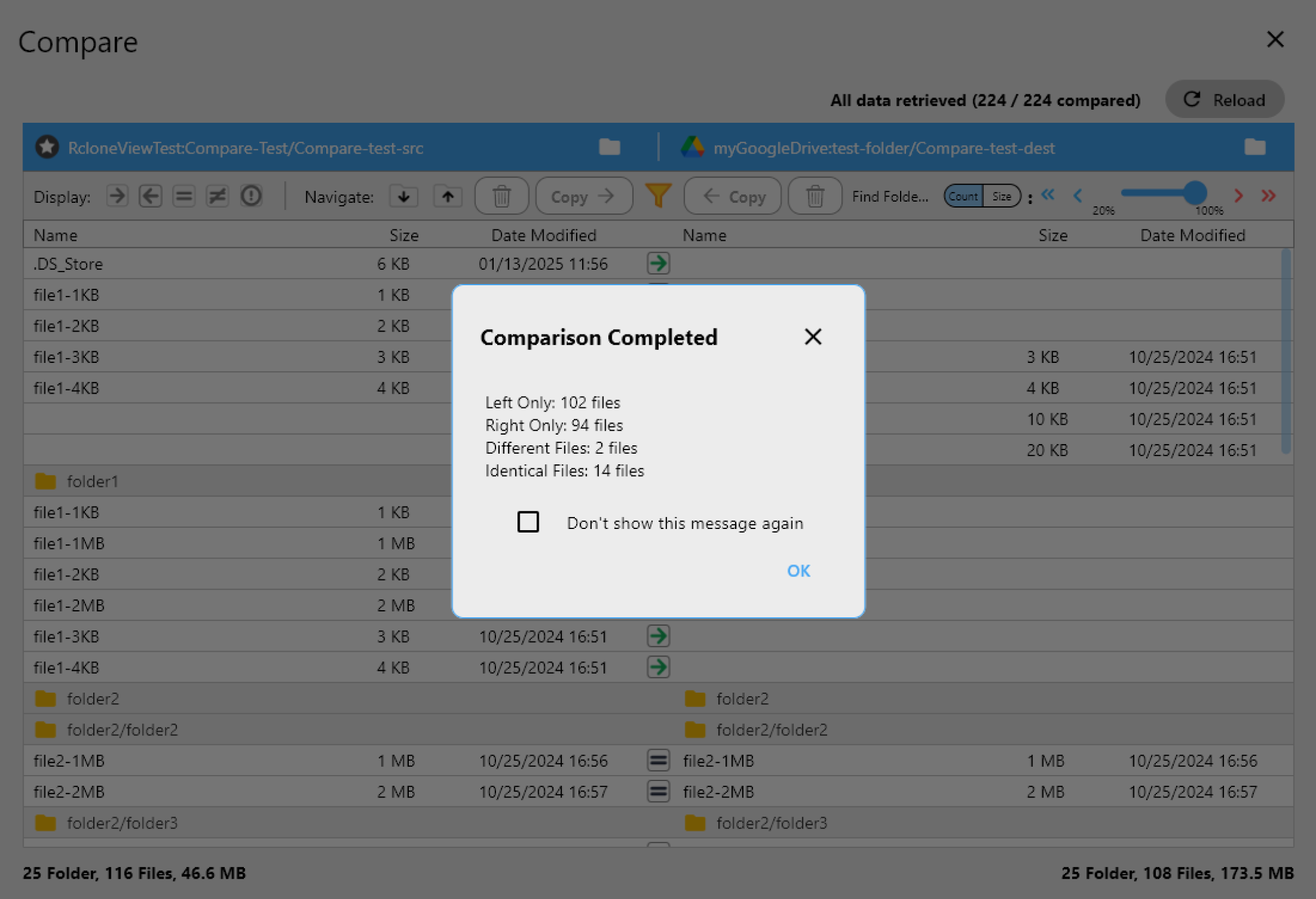
Step 3: Compare before every Sync
Check for:
- large delete counts
- unexpected file count changes
- timestamp or size mismatches
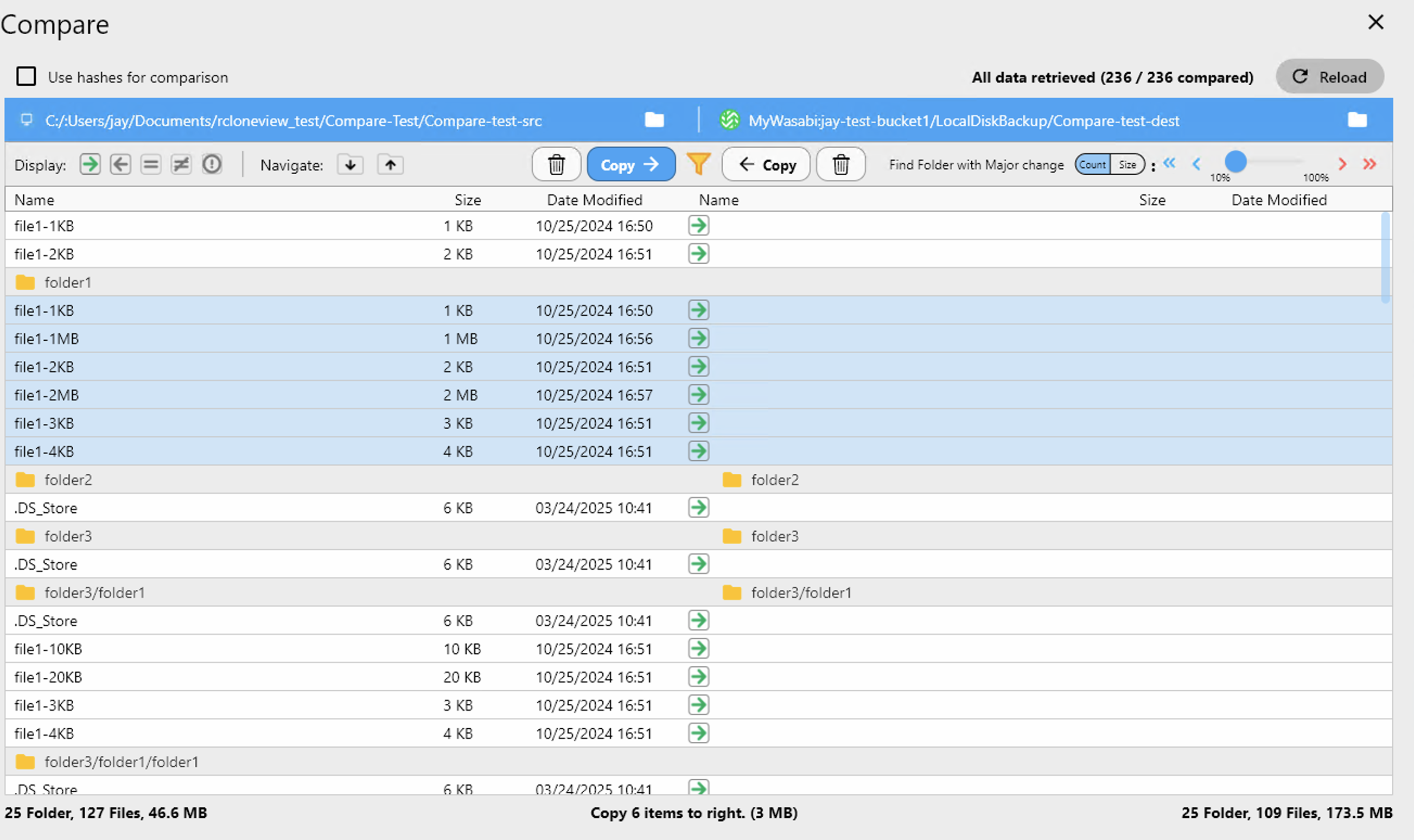
Copy first, sync later (the safer path)
Copy is safer because it does not delete. Use Copy to validate the workflow before running Sync.
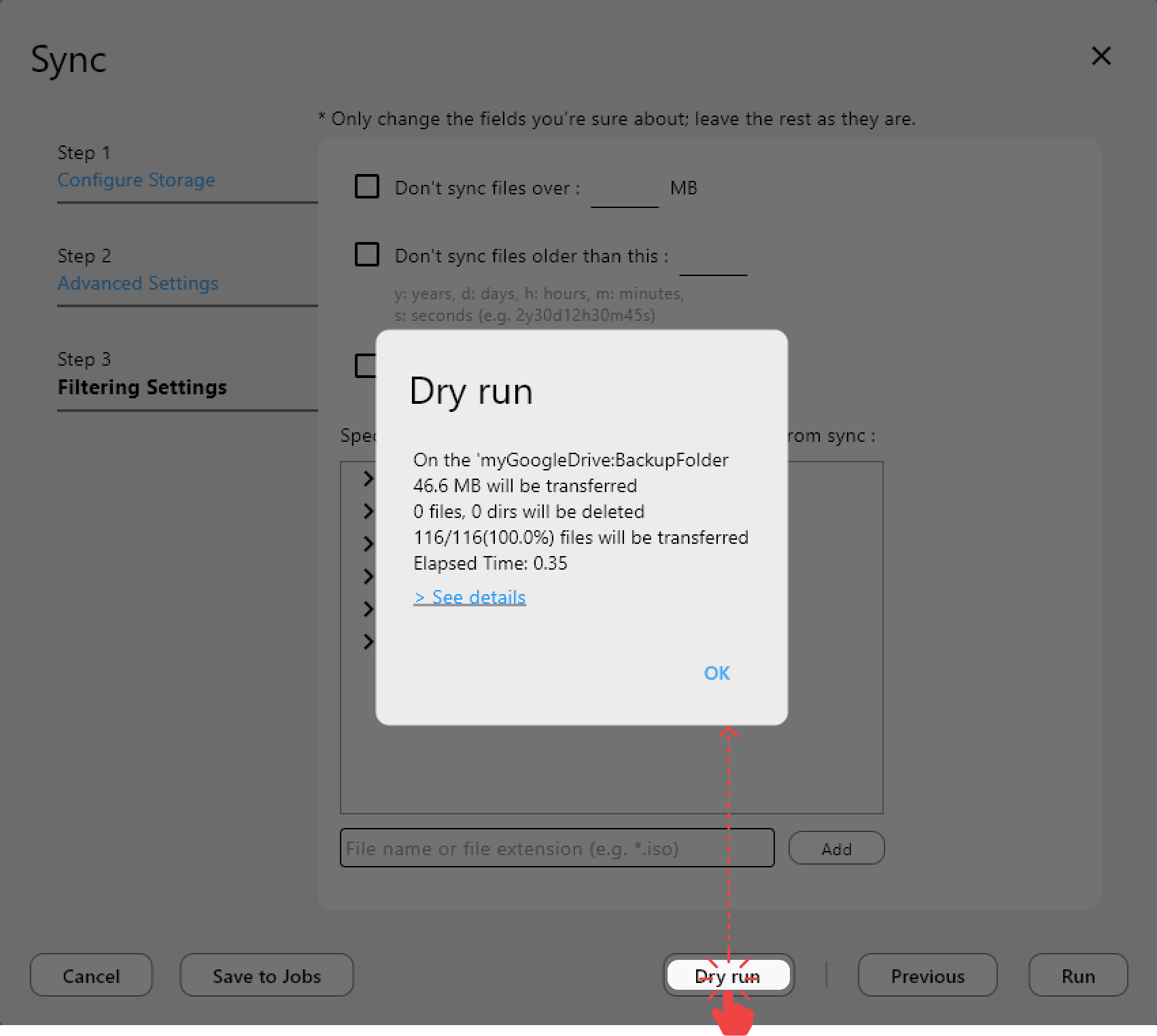
Once the structure is stable, consider Sync with Dry Run:
Handle NAS system files during sync
NAS directories often include:
@eaDir- temp caches
- package-generated metadata
These files change frequently and cause repeated sync triggers. Use Compare and filters to exclude them.
Compare-first reduces cost and risk
- Less API traffic
- Faster sync cycles
- Predictable cloud usage
- Fewer accidental deletions
Automate safe sync jobs
Save the workflow as a Job and schedule it:
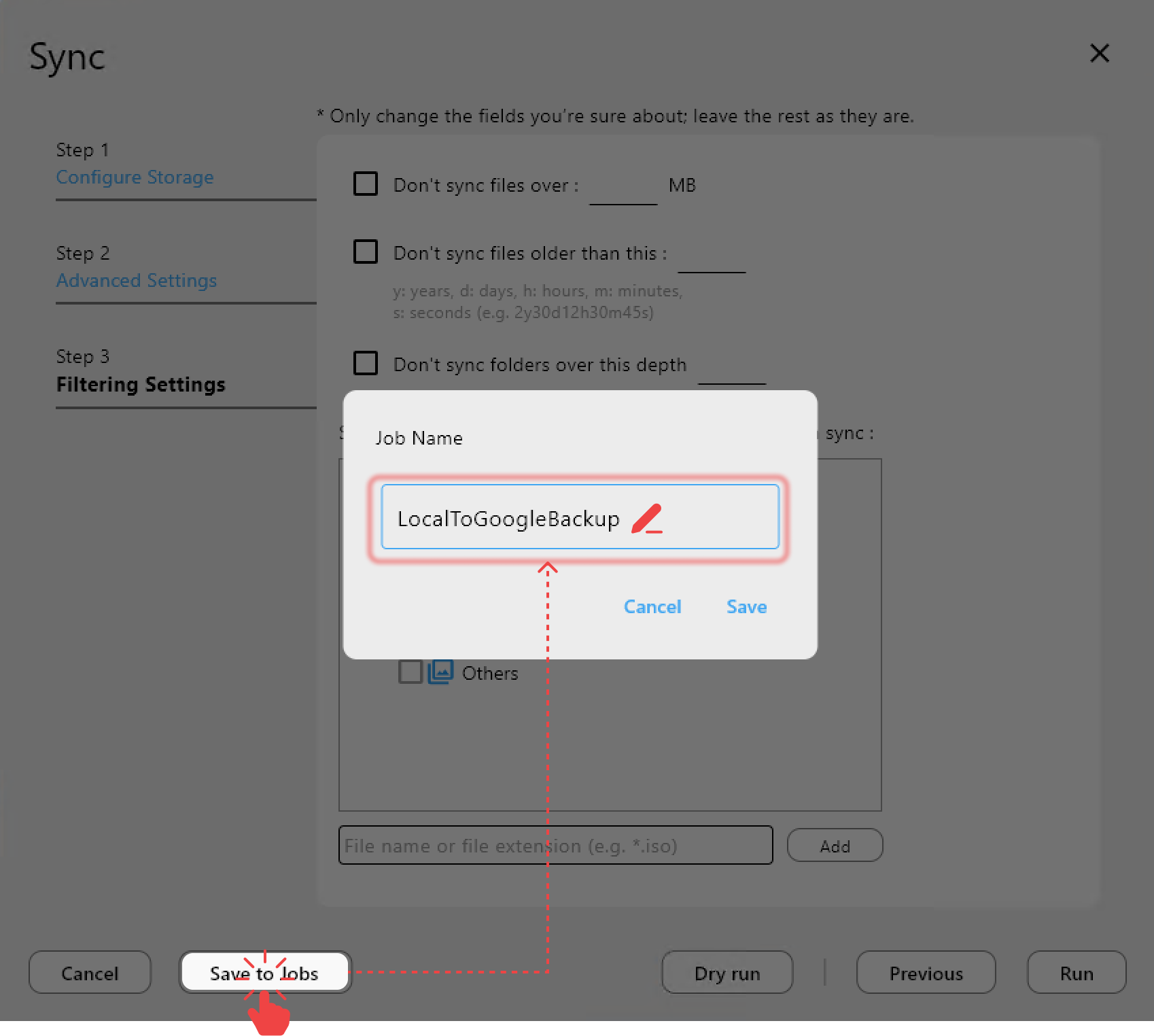
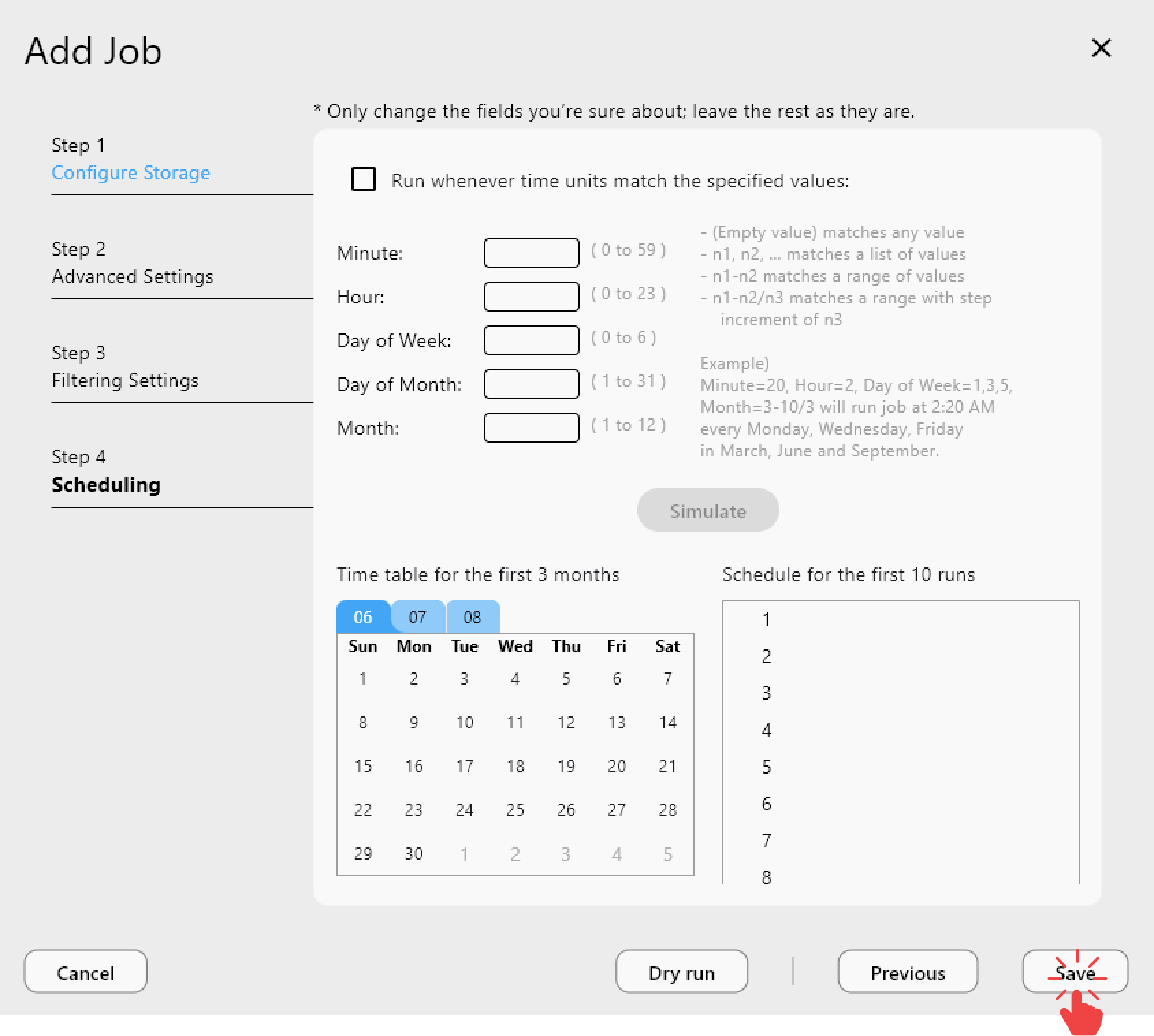
This gives you repeatable settings, history logs, and easier audits.
Real-world NAS sync scenarios
Home NAS photo backup
- NAS -> Google Drive
- Compare + Copy-first
Office file server
- NAS -> OneDrive
- One-way strategy, filter system files
Hybrid workflow
- NAS -> Cloud for backup
- Cloud -> NAS for selective restore
Common myths
"Two-way sync is always best." Convenient, but most dangerous.
"DSM Cloud Sync is enough." Works for simple cases, breaks at scale.
Best practices checklist
- Always Compare before Sync
- Start with Copy
- Keep scope small
- Watch delete counts
- Filter NAS system files
Conclusion: sync is safe if you Compare first
NAS + Google Drive or OneDrive is powerful, but only if you control the workflow. Compare-first makes sync safe, predictable, and reversible. Confirm, copy, then sync.