Manage Outscale Storage — Sync and Backup Files with RcloneView

Browse, sync, and back up Outscale Object Storage buckets from a graphical interface instead of juggling raw S3 credentials on the command line.
Outscale Object Storage is accessed through rclone's S3-compatible protocol, which means setup requires an Access Key, Secret Key, and endpoint — details that are easy to mistype in a config file. RcloneView wraps that setup in a guided form and adds a full file explorer, sync engine, and job scheduler on top, so teams already storing data on Outscale can manage it the same way they manage every other remote.

Manage & Sync All Clouds in One Place
RcloneView is a cross-platform GUI for rclone. Compare folders, transfer or sync files, and automate multi-cloud workflows with a clean, visual interface.
- One-click jobs: Copy · Sync · Compare
- Schedulers & history for reliable automation
- Works with Google Drive, OneDrive, Dropbox, S3, WebDAV, SFTP and more
Free core features. Plus automations available.
Connecting Outscale as an S3-Compatible Remote
Adding Outscale in RcloneView follows the same credential-entry flow used for other S3-compatible services: open Remote tab > New Remote, choose the S3-compatible type, and enter the Access Key ID, Secret Access Key, and the Outscale endpoint. Connect Manager also lets you point RcloneView at an external rclone instance if your Outscale integration already runs through a shared rclone daemon on a server.
Once the remote is saved, it appears as its own tab in the Explorer panel, right alongside any other cloud or local storage already configured. You can rename the connection with an Alias remote to shorten deeply nested bucket paths into something easier to navigate day to day.

Browsing, Syncing, and Backing Up Outscale Data
With the remote connected, the File Explorer gives you a dual-pane view for comparing what's on Outscale against a local folder or another cloud remote. Drag and drop between panels triggers a copy when moving between two different remotes, and the right-click menu covers rename, delete, get size, and download/upload for everyday file operations.
For recurring backups, the Sync wizard configures source and destination, transfer concurrency, and filtering rules in four steps, including options like max file age and predefined filters for media or document types. Connect S3-compatible services like Outscale with full read/write access on the FREE license — there's no need to upgrade just to write data back to the bucket. 1:N sync can mirror the same Outscale bucket to multiple destinations in a single job, useful when a backup needs to land on both a local drive and a second cloud remote.

Automating Recurring Outscale Backups
Job Manager keeps every sync, copy, or move job you create in one list, with each run logged in Job History alongside status, transfer size, and file count. Dry Run lets you preview exactly which files would be copied or deleted before committing to a real transfer — a useful safety check before a large first sync to a new Outscale bucket.
PLUS license users can attach a crontab-style schedule to a job so Outscale backups run automatically on a recurring interval, with a simulate option to preview upcoming execution times before saving.

Mounting Outscale as a Local Drive
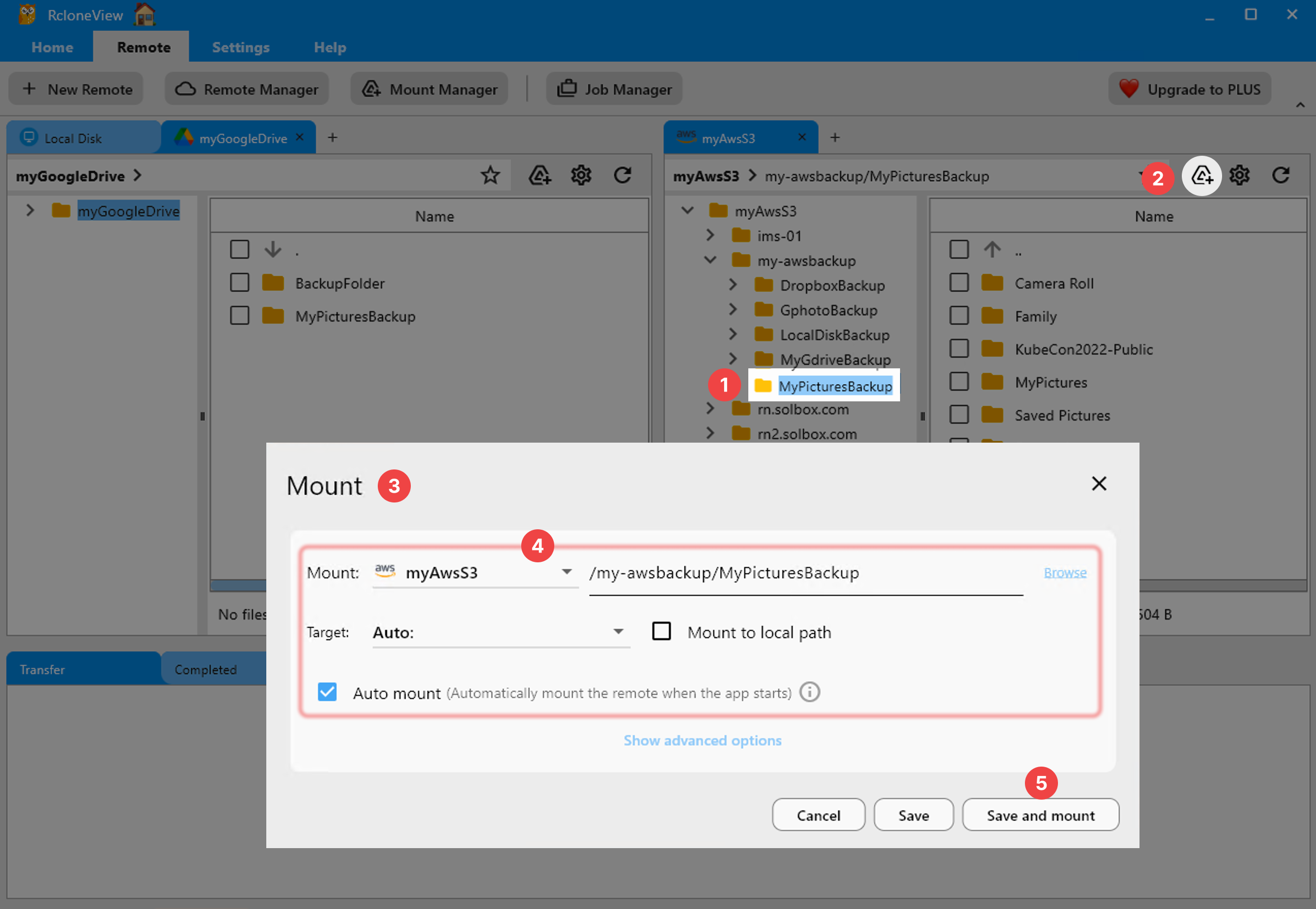
Outscale storage can also be mounted as a virtual drive, letting other desktop applications read and write bucket contents as if they were local files. Mount configuration includes VFS cache mode (default: writes), cache size limits, and read-only mode, and mounts can be started directly from the remote's panel toolbar or from the dedicated Mount Manager.
Getting Started
- Download RcloneView from rcloneview.com.
- Open Remote tab > New Remote and select the S3-compatible option to enter your Outscale credentials and endpoint.
- Use Folder Compare or drag and drop to move existing data onto Outscale, then set up a Sync job for ongoing backups.
- Add the job to Job Manager and, on PLUS, attach a schedule so backups run without manual intervention.
Once the remote is configured, Outscale storage behaves like any other connection in RcloneView — browsable, syncable, and ready to be backed up on a schedule.
Related Guides:
- Manage Wasabi Storage — Sync and Backup Files with RcloneView
- Manage Scaleway Object Storage — Cloud Sync with RcloneView
- Manage Hetzner Object Storage — Cloud Sync with RcloneView
Supported Cloud Providers





























