Manage SeaweedFS Storage — Sync and Backup Files with RcloneView

Turn your self-hosted SeaweedFS cluster into a mountable drive and a first-class sync target, without touching a terminal.
SeaweedFS is a fast distributed storage system that exposes an S3-compatible gateway, making it a popular choice for teams that want object storage on their own hardware instead of a public cloud bill. The catch is that most SeaweedFS deployments are managed entirely through configuration files and CLI commands. RcloneView closes that gap by treating your SeaweedFS gateway like any other S3-compatible remote, giving you a visual file browser, drag-and-drop transfers, and scheduled backups on top of your existing cluster.

Manage & Sync All Clouds in One Place
RcloneView is a cross-platform GUI for rclone. Compare folders, transfer or sync files, and automate multi-cloud workflows with a clean, visual interface.
- One-click jobs: Copy · Sync · Compare
- Schedulers & history for reliable automation
- Works with Google Drive, OneDrive, Dropbox, S3, WebDAV, SFTP and more
Free core features. Plus automations available.
Connecting SeaweedFS as an S3-Compatible Remote
SeaweedFS's S3 gateway speaks the same protocol as Amazon S3, so RcloneView connects to it the same way it connects to any other S3-compatible provider: Access Key ID, Secret Access Key, and a custom Endpoint pointing at your gateway's address and port. Open Remote tab > New Remote, choose the S3-compatible option, and enter your cluster's gateway URL as the endpoint. Because RcloneView ships with an embedded rclone instance communicating over its local RC API, there's no separate binary or config file to hand-edit — the credentials you enter in the UI are all the setup required.

This same workflow applies whether your SeaweedFS cluster runs on a home server, a colocated rack, or a cloud VM you manage yourself — RcloneView only cares that the gateway responds to S3 API calls.
Syncing and Backing Up Data Between SeaweedFS and Other Clouds
Once connected, SeaweedFS behaves like any other panel in RcloneView's Explorer, so you can drag files between it and Google Drive, OneDrive, Backblaze B2, or a local disk in the same window. For recurring protection, the 4-step Sync wizard lets you configure a one-way job from your SeaweedFS bucket to a second remote, add filters to exclude temporary files, and run a Dry Run first to preview exactly what would be copied or deleted.

Unlike mount-only tools, RcloneView also syncs and compares folders between SeaweedFS and any other supported provider — on the FREE license.
Mounting SeaweedFS as a Local Drive
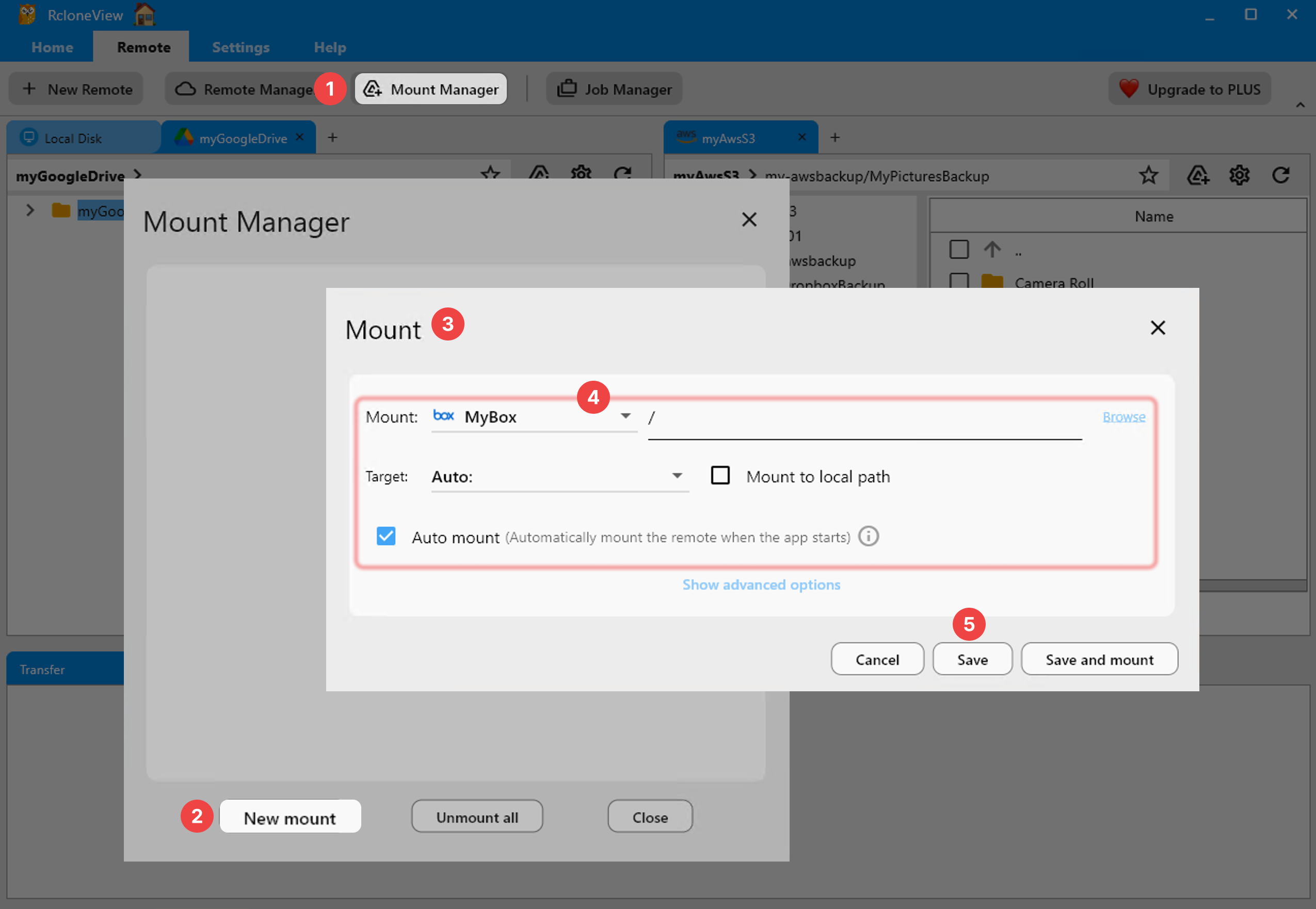
If your workflow depends on native applications reading and writing files directly, Mount Manager lets you attach your SeaweedFS bucket as a local drive on Windows, macOS, or Linux. Set the VFS cache mode to "writes" for a balance of responsiveness and safety, or "full" if you need offline access to recently used files.
Monitoring Transfers and Job History
Every sync or copy job against your SeaweedFS remote appears in the Transferring tab with live progress, speed, and file counts, and each completed run is logged in Job History with duration, total size, and status. That history makes it easy to confirm a scheduled backup actually ran before you need to rely on it.

Getting Started
- Download RcloneView from rcloneview.com.
- Gather your SeaweedFS gateway's Access Key, Secret Key, and endpoint URL.
- Create a new S3-compatible remote in RcloneView and test the connection.
- Set up a sync job or mount to start moving data between SeaweedFS and your other remotes.
Self-hosted storage doesn't have to mean command-line-only storage — a proper GUI makes SeaweedFS as approachable as any commercial cloud.
Related Guides:
- Manage MinIO Self-Hosted Storage — Cloud Sync and Backup with RcloneView
- Centralize S3, Wasabi, and R2 with RcloneView
- VFS Cache and Mount Performance in RcloneView
Supported Cloud Providers





























