Memory Remote — RAM-Based Temporary Storage in RcloneView

Need a scratch space that disappears the moment you close it? RcloneView's Memory virtual remote gives you RAM-based storage for testing sync jobs and staging transfers without touching disk.
Among RcloneView's virtual remotes — Alias, Crypt, Cache, Chunker, Combine, Union, Hasher, and Compress — Memory stands apart: it stores data entirely in RAM for the life of the session, with nothing written to disk and nothing left behind on exit. That makes it a practical tool for testing sync configurations, validating filter rules, or staging small transfers before they hit a real cloud destination. This guide covers when and how to use it inside RcloneView.

Manage & Sync All Clouds in One Place
RcloneView is a cross-platform GUI for rclone. Compare folders, transfer or sync files, and automate multi-cloud workflows with a clean, visual interface.
- One-click jobs: Copy · Sync · Compare
- Schedulers & history for reliable automation
- Works with Google Drive, OneDrive, Dropbox, S3, WebDAV, SFTP and more
Free core features. Plus automations available.
What the Memory Remote Is For
Unlike Alias (a shortcut to an existing path) or Crypt (encryption for existing remotes), Memory is a standalone storage backend that exists only in the running rclone process's memory. Anything copied into it vanishes as soon as the embedded rclone instance restarts or the app closes. That temporary, no-trace nature is exactly what makes it useful for a specific set of workflows rather than everyday storage.
RcloneView mounts AND syncs 90+ providers from one window, on Windows, macOS, and Linux — the Memory remote is just one more entry in that same Remote Manager, configured and used the same way as any real cloud connection.

Testing Sync Jobs Safely
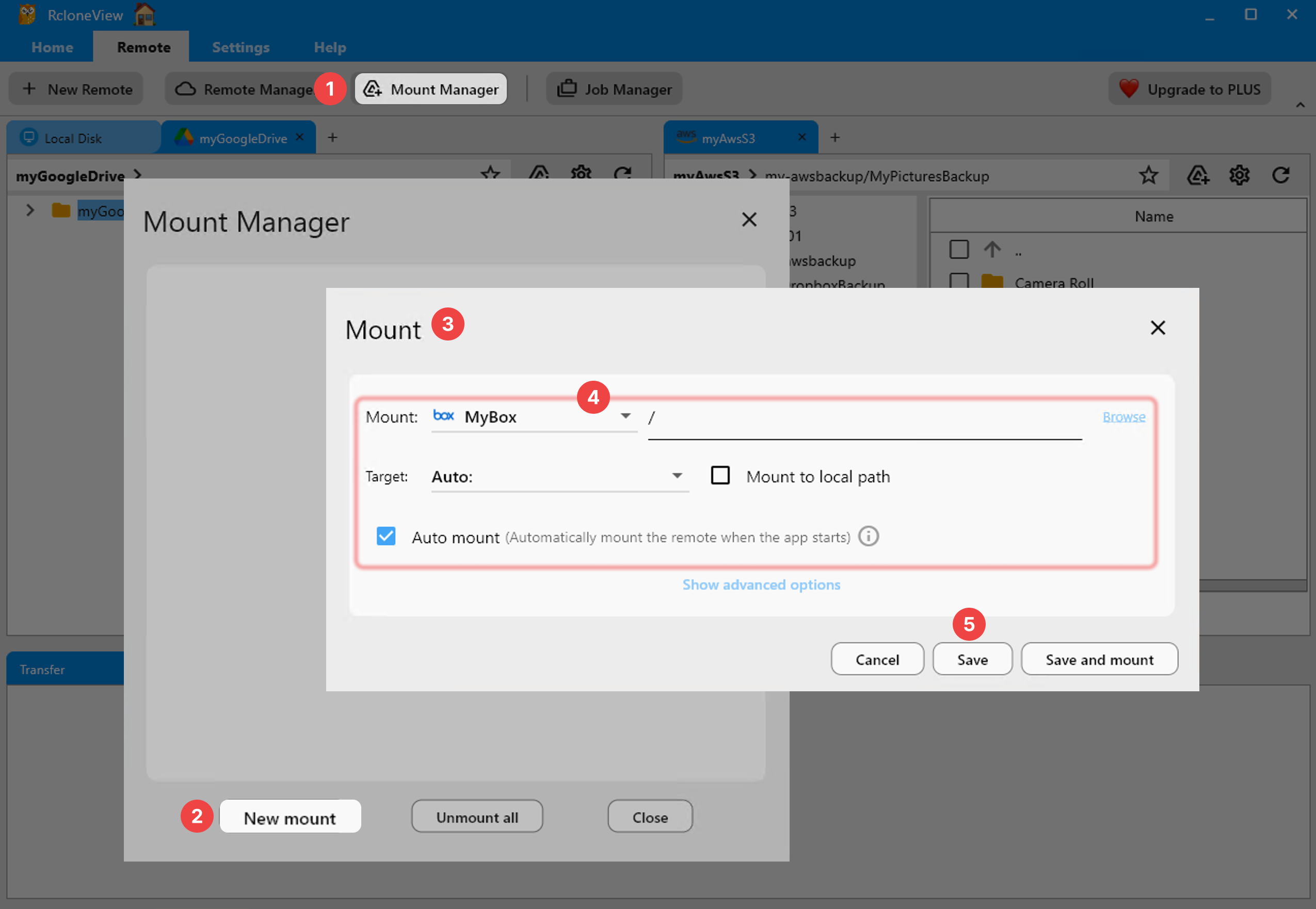
Before pointing a new sync job at production cloud storage, you can create a Memory remote and run the job against it first. This confirms that your source selection, filter rules, and folder structure behave as expected without risking real data on the destination side. Combined with Dry Run, this gives you two layers of safety: a simulated preview, followed by an actual test copy that costs nothing and leaves nothing behind.

Staging Transfers Between Providers
When moving files between two cloud providers that do not transfer efficiently direct-to-direct, a Memory remote can act as a fast intermediate hop for small batches — useful when validating a multi-step batch operation before scheduling it for real. Because Memory has no disk I/O overhead, small staging transfers complete quickly, letting you iterate on a batch sequence rapidly.
Setting Up a Memory Remote
Adding a Memory remote follows the same New Remote flow as any other connection in RcloneView.
How to set it up:
- Open the Remote tab and click New Remote.
- Select Memory from the list of virtual remote types.
- Save — no credentials or configuration are required since the storage is entirely local to the running rclone process.
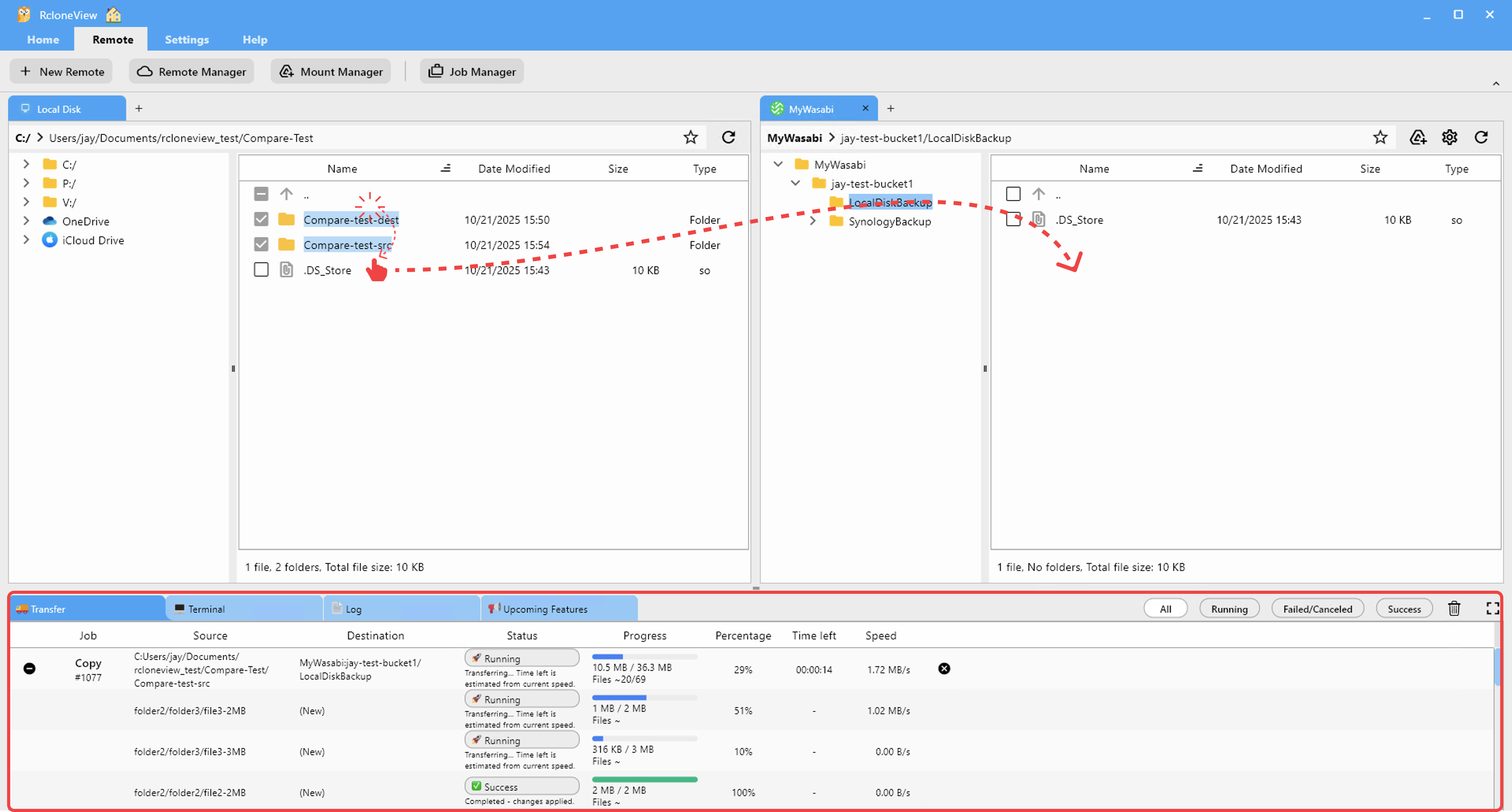
- Use it as a source or destination in any Sync, Copy, or batch job like you would a normal remote.
When Not to Use It
Memory storage is not a backup destination and should never hold anything you need to keep — restarting rclone or the app clears it completely. It is also bound by available system RAM, so it is only practical for small test batches, not large-scale transfers.
Getting Started
- Download RcloneView from rcloneview.com.
- Add a Memory remote from the Virtual Remotes section of New Remote.
- Point a test sync job at it before running the same job against a real destination.
- Use Job History to confirm the test behaved as expected, then swap in your actual cloud remote.
A disposable RAM-based remote is a small addition, but it closes a real gap between "simulate with Dry Run" and "commit to production" when you are building out a new workflow.
Related Guides:
- Virtual Remotes — Combine, Union, and Alias in RcloneView
- Alias Remote — Shortcut Paths in RcloneView
- Encrypt Cloud Backups — Crypt Remote Guide with RcloneView
Supported Cloud Providers





























