Migrate Google Drive to Wasabi — Transfer Files with RcloneView

Move or archive a Google Drive into a Wasabi bucket without downloading anything to your own disk first.
A design studio with 2TB of finished projects may want them out of Google Drive and into S3-compatible object storage. RcloneView transfers directly from Drive to Wasabi, with a Dry Run beforehand and a Folder Compare afterward so you can confirm nothing was missed.

Manage & Sync All Clouds in One Place
RcloneView is a cross-platform GUI for rclone. Compare folders, transfer or sync files, and automate multi-cloud workflows with a clean, visual interface.
- One-click jobs: Copy · Sync · Compare
- Schedulers & history for reliable automation
- Works with Google Drive, OneDrive, Dropbox, S3, WebDAV, SFTP and more
Free core features. Plus automations available.
Connect Both Remotes
Google Drive uses OAuth: choose it under New Remote and sign in through your browser. Wasabi is an S3-compatible provider, so you enter an Access Key, a Secret Key, and the endpoint for your Wasabi region. Create the bucket in the Wasabi console first so you have a destination to point at.

Connect S3, Azure, or Backblaze B2 with full read/write on the FREE license — and Wasabi and other S3-compatible services work the same way.
Plan the Transfer with a Dry Run
Open Google Drive in one Explorer panel and your Wasabi bucket in the other. For a one-off move, drag folders between the panels; different remotes perform a copy. For a large library, create a job instead. Step 1 sets source and destination, Step 2 lets you tune concurrent transfers, and Step 3 can filter by file size, age, or type. Run Dry Run to preview every file that will be copied.

Choose the Copy job type rather than Sync while migrating. Copy never deletes anything at the destination, which is the safer choice until you have verified the result.
Watch the Transfer
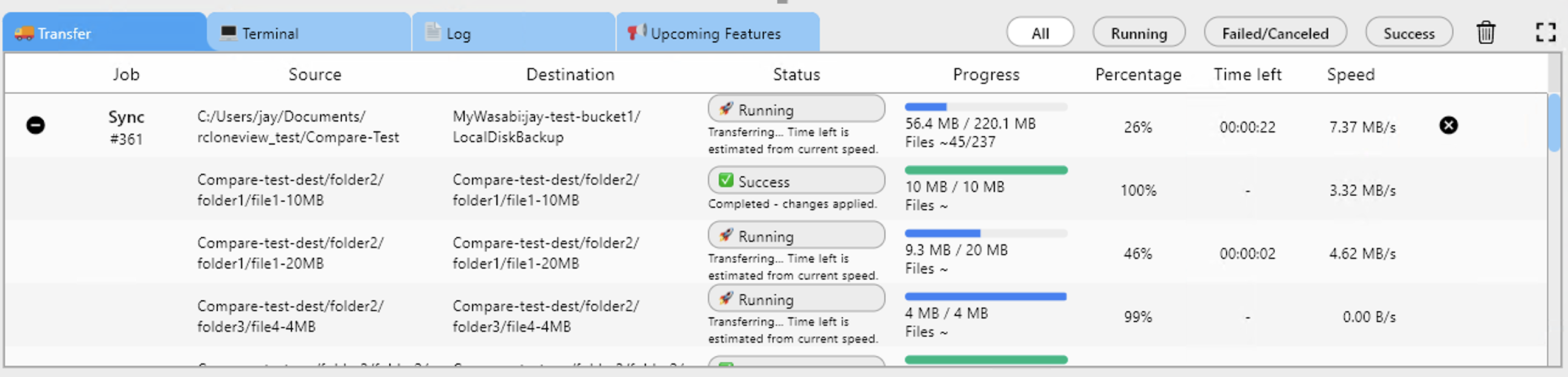
Start the job and follow progress in the Transferring tab at the bottom of the window: percentage, speed, and file counts. If Google Drive rate limits slow things down, lower the number of concurrent file transfers in the job's advanced settings and run again; already-copied files are skipped.
Verify Before You Clean Up
Use Compare to view the two locations side by side. Filters show left-only, right-only, identical, and different files, so any gap is obvious. Only after the comparison is clean should you consider removing data from Google Drive. Job History keeps a record of each run for your files.

Getting Started
- Download RcloneView from rcloneview.com.
- Add Google Drive (OAuth) and Wasabi (Access Key, Secret Key, endpoint) as remotes.
- Create a Copy job from Drive to your bucket and run a Dry Run.
- Start the job, then confirm the result with Compare.
A verified copy in a bucket you control makes the rest of the cleanup low-risk.
Related Guides:
Supported Cloud Providers





























