Migrate HiDrive to Wasabi — Transfer Files with RcloneView

Move a HiDrive archive into Wasabi object storage with a visual workflow: connect, preview, transfer, verify.
HiDrive works well as a personal or team file store, but long-term archives often belong in S3-style object storage with predictable API access. RcloneView connects both services in one window, so you can copy folders cloud-to-cloud without downloading everything to your own disk first.

Manage & Sync All Clouds in One Place
RcloneView is a cross-platform GUI for rclone. Compare folders, transfer or sync files, and automate multi-cloud workflows with a clean, visual interface.
- One-click jobs: Copy · Sync · Compare
- Schedulers & history for reliable automation
- Works with Google Drive, OneDrive, Dropbox, S3, WebDAV, SFTP and more
Free core features. Plus automations available.
Connect HiDrive and Wasabi as Remotes
HiDrive uses OAuth: RcloneView opens your browser, you sign in, and the remote connects without a separate API key. Wasabi is S3-compatible, so you enter an Access Key, Secret Key, and the endpoint for your bucket's region.
Add both from the Remote tab with New Remote. Then open each in an Explorer panel, one on the left and one on the right, and confirm you can browse the HiDrive folders and the target Wasabi bucket.

Plan the Transfer With a Dry Run
Imagine a design studio moving 800 GB of finished project folders out of HiDrive. Before touching anything, build the transfer as a job. Choose HiDrive as the source and a Wasabi bucket path as the destination, then use One-way "Modifying destination only" mode.
Run a Dry Run first. It lists the files that would be copied or deleted without making changes, which is a reliable way to catch a wrong destination folder.

Tune Settings and Run the Job
In Step 2 of the wizard, set the number of file transfers and enable checksum comparison if you want hash-and-size verification. Keep the retry value at its default of 3 so a brief network failure does not abort the whole run. Use Step 3 filters to skip things like temporary files or a .git/ folder.
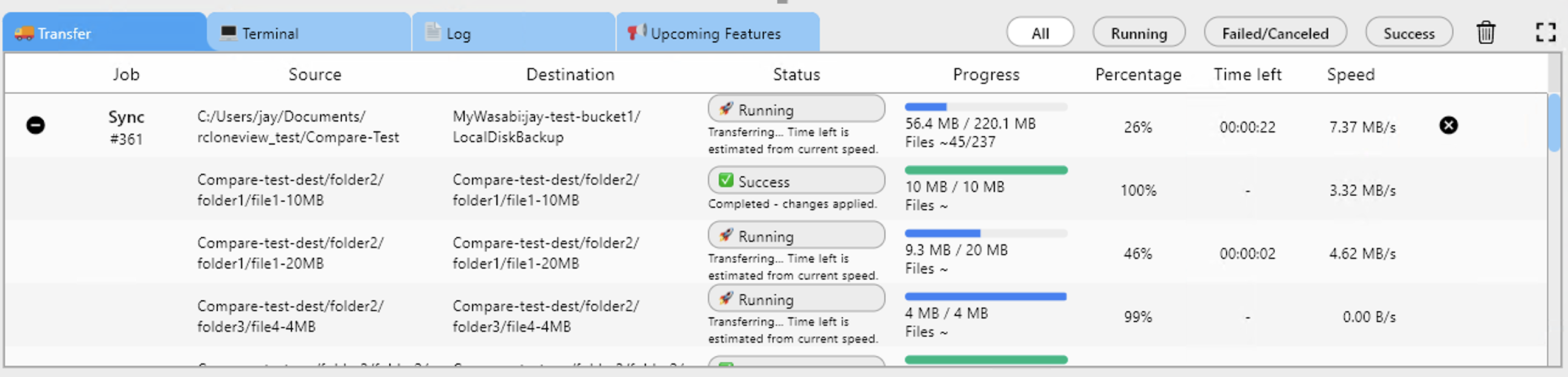
When the preview looks right, run the job and watch speed, progress, and file counts in the Transferring tab.
Verify With Folder Compare
After the job finishes, open Compare with HiDrive on one side and Wasabi on the other. Filter for left-only files to see anything that did not arrive, and copy only the missing items. Job History keeps a record of status, duration, size, and file count for your migration log.

Getting Started
- Download RcloneView from rcloneview.com.
- Add HiDrive (browser login) and Wasabi (Access Key, Secret Key, endpoint) as remotes.
- Create a one-way job from HiDrive to your Wasabi bucket and run a Dry Run.
- Run the transfer, then verify with Folder Compare.
A previewed, verified migration leaves your HiDrive files untouched until you are sure everything has landed in Wasabi.
Related Guides:
- Sync HiDrive to Amazon S3 with RcloneView
- Migrate HiDrive to Backblaze B2 with RcloneView
- Manage Wasabi Storage — Sync and Backup Files with RcloneView
Supported Cloud Providers





























