Migrate Jottacloud to pCloud — Transfer Files with RcloneView

RcloneView moves a Jottacloud library into pCloud with a previewed, verifiable cloud-to-cloud transfer instead of a manual download and re-upload.
Switching from Jottacloud to pCloud usually means years of photos, documents, and archives that nobody wants to download and upload by hand. RcloneView connects both services as remotes and transfers the data between them, so you can preview, run, and verify the move from one window.

Manage & Sync All Clouds in One Place
RcloneView is a cross-platform GUI for rclone. Compare folders, transfer or sync files, and automate multi-cloud workflows with a clean, visual interface.
- One-click jobs: Copy · Sync · Compare
- Schedulers & history for reliable automation
- Works with Google Drive, OneDrive, Dropbox, S3, WebDAV, SFTP and more
Free core features. Plus automations available.
Connect Both Remotes
Open Remote > New Remote and add Jottacloud, then add pCloud. pCloud uses OAuth, so a browser window opens for you to sign in and the remote connects automatically. Jottacloud is set up through the same New Remote wizard by following its prompts.
Open each remote in its own Explorer panel and browse the root folders. Seeing both sides listed confirms the connections work before you move any data.

Preview the Transfer With Dry Run
With Jottacloud on the left and pCloud on the right, drag folders across for a quick copy, or build a sync job for the full library. Between different remotes, drag and drop copies rather than moves, so the source stays intact until you decide otherwise.
For a full migration, create the job in the four-step wizard, choose the source and destination folders, and run a Dry Run first. It lists the files that would be copied or deleted without changing anything.

Run the Job and Watch Progress
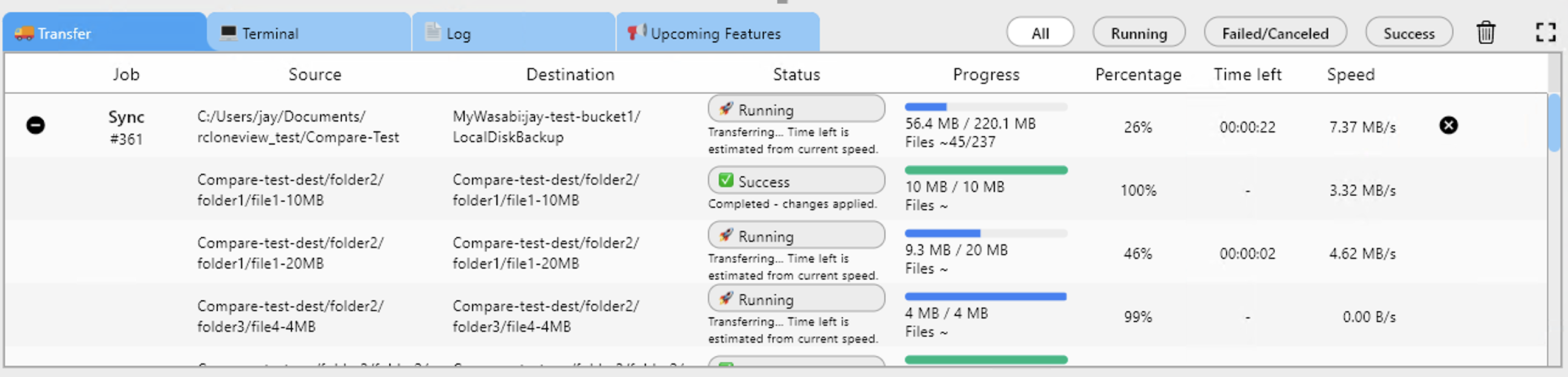
Start the job and follow it in the Transferring tab, which shows progress, speed, and file counts. For a large library, keep transfers moderate in Step 2 and leave "Retry entire sync if fails" at 3 so brief network interruptions do not end the run.
If you plan to migrate in stages, use the filtering step to limit by folder, file age, or predefined types such as Image or Document.
Verify Before You Cancel Anything
Open Compare with Jottacloud and pCloud side by side. Show left-only and different files to find anything that did not arrive, then copy only those items. Check Job History for the final status before you decide to retire the old account.

Getting Started
- Download RcloneView from rcloneview.com.
- Add Jottacloud and pCloud as remotes and browse both.
- Create a sync or copy job from Jottacloud to pCloud and run a Dry Run.
- Run the job, then confirm with Folder Compare and Job History.
A previewed and verified transfer lets you switch storage providers without risking the files you already have.
Related Guides:
- Migrate Jottacloud to Google Drive with RcloneView
- Migrate pCloud to Dropbox with RcloneView
- Manage Jottacloud Storage — Sync and Backup Files with RcloneView
Supported Cloud Providers





























