Migrate Koofr to Mega — Transfer Files with RcloneView

Copy your Koofr library to Mega directly between the two clouds, with a preview first and a verification pass at the end.
Koofr and Mega take different approaches to storage, and moving between them by hand means downloading everything and uploading it again. For a photographer with years of project folders or a small office with shared documents, that is hours of babysitting. RcloneView connects both services in one window and transfers between them directly, with jobs you can preview, repeat, and review in history.

Manage & Sync All Clouds in One Place
RcloneView is a cross-platform GUI for rclone. Compare folders, transfer or sync files, and automate multi-cloud workflows with a clean, visual interface.
- One-click jobs: Copy · Sync · Compare
- Schedulers & history for reliable automation
- Works with Google Drive, OneDrive, Dropbox, S3, WebDAV, SFTP and more
Free core features. Plus automations available.
Add Koofr and Mega as Remotes
Open Remote > New Remote and add Koofr using the credentials the setup dialog asks for. Then add Mega with your email and password. Mega is a credential-entry remote rather than OAuth, so there is no browser step. Once both appear in Remote Manager, you can open each in its own Explorer panel.
Koofr and Mega sit alongside the other supported providers in the same remote list.

Plan the Transfer
Start by browsing the Koofr folders you want to move. Use Get Size on the biggest ones so you know what to expect, and note anything you can leave behind. Mega applies account transfer and storage limits that depend on your plan, so confirm your destination has room before launching a large job rather than discovering it halfway through.

Create a Copy Job and Dry Run It
In the Sync wizard, set Koofr as the source and a Mega folder as the destination. Choose the Copy job type so existing Mega files are never deleted. Under Advanced Settings you can adjust the number of file transfers and equality checkers; lower them if either service slows down or returns errors. Use filtering to skip file types or folders you do not want to carry over.
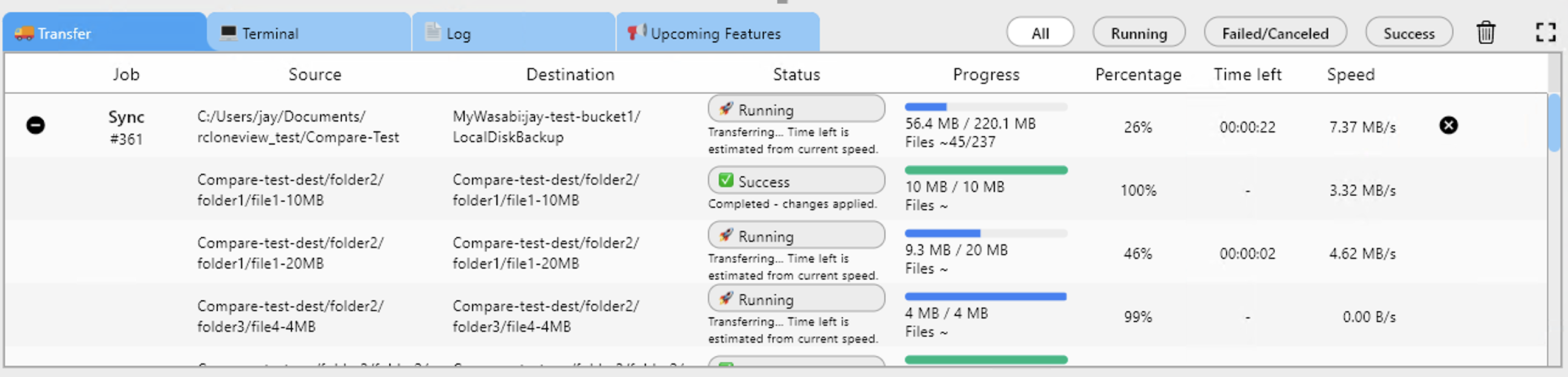
Run Dry Run before the real job. It shows exactly which files would be copied, which catches a mistaken source folder while it costs nothing. When the preview looks right, run the job and watch speed and progress in the Transferring tab.
Verify and Keep a Record
After the run, open Compare with Koofr on the left and Mega on the right. Filter for left-only or different files to see anything that did not arrive, and copy them across with the compare view's copy action. Job History keeps the status, duration, size, and file count of every run, so you have a record before you retire the old account.

Getting Started
- Download RcloneView from rcloneview.com.
- Add Koofr and Mega from Remote > New Remote.
- Create a Copy job from Koofr to Mega and run a Dry Run.
- Run the job and confirm with Folder Compare before deleting anything at Koofr.
Copying first and verifying second means your Koofr files stay available until Mega has them all.
Related Guides:
Supported Cloud Providers





























