Fix Slow File Opening on Cloud Mounts — Tune VFS Cache with RcloneView

Cache settings influence how a mounted cloud drive responds, and you can change them per mount in Mount Manager.
A mounted cloud drive feels like a local disk until you double-click a large file and wait. Folders list slowly, applications hang on save, or media stutters. RcloneView exposes the VFS cache options behind each mount, so you can adjust them per remote instead of guessing.

Manage & Sync All Clouds in One Place
RcloneView is a cross-platform GUI for rclone. Compare folders, transfer or sync files, and automate multi-cloud workflows with a clean, visual interface.
- One-click jobs: Copy · Sync · Compare
- Schedulers & history for reliable automation
- Works with Google Drive, OneDrive, Dropbox, S3, WebDAV, SFTP and more
Free core features. Plus automations available.
Check the Cache Mode First
Open Mount Manager from the Remote tab and edit the mount. Cache mode offers off, minimal, writes, and full. The default is writes, which caches files being written to the drive. If you mostly read the same files repeatedly, such as documents or media, full caches reads as well, so repeat opens can be served from local disk. Off is the leanest setting but sends every read to the cloud.
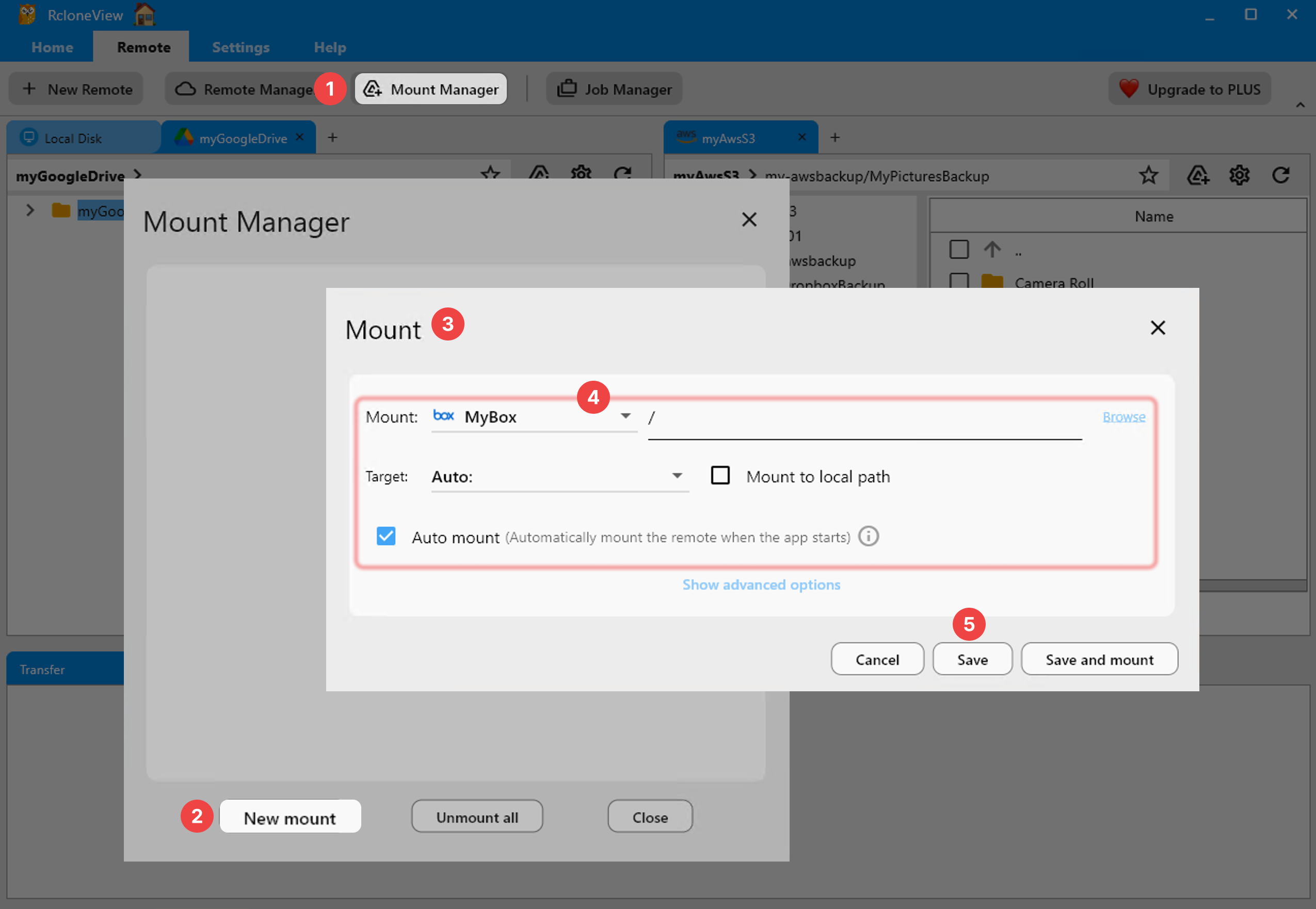
Edit and Delete are disabled while a drive is mounted, so unmount first, change the setting, then mount again.
Size the Cache and Directory Time
Cache max size defaults to -1, meaning no size limit, which can fill a small disk. Set a limit that fits your free space, and use cache max age to control how long cached data stays valid. Dir cache time controls how long folder listings are remembered: a longer value reduces repeated folder lookups, but changes made by others take longer to appear.
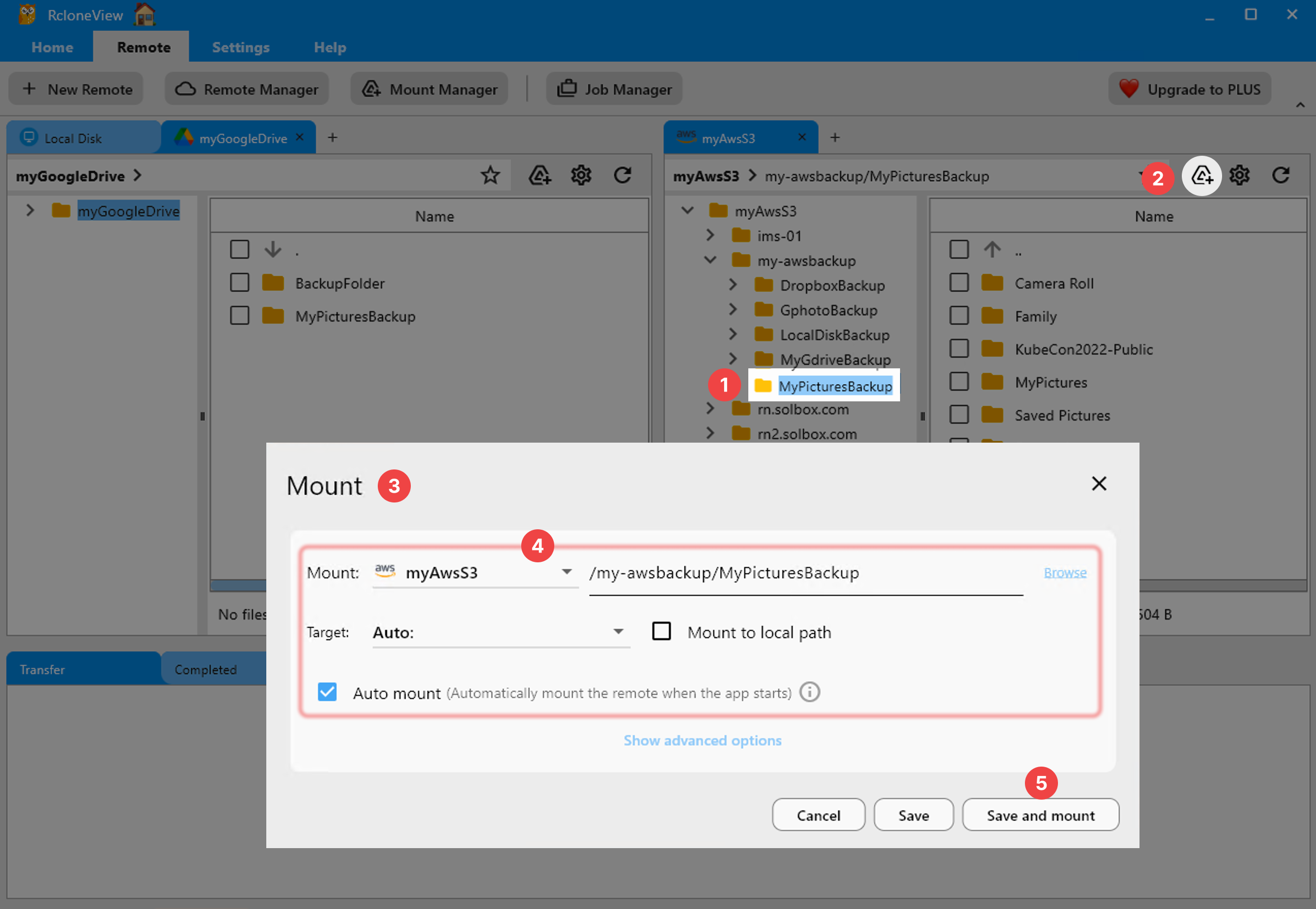
Picture an architect opening 300 MB drawings from a shared mount. Full cache mode plus a sensible size limit means the first open downloads the file and later opens read from local disk.
Match the Tool to the Job
Mount is ideal for opening and editing individual files. For moving whole folders, a sync or copy job is easier to monitor than dragging files through a drive, and sync, copy, and Folder Compare are available with the FREE license. On Windows the mount type defaults to cmount, and on Linux and macOS to nfsmount; Linux also needs FUSE installed.

If problems persist, enable rclone logging under Settings, set the level to DEBUG, restart embedded rclone, and reproduce the issue.
Getting Started
- Download RcloneView from rcloneview.com.
- Open Mount Manager, unmount the slow drive, and click Edit.
- Switch cache mode to full for read-heavy work and set a cache max size.
- Raise dir cache time if browsing is slow, then Save and mount again.
With cache settings matched to how you work, a mounted cloud drive can behave the way your workflow needs.
Related Guides:
- VFS Cache — Mount Performance in RcloneView
- Fix VFS Cache Disk Full Errors with RcloneView
- Mount Cloud Storage as a Local Drive with RcloneView
Supported Cloud Providers





























