Migrate Proton Drive to Wasabi — Transfer Files with RcloneView

Move files straight from Proton Drive to Wasabi object storage without routing anything through a local disk first.
Proton Drive is built for privacy-focused personal storage, but it isn't designed for the workloads Wasabi handles well — large media libraries, application backups, or datasets that need S3-compatible access from other tools. When a user outgrows Proton Drive's use case, or simply wants a second, cheaper long-term copy, RcloneView moves the files directly between the two, connecting to both remotes at once instead of downloading everything locally first.

Manage & Sync All Clouds in One Place
RcloneView is a cross-platform GUI for rclone. Compare folders, transfer or sync files, and automate multi-cloud workflows with a clean, visual interface.
- One-click jobs: Copy · Sync · Compare
- Schedulers & history for reliable automation
- Works with Google Drive, OneDrive, Dropbox, S3, WebDAV, SFTP and more
Free core features. Plus automations available.
Connecting Both Remotes
Proton Drive in RcloneView is set up with an email and password (plus optional 2FA), while Wasabi is added as an S3-compatible remote using an Access Key ID, Secret Access Key, and the appropriate regional endpoint. Both remotes appear as tabs in the Explorer, so a user can browse a Proton Drive folder in one panel and a Wasabi bucket in the other before starting any transfer.

RcloneView also connects S3, Azure, and Backblaze B2 with full read/write access on the FREE license, so setting up the Wasabi side of this migration requires no paid tier.
Running the Cloud-to-Cloud Transfer
With both remotes open, dragging a folder from the Proton Drive panel to the Wasabi panel triggers a direct copy — data streams from Proton Drive to Wasabi through RcloneView, never touching the local disk. For larger migrations, the Sync wizard is the better tool: it supports a proper one-way sync from the Proton Drive source to a Wasabi destination bucket, with configurable concurrent transfer counts to make full use of available bandwidth.

Dry Run mode is worth running first on any large migration — it lists exactly which files will copy before anything actually moves, catching filter mistakes or unexpected folder structures early.
Confirming a Complete Migration
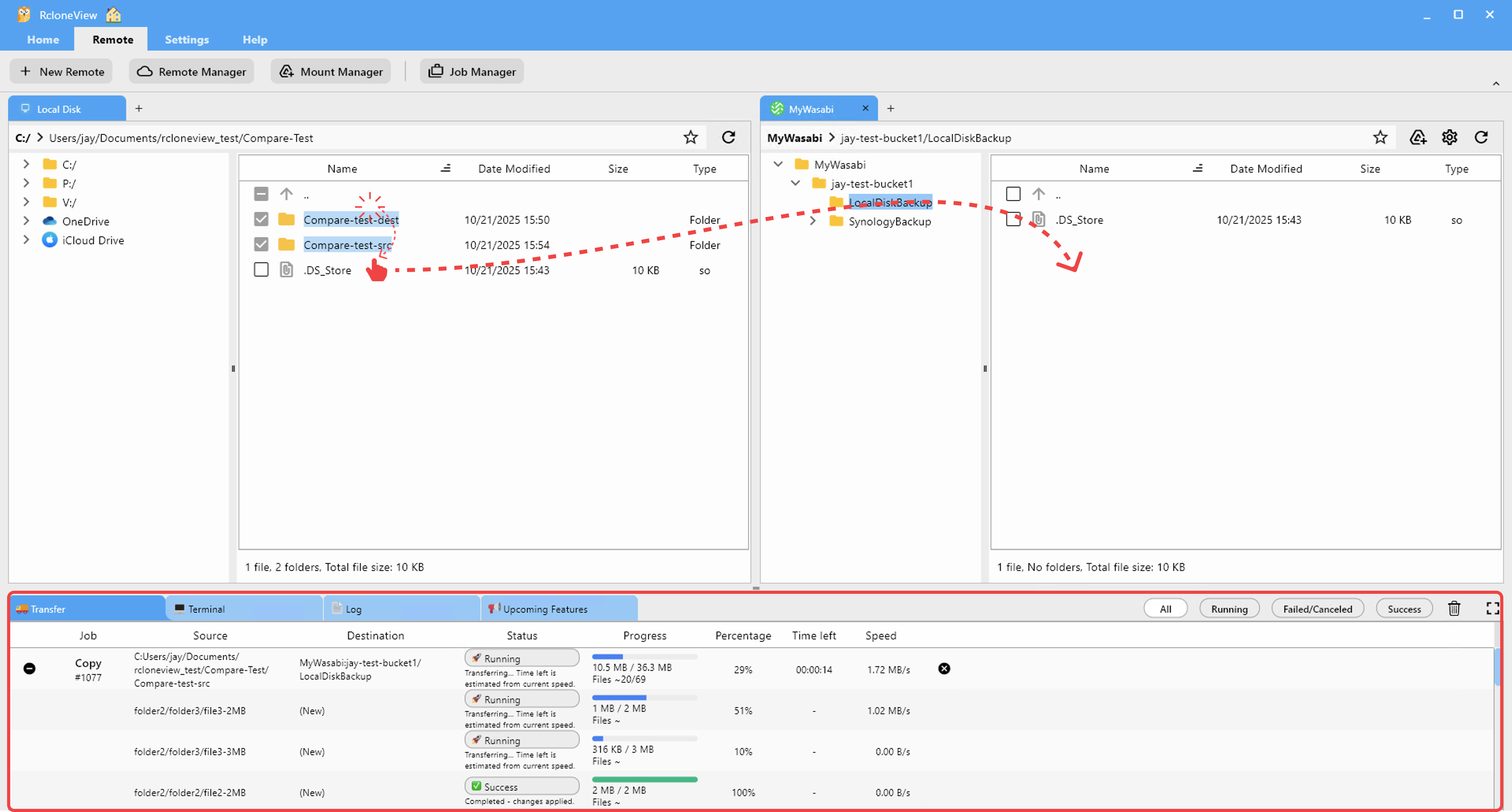
Once the sync job finishes, the Transferring tab in the bottom Info View shows total files moved, transfer speed, and any errors encountered mid-job. For migrations run as a saved job rather than a one-time transfer, Job History keeps a permanent record — start time, duration, total size, and completion status — so there's a clear log confirming every file made it to Wasabi before the Proton Drive copy is retired.
Getting Started
- Download RcloneView from rcloneview.com.
- Add your Proton Drive remote using your account email and password.
- Add your Wasabi remote with its Access Key, Secret Key, and regional endpoint.
- Run a Dry Run first, then execute the sync and confirm the transfer in Job History.
Retiring a Proton Drive folder is a lot less stressful once there's a verified log showing every file already landed safely on Wasabi.
Related Guides:
- Manage Proton Drive — Sync and Backup Files with RcloneView
- Manage Wasabi Storage — Sync and Backup Files with RcloneView
- Migrate Proton Drive to Backblaze B2 — Transfer Files with RcloneView
Supported Cloud Providers





























