Migrate SugarSync to Backblaze B2 — Transfer Files with RcloneView

Move years of SugarSync folders into Backblaze B2 buckets without downloading and re-uploading by hand.
Teams that have used SugarSync for a long time often want their archives in object storage, where buckets and application keys suit automation. RcloneView connects to both services in one window, so you can copy folders straight from SugarSync to Backblaze B2 and check the result before retiring the old account. Connect S3, Azure, or Backblaze B2 with full read/write on the FREE license.

Manage & Sync All Clouds in One Place
RcloneView is a cross-platform GUI for rclone. Compare folders, transfer or sync files, and automate multi-cloud workflows with a clean, visual interface.
- One-click jobs: Copy · Sync · Compare
- Schedulers & history for reliable automation
- Works with Google Drive, OneDrive, Dropbox, S3, WebDAV, SFTP and more
Free core features. Plus automations available.
Connect Both Remotes
Open the Remote tab and click New Remote. Add SugarSync with your account credentials, then add Backblaze B2 with an Application Key ID and Application Key from the Backblaze key management page. Create the destination bucket in Backblaze first so you have a clear target.
Place SugarSync in one Explorer panel and the B2 bucket in another. Browse both to confirm access before configuring anything.

Copy With Drag and Drop or a Sync Job
For a small folder, drag it from the SugarSync panel to the B2 panel. Dragging between different remotes performs a copy, so the original stays in place. For a full migration, use the 4-step sync wizard: choose source and destination, set transfer counts, add filters, and optionally schedule it with a PLUS license.
Use a Copy job rather than a Sync job for the first pass, so nothing on the destination is deleted.

Preview, Monitor, and Verify
Run a Dry Run first. It lists the files that would be copied, so you can catch a wrong path before data moves. While the job runs, the Transferring tab shows progress, speed, and file counts.
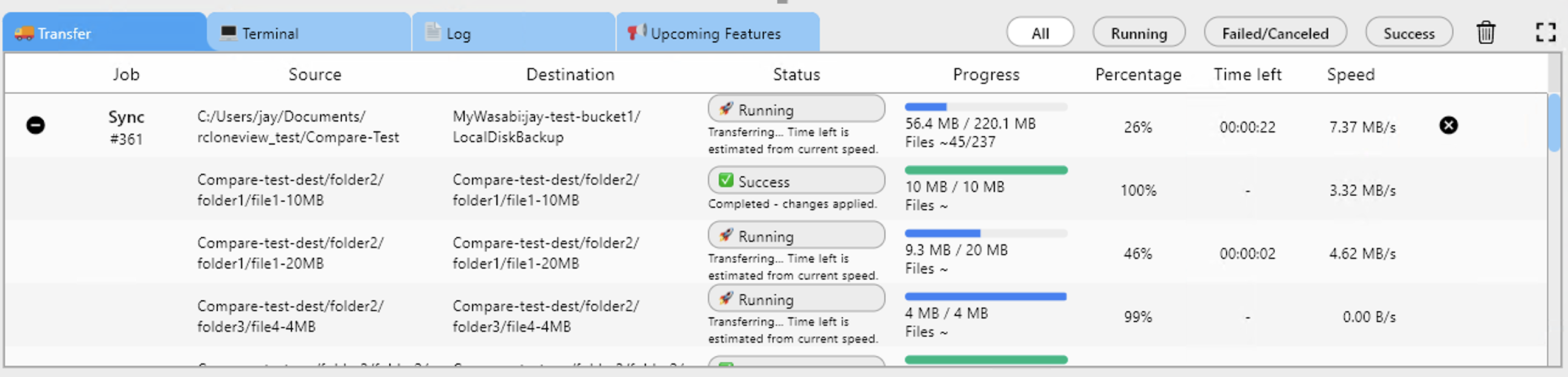
When it finishes, open Compare to view SugarSync and B2 side by side. Left-only files are anything that has not arrived yet, and you can copy them across directly from the compare view. Job History keeps a record of each run.

Getting Started
- Download RcloneView from rcloneview.com.
- Add SugarSync and Backblaze B2 as remotes and create your target bucket.
- Create a Copy job, run a Dry Run, then start the transfer.
- Verify with Folder Compare before closing the SugarSync account.
A verified copy in B2 lets you retire the old service with confidence.
Related Guides:
- Migrate SugarSync to Google Drive and OneDrive with RcloneView
- Manage SugarSync Storage with RcloneView
- Manage Backblaze B2 Storage with RcloneView
Supported Cloud Providers





























