Run RcloneView on Synology NAS — Cloud Backup and Sync from Your NAS
Your Synology NAS holds terabytes of irreplaceable data. Synology's built-in Cloud Sync works for basic setups, but when you need multi-cloud management, scheduling, folder comparison, and batch jobs — RcloneView fills the gaps.
Synology NAS devices are excellent for centralized local storage, but their cloud integration has limits. Synology Cloud Sync supports about 20 cloud providers with basic sync. Synology Hyper Backup handles backups but lacks multi-cloud file management. RcloneView complements both with 70+ cloud providers, visual file management, and advanced automation.

Manage & Sync All Clouds in One Place
RcloneView is a cross-platform GUI for rclone. Compare folders, transfer or sync files, and automate multi-cloud workflows with a clean, visual interface.
- One-click jobs: Copy · Sync · Compare
- Schedulers & history for reliable automation
- Works with Google Drive, OneDrive, Dropbox, S3, WebDAV, SFTP and more
Free core features. Plus automations available.
Why RcloneView for Synology?
Beyond Synology Cloud Sync
| Feature | Synology Cloud Sync | RcloneView |
|---|---|---|
| Cloud providers | ~20 | 70+ |
| Two-pane file explorer | ❌ | ✅ |
| Folder comparison | ❌ | ✅ |
| Cloud-to-cloud transfer | ❌ | ✅ |
| Batch jobs | ❌ | ✅ |
| Slack/Discord alerts | ❌ | ✅ |
| Filter rules | Basic | Full rclone filters |
| Encrypted remotes | ❌ | ✅ (crypt) |
| Mount cloud drives | ❌ | ✅ |
| S3-compatible providers | Limited | All |
Synology auto-detection
RcloneView auto-detects Synology NAS devices on your network:
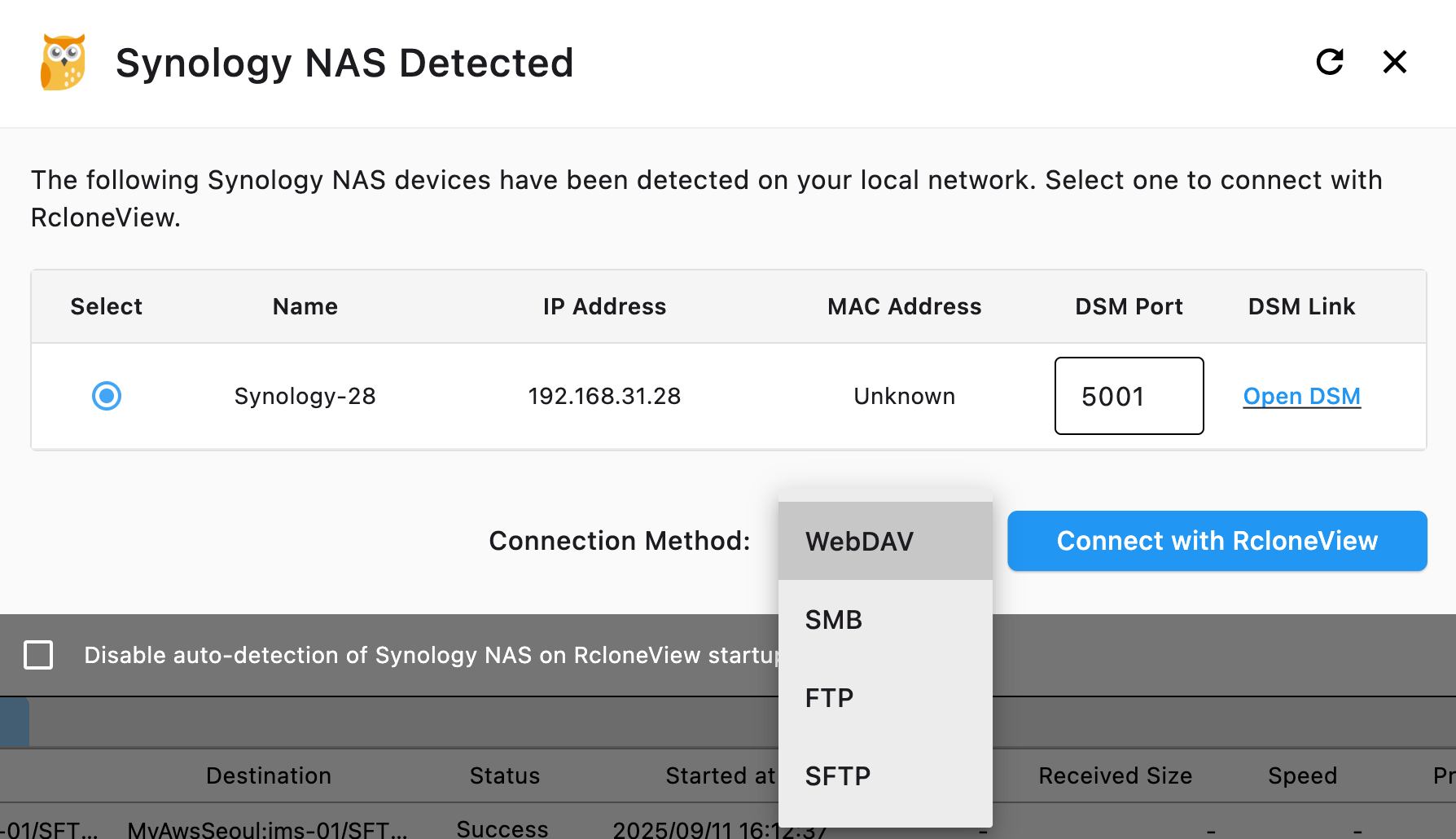
No manual network configuration needed.
Setup Options
Option 1: RcloneView on a desktop, connected to NAS
The simplest approach. Run RcloneView on your Windows/Mac/Linux desktop:
- Add your Synology NAS as a remote (auto-detected or via SFTP/WebDAV).
- Add your cloud destinations (S3, B2, Google Drive, etc.).
- Create sync/copy jobs between NAS and cloud.
- Schedule jobs to run automatically.
This works well for home users and small offices.
Option 2: RcloneView on a dedicated machine
Use a Raspberry Pi or old laptop as a dedicated backup controller:
- Install RcloneView on the dedicated machine.
- Connect to Synology NAS via network mount.
- Configure and schedule all backup jobs.
- Leave running 24/7.
Backup Workflows
NAS → Cloud (off-site backup)
The most critical workflow. Back up your NAS to cloud storage:

Recommended targets:
| NAS Data | Cloud Target | Why |
|---|---|---|
| Photos & Videos | Backblaze B2 | Cheap, $6/TB |
| Documents | Google Drive | Accessible, searchable |
| Business data | AWS S3 | Durable, enterprise-grade |
| Everything (encrypted) | Any + crypt | Zero-knowledge backup |
Cloud → NAS (local mirror)
Keep local copies of cloud data for fast access:
Google Drive → NAS/CloudMirror/GoogleDrive/
OneDrive → NAS/CloudMirror/OneDrive/
NAS → NAS (remote site backup)
If you have NAS devices in two locations, sync between them via RcloneView with a cloud provider as intermediate storage.
Schedule Automated Backups
Set up nightly NAS backups:

Recommended schedule
| Job | Frequency | Time |
|---|---|---|
| Critical data → B2 | Nightly | 2:00 AM |
| Photos → Google Drive | Nightly | 3:00 AM |
| Full NAS → S3 | Weekly | Saturday midnight |
| Verify (compare) | Weekly | Sunday 6:00 AM |
Verify Backups
Compare NAS contents against cloud backup:

Encrypted NAS Backups
Use crypt remotes to encrypt your NAS data before uploading to cloud storage. The cloud provider never sees your unencrypted files.
Batch Jobs for NAS Admins
Automate your entire NAS backup routine:
- Copy /photos → B2.
- Copy /documents → Google Drive.
- Copy /business → S3 (encrypted).
- Compare all three.
- Notify via Slack.
All in one scheduled batch.
Getting Started
- Download RcloneView from rcloneview.com.
- Connect to your Synology NAS (auto-detected).
- Add cloud storage remotes.
- Create and schedule backup jobs.
- Verify with Folder Comparison.
Your NAS data is valuable. Give it an off-site safety net.
Related Guides:
Supported Cloud Providers





























