Create Empty Directories — Preserve Full Folder Structure When Syncing in RcloneView

If your folder layout matters as much as your files, turn on one checkbox so empty folders reach the destination too.
By default, rclone copies files, not folders, so an empty directory on the source never shows up at the destination. That's usually fine, until you restore a backup and find that the /Invoices/2027, /Raw, and /Exports folders your team relies on are gone. RcloneView exposes this behavior as a single option in the Sync wizard, so you can keep the whole tree without typing rclone flags.
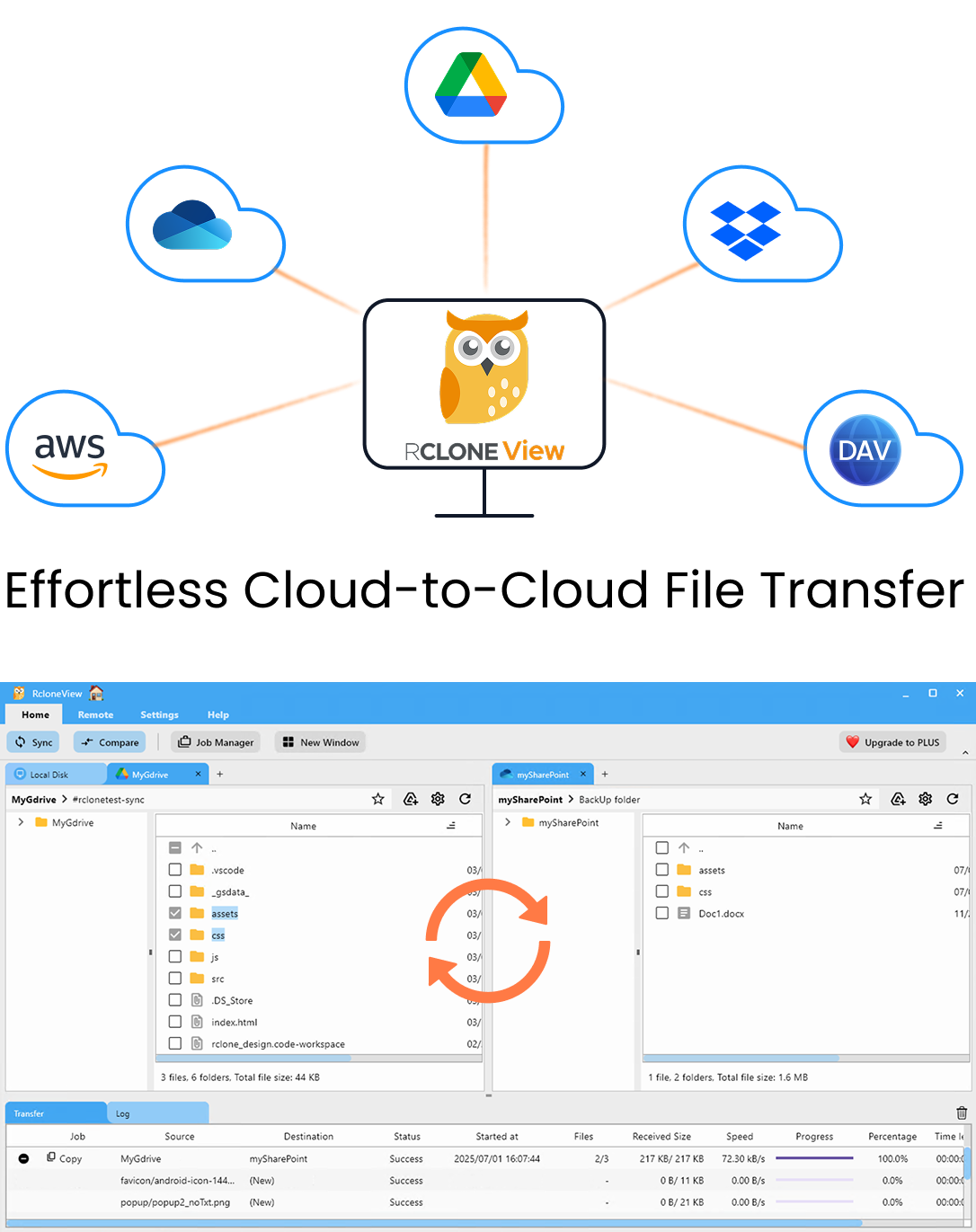
Manage & Sync All Clouds in One Place
RcloneView is a cross-platform GUI for rclone. Compare folders, transfer or sync files, and automate multi-cloud workflows with a clean, visual interface.
- One-click jobs: Copy · Sync · Compare
- Schedulers & history for reliable automation
- Works with Google Drive, OneDrive, Dropbox, S3, WebDAV, SFTP and more
Free core features. Plus automations available.
Why Empty Folders Disappear
rclone moves objects. A sync job walks the source, finds files, and recreates each file's path at the destination. A folder that contains no files produces nothing to transfer, so the job skips it. Many cloud services, and S3-style object storage in particular, don't store folders as separate objects at all. A "folder" there is just a shared prefix in file names.
This catches people who rely on folder templates. A video production company might start every job with a skeleton of 01_Footage, 02_Audio, 03_Graphics, and 04_Deliverables. An accounting firm might create a folder per client per year before any documents arrive. If those empty skeletons don't sync, collaborators on the destination side see an incomplete layout.
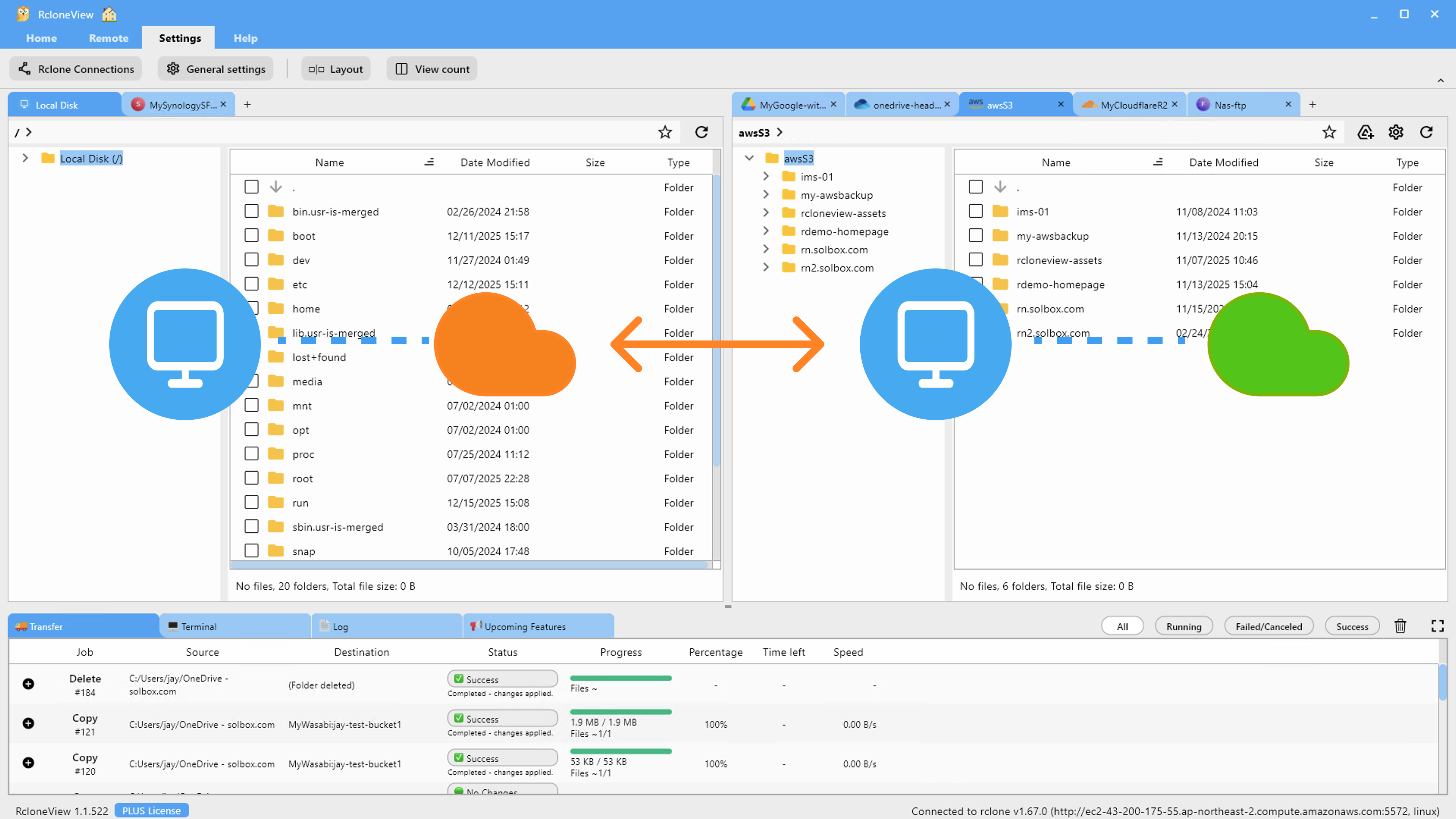
Enabling Create Empty Directories
The option is in Step 1: Configure Storage of the Sync wizard, next to the source, destination, and sync direction settings. Pick your source and destination, then tick Create empty directories. When the job runs, RcloneView tells rclone to recreate empty source folders at the destination, which is the GUI equivalent of rclone's --create-empty-src-dirs flag.
Because the setting is saved with the job, it applies on every run, whether you start the job manually from Job Manager or a PLUS schedule triggers it. It also works with 1:N sync, so the same folder skeleton reaches every destination you add.
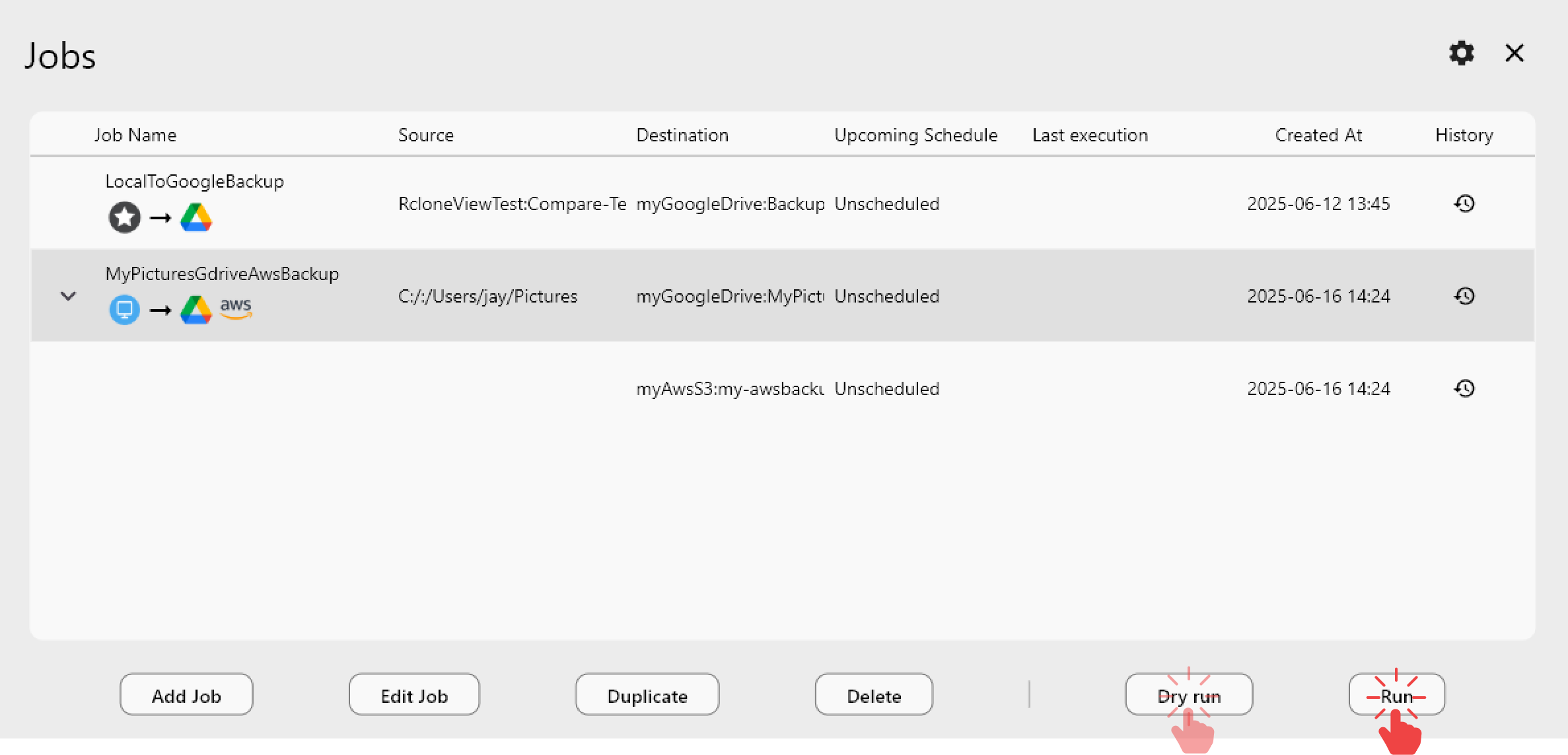
Combine It With Filters and Dry Run
Empty-folder creation works alongside the filters in Step 3. If you exclude .git/ or cap the job with Max folder depth, only the folders that pass those rules are created. Run a Dry Run first to preview the operations before anything is written. This matters most for one-way sync, which also removes destination items that no longer exist at the source.
On bucket-based storage such as Amazon S3, Wasabi, or Backblaze B2, keep your expectations realistic. These backends have no true directories, so empty folders may not persist the way they do on Google Drive, OneDrive, Dropbox, SFTP, or a local disk.
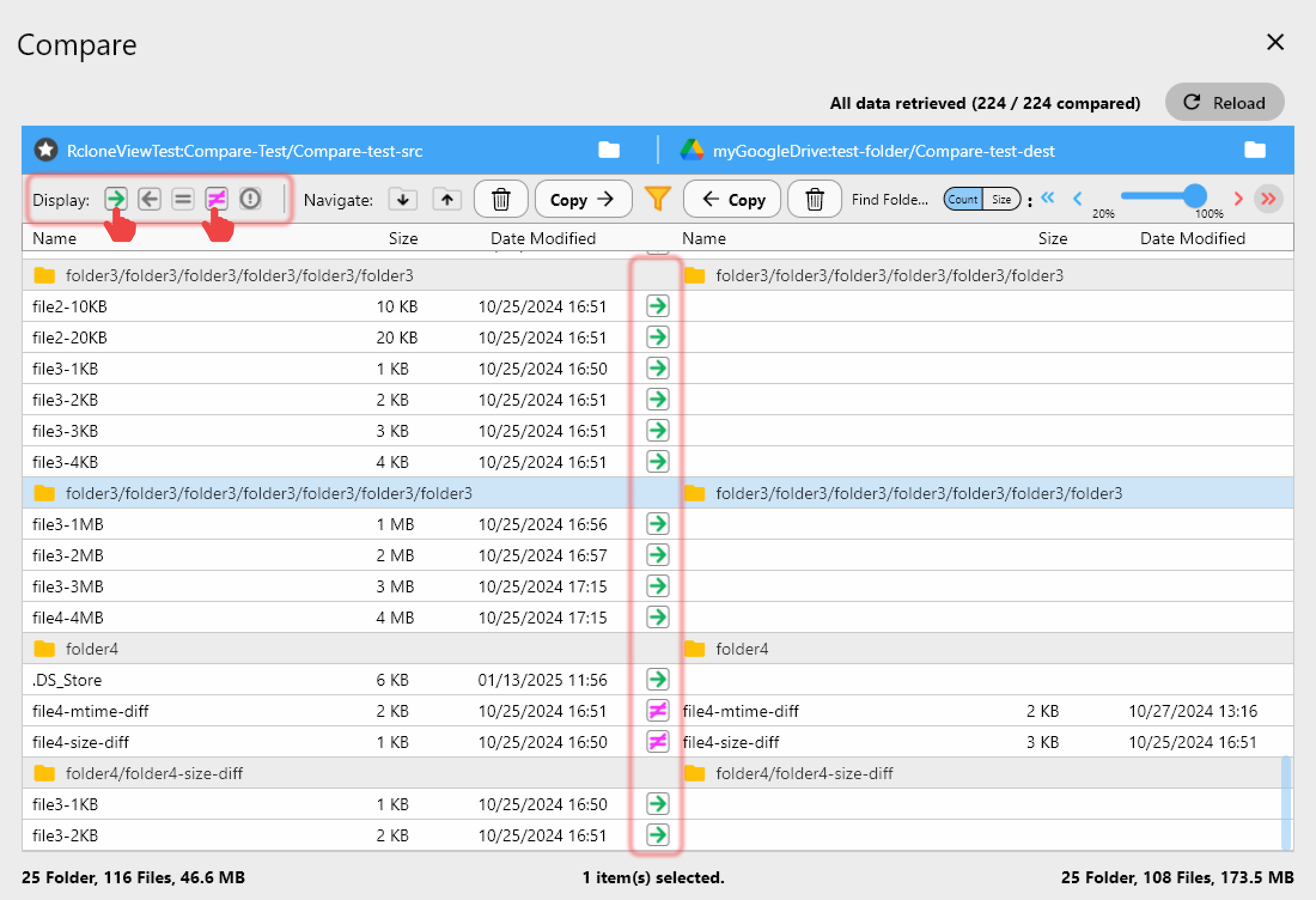
After the job finishes, open Folder Compare on the same two locations to check the result side by side. Sync and Folder Compare are both available on the FREE license.
Getting Started
- Download RcloneView from rcloneview.com.
- Open Sync from the Home tab and choose your source and destination folders.
- Tick Create empty directories in Step 1, then set any filters you need in Step 3.
- Run a Dry Run, then save the job and run it from Job Manager.
When empty folders are kept, a restore or migration comes back with the same layout your team set up.
Related Guides:
- Max Folder Depth and Max File Size Filters
- Dry Run — Preview Cloud Sync Before Transfer
- Fix Sync Filters Not Excluding Files
Supported Cloud Providers