RcloneView on Apple Silicon Macs — Cloud Storage Sync and Backup

One Universal download runs natively on both Apple Silicon and Intel Macs, with the rclone engine built in.
Many Apple Silicon Mac owners juggle more than one cloud account. RcloneView gives them a single native macOS app to browse, mount, compare, and sync Google Drive, OneDrive, Dropbox, S3 buckets, NAS shares, and dozens of other remotes. This guide covers what to know before installing it on an Apple Silicon machine.
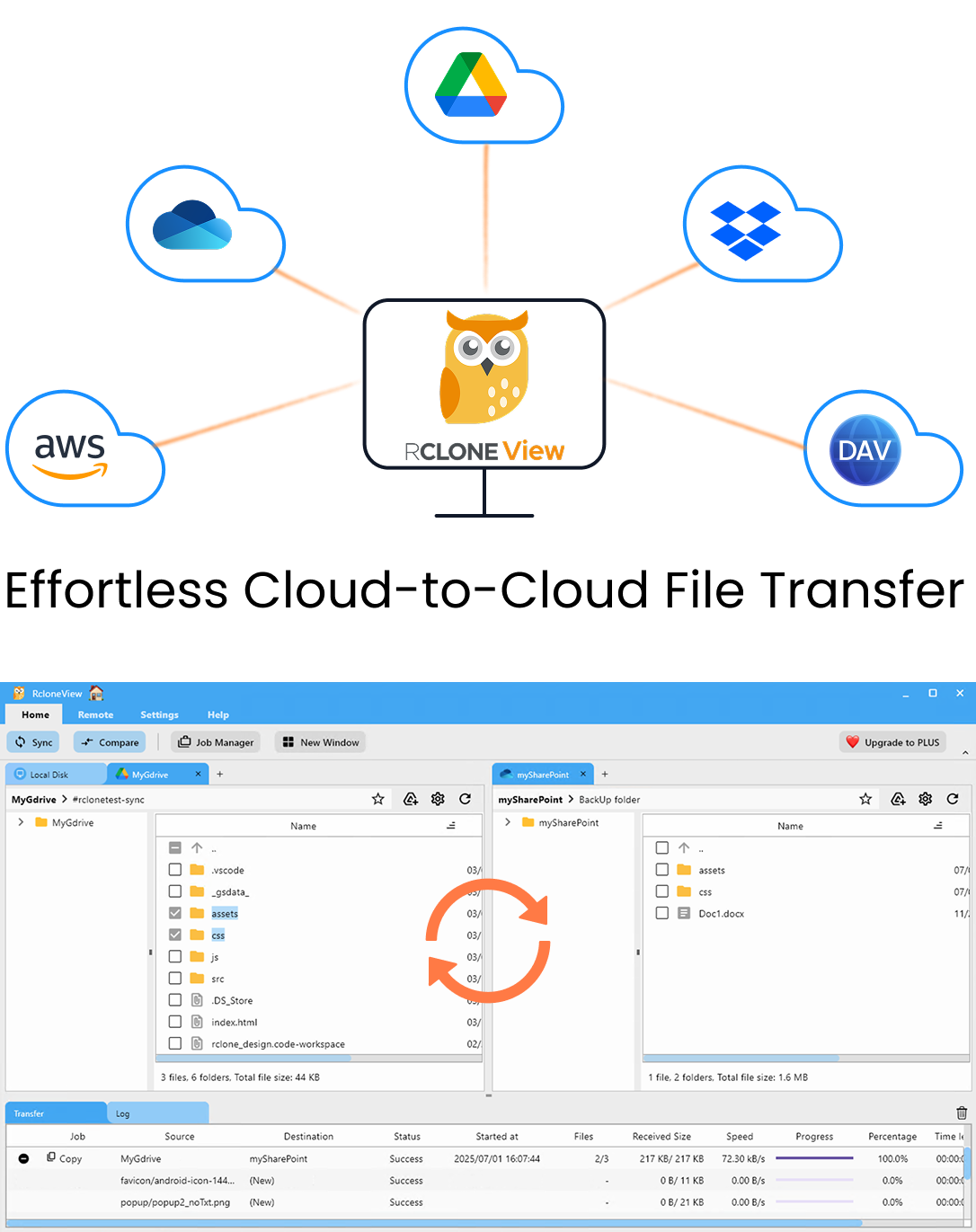
Manage & Sync All Clouds in One Place
RcloneView is a cross-platform GUI for rclone. Compare folders, transfer or sync files, and automate multi-cloud workflows with a clean, visual interface.
- One-click jobs: Copy · Sync · Compare
- Schedulers & history for reliable automation
- Works with Google Drive, OneDrive, Dropbox, S3, WebDAV, SFTP and more
Free core features. Plus automations available.
One Universal .dmg for Apple Silicon and Intel
RcloneView for macOS ships as a single .dmg disk image containing a Universal binary: it includes both ARM64 code for Apple Silicon and x86-64 code for Intel Macs. On Apple Silicon the app runs natively. The build is notarized and code-signed by the developer, so Gatekeeper opens it without workarounds.
The minimum supported version is macOS 12.7 (Monterey), and Ventura, Sonoma, and Sequoia are confirmed working. Get the installer only from the official download page, because there is no Homebrew cask or other package-manager channel. After that, the macOS build updates itself in-app.
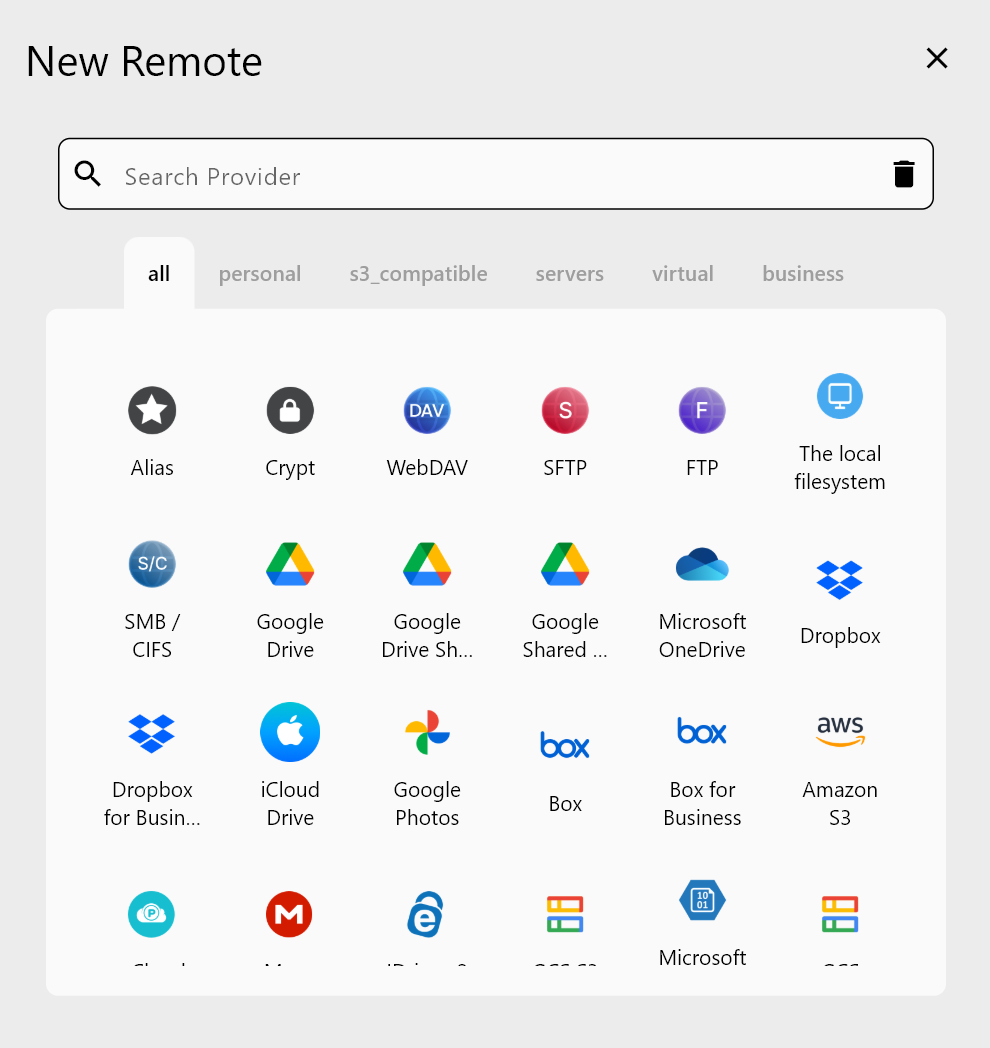
RcloneView includes its own rclone binary, so nothing else needs to be installed. Open the Remote tab, click New Remote, and sign in. Google Drive, Dropbox, OneDrive, and Box use a browser OAuth login. S3-compatible services such as Wasabi or Cloudflare R2 ask for access keys instead.
Mounting Cloud Drives in Finder
On macOS, RcloneView mounts with nfsmount by default and lets you choose a custom mount path. Select a folder in the explorer, click the Mount icon, and the remote shows up in Finder like a local volume. The default VFS cache mode, writes, suits most editing workflows. A photographer on a 16 GB MacBook Air who browses a 2 TB archive can also set a cache max size so the cache doesn't fill the internal SSD.
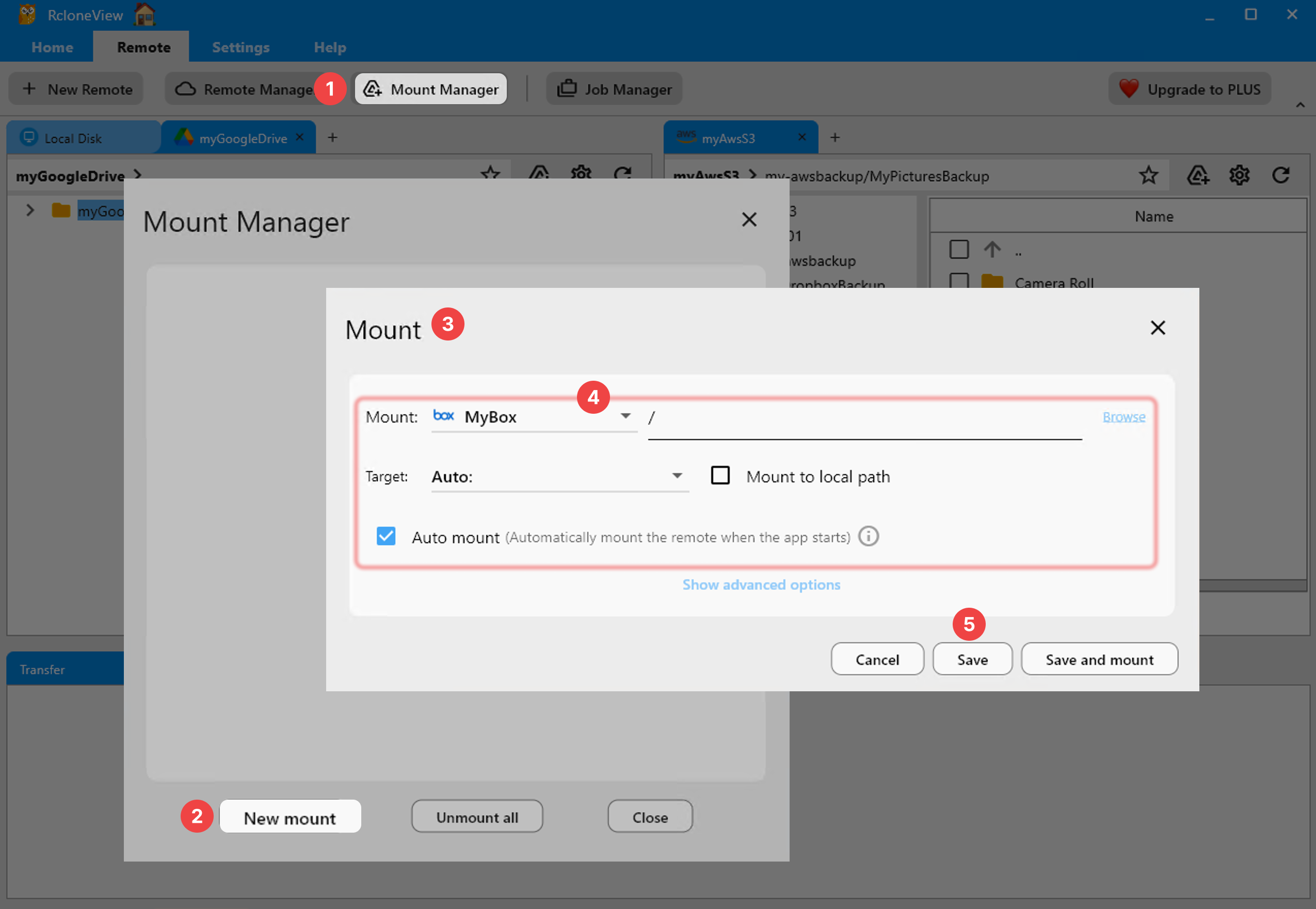
You can manage mounts from Mount Manager or from the menu-bar tray icon. On a PLUS license, Auto mount reconnects your drives each time you log in.
Two macOS Settings Worth Fixing Up Front
macOS privacy controls can make Desktop, Documents, or Downloads look empty inside RcloneView. Grant access in System Settings > Privacy & Security > Files & Folders, or add RcloneView to Full Disk Access, then restart the app.
Large sync jobs can also hit the default macOS open-file limit (256–1024). If you see "too many open files" errors, create a LaunchDaemon plist at /Library/LaunchDaemons/limit.maxfiles.plist that raises the soft and hard limits to 524288, then reboot.
Scheduled Backups From Your Mac
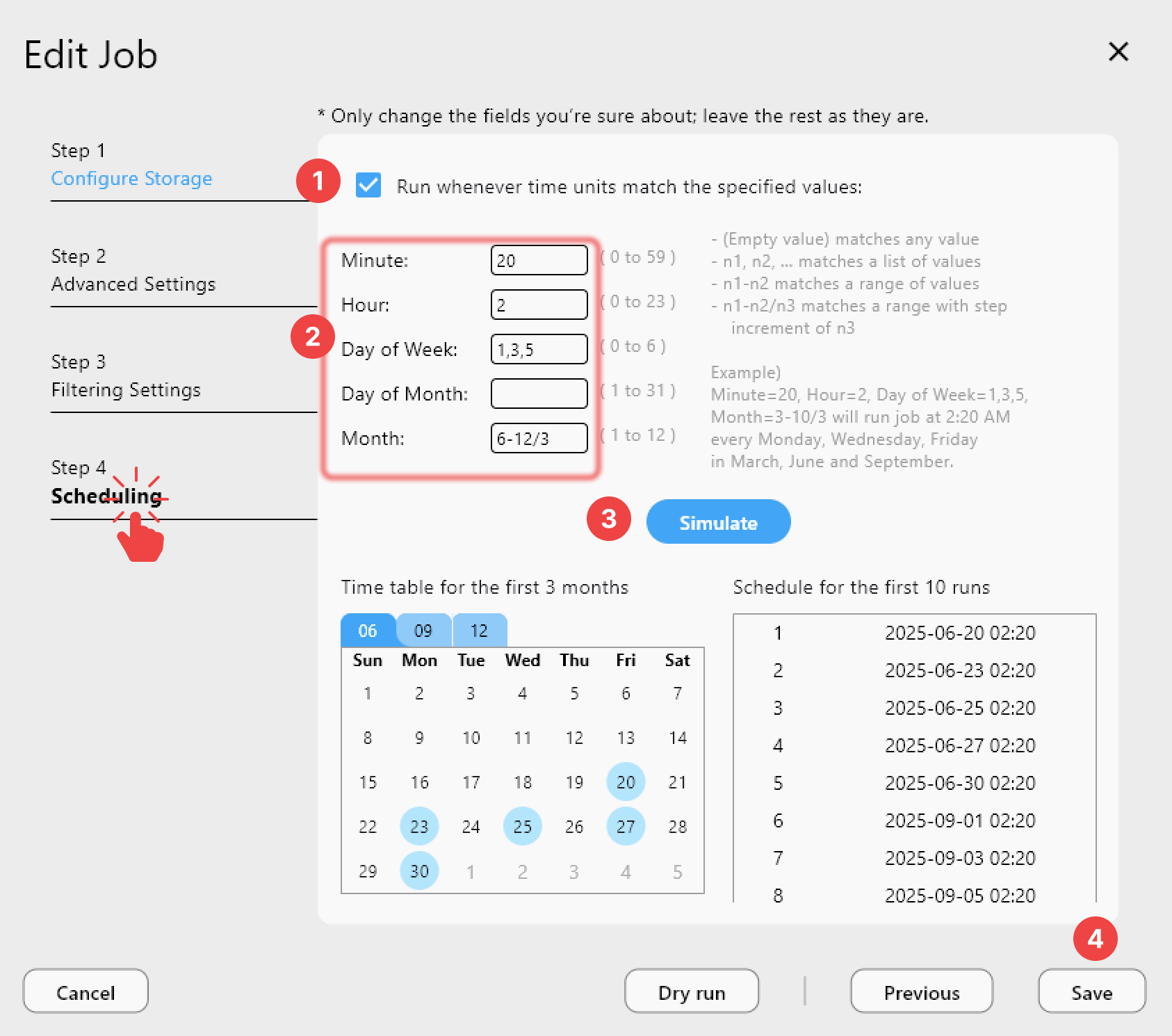
Use the Sync wizard to set up a one-way job, for example ~/Projects to a Backblaze B2 bucket, and start with a Dry Run to see exactly what would change. RcloneView mounts AND syncs 90+ providers from one window, on Windows, macOS, and Linux. On a PLUS license, the scheduling step can run the job on a cron-style timetable while the app sits in the menu bar.
Getting Started
- Download RcloneView from rcloneview.com and drag it from the Universal
.dmginto Applications. - Grant Files & Folders or Full Disk Access permissions in System Settings, then relaunch the app.
- Add your cloud remotes with New Remote and mount the ones you want to see in Finder.
- Create a sync job, check it with a Dry Run, and watch progress in the Transferring tab.
With RcloneView set up, your Mac can mount, sync, and back up the cloud accounts you use from one place.
Related Guides:
- RcloneView on macOS Sequoia — Cloud Storage Sync
- Fix macOS Too Many Open Files Errors
- Fix macOS Empty Folders and Permissions
Supported Cloud Providers