Fix Mount Showing Outdated Files — Dir Cache Time Explained with RcloneView

A mounted cloud drive that still shows a deleted file or hides a brand-new one usually isn't broken — its directory cache just hasn't expired yet. Here's how to fix it in RcloneView.
When you mount a remote as a local drive, RcloneView doesn't re-list every folder on every click — it holds a short-lived directory cache so browsing feels instant instead of round-tripping to the cloud provider on each keystroke. That's great for speed, but it means changes made from another device, another RcloneView window, or the provider's own web app can take a moment to show up in the mounted folder. This guide covers when that delay is normal and how to tune it when it isn't.

Manage & Sync All Clouds in One Place
RcloneView is a cross-platform GUI for rclone. Compare folders, transfer or sync files, and automate multi-cloud workflows with a clean, visual interface.
- One-click jobs: Copy · Sync · Compare
- Schedulers & history for reliable automation
- Works with Google Drive, OneDrive, Dropbox, S3, WebDAV, SFTP and more
Free core features. Plus automations available.
Understanding Dir Cache Time
RcloneView's mount configuration includes a Dir cache time setting, which controls how long a folder listing stays valid before the mount re-checks the remote for changes. This is separate from the VFS Cache mode setting (off / minimal / writes / full), which governs file content caching rather than directory structure. A short Dir cache time means the mount reflects remote changes almost immediately but issues more list calls to the provider; a long Dir cache time reduces API calls at the cost of a longer delay before new or deleted files appear.
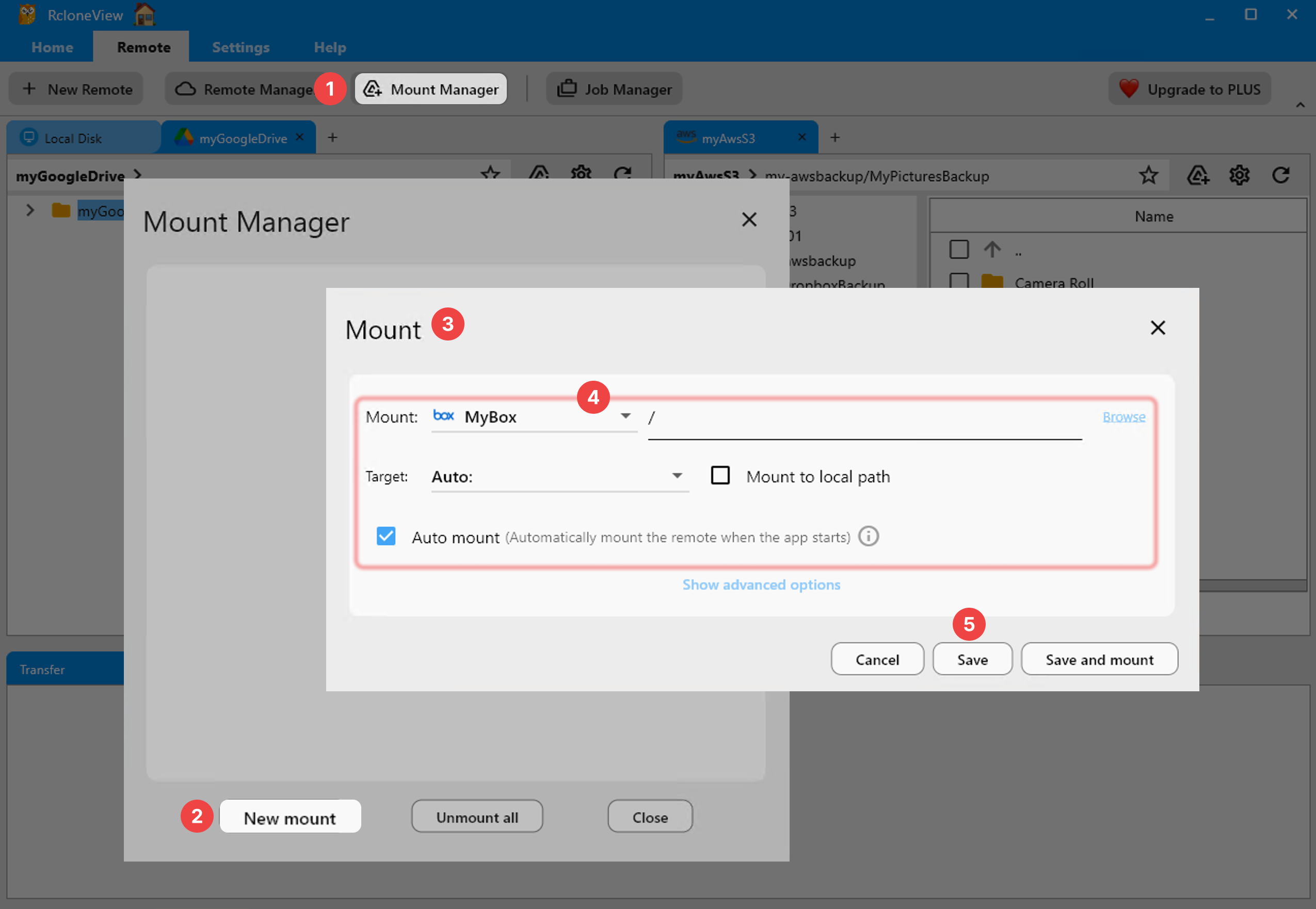
If you're mounting a remote that multiple people or devices write to simultaneously — a shared Google Drive folder, for example — the default cache window can make it look like RcloneView "missed" a file that was actually added seconds ago from another location. It hasn't missed anything; the mount just hasn't refreshed that folder's listing yet.
Fixing a Mount That Won't Show New Files
Start by manually refreshing before assuming there's a real problem. In the Explorer panel or the OS file browser pointed at the mount, forcing a folder reload (F5, or navigating out and back into the directory) often surfaces changes immediately without waiting for the cache to expire on its own. If files still don't appear after a manual refresh, the mount itself may need to be unmounted and remounted through Mount Manager, since a stuck rclone VFS process can occasionally hold an even older listing than the configured Dir cache time would suggest.

For remotes where near-real-time visibility matters more than raw API efficiency, lower the Dir cache time value in the mount's Edit settings before saving and remounting. There's a trade-off here: setting it too aggressively low on a busy remote increases the number of listing requests RcloneView sends, which can trigger provider-side rate limits on services that cap API calls per minute.
Choosing Cache Mode Alongside Dir Cache Time
Dir cache time and VFS Cache mode solve different problems, so fixing one without checking the other often leaves the underlying issue half-solved. If deleted files still show up as accessible in the mount (rather than new files failing to appear), that's more likely a Cache mode symptom — the writes default caches recently written file content locally, while full caches read content too, and either can make a locally-cached copy outlive the remote's current state until the cache validates it. Matching a shorter Dir cache time with a Cache mode appropriate to how the remote is actually used resolves most stale-listing complaints.

RcloneView mounts and syncs 90+ providers from the same window on Windows, macOS, and Linux, so these cache settings apply the same way whether the mount points at Google Drive, an S3 bucket, or a self-hosted WebDAV server.
Getting Started
- Download RcloneView from rcloneview.com.
- Open Mount Manager, select the affected mount, and check its current Dir cache time value.
- Lower Dir cache time for remotes that change frequently from multiple sources, and unmount/remount to apply it.
- Review the Cache mode setting alongside it if stale file content, not just stale listings, is the actual symptom.
A mount that reflects the cloud accurately, on a schedule that matches how the remote is really used, beats guessing at "why isn't this syncing" every time.
Related Guides:
- VFS Cache — Boost Mount Performance for Cloud Drives in RcloneView
- Fix VFS Cache Disk Full Errors — Manage Mount Cache with RcloneView
- Fix Rclone Mount and FUSE Errors in RcloneView
Supported Cloud Providers





























