Fix Windows VC++ Redistributable Errors — Install RcloneView Successfully

RcloneView installs but never opens on Windows? A missing Visual C++ runtime is almost always the cause — here's how to fix it in minutes.
Some Windows users run the RcloneView installer without errors, but the app never opens, closes immediately after the splash screen, or throws a generic "application failed to start" message. This is a classic symptom of a missing Microsoft Visual C++ Redistributable, a system dependency RcloneView needs to run its native Windows components. The fix takes a few minutes and doesn't require reinstalling Windows or digging through the registry.

Manage & Sync All Clouds in One Place
RcloneView is a cross-platform GUI for rclone. Compare folders, transfer or sync files, and automate multi-cloud workflows with a clean, visual interface.
- One-click jobs: Copy · Sync · Compare
- Schedulers & history for reliable automation
- Works with Google Drive, OneDrive, Dropbox, S3, WebDAV, SFTP and more
Free core features. Plus automations available.
Why RcloneView Fails to Launch on Windows
RcloneView for Windows ships as an Inno Setup installer (setup_rclone_view-{version}.exe) built for 64-bit systems only — there is no ARM64 Windows build, and 32-bit systems aren't supported. The installer requires the Visual C++ 2015-2022 Redistributable to be present on the system; if it's missing or an older version is installed, the app can install cleanly but fail silently on first launch.
This is more common on freshly reimaged machines, minimal Windows Server installs, and older Windows 10 builds that have never installed another app with the same dependency. It's unrelated to your rclone configuration or cloud accounts — it happens before RcloneView even reaches its connection screen.

Install the Missing Redistributable
Download and install the latest Visual C++ 2015-2022 Redistributable (x64) directly from Microsoft, then restart your machine. After the reboot, launch RcloneView again — in most cases the app opens normally and shows the main Explorer window with its four core areas (menu bar, explorer panels, info view, and footer).
If the app still won't open, uninstall RcloneView completely via Windows Settings, then download a fresh copy of the installer from the official page. Avoid third-party mirrors or download aggregators — rcloneview.com/src/download.html is the only official distribution channel, and unofficial copies can be outdated or altered.
Verify the Install and Connect Your First Remote
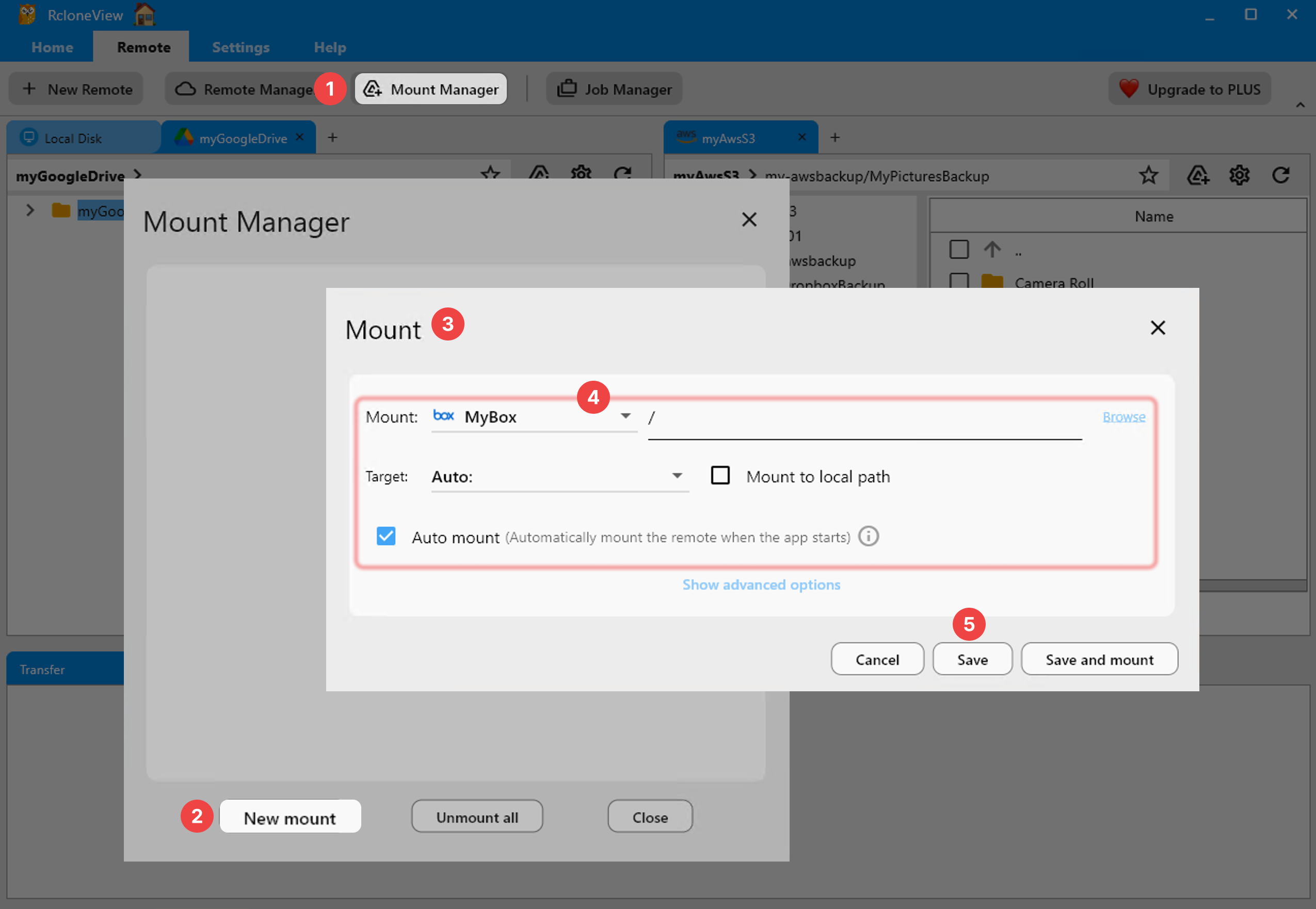
Once RcloneView opens, check the footer bar for your embedded rclone version and connection status — this confirms the app launched correctly and rclone is running on its default local address. From there, use New Remote to connect your first cloud account. Unlike mount-only tools, RcloneView also syncs and compares folders — on the FREE license, so the same install lets you browse, mount, and schedule transfers without upgrading.
Avoid Future Install Issues
Windows and Linux builds of RcloneView don't auto-update — only macOS does via its built-in Sparkle updater — so Windows users need to manually download new versions from the official site when prompted by the in-app update check. Keeping the VC++ Redistributable current alongside your RcloneView version avoids repeat launch failures after future updates.

Getting Started
- Download RcloneView from rcloneview.com.
- Install the Visual C++ 2015-2022 Redistributable (x64) from Microsoft and restart Windows.
- Run the RcloneView installer again and launch the app from the Start menu.
- Add your first remote and mount a folder to confirm everything works end to end.
A five-minute dependency fix is all that stands between a blank splash screen and a fully working multi-cloud workspace.
Related Guides:
- RcloneView on Windows 11 — Cloud Sync and Backup
- Mount Cloud Storage as a Local Drive
- Fix Mount Drive Letter Conflicts on Windows
Supported Cloud Providers





























