Fix Yandex Disk Sync Errors — Diagnose and Resolve Failed Transfers with RcloneView

A step-by-step way to find out why a Yandex Disk job errored, and to fix it without re-copying everything.
A Yandex Disk job that finishes as "Errored" in Job History is frustrating, especially when it ran overnight. Most failures fall into a few groups: an expired login, too much parallelism for a slow backend, or a path and filter mistake. RcloneView exposes the settings and logs needed to tell them apart.
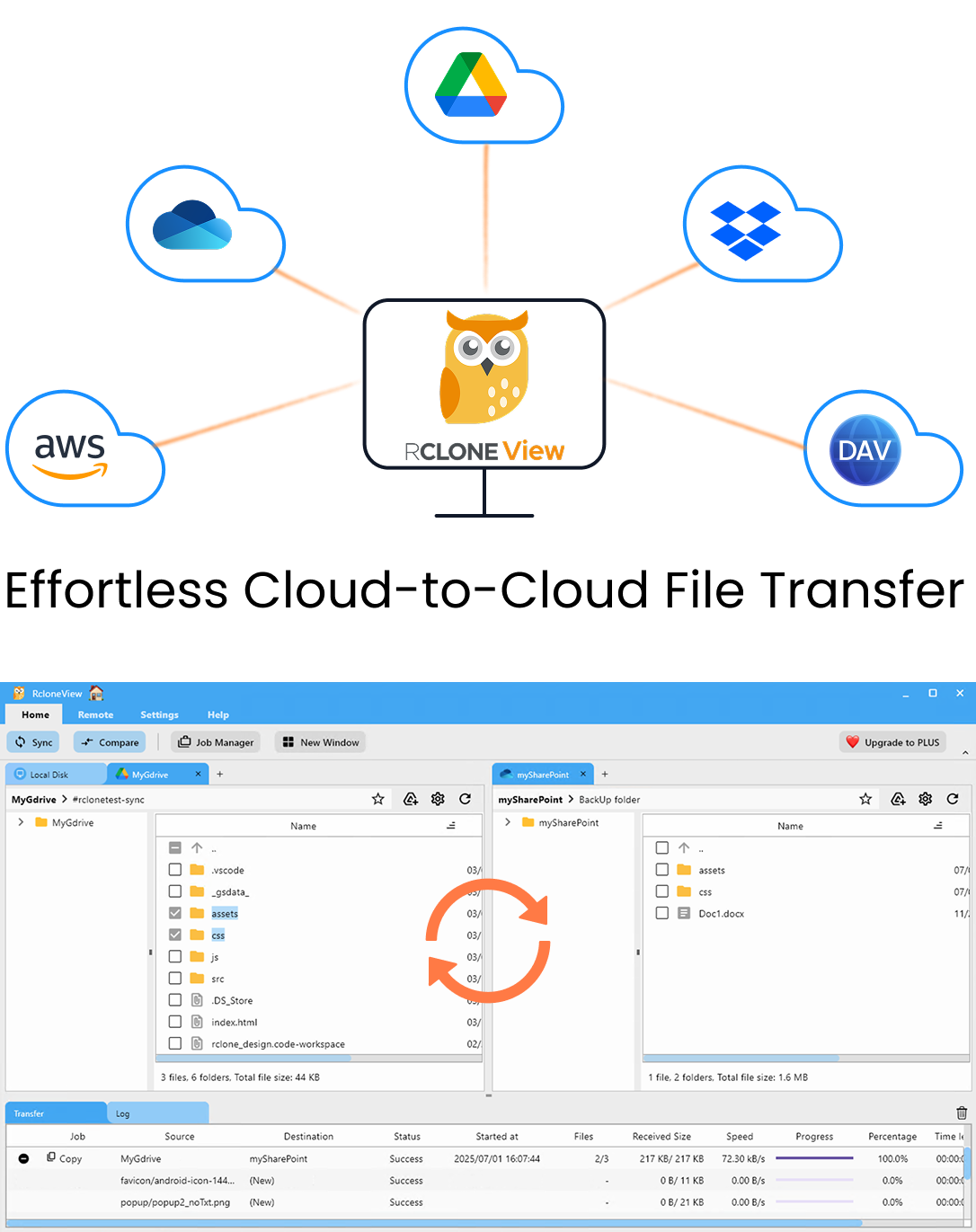
Manage & Sync All Clouds in One Place
RcloneView is a cross-platform GUI for rclone. Compare folders, transfer or sync files, and automate multi-cloud workflows with a clean, visual interface.
- One-click jobs: Copy · Sync · Compare
- Schedulers & history for reliable automation
- Works with Google Drive, OneDrive, Dropbox, S3, WebDAV, SFTP and more
Free core features. Plus automations available.
Start with Job History and the Log Tab
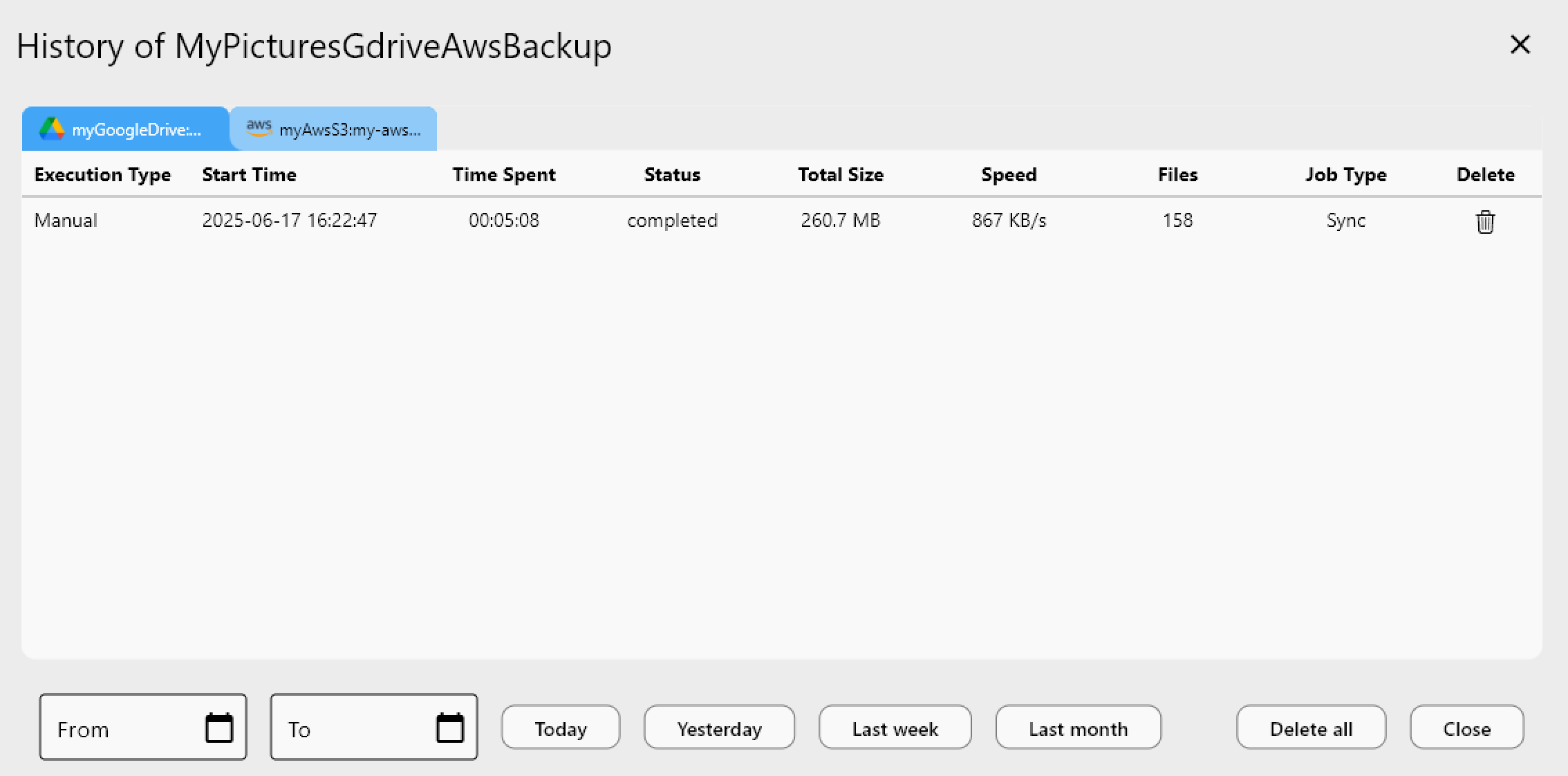
Open Job History and find the failed run. Its status, time spent, total size, and file count show whether the job failed immediately (likely authentication or path) or partway through (likely throttling or a specific file). Then check the Log tab in the bottom Info View for timestamped entries around the failure.
If the log is too thin, go to Settings > Embedded Rclone, enable rclone Logging, set the level to DEBUG, click Restart Embedded Rclone, and reproduce the issue. The resulting file shows exactly which operation failed.
Re-Authorize an Expired or Rejected Login
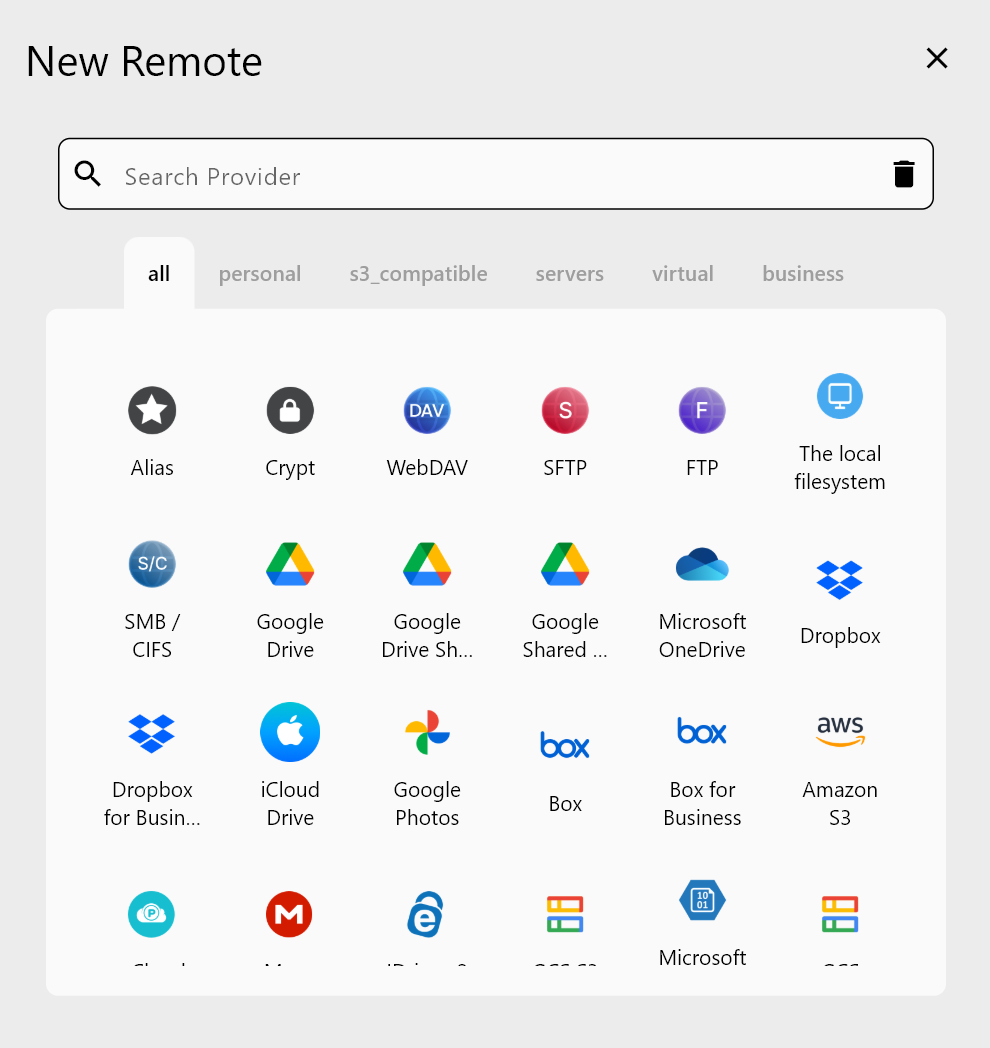
Yandex Disk connects through OAuth in the browser. If listing a folder fails right away, or every file errors with an authorization message, open Remote Manager, edit the Yandex Disk remote, and complete the browser sign-in again. Then refresh the Explorer panel. A successful listing confirms the connection before you run any job.
Tune Job Settings for a Slower Backend
If errors appear only on large jobs, lower the pressure. In the Sync wizard's Advanced Settings, reduce the number of file transfers, and keep equality checkers at 4 or fewer for slow backends (the default is 8). The default of 3 whole-sync retries is useful for transient failures, so leave it enabled. Consider enabling checksum when you need to confirm content, not just size.
Confirm the Fix Without Re-Copying
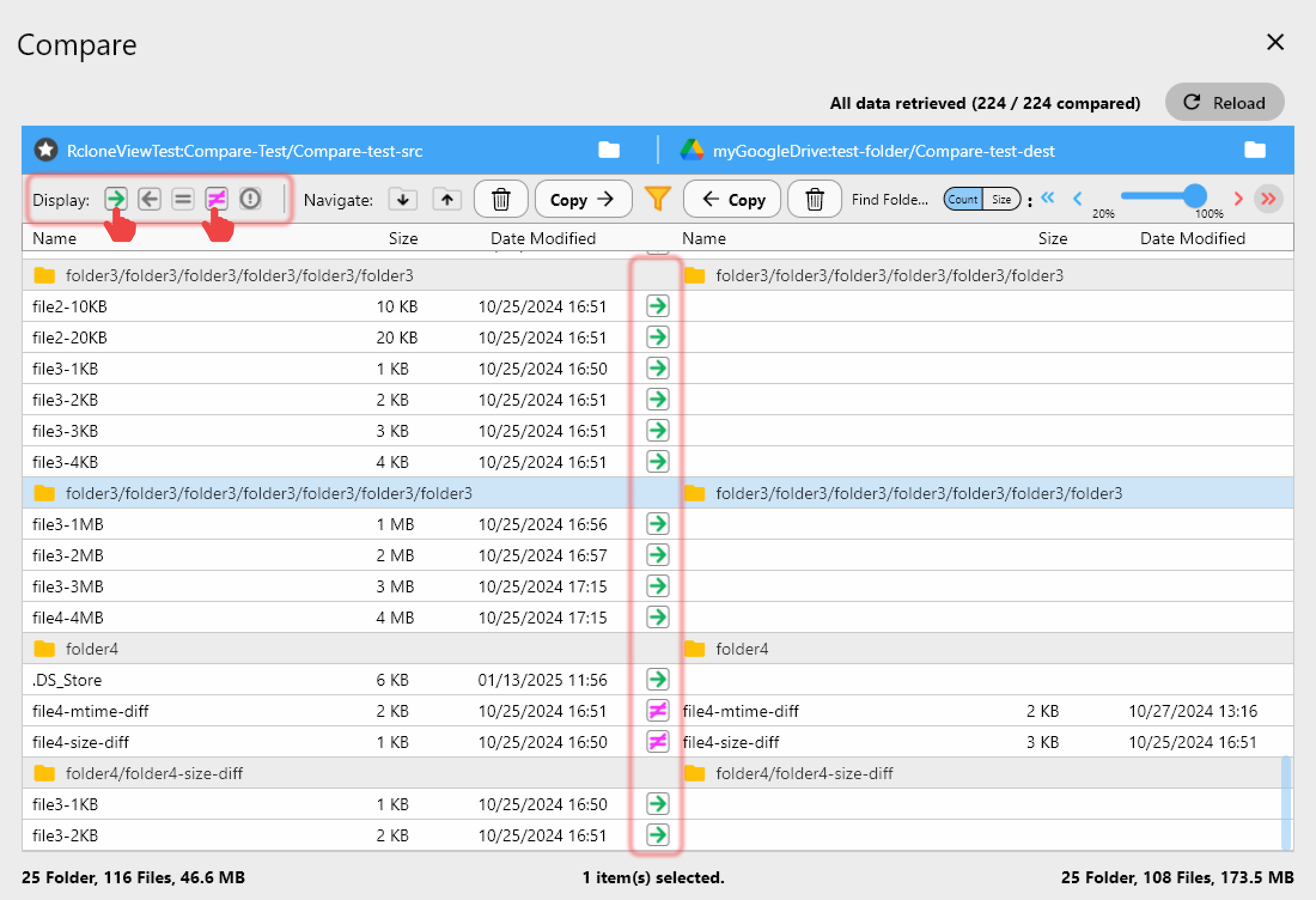
Run a Dry Run to see what would still be transferred, then run the job again. Open Compare to check Yandex Disk against the source: left-only or different files show what remains, and you can copy just those.
Getting Started
- Download RcloneView from rcloneview.com.
- Inspect the failed run in Job History and the Log tab.
- Re-authorize the Yandex Disk remote if listing fails.
- Lower transfers and checkers, Dry Run, then rerun and Compare.
Methodical diagnosis turns a vague "Errored" status into a short, fixable list.
Related Guides:
- Fix Yandex Disk Quota Full Errors
- Manage Yandex Disk Cloud Sync and Backup
- Sync Yandex Disk to Google Drive and S3
Supported Cloud Providers