Migrate Mail.ru Cloud to Google Drive — Transfer Files with RcloneView
Move your Mail.ru Cloud files into Google Drive with a visual, verifiable workflow instead of manual downloads and re-uploads.
Moving years of documents, scans, and media out of Mail.ru Cloud usually means downloading everything to a laptop and uploading it again. RcloneView, a GUI built on rclone, connects both services as remotes, so you can copy between them from one window and verify the result.
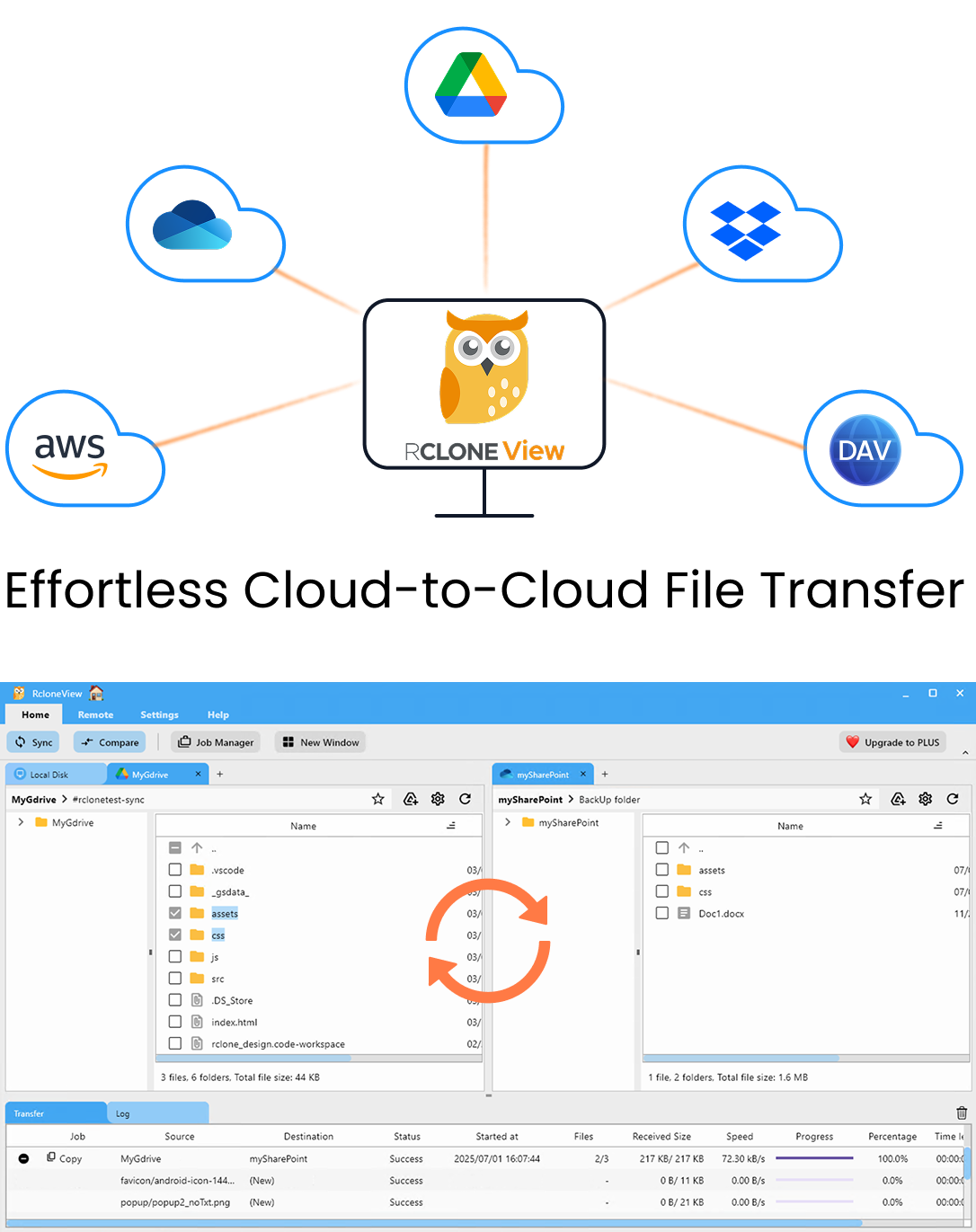
Manage & Sync All Clouds in One Place
RcloneView is a cross-platform GUI for rclone. Compare folders, transfer or sync files, and automate multi-cloud workflows with a clean, visual interface.
- One-click jobs: Copy · Sync · Compare
- Schedulers & history for reliable automation
- Works with Google Drive, OneDrive, Dropbox, S3, WebDAV, SFTP and more
Free core features. Plus automations available.
Connect Both Remotes
Open RcloneView and use New Remote to add Mail.ru Cloud and Google Drive. Google Drive signs in through your browser with OAuth, so no API key is needed. Mail.ru Cloud is listed among the supported providers; follow the on-screen prompts for its credentials. Once both appear in Remote Manager, open them side by side in two Explorer panels.
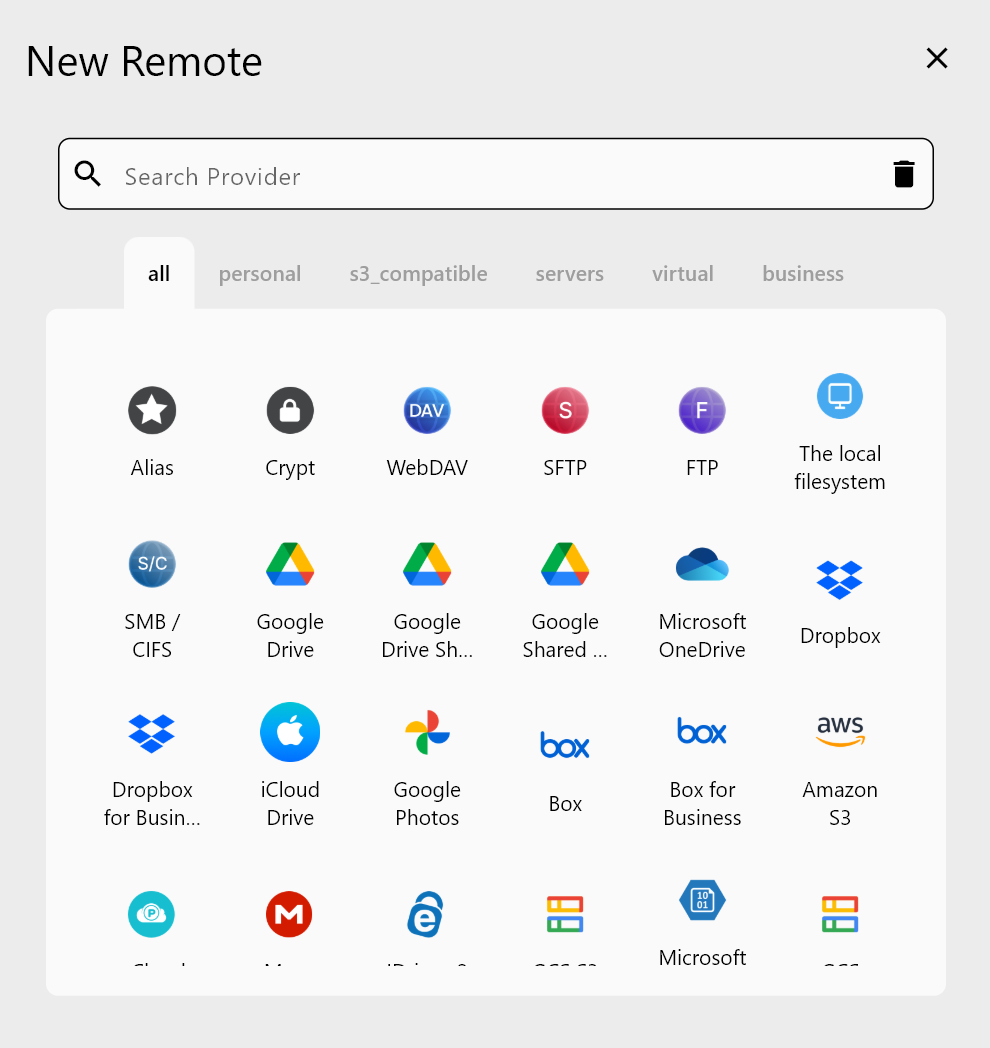
RcloneView supports 90+ cloud storage services from one window, on Windows, macOS, and Linux, so the same setup works for any later migration too.
Plan the Copy Before Moving Anything
Browse the source tree first. Use Get Size on top-level folders to estimate volume, then decide what moves now and what can wait. A small business with a shared "Contracts" folder and a large "Archive" folder might migrate the first immediately and schedule the second for off-hours.
Drag a folder from the Mail.ru panel to the Google Drive panel: dragging between different remotes performs a Copy, so the source stays intact until you are satisfied. For larger moves, build a Copy job in the Sync wizard, set transfer counts in Advanced Settings, and use filters to skip files you do not need, such as ISO images.
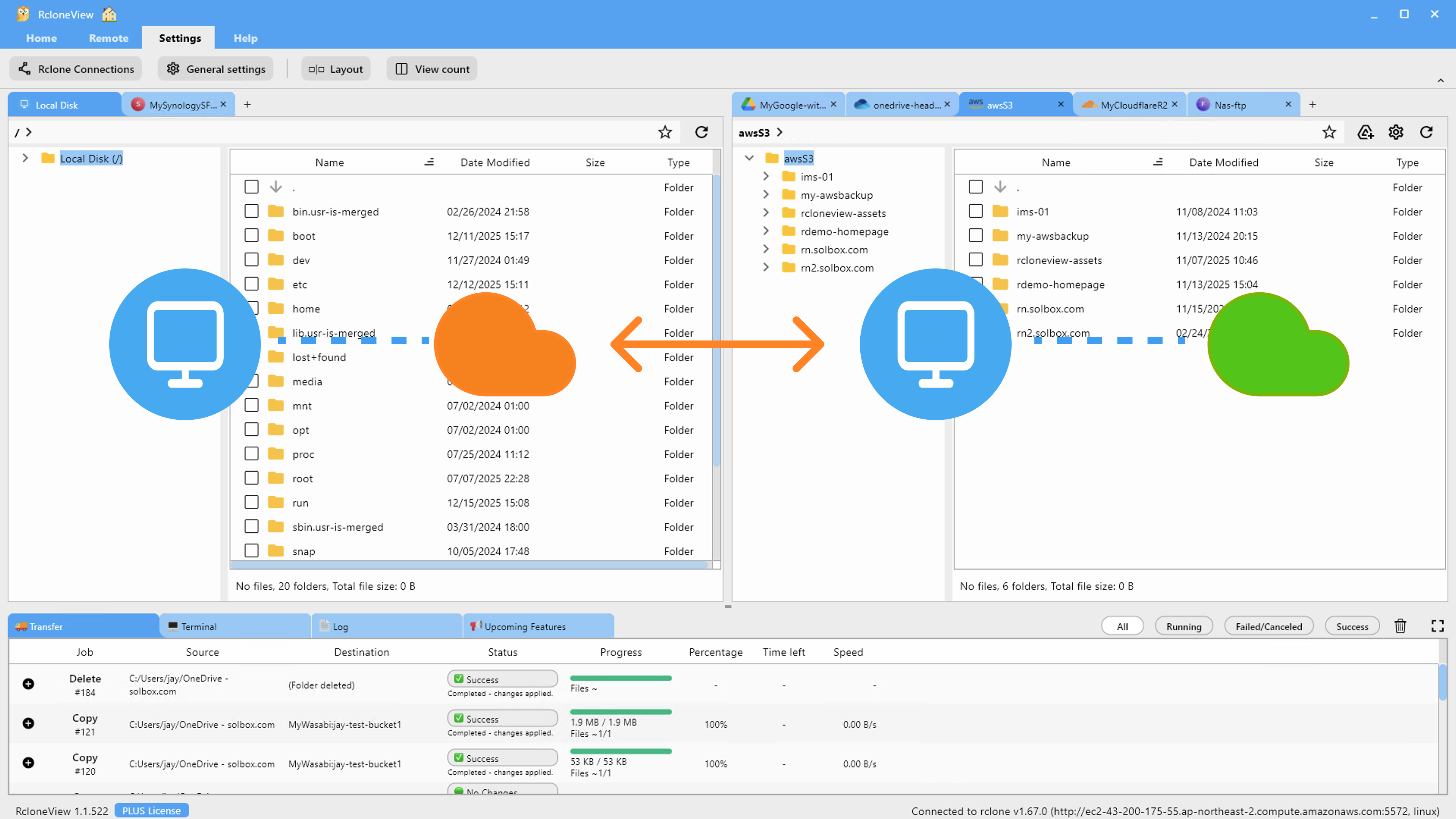
Dry Run, Transfer, and Monitor
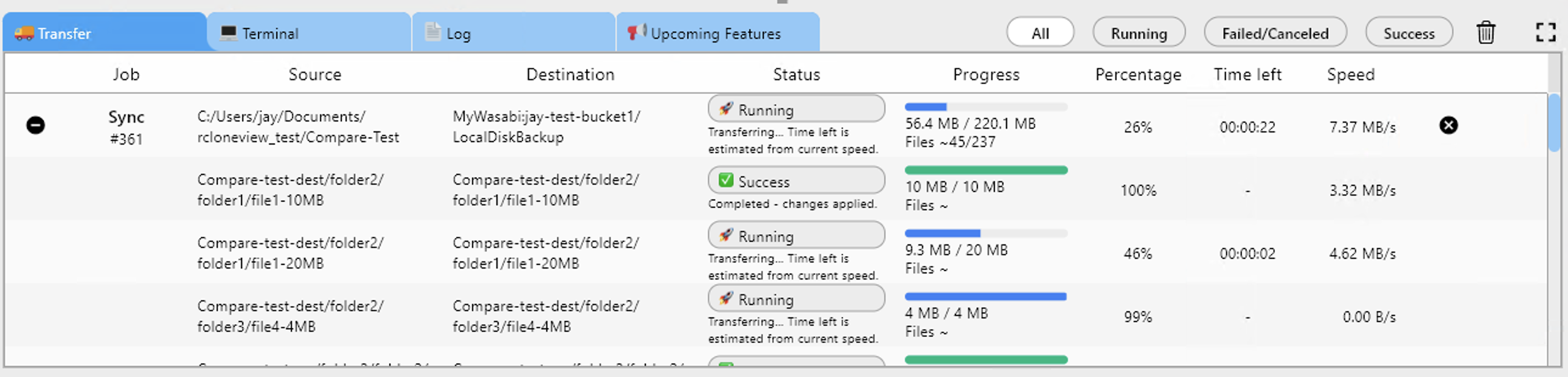
Run a Dry Run first. It lists what would be copied without touching either side, which catches wrong paths before they cost time. When the list looks right, start the job and watch progress, speed, and file counts in the Transferring tab.
Verify with Folder Compare
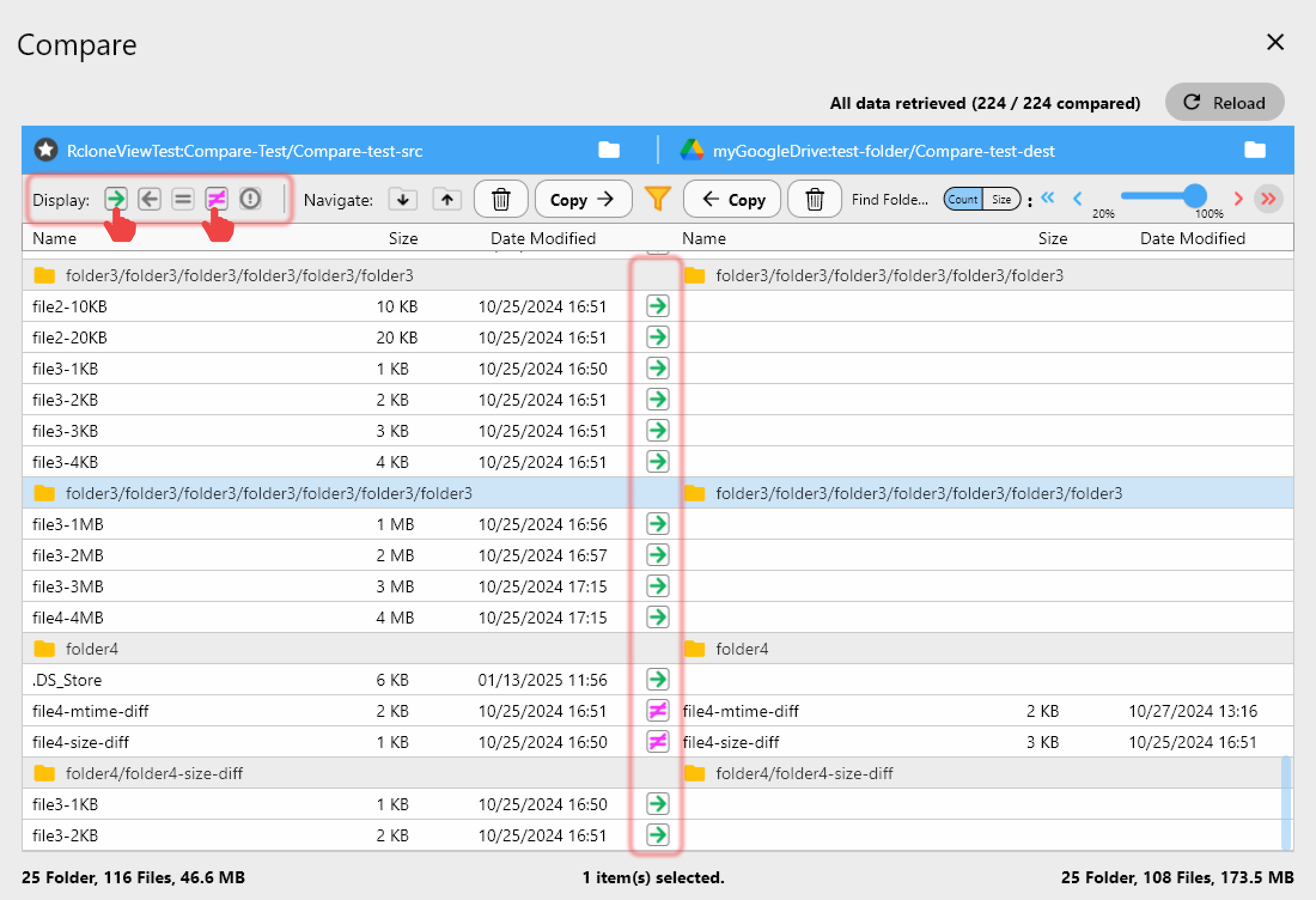
After the copy finishes, open Compare with Mail.ru Cloud on the left and Google Drive on the right. Filter for left-only and different files to see anything missing or mismatched, then copy those across. Job History keeps a record of status, size, and duration for your files.
Getting Started
- Download RcloneView from rcloneview.com.
- Add Mail.ru Cloud and Google Drive through New Remote.
- Run a Dry Run on one folder, then start the Copy job.
- Confirm with Folder Compare before retiring the old account.
A verified, direct cloud-to-cloud copy keeps the migration low-risk and easy to resume.
Related Guides:
- Manage Mail.ru Cloud Sync
- Transfer Mail.ru Cloud to Google Drive and S3
- Migrate Mail.ru Cloud to Backblaze B2
Supported Cloud Providers