Manage Linode Object Storage — S3-Compatible Cloud Sync with RcloneView
Harness the power of Linode Object Storage (powered by Akamai) with RcloneView's seamless S3-compatible interface for reliable cloud synchronization.
Linode Object Storage, built on Akamai's infrastructure, provides affordable and reliable S3-compatible storage for developers and enterprises. RcloneView makes managing Linode buckets straightforward, offering visual bucket browsing, multi-cloud sync capabilities, and automated replication without requiring command-line expertise.

Manage & Sync All Clouds in One Place
RcloneView is a cross-platform GUI for rclone. Compare folders, transfer or sync files, and automate multi-cloud workflows with a clean, visual interface.
- One-click jobs: Copy · Sync · Compare
- Schedulers & history for reliable automation
- Works with Google Drive, OneDrive, Dropbox, S3, WebDAV, SFTP and more
Free core features. Plus automations available.
Why Choose RcloneView for Linode Object Storage
Linode Object Storage delivers impressive performance and competitive pricing, but managing buckets at scale demands robust tooling. RcloneView delivers:
- S3-compatible interface — Connect to Linode using standard S3 credentials and endpoints
- Intuitive bucket explorer — Browse, upload, and manage objects with a visual file browser
- Cross-cloud synchronization — Sync Linode buckets to AWS, Google Cloud, Azure, or local storage
- Scheduled replication — Automate regular backups and data replication jobs
- Performance monitoring — Track transfer speed and storage metrics in real-time
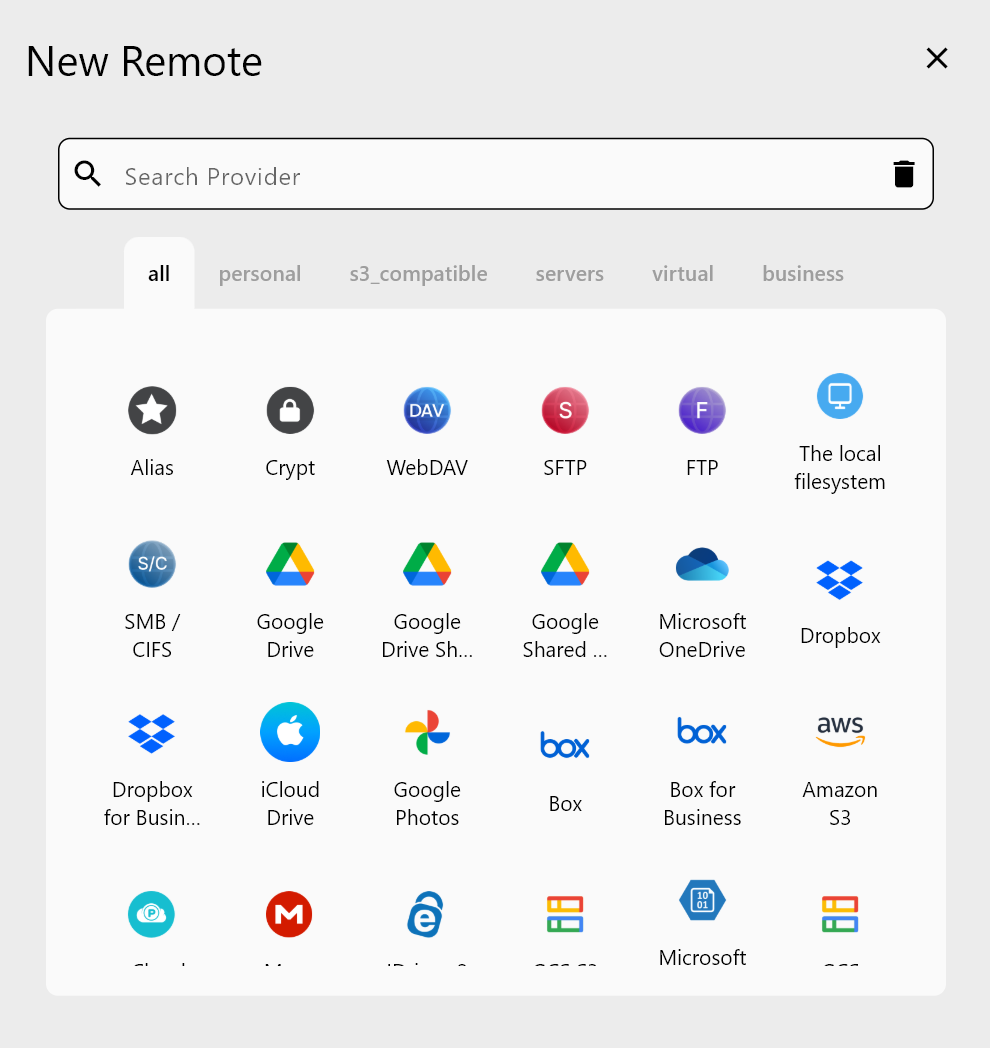
Configuring Linode Object Storage in RcloneView
Setting up Linode Object Storage with RcloneView is quick and secure:
- Create an S3 access key pair in your Linode account
- Open RcloneView and select Add Remote
- Choose S3-Compatible or Linode from the provider options
- Enter your Linode cluster endpoint, access key, and secret key
- Verify the connection and save your remote configuration
Your Linode buckets now appear immediately in RcloneView's Remote Explorer, ready for management and transfers.
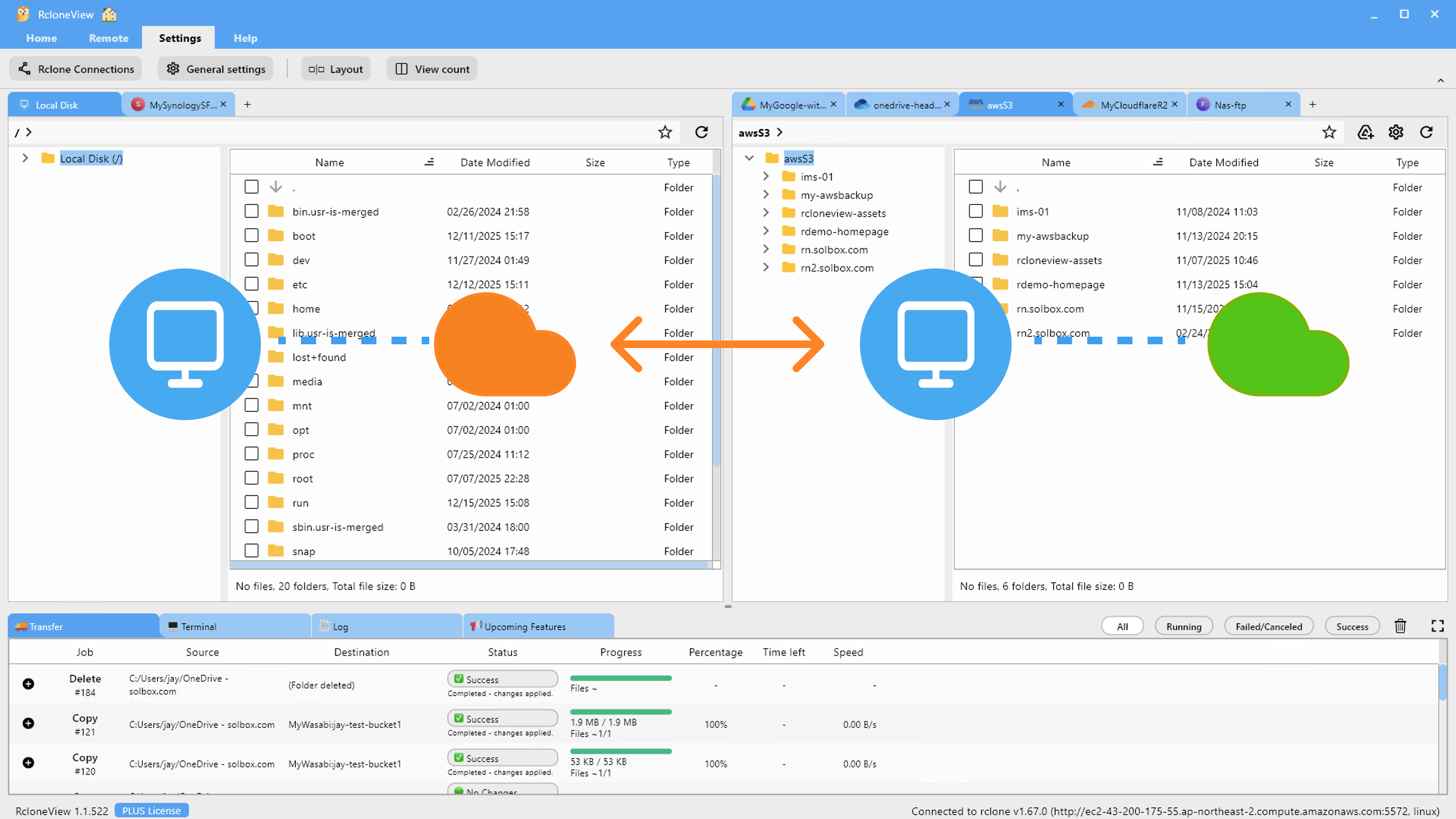
Syncing Linode Buckets Across Clouds
RcloneView empowers you to replicate Linode data anywhere:
- Bucket-to-bucket within Linode — Mirror buckets across different regions
- Linode to AWS S3 — Migrate or replicate to Amazon's S3 storage
- Linode to Google Cloud — Transfer data to Google Cloud Storage
- Linode to local backup — Download buckets for on-premises archival
- Bidirectional sync — Keep Linode and destination storage continuously synchronized
The Compare Display feature lets you review all changes before syncing, preventing unintended data loss or overwrites.
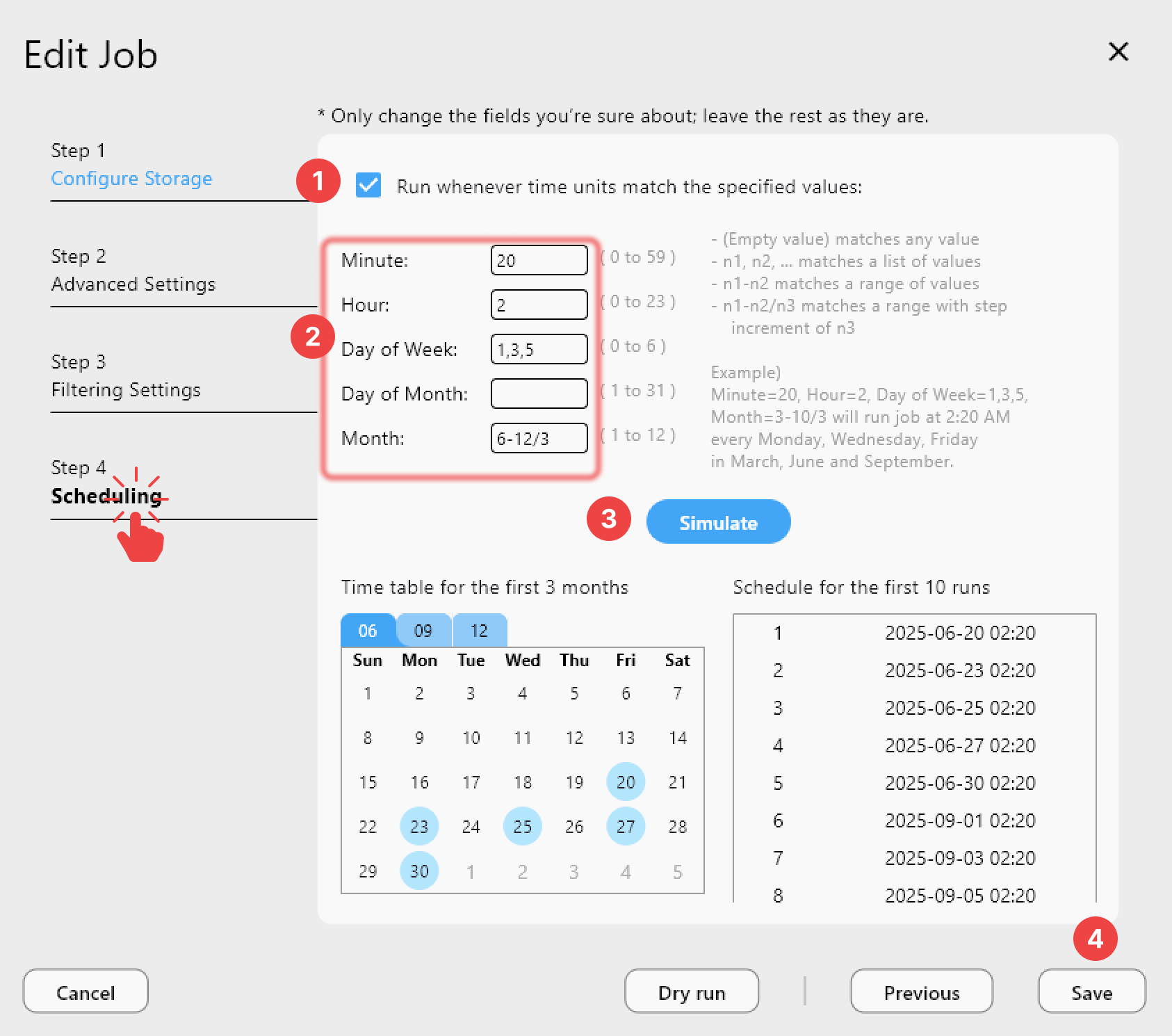
Getting Started
- Download RcloneView from rcloneview.com.
- Install the application on macOS, Linux, or Windows.
- Add your Linode Object Storage account using S3-compatible credentials.
- Create your first sync job between Linode and your destination.
- Schedule automated backups or replication tasks.
Optimize your Linode Object Storage management with RcloneView's powerful S3-compatible interface today.
Related Guides:
- Manage OVH Cloud Object Storage — Sync with RcloneView
- Sync Vultr Object Storage to S3 and Google Drive with RcloneView
- Manage Ceph Object Storage (S3) with RcloneView
Supported Cloud Providers





























