Manage Google Cloud Storage (GCS) — Sync and Browse Buckets with RcloneView
Efficiently manage your Google Cloud Storage infrastructure with RcloneView's powerful bucket browsing, syncing, and data transfer capabilities.
Google Cloud Storage (GCS) is a robust object storage solution for enterprises, but managing buckets at scale requires the right tools. RcloneView simplifies GCS operations by providing an intuitive interface for browsing buckets, syncing data, and performing bulk transfers without the complexity of command-line tools.

Manage & Sync All Clouds in One Place
RcloneView is a cross-platform GUI for rclone. Compare folders, transfer or sync files, and automate multi-cloud workflows with a clean, visual interface.
- One-click jobs: Copy · Sync · Compare
- Schedulers & history for reliable automation
- Works with Google Drive, OneDrive, Dropbox, S3, WebDAV, SFTP and more
Free core features. Plus automations available.
Why RcloneView for Google Cloud Storage
Google Cloud Storage offers excellent scalability and integration with Google services, but managing multiple buckets, permissions, and transfers can be tedious. RcloneView abstracts away the complexity by providing:
- Visual bucket browser — Explore GCS bucket contents with folder-like navigation
- One-click sync operations — Synchronize buckets to local storage or other cloud providers
- Scheduled transfers — Automate regular backup and replication tasks
- Real-time monitoring — Track transfer progress and performance metrics
Setting Up GCS with RcloneView
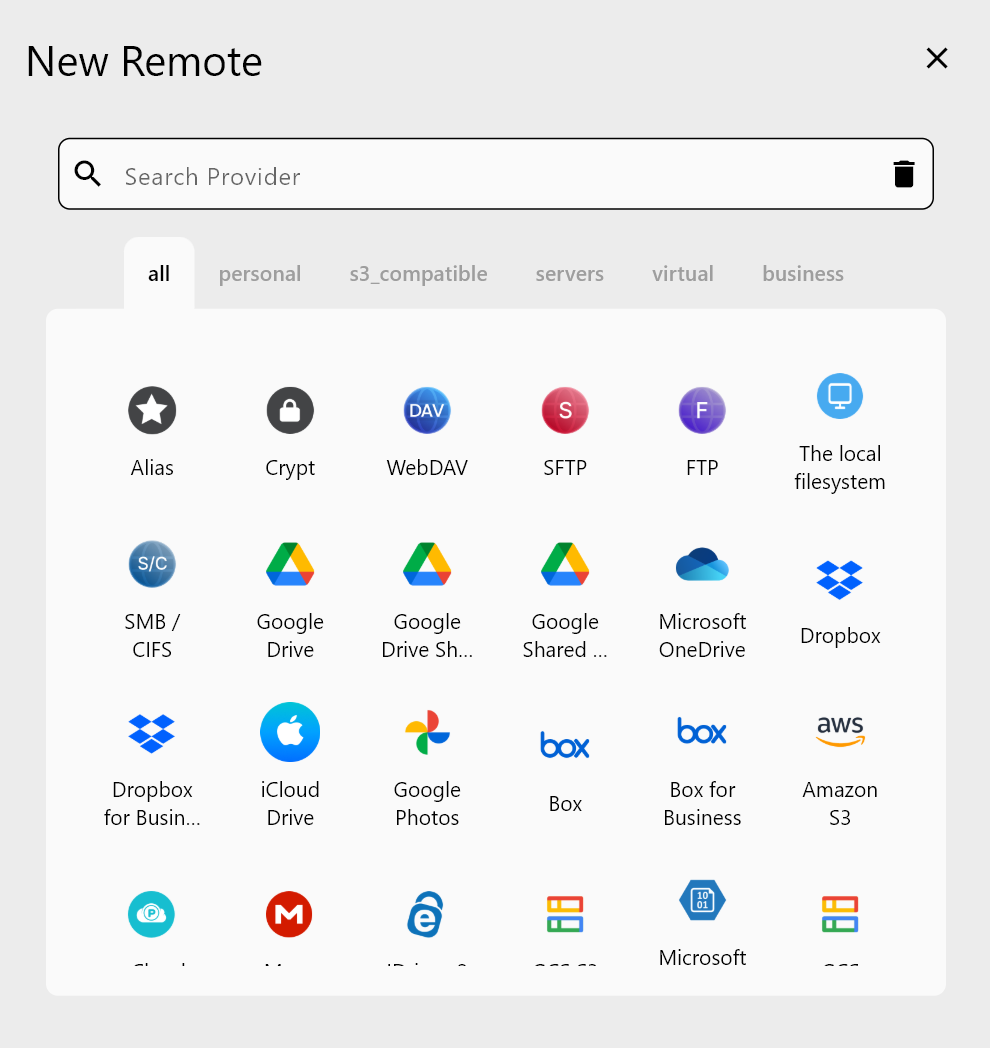
Connecting RcloneView to your Google Cloud Storage account takes just a few clicks:
- Launch RcloneView and select Add Remote
- Choose Google Cloud Storage from the provider list
- Authenticate with your Google Cloud credentials
- Select the GCS project and authorize access
- Name your remote connection and save
Once configured, all your buckets appear in the Remote Explorer for immediate browsing and management.
Syncing GCS Buckets with RcloneView
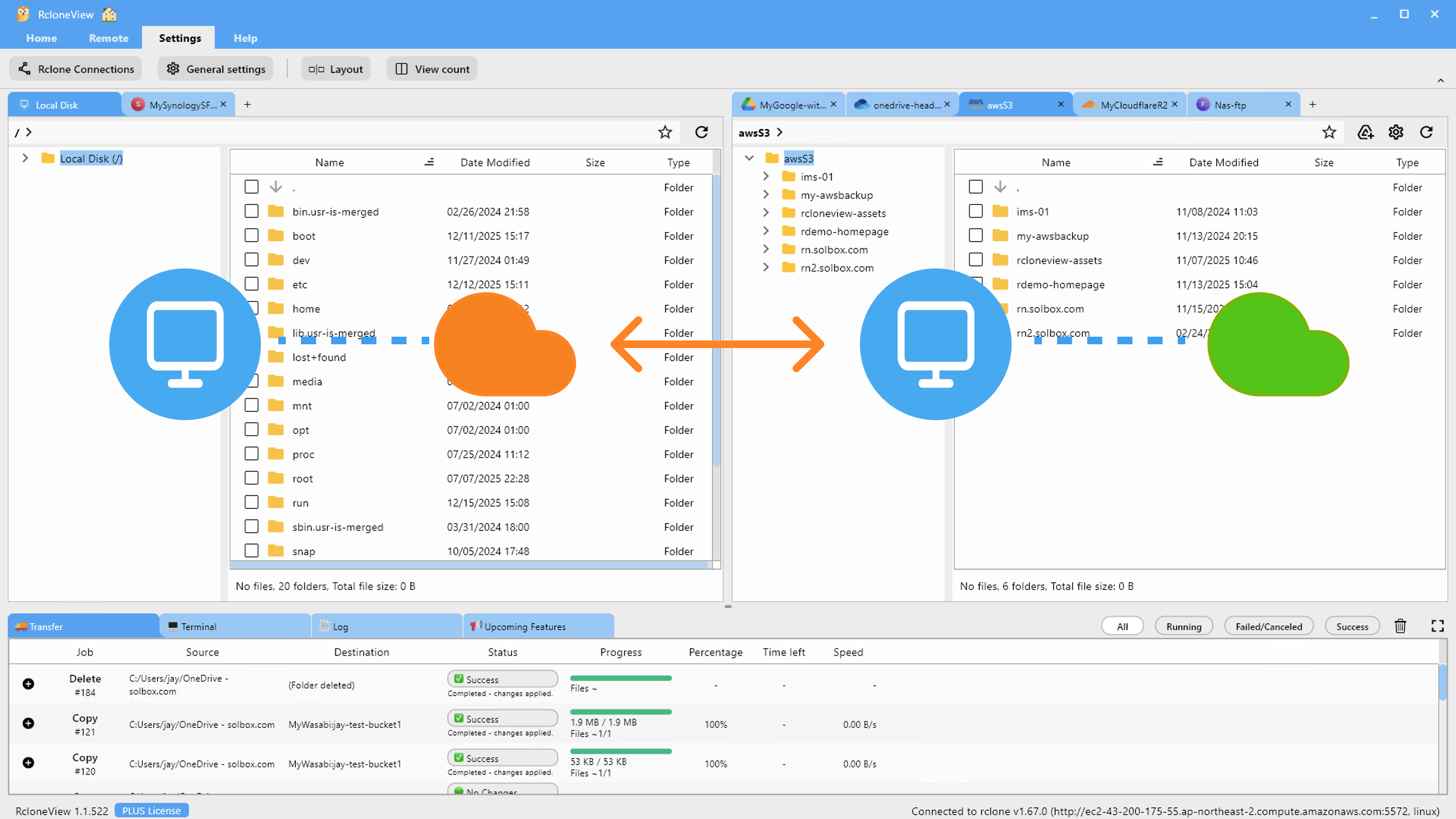
Whether you're consolidating data, creating backups, or preparing for migration, RcloneView handles GCS synchronization seamlessly:
- Bucket-to-bucket sync — Replicate one bucket to another within GCS
- Bucket to local — Download bucket contents to your workstation
- Bucket to other clouds — Transfer GCS data to S3, Azure, or other providers
- Bidirectional sync — Keep remote and local copies in sync automatically
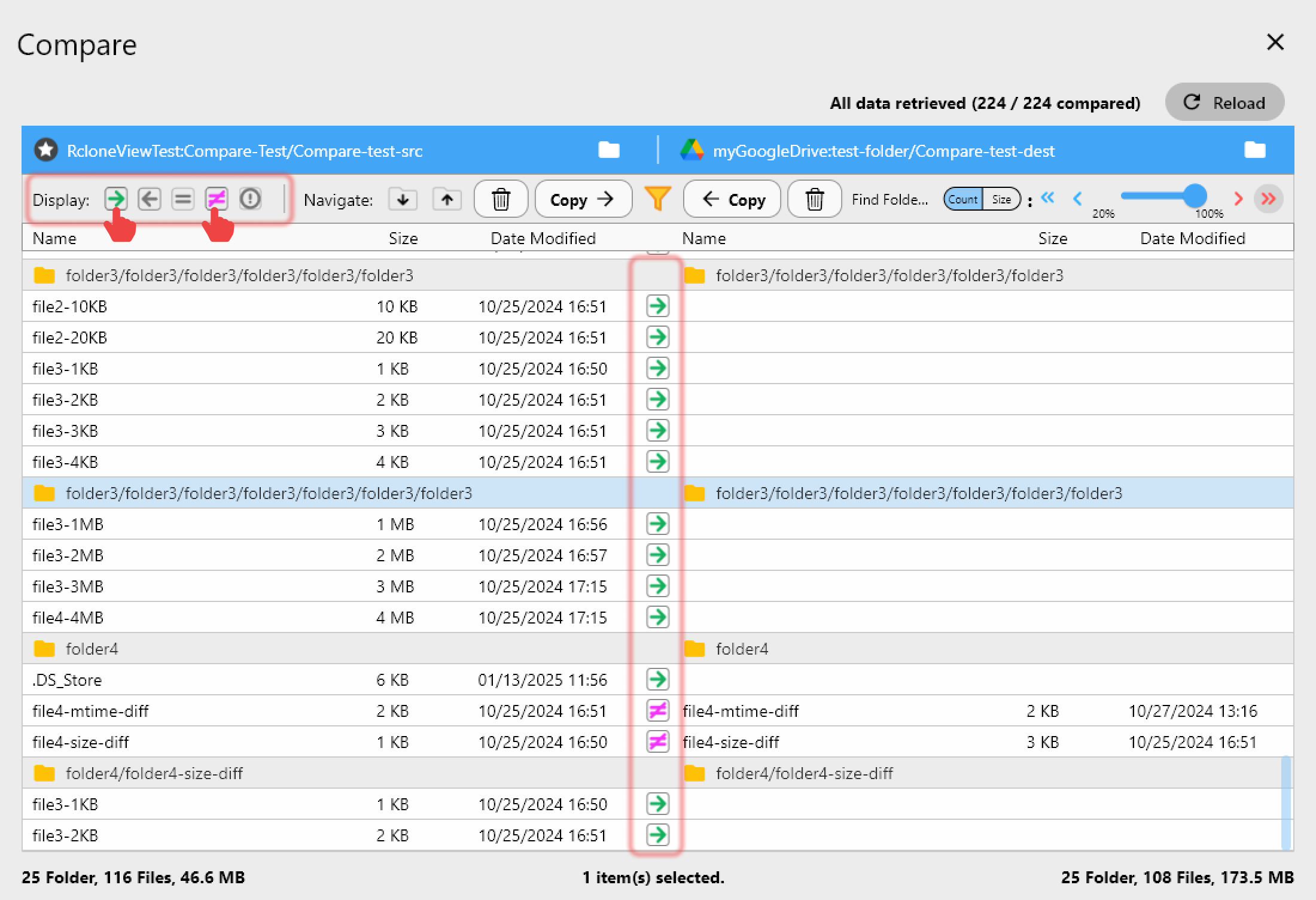
Use the Compare Display to review changes before syncing, ensuring data integrity and preventing accidental overwrites.
Getting Started
- Download RcloneView from rcloneview.com.
- Install and launch the application on your preferred platform.
- Add your Google Cloud Storage account via the Remote configuration.
- Browse your buckets and create your first sync job.
- Monitor progress and configure schedules for ongoing automation.
Start managing your Google Cloud Storage infrastructure with the simplicity and power of RcloneView today.
Related Guides:
- Sync Azure Blob to AWS S3 with RcloneView
- Manage OVH Cloud Object Storage — Sync with RcloneView
- Multi-Threaded Transfers & Parallel Streams in RcloneView
Supported Cloud Providers





























