Migrate Google Photos to pCloud — Transfer Your Photo Library with RcloneView
Take control of your photo library by migrating from Google Photos to pCloud, a privacy-focused cloud storage provider with lifetime ownership options.
Google Photos offers convenience and seamless integration with Android devices, but privacy concerns and limited storage controls drive many users to explore alternatives. pCloud provides a compelling option with encryption options, lifetime storage plans, and full user control. RcloneView makes the migration process simple, secure, and automated.

Manage & Sync All Clouds in One Place
RcloneView is a cross-platform GUI for rclone. Compare folders, transfer or sync files, and automate multi-cloud workflows with a clean, visual interface.
- One-click jobs: Copy · Sync · Compare
- Schedulers & history for reliable automation
- Works with Google Drive, OneDrive, Dropbox, S3, WebDAV, SFTP and more
Free core features. Plus automations available.
Why Migrate from Google Photos to pCloud
Moving your photo library represents a significant decision. Consider these key advantages of pCloud:
- Privacy-first design — End-to-end encryption options protect your photos from prying eyes
- Lifetime storage — Purchase permanent storage instead of recurring monthly subscriptions
- User control — You own your data; pCloud doesn't use photos for AI training or advertising
- Flexible access — Download and organize your entire library without restrictions
- Cross-platform support — Sync and access photos across all your devices
RcloneView automates the entire migration, eliminating the tedium of manual downloading and uploading.
Preparing for Migration
Before starting your migration, prepare both platforms:
- Export your Google Photos — Download your photo library using Google Takeout
- Create a pCloud account — Sign up for pCloud and choose your storage plan
- Generate API credentials — Obtain pCloud API keys from your account settings
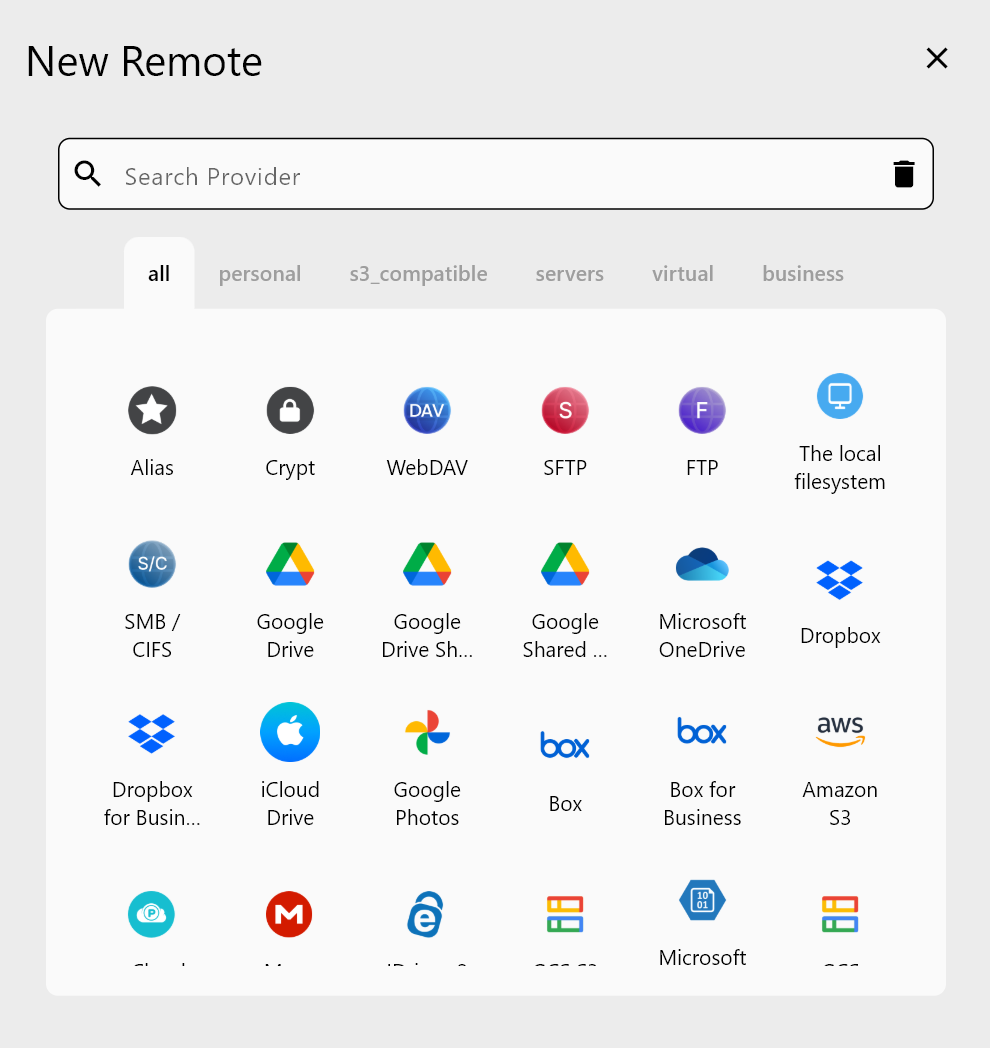
- Configure both remotes — Connect both Google Photos and pCloud to RcloneView
RcloneView supports both Google Photos API and direct pCloud integration, making the connection seamless and secure.
Executing the Migration
RcloneView streamlines the cloud-to-cloud transfer process:
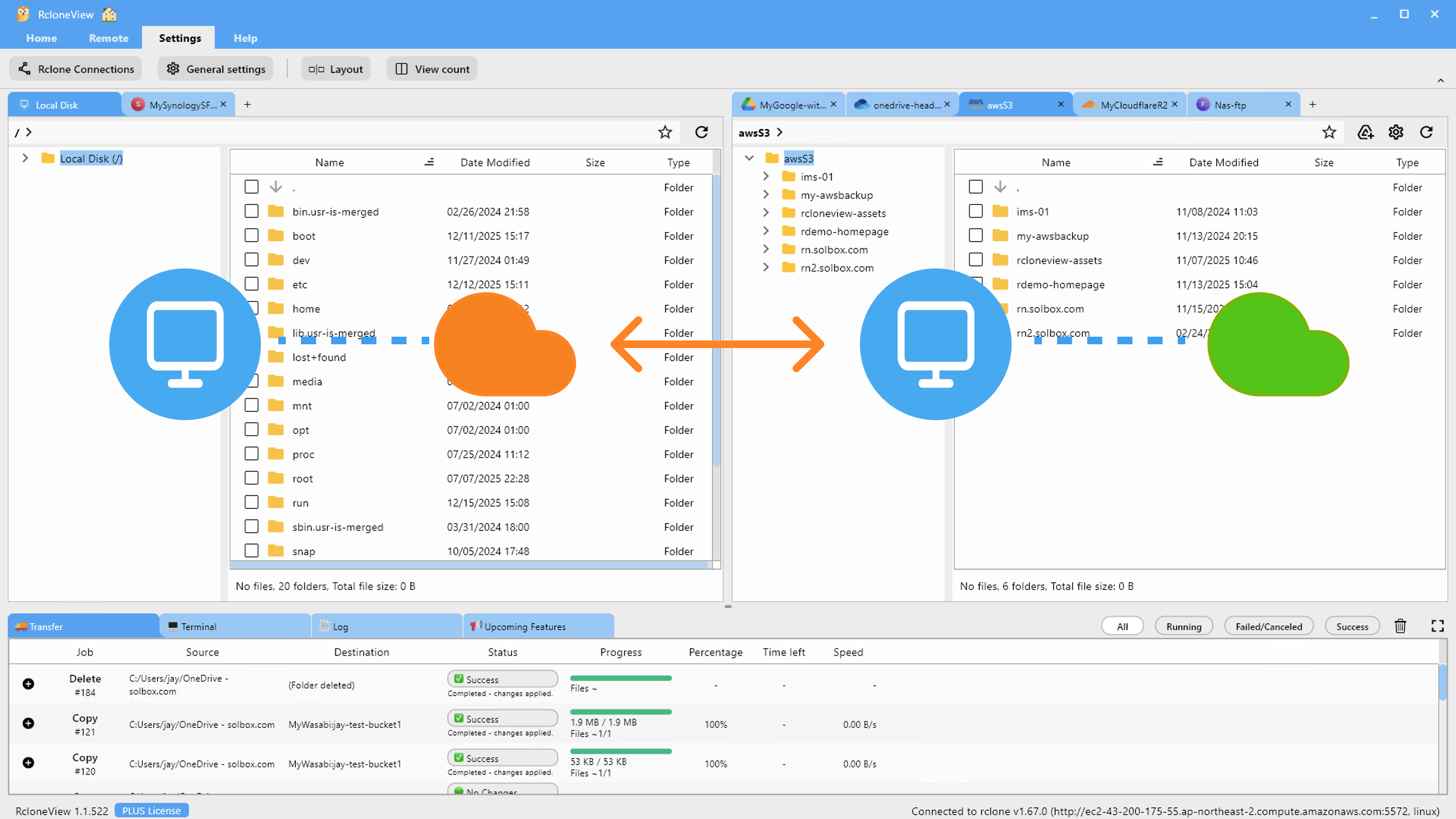
- Connect your Google Photos account as the source remote
- Connect your pCloud account as the destination remote
- Use the Compare Display to preview all photos and folders that will transfer
- Initiate the transfer with a single click
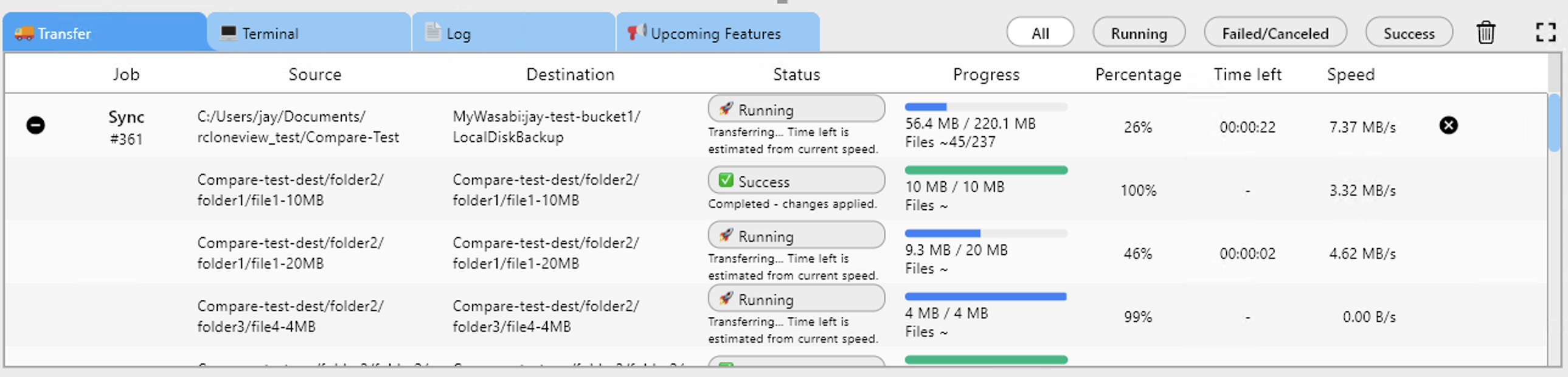
- Monitor progress in real-time and receive completion notifications
RcloneView preserves folder structures, photo metadata, and timestamps during migration. The Resume on Failure feature ensures interrupted transfers can pick up where they left off.
Getting Started
- Download RcloneView from rcloneview.com.
- Install on macOS, Linux, or Windows.
- Connect both your Google Photos and pCloud accounts to RcloneView.
- Initiate a test transfer with a small photo collection first.
- Once confident, migrate your entire library.
Reclaim ownership of your photos with pCloud and RcloneView's secure, straightforward migration tools.
Related Guides:
- Migrate Google Workspace to Microsoft 365 with RcloneView
- Migrate MEGA to Google Drive and OneDrive with RcloneView
- Migrate Box to Google Drive with RcloneView
Supported Cloud Providers





























