RcloneView on Gentoo Linux — Cloud Storage Sync and Backup
Run RcloneView on Gentoo through the AppImage build and manage every cloud remote rclone supports from a native GUI, without waiting on an ebuild.
Gentoo's source-based, roll-your-own approach gives you tight control over what's on the system, but that also means less mainstream software rarely shows up as a portage package. RcloneView isn't in the Gentoo tree, and there's no plan to add one — the AppImage build sidesteps that entirely by bundling everything the app needs into a single portable file. Unlike mount-only tools, RcloneView also syncs and compares folders — on the FREE license — so a Gentoo workstation gets full cloud file management, not just a mounted drive.

Manage & Sync All Clouds in One Place
RcloneView is a cross-platform GUI for rclone. Compare folders, transfer or sync files, and automate multi-cloud workflows with a clean, visual interface.
- One-click jobs: Copy · Sync · Compare
- Schedulers & history for reliable automation
- Works with Google Drive, OneDrive, Dropbox, S3, WebDAV, SFTP and more
Free core features. Plus automations available.
Running RcloneView on Gentoo
Download the .AppImage file for your architecture (x86_64 or aarch64) from the official download page, mark it executable (chmod +x RcloneView-{version}-{arch}.AppImage), and run it directly — no portage sync, no ebuild, no compile step. There is no Gentoo overlay, Flathub, or Snap package to fall back on either; the AppImage is the only supported path on this distro, and any other source should be treated as unofficial.
Before launching, confirm your Gentoo profile has a working X11 or Wayland desktop environment installed and running — RcloneView is a Flutter GUI application and cannot start on a bare console system. You'll also need GTK+ 3.0 and either libayatana-appindicator3-1 or libappindicator3-1 pulled in for the system tray icon, plus FUSE (fuse3 recommended) if you plan to mount remotes as local drives.

Adding Cloud Remotes
Remote setup on Gentoo is identical to every other platform: open Remote tab > New Remote, choose a provider, and either authenticate through a browser popup (Google Drive, Dropbox, OneDrive, Box) or enter credentials directly (Amazon S3, Backblaze B2, SFTP). RcloneView ships with an embedded rclone binary talking to http://127.0.0.1:5582, so there's nothing extra to compile or install unless you specifically want to point it at an external rclone instance running elsewhere on your network.
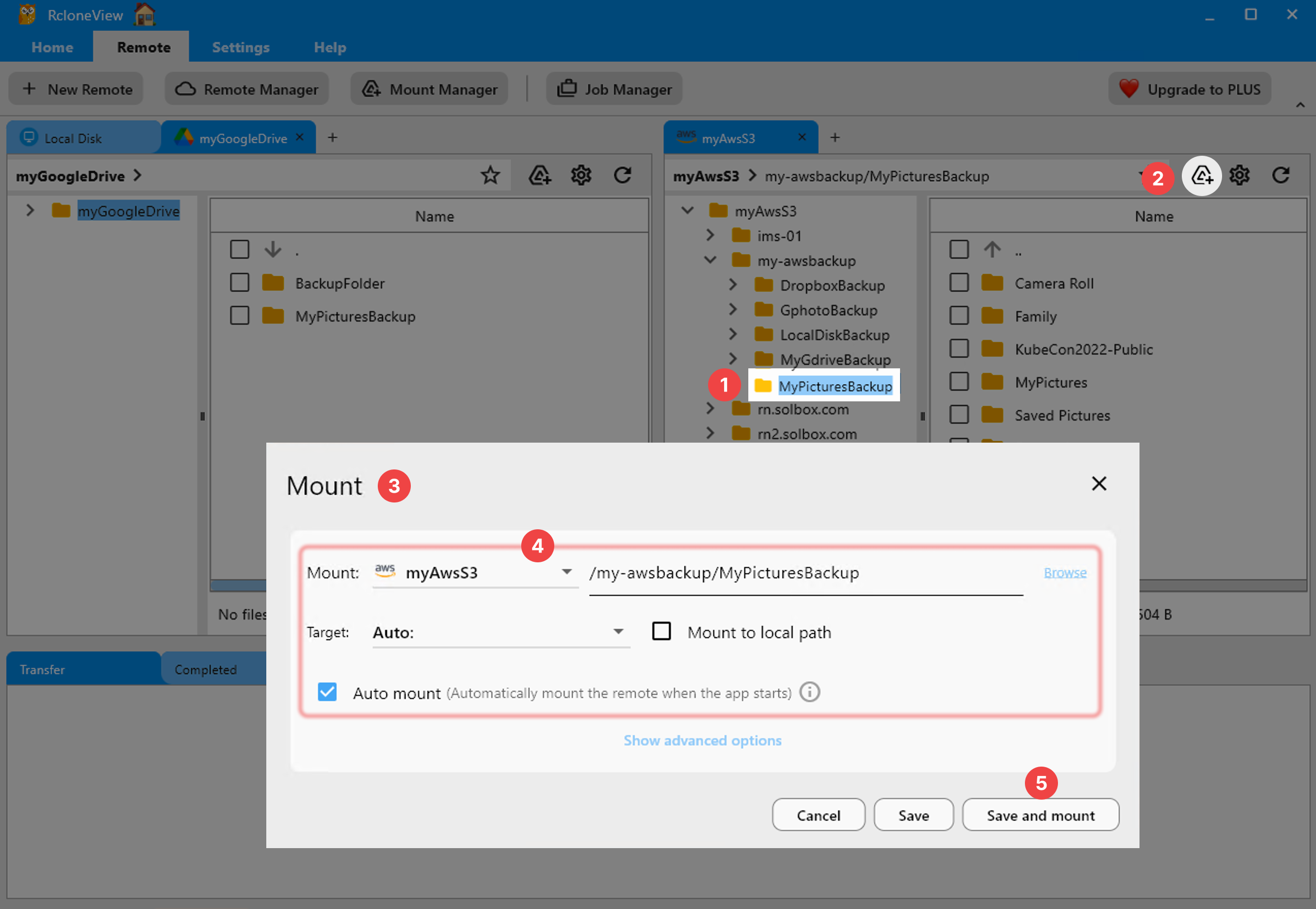
Once a remote is connected, mount it through nfsmount to get a local path any other application on the system can read from directly, no different from browsing a local disk.
Automating Backups with Scheduled Sync
For a Gentoo workstation that stays running most of the day, a scheduled sync job turns RcloneView into an unattended backup tool. Walk through the 4-step Sync wizard, add filters to skip build artifacts or oversized files, and — on a PLUS license — attach a crontab-style schedule so the job fires automatically.

Job History logs every run's duration, transfer speed, and status, which is the quickest way to confirm an overnight backup actually finished rather than failing silently.
Getting Started
- Download RcloneView from rcloneview.com — grab the x86_64 or aarch64 .AppImage.
- Mark the file executable and run it directly, confirming GTK+3 and a display server are present.
- Add your first cloud remote through Remote tab > New Remote.
- Set up a sync or mount to start managing cloud storage from Gentoo.
With the AppImage in hand, Gentoo gets the same full-featured cloud sync and mount experience as any binary-distro system, without an ebuild to maintain.
Related Guides:
- RcloneView on Arch Linux — Cloud Storage Sync
- Install RcloneView on Ubuntu and Debian Linux
- RcloneView on Alpine Linux — Cloud Sync
Supported Cloud Providers





























