Cloud Storage for Wineries and Vineyards — Protect Production Records with RcloneView

Keep harvest logs, label artwork, and compliance paperwork safe in more than one place.
A small winery generates a surprising mix of files: harvest and fermentation spreadsheets, high-resolution label and packaging artwork, tasting-room photos, distributor contracts, and regulatory filings. They often live on one office PC plus a single cloud account. RcloneView gives a winery a visual way to copy that data to a second and third location, and to check that the copies match. RcloneView mounts AND syncs 90+ providers from one window, on Windows, macOS, and Linux.
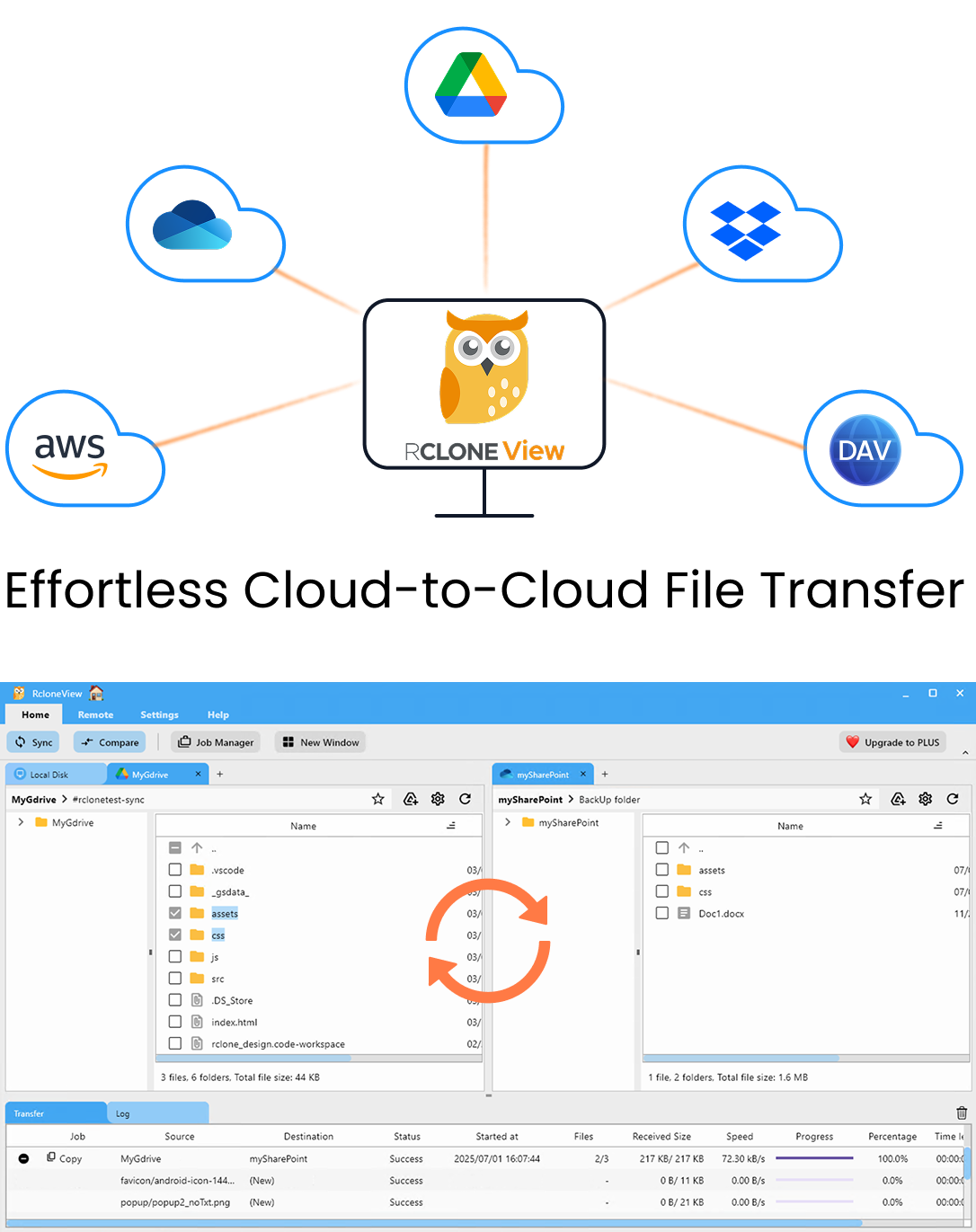
Manage & Sync All Clouds in One Place
RcloneView is a cross-platform GUI for rclone. Compare folders, transfer or sync files, and automate multi-cloud workflows with a clean, visual interface.
- One-click jobs: Copy · Sync · Compare
- Schedulers & history for reliable automation
- Works with Google Drive, OneDrive, Dropbox, S3, WebDAV, SFTP and more
Free core features. Plus automations available.
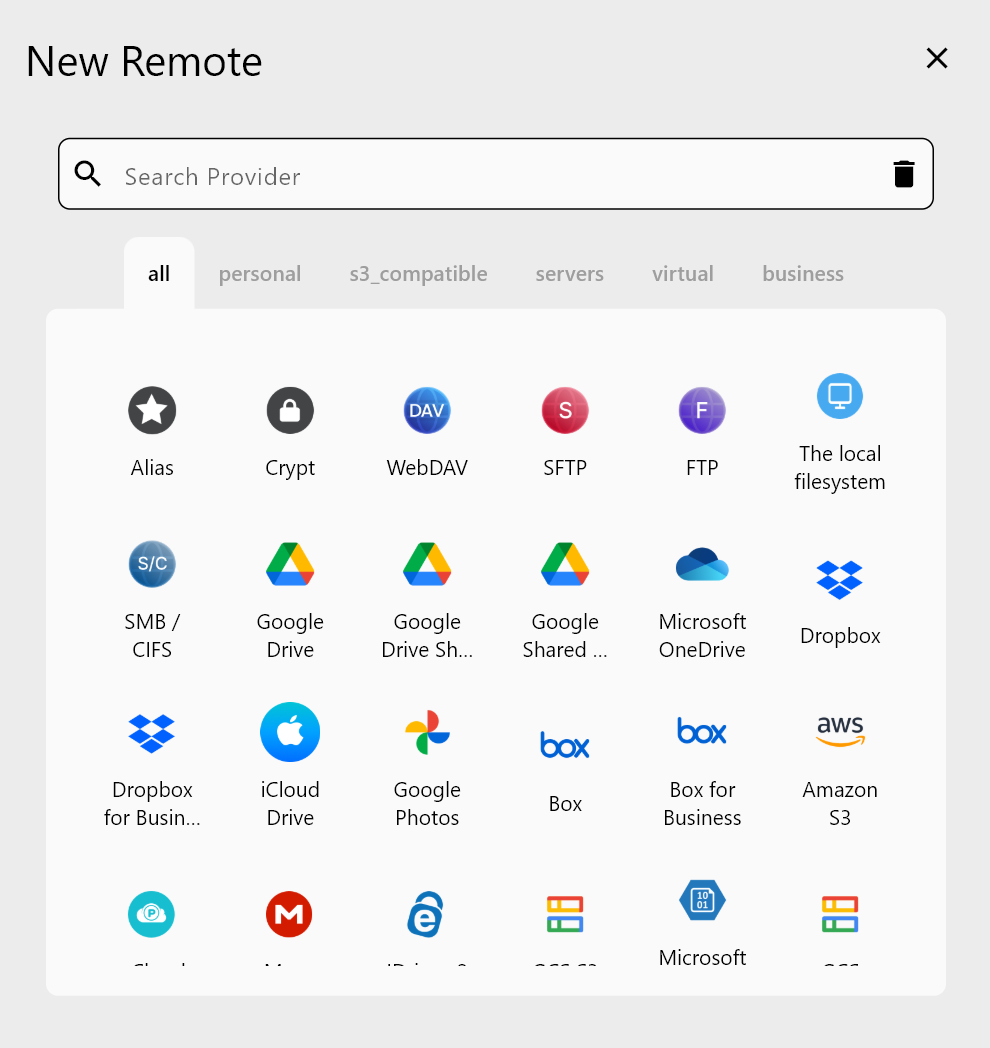
Connect the Places Your Files Live
Open the Remote tab and add what you already use: Google Drive or OneDrive for office documents, a NAS in the cellar office, and an S3-compatible bucket such as Backblaze B2 or Wasabi for an offsite copy. Cloud accounts sign in through the browser; buckets use an access key. A Synology NAS can be found automatically on the local network.
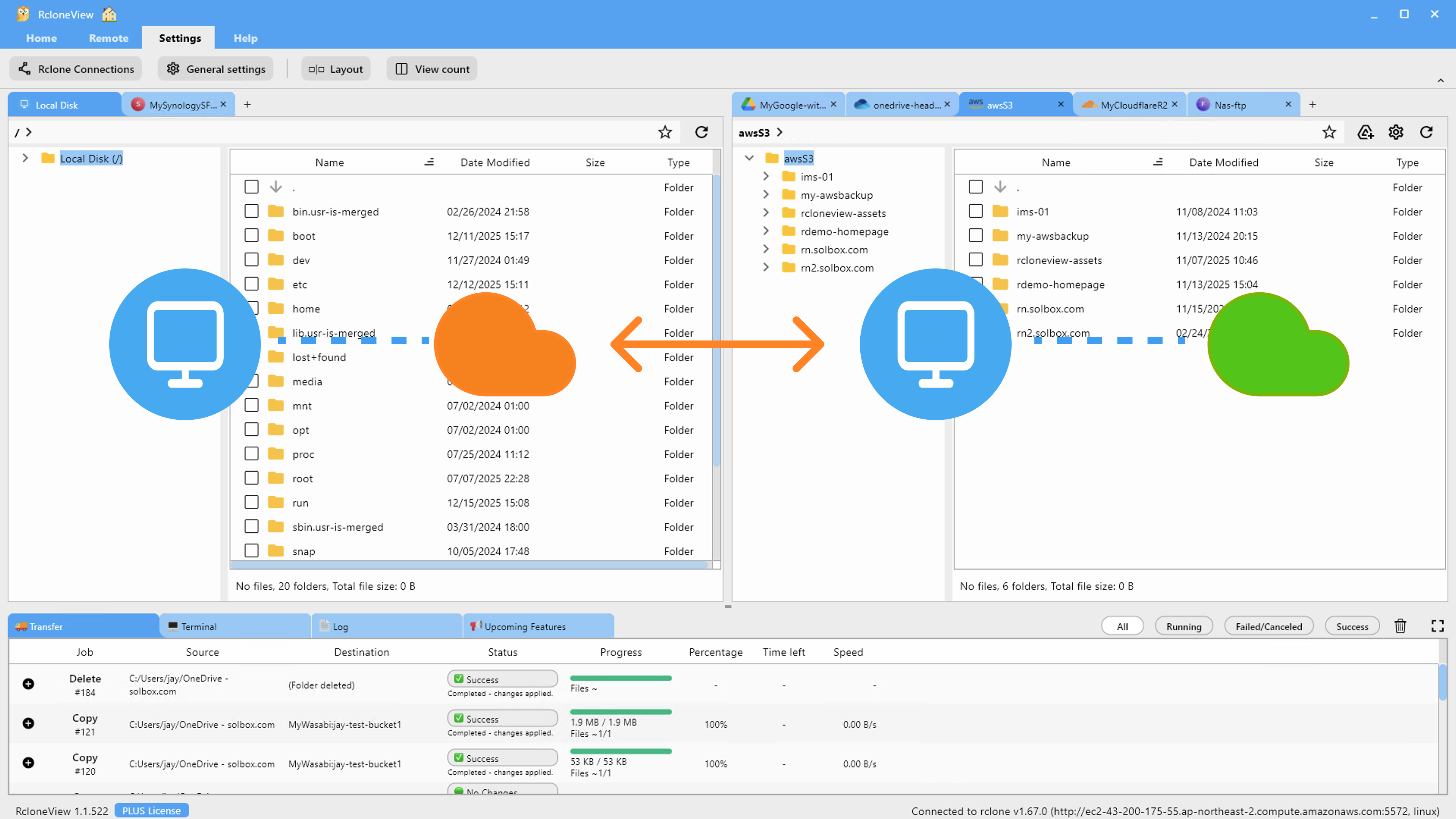
Put two remotes side by side in the Explorer panels and drag a folder across to copy it between them.
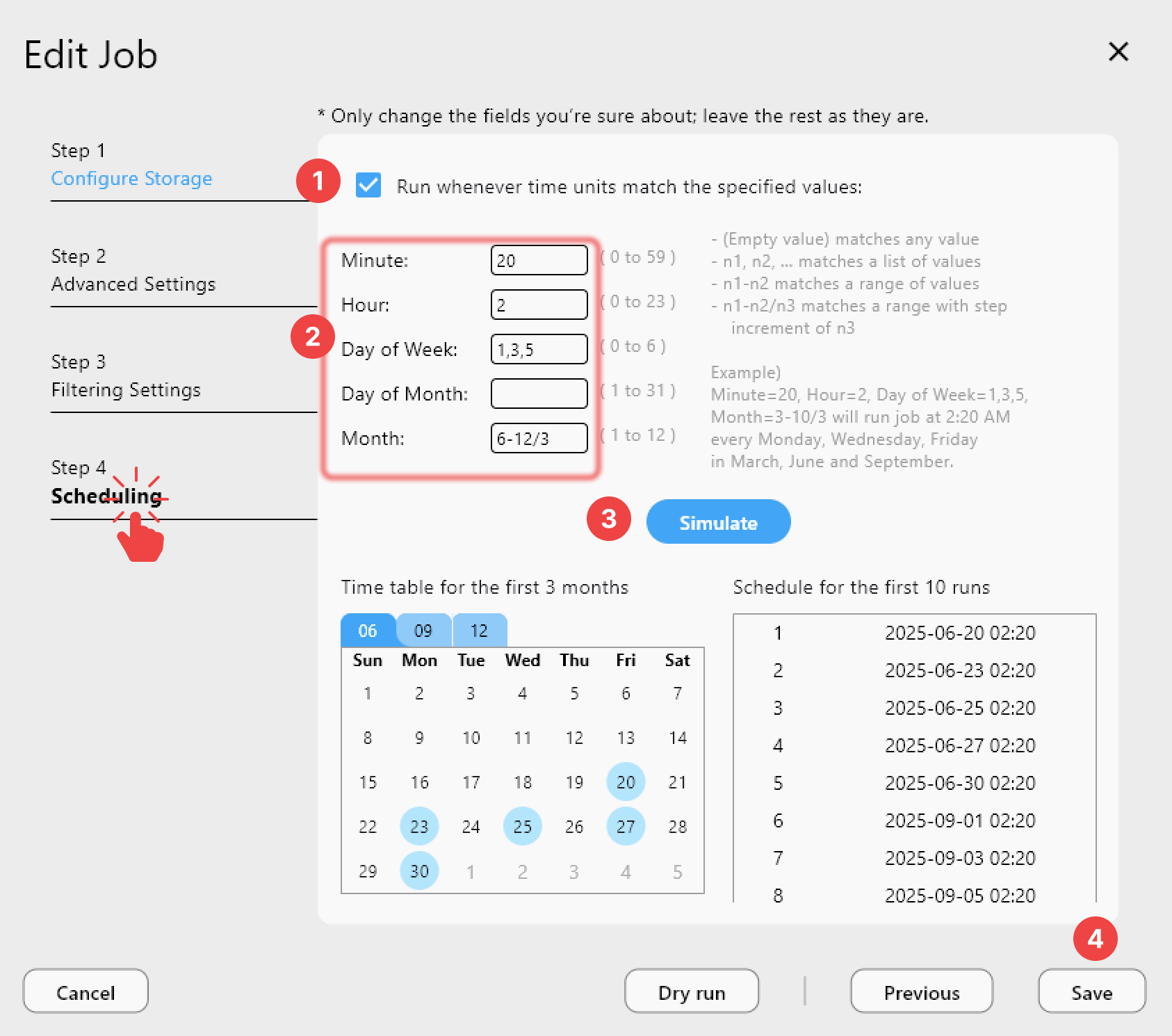
Back Up Artwork and Records on a Schedule
Label artwork and bottling records change around vintage releases, then sit untouched. Create a sync job from the office share to your bucket and use Dry Run first to preview what will be copied. Filters help here: exclude temporary files, or set a max file age to focus on the current vintage.
Scheduled sync uses crontab-style timing and is a PLUS feature. On the FREE license you can still run jobs manually, which works well for a copy after each harvest or bottling run.
Encrypt Compliance and Customer Data
Distributor contracts, licensing documents, and wine-club customer lists deserve more than a plain copy. A Crypt remote encrypts file names, folder names, and contents before they reach the cloud, so the provider only stores ciphertext. Point a backup job at the Crypt remote and the rest of the workflow stays the same. Keep the password somewhere separate from the backup itself.
Verify Copies and Keep a Record
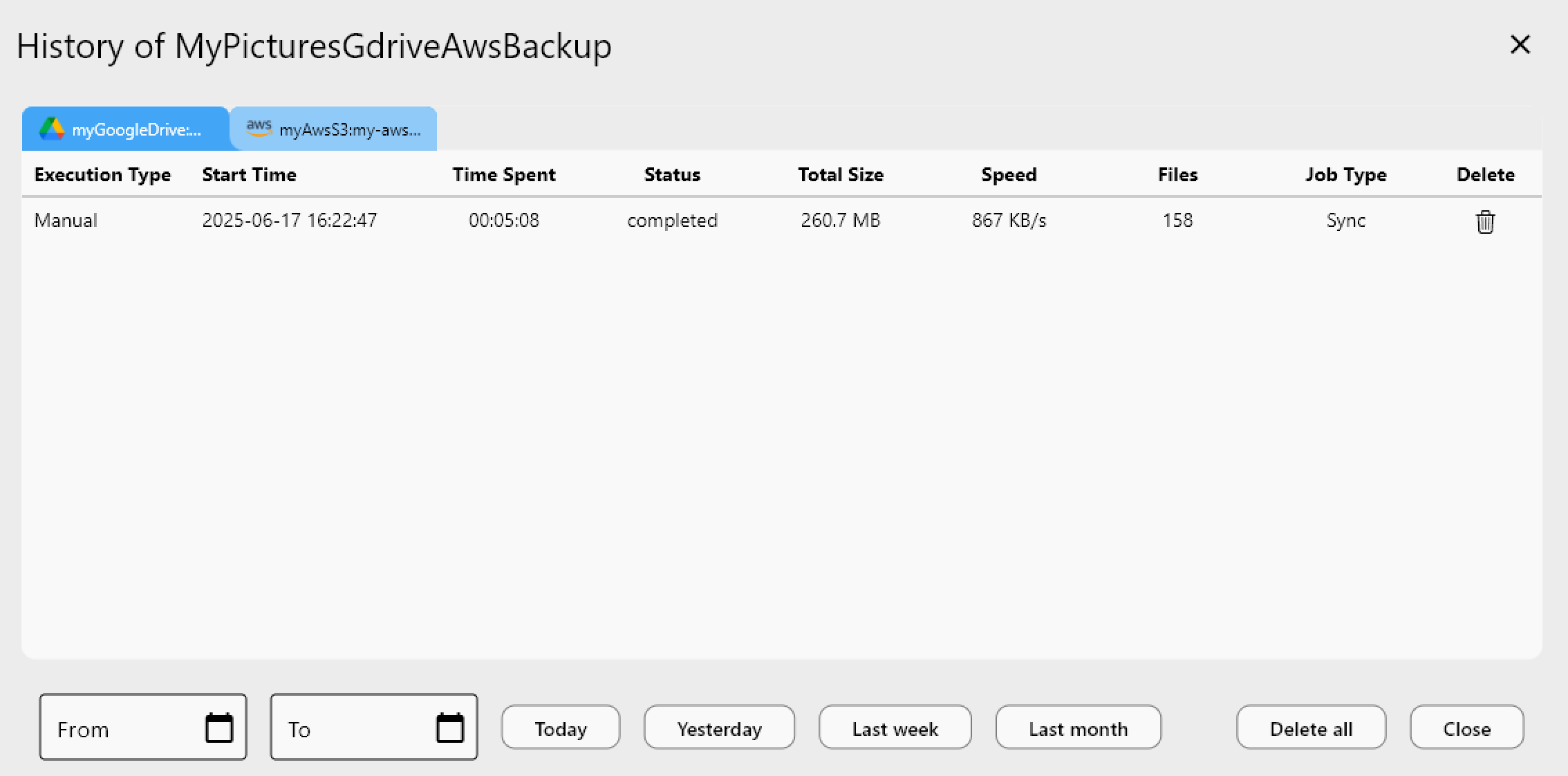
Folder Compare shows left-only, right-only, and different files between your office share and the backup, so you can confirm that the vintage folders match. Job History lists each run with its status, size, and file count, which helps when an auditor or insurer asks when the last backup completed.
Getting Started
- Download RcloneView from rcloneview.com.
- Add your office storage and one offsite remote.
- Create a sync job, then check it with Dry Run.
- Wrap the offsite remote in Crypt for sensitive folders and verify with Folder Compare.
A second, verified copy turns a lost laptop into an inconvenience instead of a lost vintage record.
Related Guides:
- Cloud Storage for Food and Beverage Businesses with RcloneView
- Cloud Storage for Agriculture and Farming with RcloneView
- Cloud Storage for Hospitality and Hotels with RcloneView
Supported Cloud Providers