Find and Remove Duplicate Files Across Cloud Accounts with RcloneView
Multiple cloud accounts mean duplicated files—eating storage and complicating backups. RcloneView identifies exact and similar duplicates across providers, then helps you safely remove them.
Duplicate files are a silent storage killer. Whether they're accidental uploads, backup redundancy, or forgotten copies scattered across clouds, they waste space and inflate your cloud bills. RcloneView's comparison engine finds duplicates fast and gives you control to clean them up.

Manage & Sync All Clouds in One Place
RcloneView is a cross-platform GUI for rclone. Compare folders, transfer or sync files, and automate multi-cloud workflows with a clean, visual interface.
- One-click jobs: Copy · Sync · Compare
- Schedulers & history for reliable automation
- Works with Google Drive, OneDrive, Dropbox, S3, WebDAV, SFTP and more
Free core features. Plus automations available.
Identify Duplicates Using File Comparison
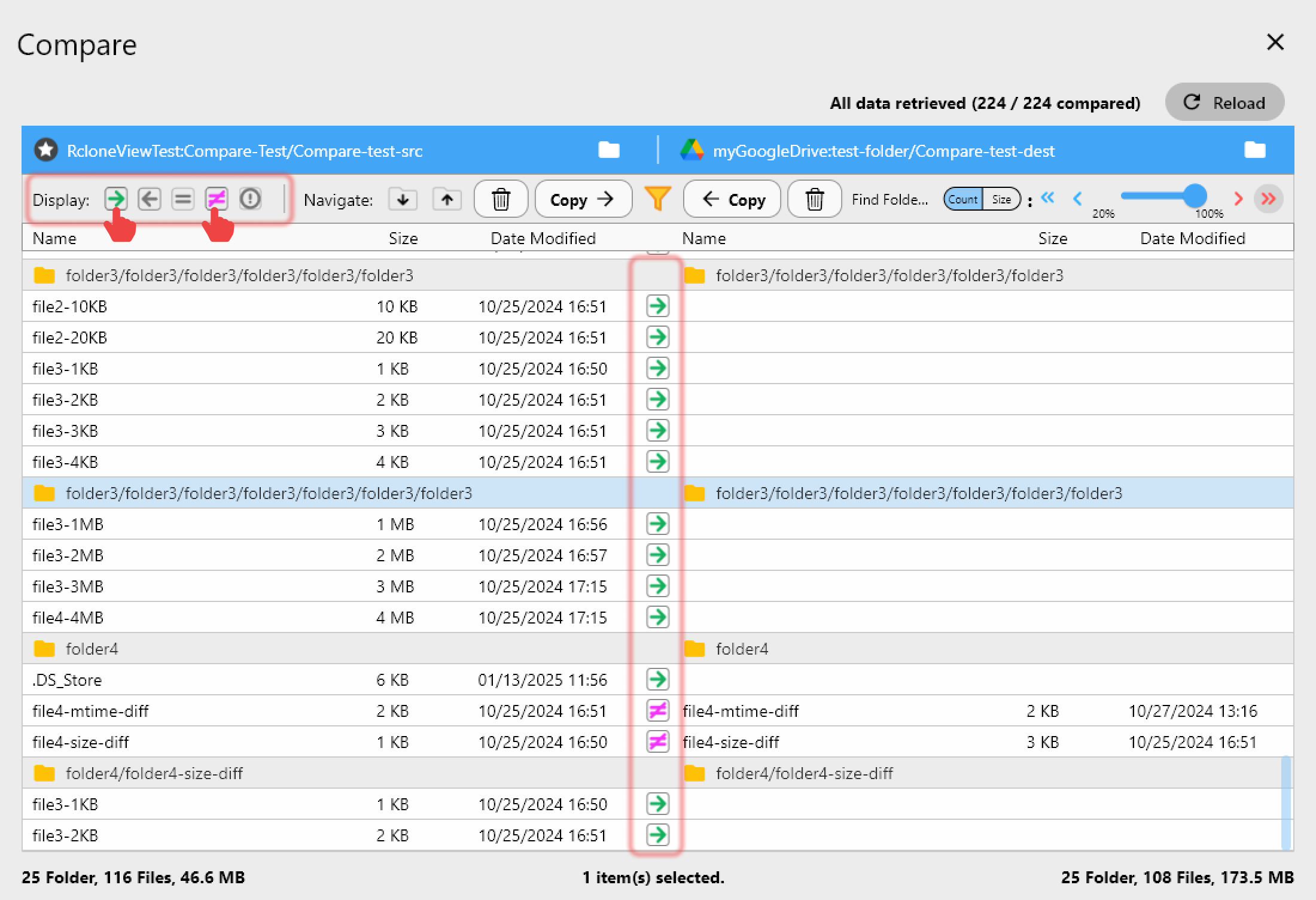
RcloneView's compare feature shows you which files exist across multiple locations.
- Add your cloud accounts as remotes in RcloneView
- Open the Compare function
- Select source and destination folders
- Choose comparison method:
- By name: Find files with identical names
- By size: Find files matching file size
- By hash: Find byte-for-byte identical files
- RcloneView displays exact matches and potential duplicates
Review and Clean Up Safely
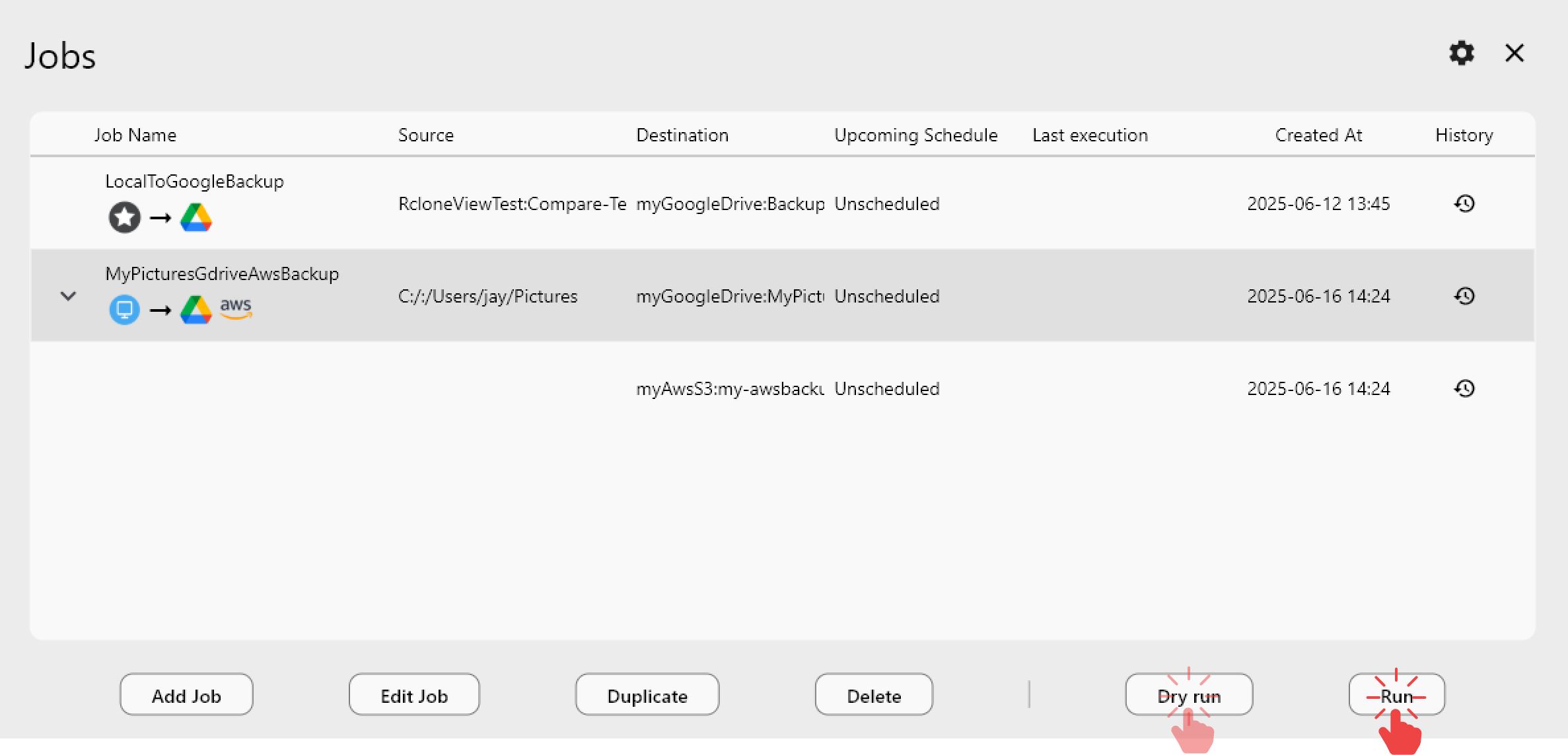
Before deleting, review RcloneView's duplicate report. You can preview files, check timestamps, and verify sizes.
Safe deletion workflow:
- Run comparison in preview mode first
- Export duplicate list for backup records
- Selectively delete only confirmed duplicates
- Verify deletion was successful
Schedule Regular Deduplication Jobs
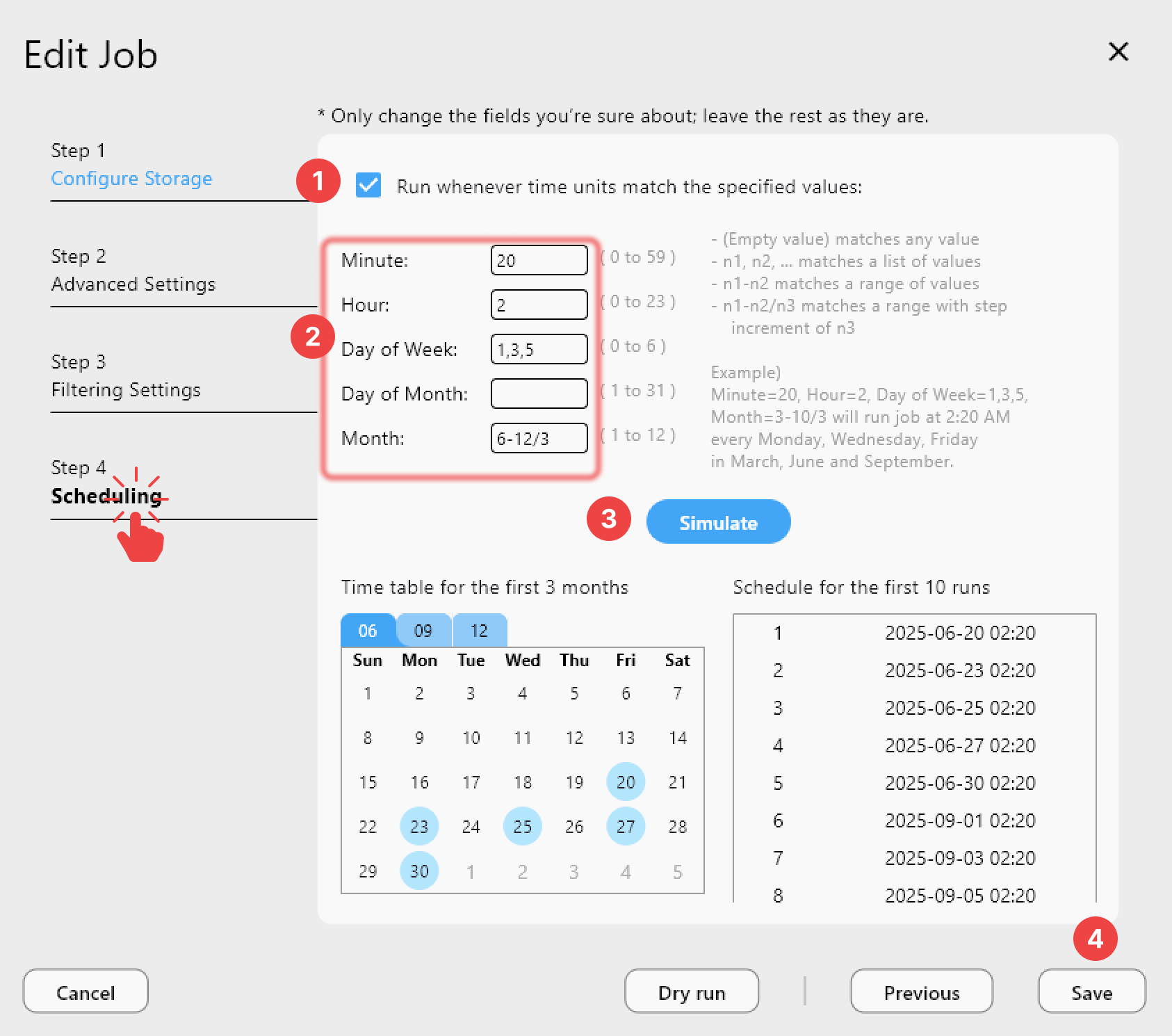
Set up recurring jobs to catch duplicates as they accumulate. RcloneView can run weekly or monthly scans automatically.
Getting Started
- Download RcloneView from rcloneview.com.
- Add all your cloud accounts as remotes (Google Drive, OneDrive, Dropbox, etc).
- Use the Compare tool to scan for duplicates across accounts.
- Review results and select duplicates to remove.
- Create a deletion job and execute it in preview mode first.
- Confirm results and schedule regular cleanup scans.
Reclaim gigabytes of wasted space—let RcloneView find and remove duplicates.
Related Guides:
- Find Unused Files — Reduce Cloud Costs with RcloneView
- Manage Cloud Storage — Full Cleanup with RcloneView
- Folder Comparison — Check Cloud Sync Integrity with RcloneView
Supported Cloud Providers





























