Fix Cloud Mount Read-Only and Cannot Save Files — How to Resolve with RcloneView

When a mounted cloud drive refuses saves, the cause is usually a mount setting or a permission, and both are quick to check.
You mounted a remote, opened a document, and saving fails, or files copy in but cannot be edited. Before blaming the cloud provider, look at how the mount was configured. RcloneView exposes every relevant option in one dialog, so you can find the cause without touching the command line. RcloneView also syncs and compares folders, with basic features available on the FREE license.

Manage & Sync All Clouds in One Place
RcloneView is a cross-platform GUI for rclone. Compare folders, transfer or sync files, and automate multi-cloud workflows with a clean, visual interface.
- One-click jobs: Copy · Sync · Compare
- Schedulers & history for reliable automation
- Works with Google Drive, OneDrive, Dropbox, S3, WebDAV, SFTP and more
Free core features. Plus automations available.
Check the Read Only Option First
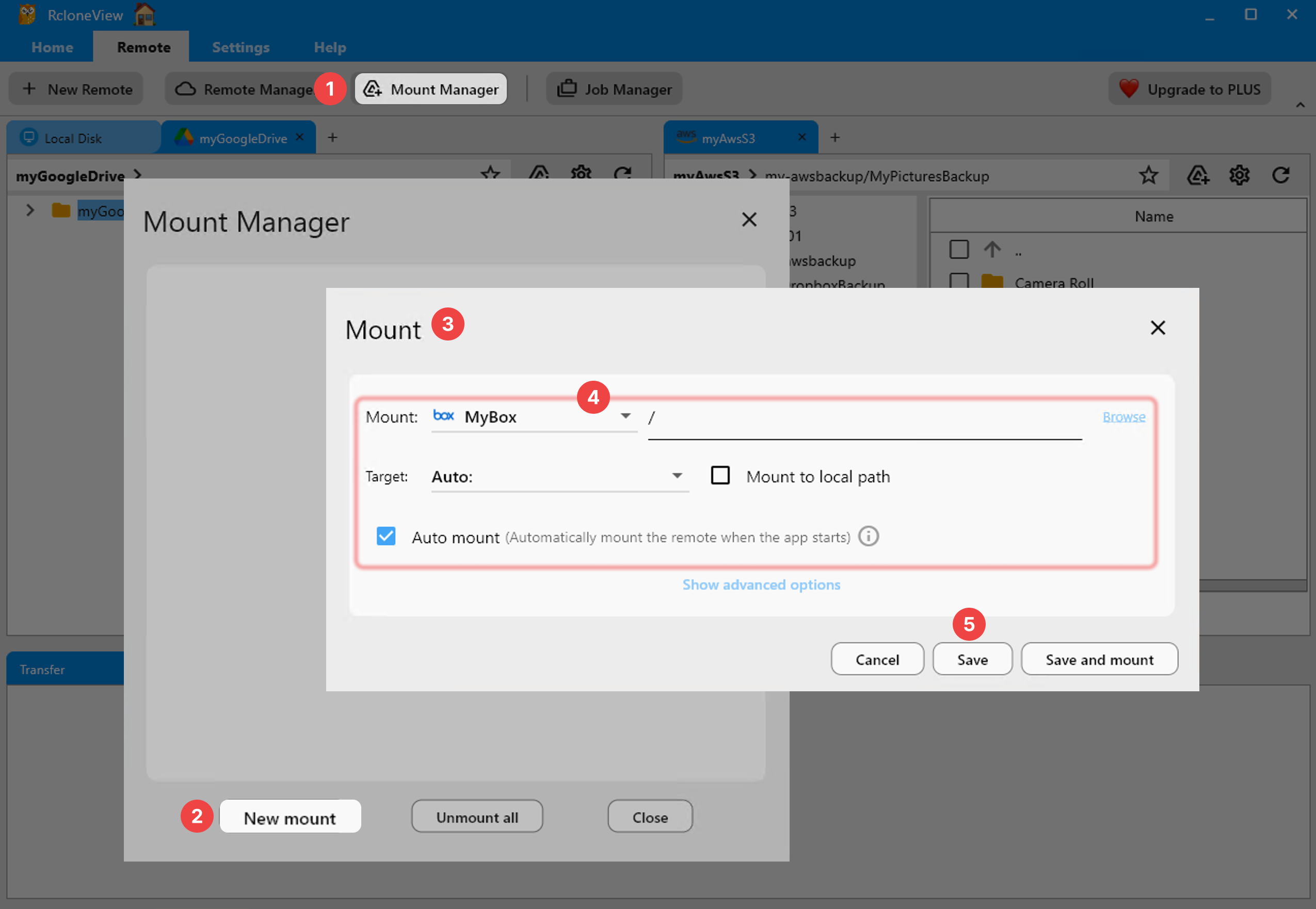
The mount settings include a Read only switch, off by default. If it was enabled when the mount was saved, every write is rejected. Open Mount Manager from the Remote tab, unmount the entry, and edit it. Edit and Delete are disabled while a drive is mounted, so unmounting is required before you can change anything.
Turn Read only off, then choose Save and mount.
Review the Cache Mode
The default VFS cache mode is writes, which buffers written files locally so applications can save normally. Setting it to off or minimal can break programs that expect to seek or rewrite files in place. If an editor fails on save, try writes or full.
Watch the cache location's free space as well. A full cache disk causes write failures that look like permission problems. If you suspect that, see the related guide on VFS cache disk-full errors below.
Rule Out Account and Platform Causes
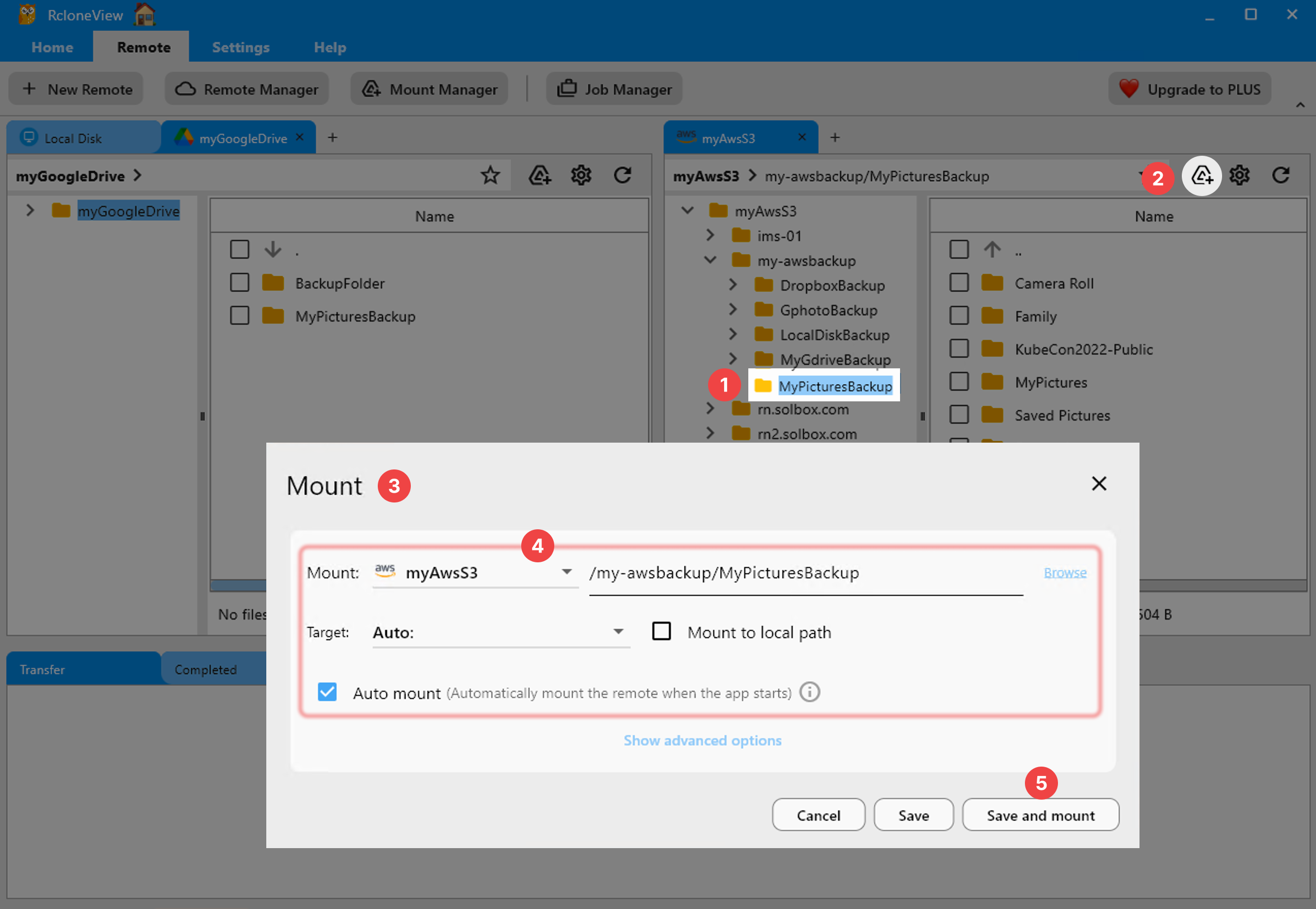
Some remotes are read-only by nature. The HTTP remote only offers read access, and a shared folder you were only given view rights to cannot be written whatever the mount says. Test by uploading a file through the Explorer panel: if that fails too, the issue is the remote or its permissions, not the mount.
On Linux, mounting requires FUSE (fuse3 is recommended). If other users need access, enable Allow other. On Windows, a mount that appears as a network drive can behave differently with some applications, so try toggling that option.

Getting Started
- Download RcloneView from rcloneview.com.
- Unmount the drive, open its entry in Mount Manager, and confirm Read only is off.
- Set the cache mode to writes and confirm free disk space.
- Test an upload in the Explorer to separate remote permissions from mount settings.
Most write failures trace back to one of these checks, and all of them take minutes.
Related Guides:
- Fix Cloud Mount Disconnects and Drops with RcloneView
- Fix VFS Cache Disk Full Errors with RcloneView
- Fix Slow File Open on Mounts — VFS Cache Mode with RcloneView
Supported Cloud Providers





























