Manage RackCorp Object Storage — Sync and Backup Files with RcloneView

Bring RackCorp's S3-compatible object storage into the same window as your other clouds, local drives, and NAS shares.
Teams that already run infrastructure on RackCorp often end up juggling a separate S3 client just to move files in and out of a bucket. RcloneView removes that extra step by treating RackCorp like any other remote — browse it, sync it, mount it, and back it up next to Google Drive, S3, or a local disk in the same explorer. Unlike mount-only tools, RcloneView also syncs and compares folders — on the FREE license.

Manage & Sync All Clouds in One Place
RcloneView is a cross-platform GUI for rclone. Compare folders, transfer or sync files, and automate multi-cloud workflows with a clean, visual interface.
- One-click jobs: Copy · Sync · Compare
- Schedulers & history for reliable automation
- Works with Google Drive, OneDrive, Dropbox, S3, WebDAV, SFTP and more
Free core features. Plus automations available.
Adding RackCorp as a Remote
RackCorp is accessed through rclone's S3 protocol, so setup follows the same credential-entry pattern as other S3-compatible services: an Access Key ID, a Secret Access Key, and the correct regional endpoint. Open Remote tab > New Remote, choose the S3-compatible option, and paste in the credentials from your RackCorp account.
Once saved, RackCorp appears as its own tab in the Explorer panel, right alongside any other remotes you've configured. There's no need to memorize bucket paths — the folder tree and breadcrumb bar let you navigate visually, and right-click > Copy Full Path gives you the remote:bucket/path string if you ever need it for the built-in rclone terminal.

Syncing and Backing Up to RackCorp
With the remote connected, use the Sync wizard to build a repeatable backup job. Step 1 sets your local or cloud source and the RackCorp destination folder; Step 2 lets you tune concurrent file transfers and multi-thread transfer counts for large datasets; Step 3 applies filters by file type, size, or age so you're not shipping temp files and caches into the bucket.
Run a Dry Run first to preview exactly which files will be copied or deleted before committing to the transfer — this catches folder-mapping mistakes before they touch production data. For anything recurring, save the job in Job Manager so it shows up in Job History with full transfer logs afterward.

Mounting RackCorp as a Local Drive
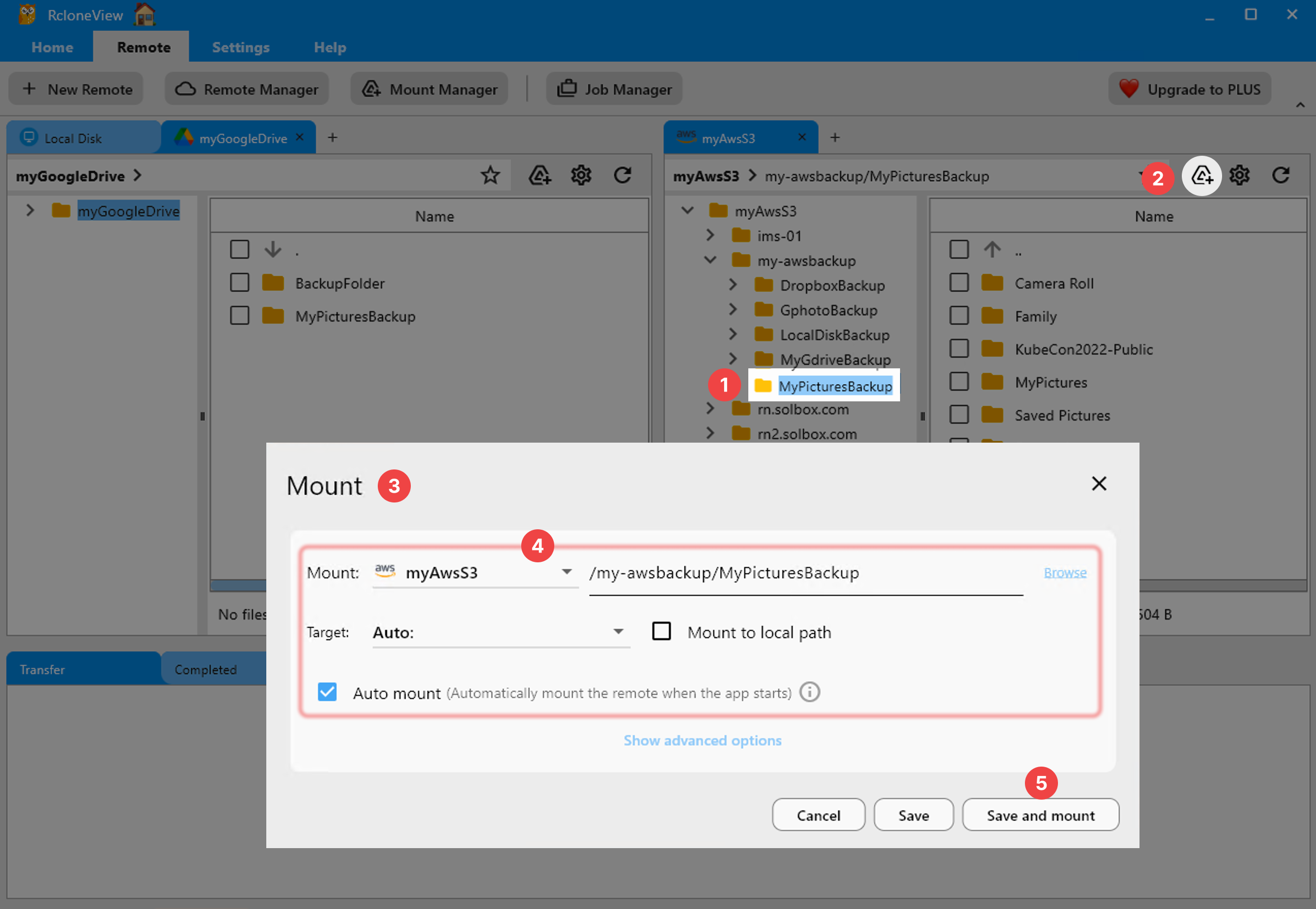
If you'd rather work with RackCorp objects as regular files, mount the bucket as a virtual drive. Select the remote folder in the Explorer, click the Mount icon in the panel toolbar, and choose a VFS cache mode — Writes mode is a solid default, buffering changes locally before pushing them up.
Mounted buckets show up in Mount Manager, where you can unmount, reopen in your native file browser, or toggle the mount directly from the system tray without bringing the main window forward.
Getting Started
- Download RcloneView from rcloneview.com.
- Generate an Access Key ID and Secret Access Key from your RackCorp account.
- Add RackCorp as a new S3-compatible remote using Remote tab > New Remote.
- Build a sync job or mount the bucket directly, depending on your workflow.
Once RackCorp is wired into RcloneView, it stops being a separate tool to context-switch into and just becomes another destination in your regular backup routine.
Related Guides:
- Manage Linode Object Storage — Sync and Backup Files with RcloneView
- Manage Hetzner Object Storage — Sync and Backup with RcloneView
- Migrate Amazon S3 to Cloudflare R2 with RcloneView
Supported Cloud Providers





























