Migrate Dropbox to Koofr — Transfer Files with RcloneView

Move a Dropbox account into Koofr cloud to cloud, with a preview before anything is copied and a comparison afterwards.
A design agency winds down a client account, or a freelancer wants their archive hosted by a European provider. Either way, dragging thousands of Dropbox folders through a laptop is slow and easy to get wrong. RcloneView connects Dropbox and Koofr in one window, runs the copy between them, and gives you a Dry Run and Folder Compare to confirm the result. RcloneView mounts AND syncs 90+ providers from one window, on Windows, macOS, and Linux.
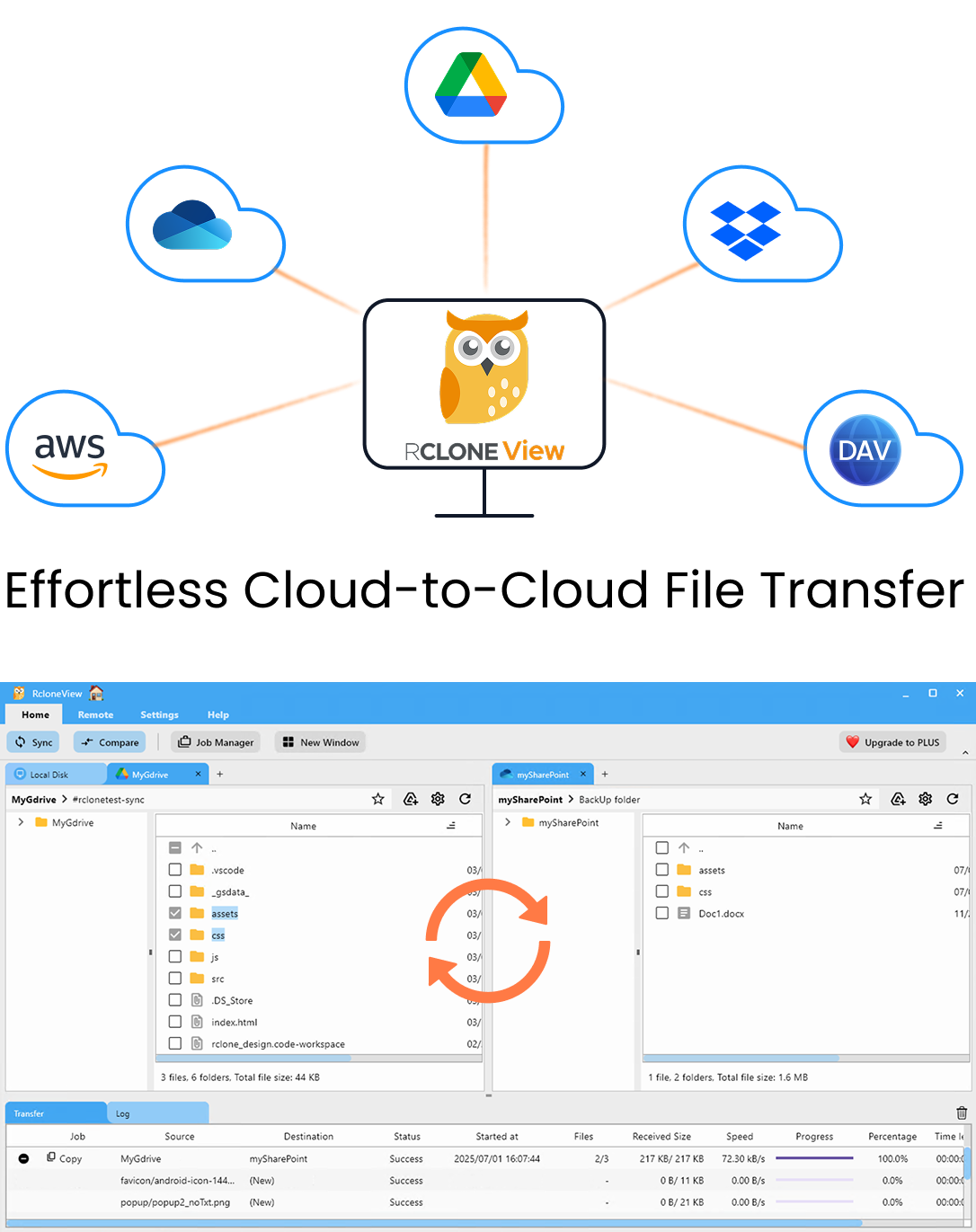
Manage & Sync All Clouds in One Place
RcloneView is a cross-platform GUI for rclone. Compare folders, transfer or sync files, and automate multi-cloud workflows with a clean, visual interface.
- One-click jobs: Copy · Sync · Compare
- Schedulers & history for reliable automation
- Works with Google Drive, OneDrive, Dropbox, S3, WebDAV, SFTP and more
Free core features. Plus automations available.
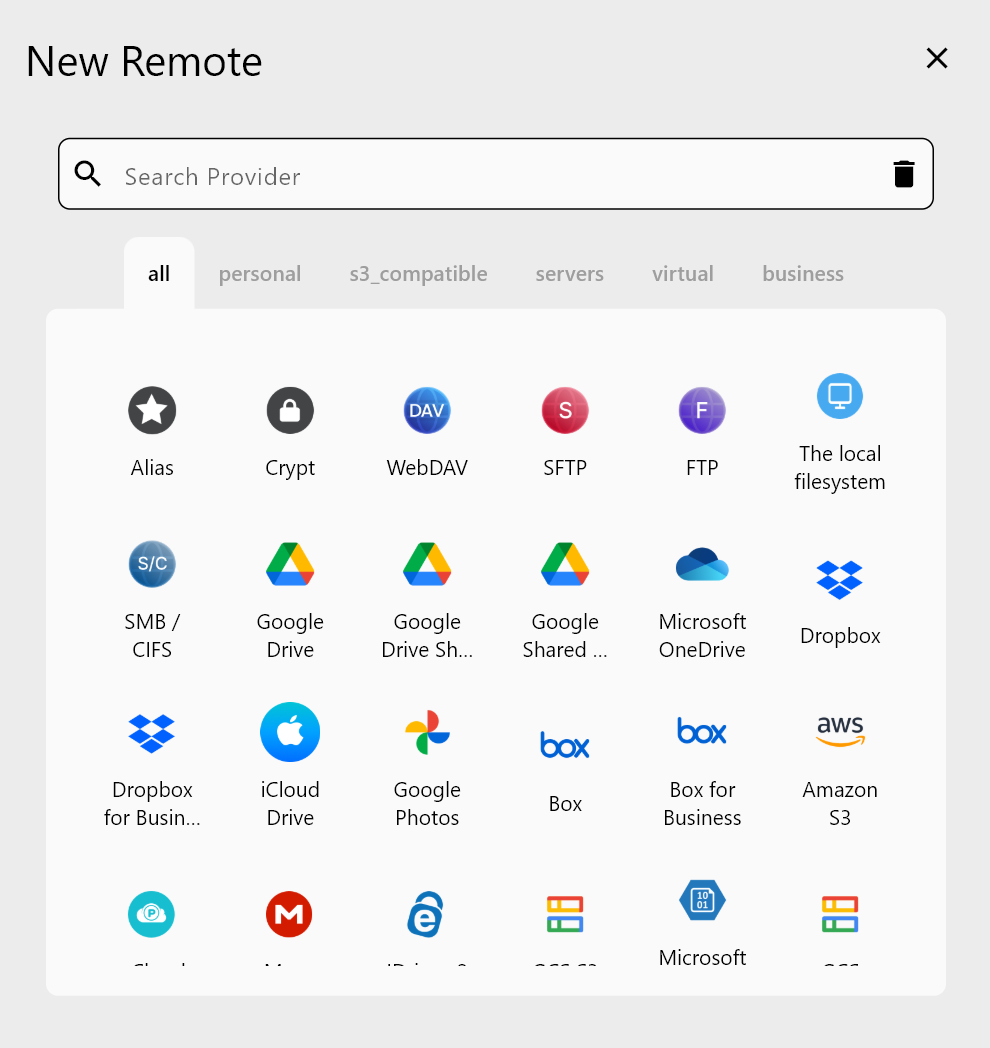
Connect Dropbox and Koofr as Remotes
Open the Remote tab and choose New Remote. Dropbox signs in through OAuth: your browser opens, you approve access, and RcloneView connects automatically. For a company account, Dropbox for Business needs the dropbox_business = true setting in the remote configuration.
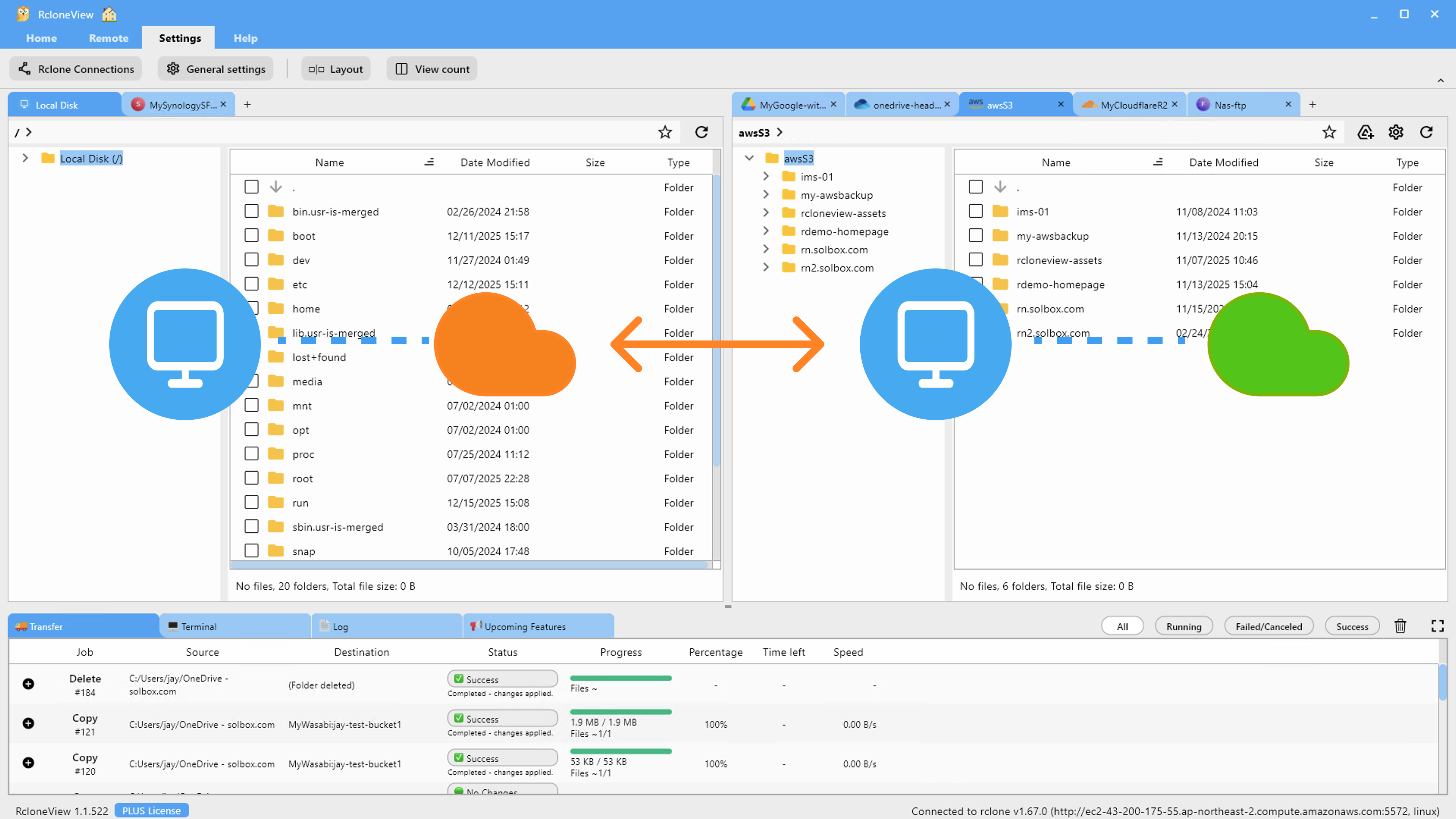
Add Koofr as the second remote. Once both appear in Remote Manager, open them in two Explorer panels side by side. Browse the source tree and the destination before you move anything, so you know which folders matter.
Plan the Copy With Filters and a Dry Run
Most Dropbox accounts hold scratch files you do not want to carry over. Step 3 of the job wizard offers a max file size, a max file age, and a folder depth limit. Predefined filters cover Music, Video, Image, and Document files, and custom rules can exclude patterns such as .git/ folders or .iso files.
Run a Dry Run before the real job. It lists the files that would be copied or deleted without touching either side. For a migration, pick a Copy job rather than a mirroring sync, so nothing already stored on Koofr is removed.
Run the Transfer and Watch Progress
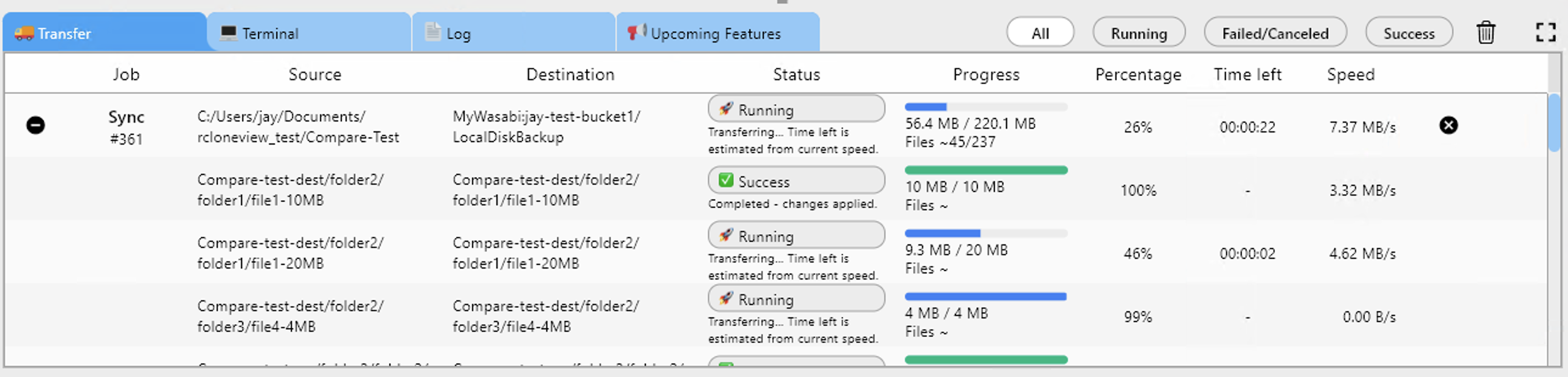
Start the job and follow it in the Transferring tab, which shows progress, speed, and file counts. For a large library, raise the number of file transfers in Step 2, but keep the equality checkers modest if either service responds slowly. "Retry entire sync if fails" defaults to 3, which absorbs transient network errors.
If the library is too big for one sitting, save the job in Job Manager and re-run it later. A Copy job only transfers what is missing or different, so a second pass picks up where the first stopped.
Verify With Folder Compare
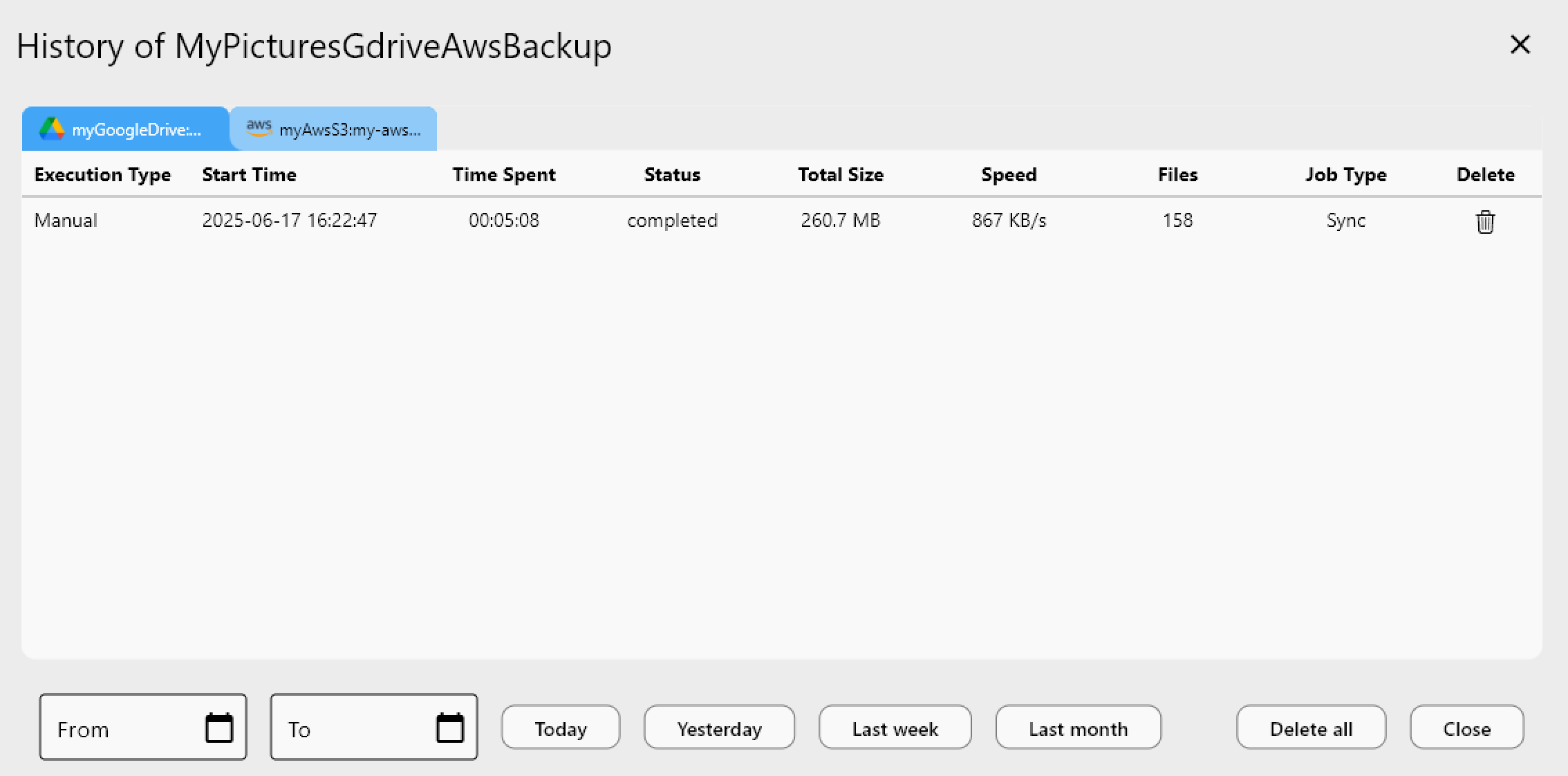
When the job finishes, open Compare with Dropbox on the left and Koofr on the right. Filters for left-only, right-only, and different files show what remains. The copy-right action transfers any leftovers. Job History records status, size, speed, and file count for each run, which is useful documentation of the migration.
Getting Started
- Download RcloneView from rcloneview.com.
- Add Dropbox (OAuth) and Koofr as remotes.
- Create a Copy job with filters, then run a Dry Run.
- Run the job, then confirm the result with Folder Compare.
Keep the Dropbox account untouched until Compare shows both sides match.
Related Guides:
- Manage Koofr Storage — Sync and Backup Files with RcloneView
- Migrate Koofr to Dropbox with RcloneView
- Migrate Dropbox to pCloud with RcloneView
Supported Cloud Providers