Migrate Yandex Disk to Wasabi — Transfer Files with RcloneView

Copy a Yandex Disk archive into Wasabi buckets without a local detour, and confirm every file arrived.
Yandex Disk works as a personal drive, but long-term archives and shared project data often belong in S3-compatible object storage, where you control buckets and access keys. RcloneView connects Yandex Disk and Wasabi as remotes in one window and runs the transfer between them, so you do not have to stage terabytes on a local disk first.

Manage & Sync All Clouds in One Place
RcloneView is a cross-platform GUI for rclone. Compare folders, transfer or sync files, and automate multi-cloud workflows with a clean, visual interface.
- One-click jobs: Copy · Sync · Compare
- Schedulers & history for reliable automation
- Works with Google Drive, OneDrive, Dropbox, S3, WebDAV, SFTP and more
Free core features. Plus automations available.
Set Up Both Remotes
Yandex Disk signs in through the browser: choose it under Remote > New Remote, approve access, and the remote connects. Wasabi is configured as an S3-compatible provider. Create a bucket in the Wasabi console, generate an Access Key and Secret Key, then enter them in RcloneView together with the endpoint for your bucket's region.
Wasabi is an S3-compatible provider, so it works with the same remote setup as other S3-compatible services.

Choose What to Move
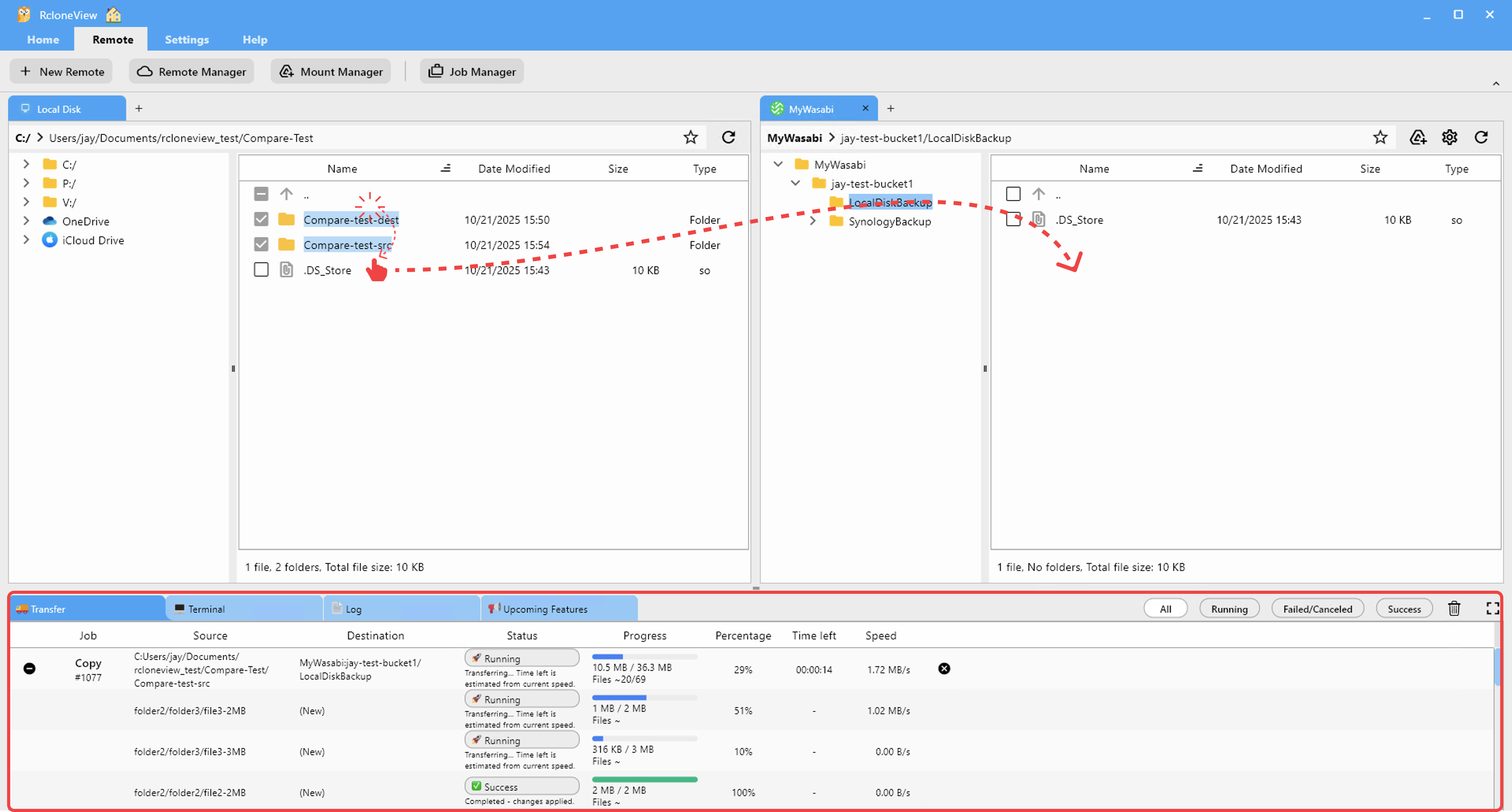
Browse Yandex Disk in one explorer panel and your Wasabi bucket in the other. A common pattern is one bucket for the archive, with top-level folders in the bucket mirroring the Yandex folders. Object storage has no real folders, so keep names consistent and avoid very long paths.
If part of the disk holds disposable files, use the job's filtering step to exclude them by extension, maximum size or file age, so you migrate only what you need.
Dry Run and Transfer
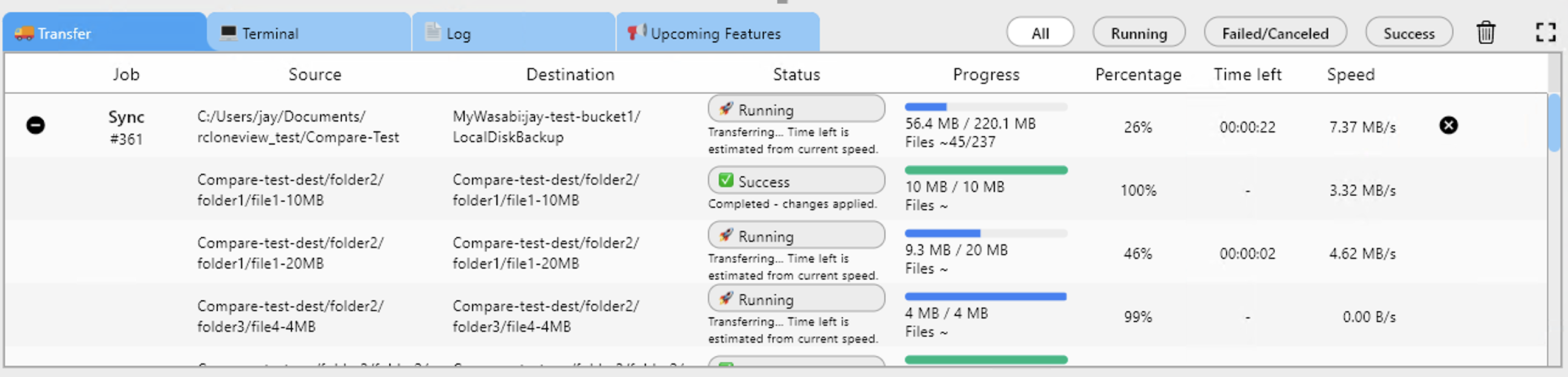
Create a job with Yandex Disk as source and your Wasabi bucket as destination. Pick Copy so the source stays intact until you have verified the result. Run a Dry Run to preview the file list, then start the job. In Advanced Settings you can enable checksum comparison, which checks hashes plus size when the provider supports them, and tune the number of concurrent file transfers if Yandex slows down.
Verify and Schedule Follow-Ups
When the job finishes, open Compare on the two locations to find left-only or mismatched files, and copy any stragglers from the comparison view. If Yandex Disk stays in use during the transition, a PLUS license lets you schedule the job with crontab-style timing so new files keep landing in Wasabi until you cut over.

Getting Started
- Download RcloneView from rcloneview.com.
- Add Yandex Disk and Wasabi from Remote > New Remote.
- Build a Copy job, run a Dry Run, then start the transfer.
- Verify with Folder Compare before deleting anything at the source.
Once the archive sits in a bucket you control, retiring the old copy becomes a deliberate decision rather than a gamble.
Related Guides:
- Manage Yandex Disk Storage — Sync and Backup Files with RcloneView
- Manage Wasabi Storage — Sync and Backup Files with RcloneView
- Checksum-Verified Cloud Migrations with RcloneView
Supported Cloud Providers





























