RcloneView on Windows 11 — Cloud Storage Sync and Backup

Windows 11 tightened its file explorer and permission model compared to earlier releases — here is how to run RcloneView smoothly on it for mounting, syncing, and backing up cloud storage.
Windows 11's redesigned shell and stricter default security posture change a few things for desktop apps that touch storage and drive letters. RcloneView runs natively on Windows 11 as a standard desktop application, giving you one interface to browse, sync, and mount 90+ cloud storage providers instead of juggling separate vendor apps for Google Drive, OneDrive, Dropbox, and S3-compatible storage.

Manage & Sync All Clouds in One Place
RcloneView is a cross-platform GUI for rclone. Compare folders, transfer or sync files, and automate multi-cloud workflows with a clean, visual interface.
- One-click jobs: Copy · Sync · Compare
- Schedulers & history for reliable automation
- Works with Google Drive, OneDrive, Dropbox, S3, WebDAV, SFTP and more
Free core features. Plus automations available.
Installing RcloneView on Windows 11
RcloneView ships as an Inno Setup installer (setup_rclone_view-{version}.exe) built for x86-64 systems — there is no Windows ARM64 build, so this guide applies to standard Windows 11 PCs and laptops. Download the installer from rcloneview.com, run it, and complete the setup wizard.
Windows 11 requires the VC++ 2015-2022 Redistributable, which the installer will prompt for if it is missing. RcloneView ships with an embedded rclone binary, so there is no separate rclone installation step — the app talks to its bundled rclone instance over http://127.0.0.1:5582 by default.

Mounting Cloud Storage as a Drive Letter
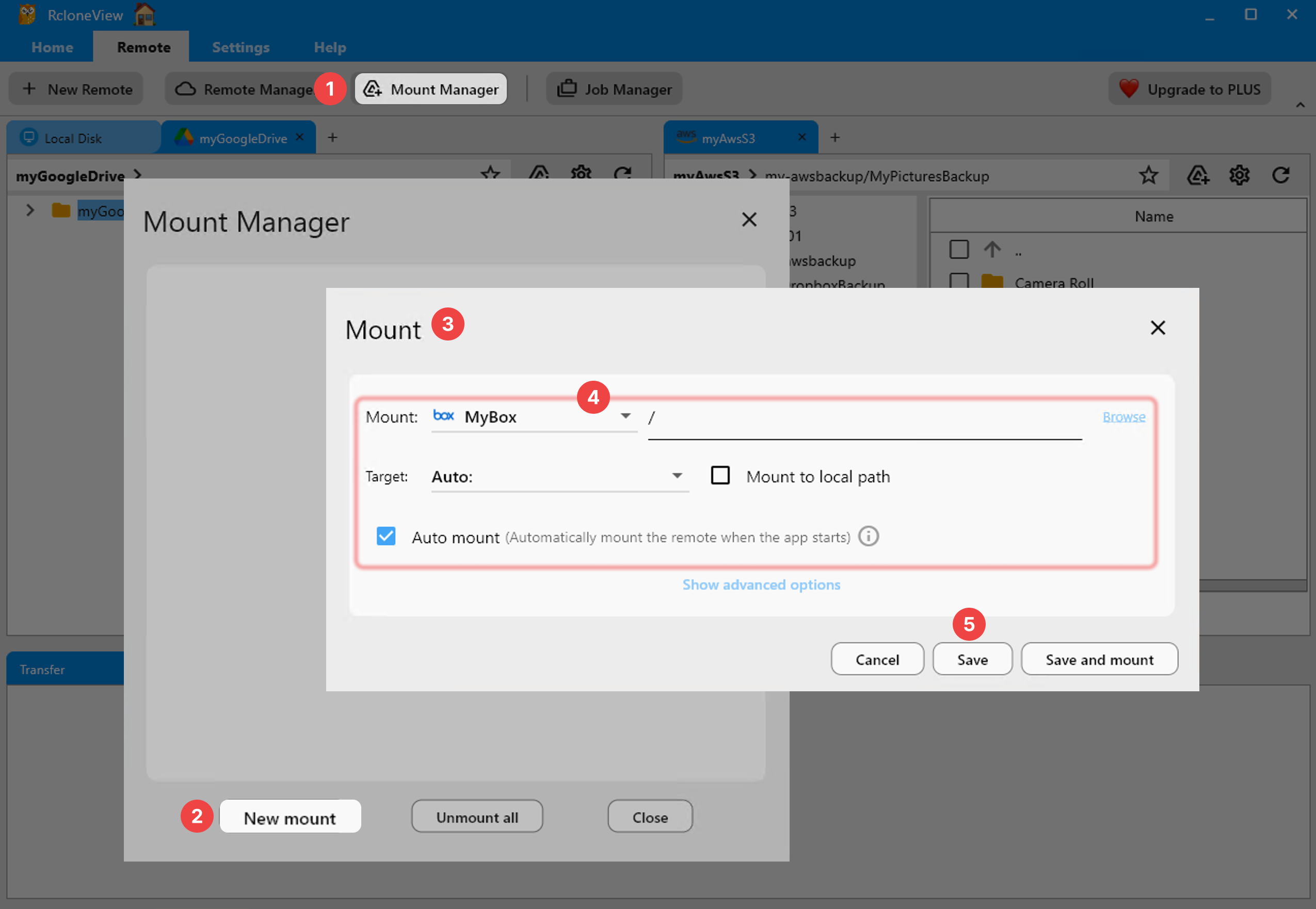
One of the most useful things RcloneView does on Windows 11 is mount a cloud remote as a local drive. From the Remote Explorer panel, select the remote you want to mount, click the Mount icon in the panel toolbar, choose an auto-assigned or manual drive letter, and click Save and mount. The remote then shows up in File Explorer just like a physical disk.
Windows 11 uses the cmount mount type by default. You can also configure the mount to appear as a network drive rather than a local disk, and adjust the VFS cache mode (off, minimal, writes, or full) depending on whether you are prioritizing responsiveness or offline access to recently used files.
Syncing and Backing Up Files
Beyond mounting, RcloneView's Sync wizard lets you configure one-way sync jobs between any two connected remotes, or between a local Windows 11 folder and a cloud provider. Connect S3, Azure, or Backblaze B2 with full read/write access on the FREE license, then set up a scheduled backup job so your Documents or project folders mirror to cloud storage automatically.
The four-step sync wizard covers source and destination selection, transfer concurrency, filtering rules (file size, age, folder depth), and — on the PLUS license — crontab-style scheduling. A Dry Run option previews exactly what will be copied or deleted before anything actually changes.

Monitoring Jobs from the System Tray
RcloneView minimizes to the Windows 11 system tray, where you can view mounted drives, toggle mounts on and off, and start new mounts without reopening the full window. Active transfers appear in the Transferring tab at the bottom of the main window, with live progress percentage, speed, and file counts.
Getting Started
- Download RcloneView from rcloneview.com and run the Windows installer.
- Add your first cloud remote via Remote tab > New Remote.
- Mount it as a drive letter or configure a sync job to a local Windows 11 folder.
- Check the Job History panel to confirm your first transfer completed successfully.
With RcloneView installed, Windows 11 gains a single, consistent way to reach dozens of cloud providers without installing a separate sync client for each one.
Related Guides:
- RcloneView on Windows 10 — Cloud Storage Sync
- RcloneView on Windows Server — Cloud Backup
- Fix Mount Drive Letter Conflicts on Windows
Supported Cloud Providers





























