Fix FTP Connection Errors — Troubleshooting with RcloneView

When an FTP remote won't connect or sync jobs keep failing, work through RcloneView's built-in diagnostics before you assume the server is down.
FTP is still the backbone of a lot of legacy infrastructure — web hosts, older NAS units, internal file servers — and connecting it to RcloneView lets you fold that storage into your regular sync and backup routine. But FTP remotes are also more sensitive to network conditions and credential typos than OAuth-based providers, so connection errors show up more often. Here's how to isolate the cause instead of guessing.

Manage & Sync All Clouds in One Place
RcloneView is a cross-platform GUI for rclone. Compare folders, transfer or sync files, and automate multi-cloud workflows with a clean, visual interface.
- One-click jobs: Copy · Sync · Compare
- Schedulers & history for reliable automation
- Works with Google Drive, OneDrive, Dropbox, S3, WebDAV, SFTP and more
Free core features. Plus automations available.
Confirm the Remote's Settings Are Correct
Most "connection failed" errors trace back to a mistyped host, port, or path in the remote configuration rather than the server itself. Open Remote tab > Remote Manager, find your FTP remote, and open it for editing to re-check the host address and login credentials against what your server admin gave you.

If the settings look right but the connection still fails, the issue is more likely network-side: a firewall blocking the port, a VPN interfering with the route, or the FTP server itself being unreachable from your current network.
Test the Connection from the Built-In Terminal
RcloneView also includes a full rclone terminal alongside the GUI, on the FREE license, so you don't need a separate command-line install to dig into a connection problem. Open the Terminal tab in the bottom Info View and run rclone about "remote:" against your FTP remote — a working connection returns storage details immediately, while a failure surfaces the underlying rclone error message instead of a generic RcloneView dialog.
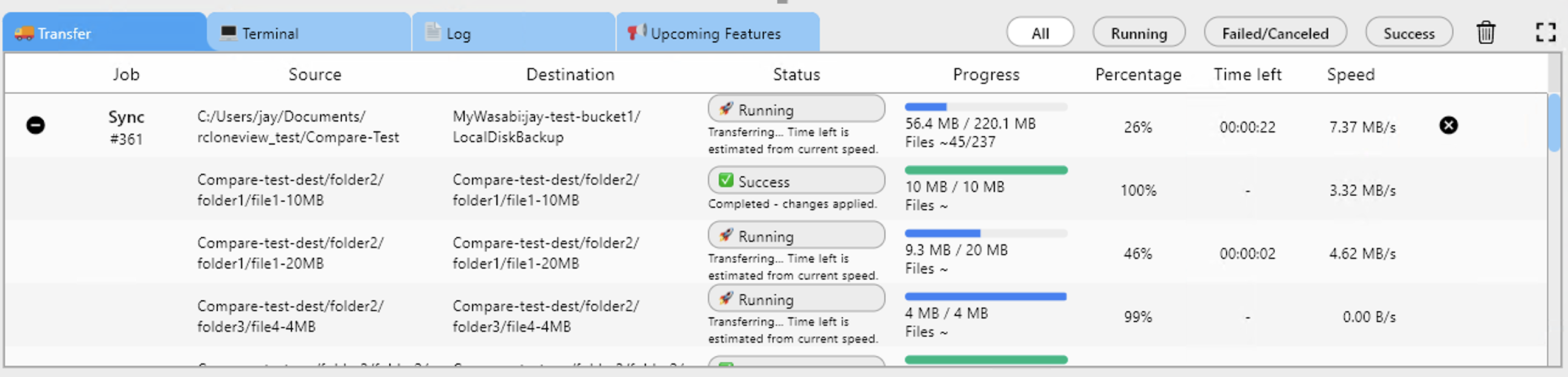
That raw error text is a quick way to tell an authentication rejection apart from a timeout, which point to completely different fixes.
Collect Logs for Persistent Failures
If the problem doesn't resolve after fixing credentials, turn on detailed logging: go to Settings > Embedded Rclone, enable rclone Logging, set the log level to DEBUG, then click Restart Embedded Rclone and reproduce the failed sync. The resulting log file captures the full handshake with the FTP server and is far more useful for diagnosis than the summary shown in the Log tab alone.

Getting Started
- Download RcloneView from rcloneview.com.
- Re-verify your FTP remote's host, port, and credentials in Remote Manager.
- Run
rclone about "remote:"in the Terminal tab to see the raw connection error. - Enable DEBUG-level logging if the error persists, then reproduce the issue.
A few minutes with the terminal and log settings usually turns a vague "connection failed" message into a fix you can act on.
Related Guides:
- Manage FTP Server — Cloud Sync and Backup with RcloneView
- Migrate FTP Server to Cloud Storage
- Fix SFTP Connection Refused and Timeout Errors
Supported Cloud Providers





























