Fix Google Drive Sync Errors — Missing Folders, Failed Jobs, and Empty Listings Resolved with RcloneView

Many Google Drive sync problems trace back to a missing setting, an expired login, or a filter — and RcloneView helps you find which one.
A Google Drive job that ends Errored, or a remote that lists nothing you expected, is rarely a mystery once you can see the logs. Typical culprits are shared folders that need a specific setting, backed-up computers that need a folder ID, and Google Docs files that behave differently from ordinary files. RcloneView puts the remote settings, job history, and logs in one place so you can narrow it down quickly.
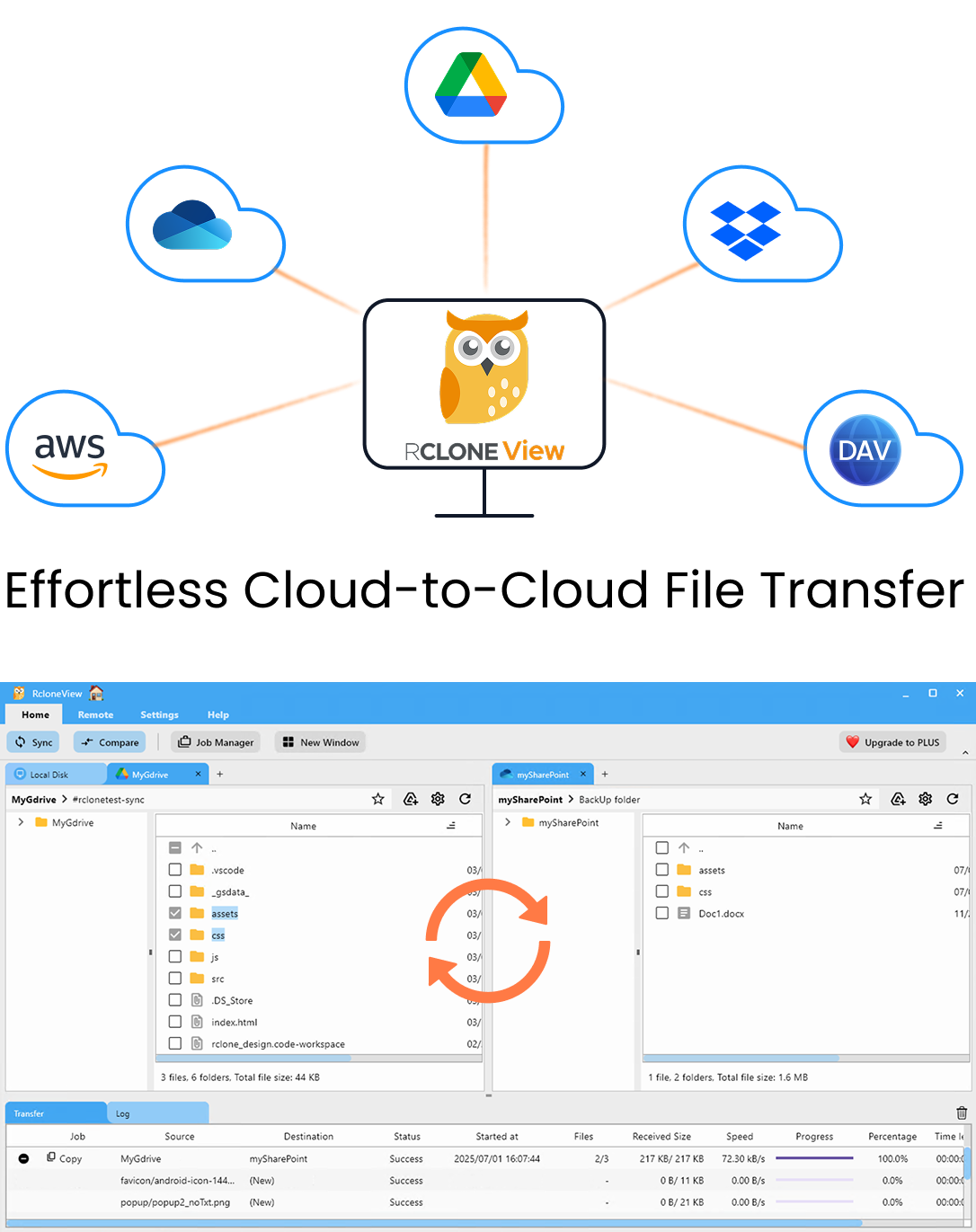
Manage & Sync All Clouds in One Place
RcloneView is a cross-platform GUI for rclone. Compare folders, transfer or sync files, and automate multi-cloud workflows with a clean, visual interface.
- One-click jobs: Copy · Sync · Compare
- Schedulers & history for reliable automation
- Works with Google Drive, OneDrive, Dropbox, S3, WebDAV, SFTP and more
Free core features. Plus automations available.
Folders That Do Not Appear
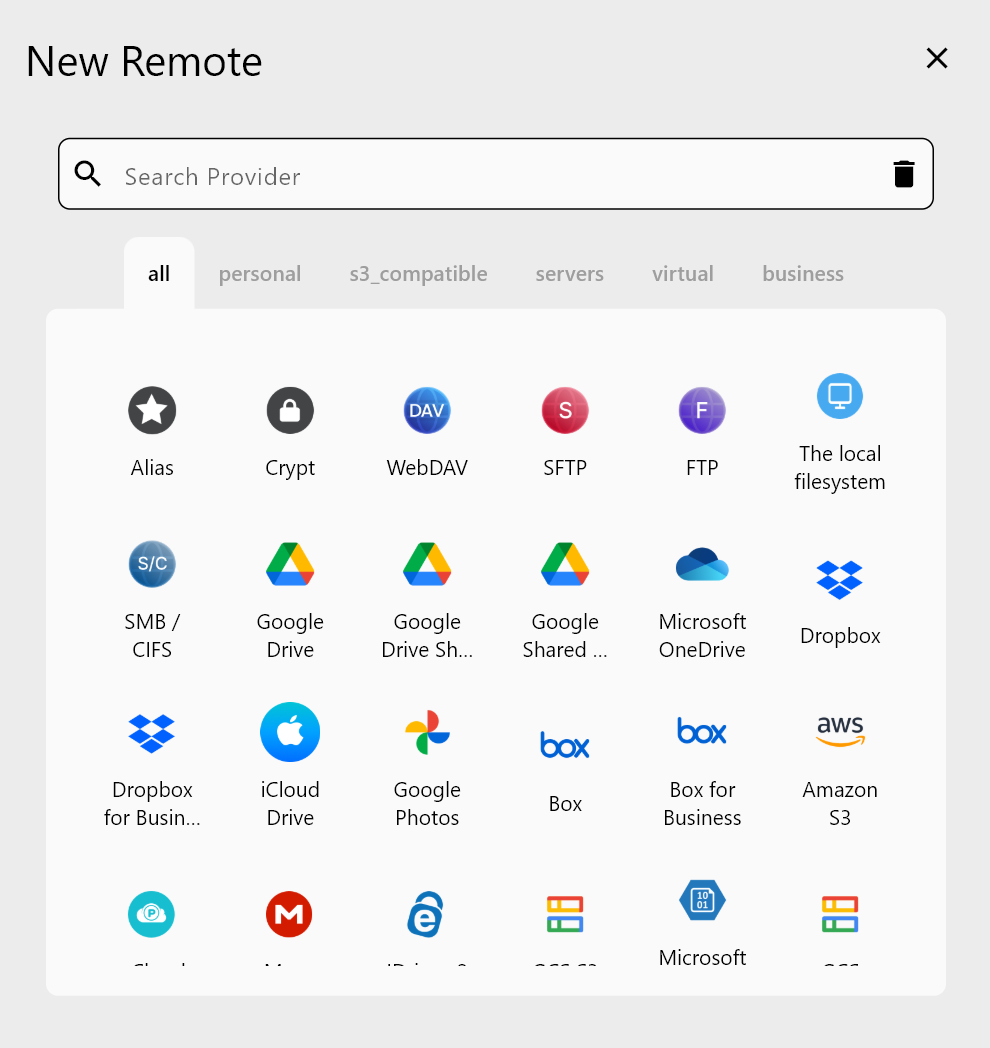
If files shared with you are missing from the root listing, the remote probably needs the shared_with_me = true setting, which gives you the Google Drive Shared with Me view. Backed-up computers from Drive for desktop are a separate case: the Google Drive Computers remote needs root_folder_id set to the computer's ID.
Open Remote Manager from the Remote tab, edit the remote, and check these values. Then reload the Explorer panel with F5.
Expired Login and Failed Authorization
Google Drive connects through browser OAuth. If every request fails with an authorization error, edit the remote and sign in again so a fresh token is issued. This is a common fix for sudden failures on a remote that worked before.
For quota and rate-limit messages, see our dedicated guides on Google Drive rate limits and storage quota. Lowering the number of file transfers in Step 2 of the sync wizard is a reasonable first step in either case.
Read the Logs for the Exact Error
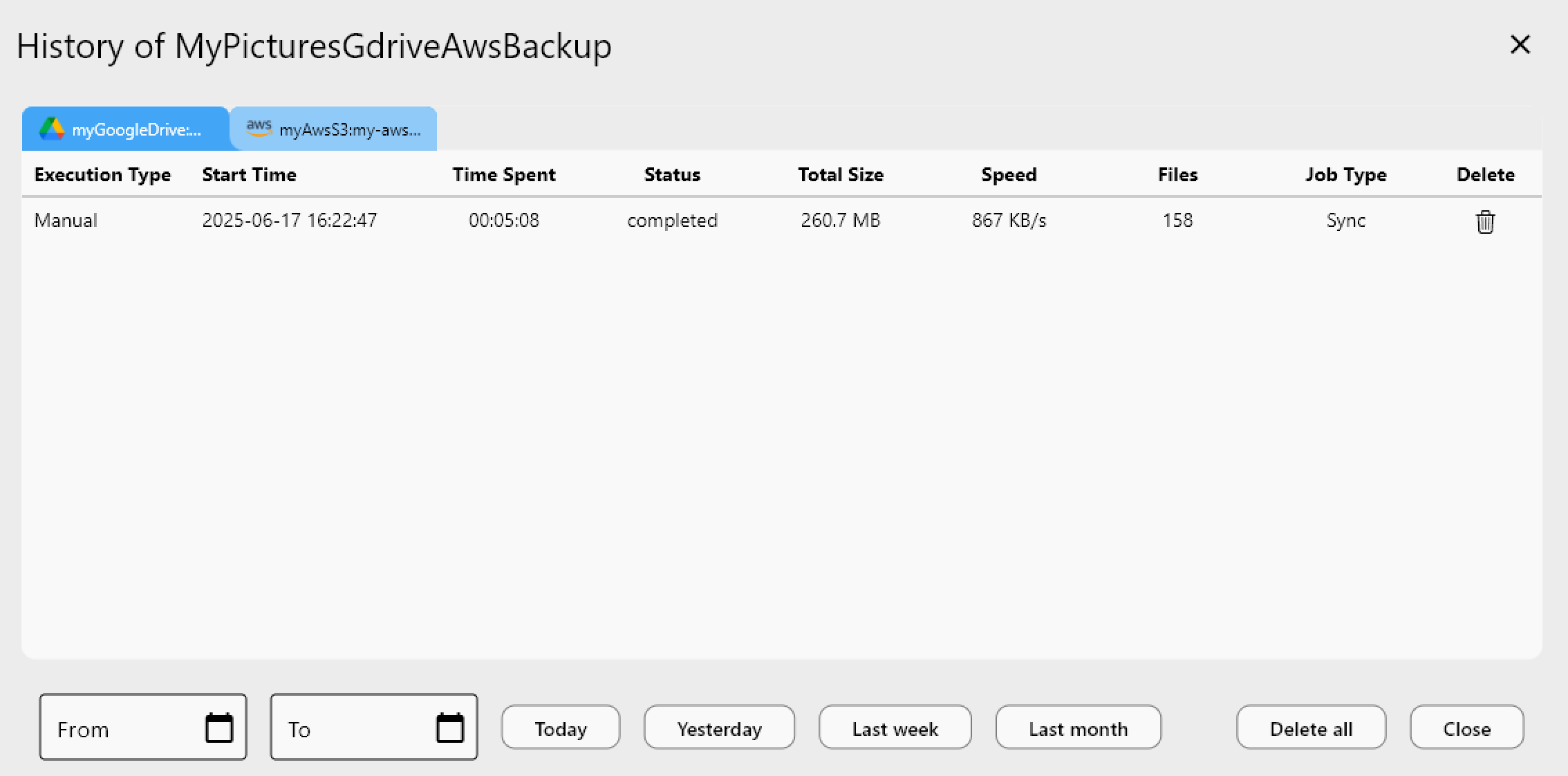
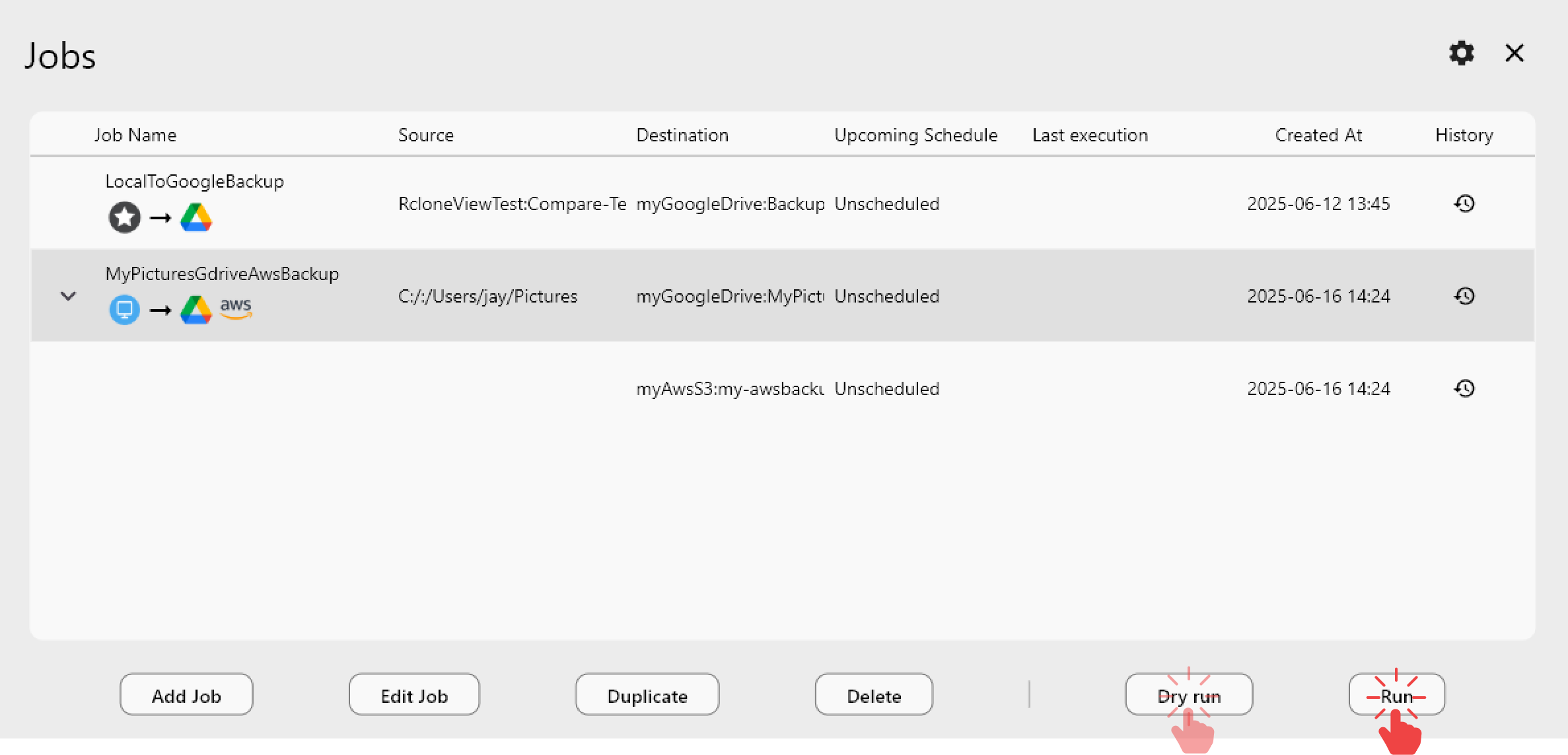
Open Job History to see whether a job failed immediately or partway through. For detail, go to Settings > Embedded Rclone, enable rclone logging, set the level to DEBUG, and click Restart Embedded Rclone. Reproduce the failure and read the log: it names the file and the error. You can also run commands such as rclone about "remote:" in the built-in Terminal tab to confirm connectivity.
Handle Google Docs and Verify Results
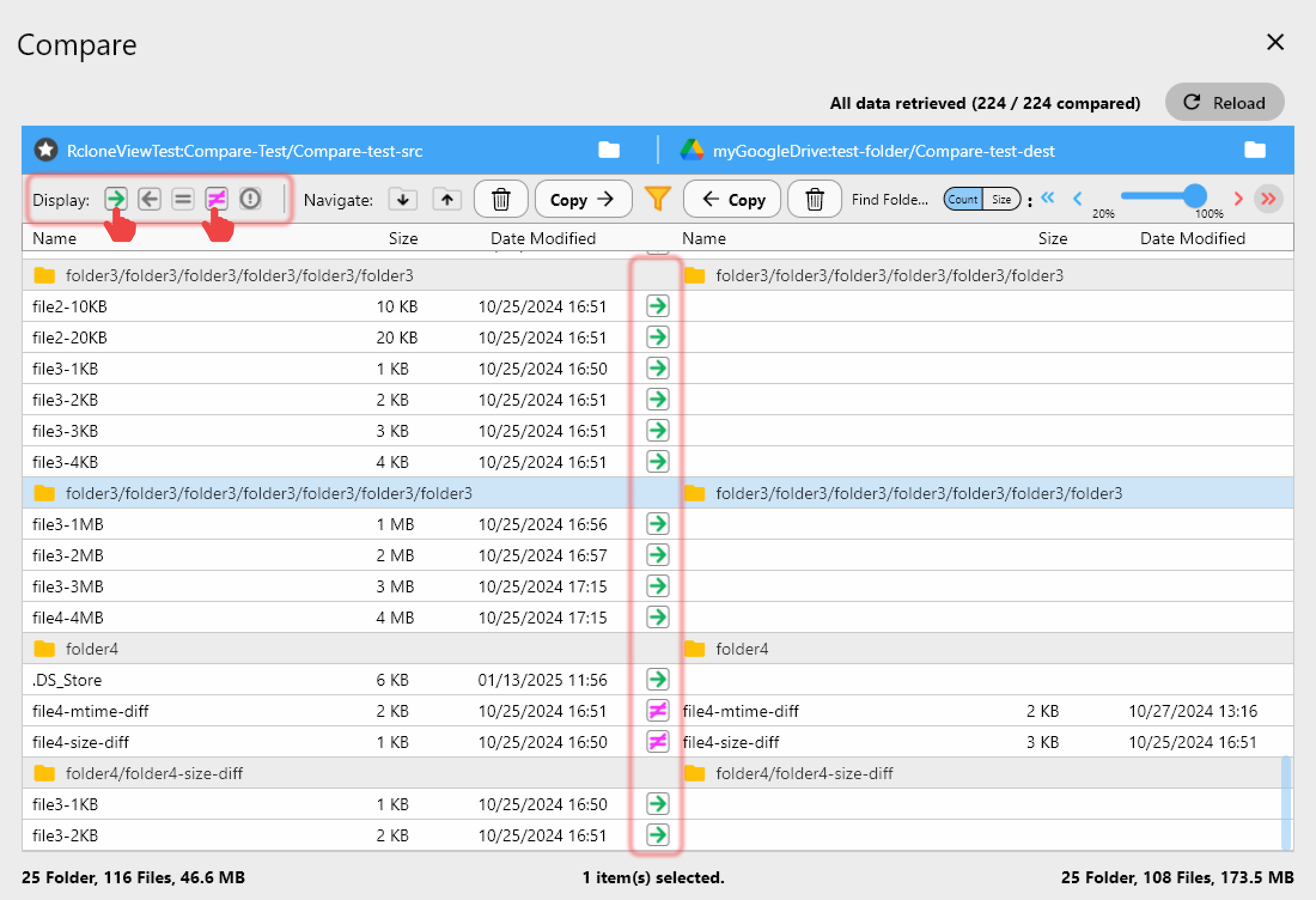
Google Docs, Sheets, and Slides are not ordinary files, so they can look different after a transfer. Step 3 of the sync wizard includes a predefined Google Docs filter if you want to exclude them. After a rerun, use Compare to check both sides: left-only, right-only, and different files show what still needs attention. Run a Dry Run before any sync that could delete files.
Getting Started
- Download RcloneView from rcloneview.com.
- Check the remote for
shared_with_meorroot_folder_id, and re-authorize if needed. - Review Job History and enable DEBUG logging for errored jobs.
- Dry Run, rerun the job, and verify with Folder Compare.
With settings, logs, and comparison in one window, a failing Drive job becomes a short checklist.
Related Guides:
- Manage Google Drive Storage — Sync and Backup Files with RcloneView
- Fix Google Drive 403 Rate Limit Errors with RcloneView
- Fix Google Drive Storage Quota Exceeded with RcloneView
Supported Cloud Providers