Fix One-Way Sync Deleting Destination Files — Protect Backups with RcloneView

If files vanished from your backup after a sync, the job most likely did exactly what sync is designed to do — here's how to choose the right job type and preview changes first.
A common surprise: you run a sync from a laptop folder to Backblaze B2, and older files that existed only in the bucket are gone. That is not a bug. A one-way sync makes the destination match the source, which includes removing files that are not in the source. RcloneView gives you the tools to see this coming and to pick a job type that never deletes.
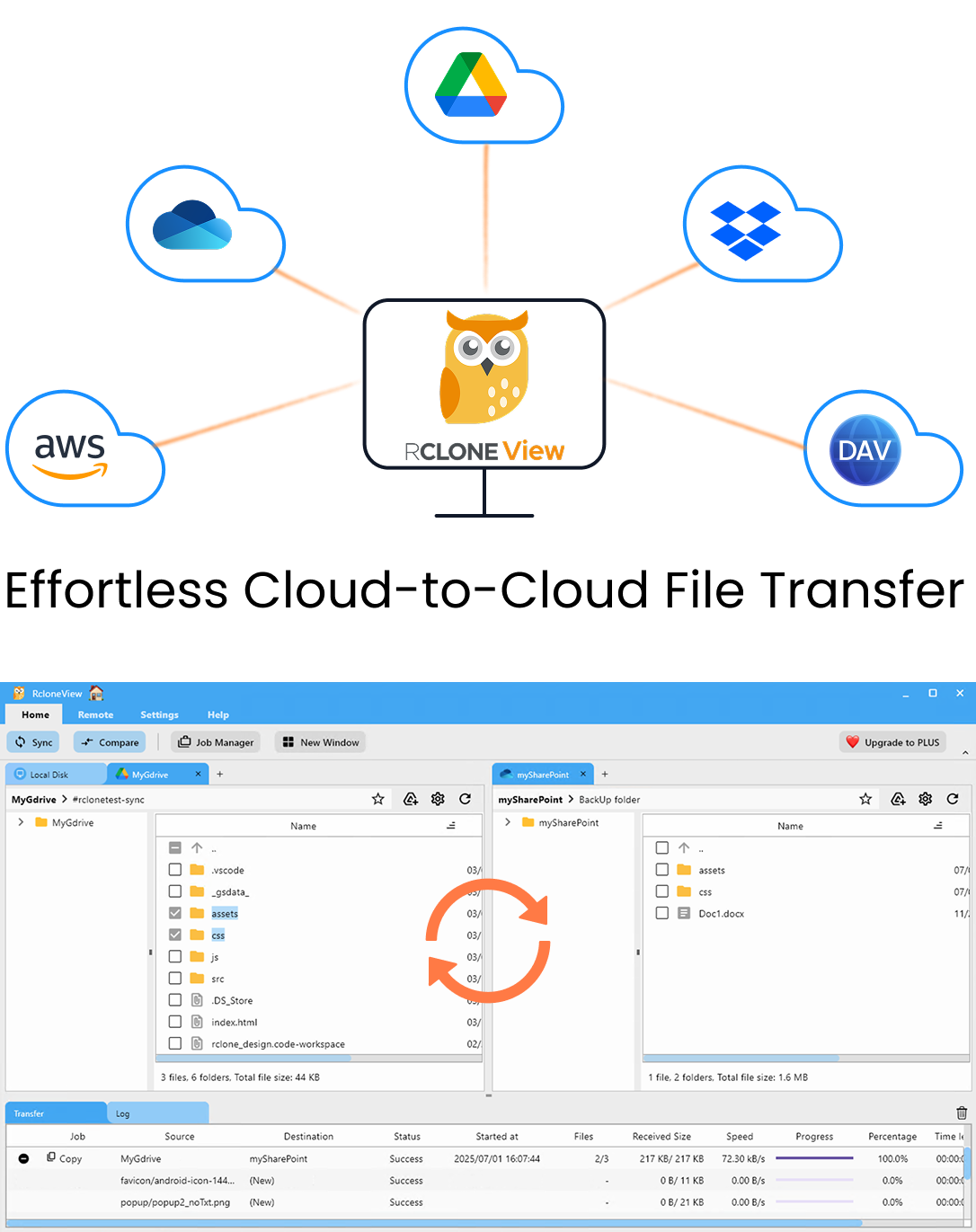
Manage & Sync All Clouds in One Place
RcloneView is a cross-platform GUI for rclone. Compare folders, transfer or sync files, and automate multi-cloud workflows with a clean, visual interface.
- One-click jobs: Copy · Sync · Compare
- Schedulers & history for reliable automation
- Works with Google Drive, OneDrive, Dropbox, S3, WebDAV, SFTP and more
Free core features. Plus automations available.
Why One-Way Sync Removes Files
In the sync wizard, the one-way direction is labelled "Modifying destination only." It leaves the source untouched and changes the destination until it mirrors the source. Anything on the destination with no counterpart in the source is deleted.
Typical triggers:
- Wrong source folder. Selecting
Projects/2026instead ofProjectsmakes every other year look "extra" on the destination. - Cleaned-up source. You deleted old files locally to free space, expecting the cloud copy to keep them as an archive.
- Several sources, one destination. Two machines syncing into the same folder each remove the other's files.
Use Copy When the Destination Is an Archive
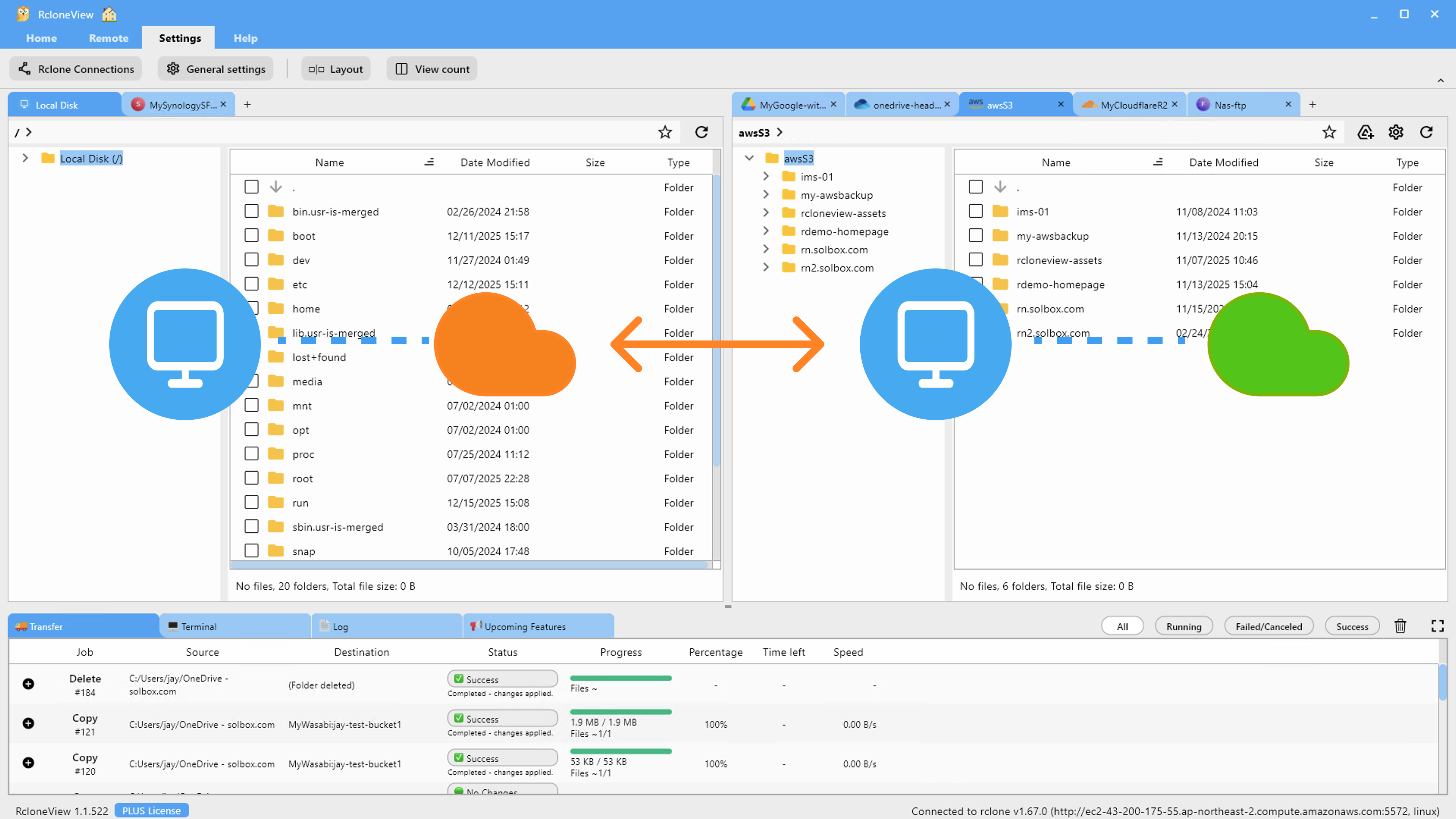
If the destination should keep everything ever sent to it, use a Copy job instead of Sync. The Job Manager offers Sync, Copy, Move, Delete, Download, and Upload job types. Copy transfers new and changed files but does not remove anything from the destination, which suits a photo archive or a long-term project backup.
Keep Sync for true mirrors, such as a working folder you want reproduced exactly on a second cloud.
Preview Deletions with Dry Run
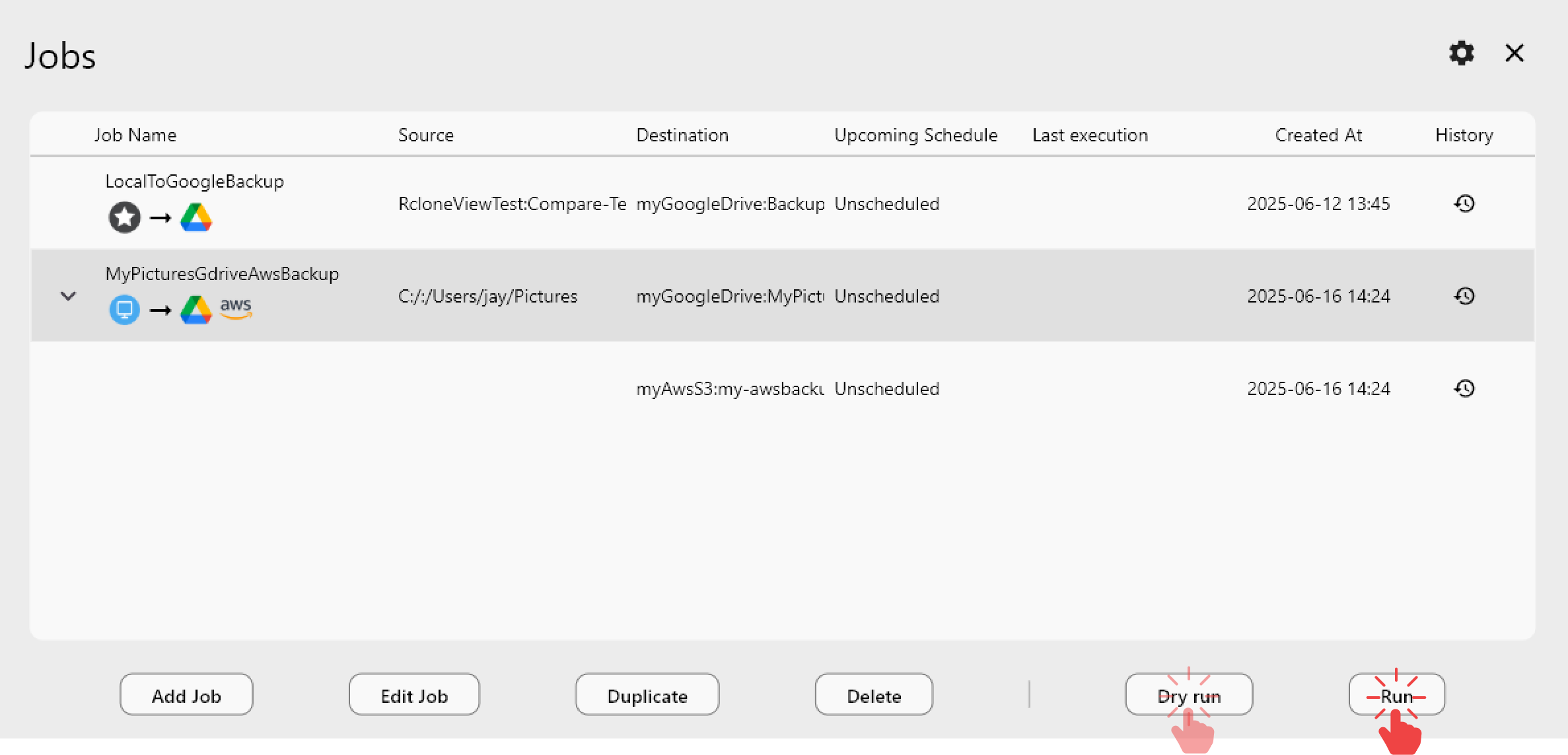
Before any new or edited sync job runs for real, run a Dry Run. It lists files that would be copied and files that would be deleted, without changing anything. If the delete list contains files you expect to keep, stop and fix the source path or switch to Copy.
Check the Difference with Folder Compare
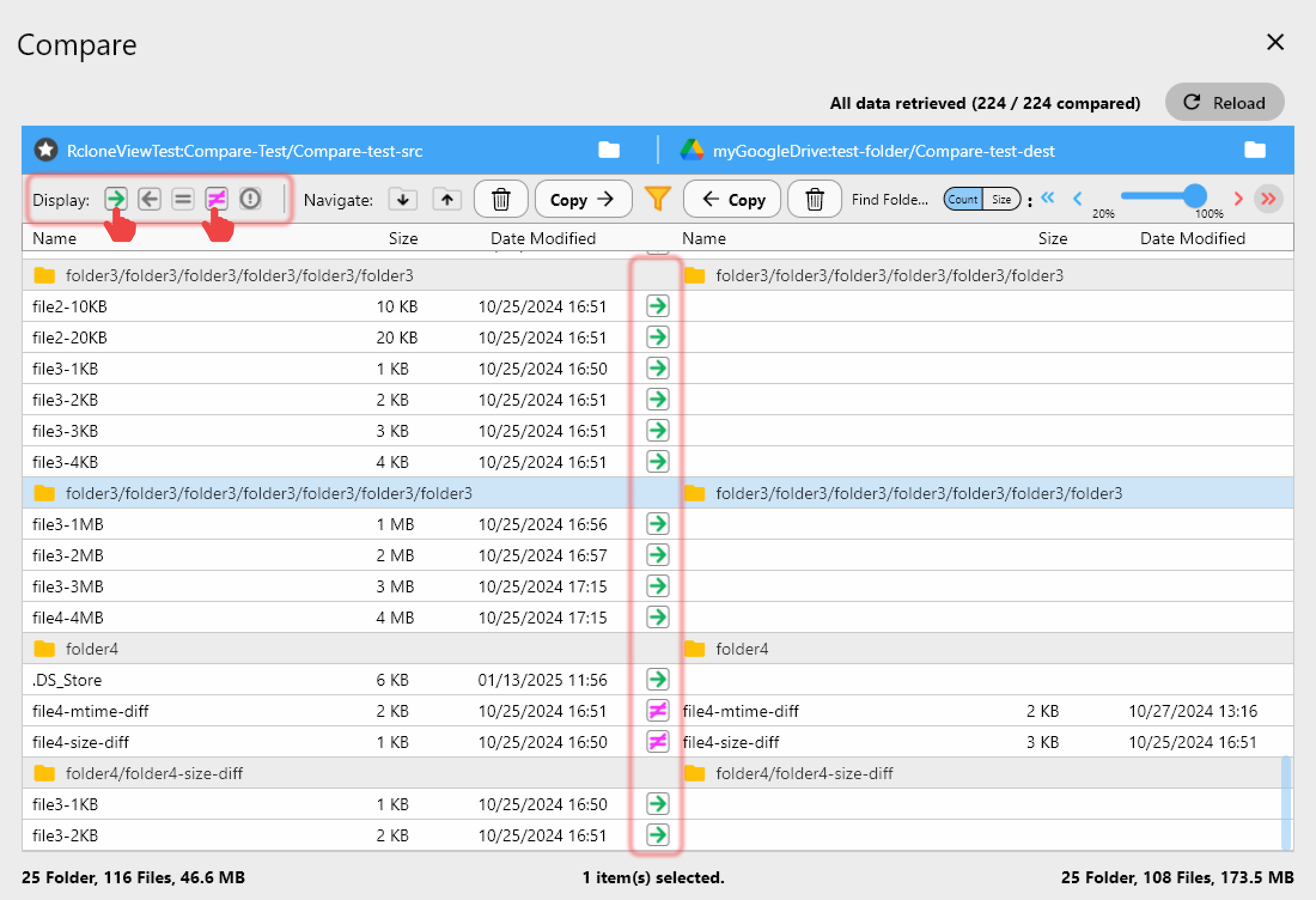
Folder Compare shows two folders side by side. Filter for right-only files to see exactly what exists on the destination but not on the source — the files a sync would remove. If some of them matter, use Copy left to bring them back into the source before syncing, or keep them out of reach by syncing into a different folder.
Unlike mount-only tools, RcloneView also syncs and compares folders — on the FREE License.
Getting Started
- Download RcloneView from rcloneview.com.
- Open your existing job in the Job Manager and confirm the source and destination paths.
- Change archive-style jobs from Sync to Copy, and run a Dry Run on every sync job you keep.
- Use Folder Compare to review right-only files, then check Job History after each run.
If files are already gone, check your provider's trash or version history first, then rebuild the job so it can't happen again.
Related Guides:
- Dry Run — Preview Sync Before Transfer with RcloneView
- Recover Accidentally Deleted Cloud Files with RcloneView
- Fix Missing Files After Cloud Sync with RcloneView
Supported Cloud Providers