Fix Slow S3 Bucket Listing and Sync with Many Small Files — Tuning with RcloneView

A bucket with hundreds of thousands of tiny files syncs slowly because of per-object overhead, not bandwidth, and a few job settings change that.
A photographer's proxy folder or an application's log archive can hold a huge number of small objects. Each one needs a listing entry, a comparison, and a request, so the sync crawls even though the network is idle. RcloneView exposes the relevant rclone settings in its job wizard, so you can tune them without writing flags. Connect S3, Azure, or Backblaze B2 with full read/write on the FREE license.
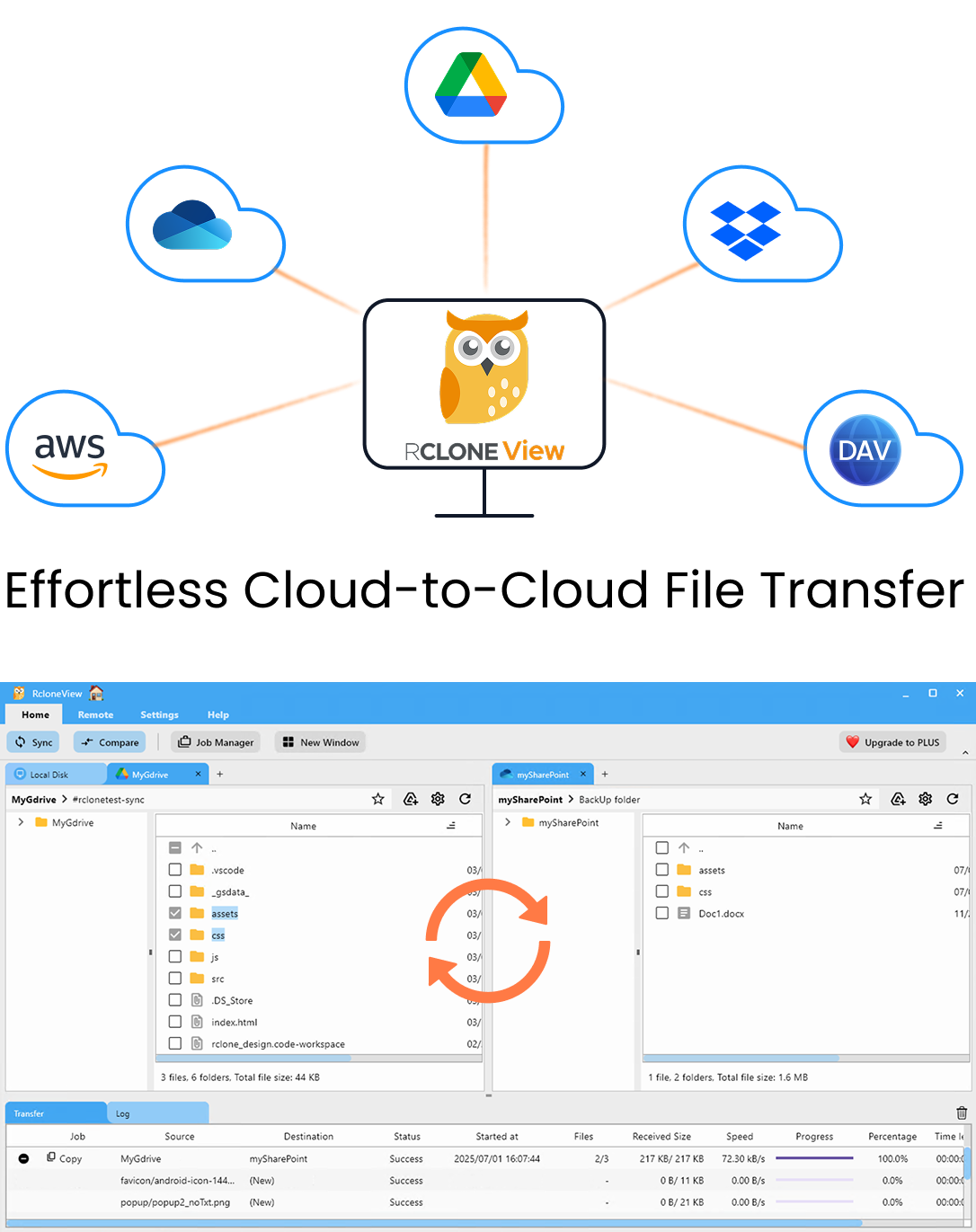
Manage & Sync All Clouds in One Place
RcloneView is a cross-platform GUI for rclone. Compare folders, transfer or sync files, and automate multi-cloud workflows with a clean, visual interface.
- One-click jobs: Copy · Sync · Compare
- Schedulers & history for reliable automation
- Works with Google Drive, OneDrive, Dropbox, S3, WebDAV, SFTP and more
Free core features. Plus automations available.
Why Small Files Are Slow
With large files, throughput dominates. With small files, request count dominates: every object is listed, compared by size, time or checksum, and uploaded individually. Slowness here is usually per-request latency and provider-side rate limiting, so adding bandwidth does nothing.
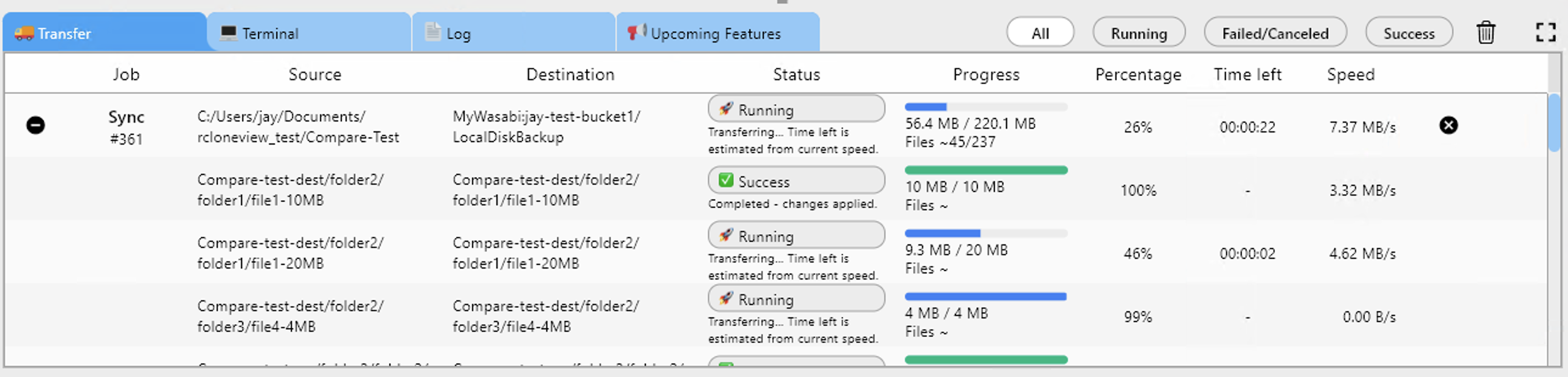
Open the Transferring tab during a run. If speed is low but the file count climbs steadily, you are request-bound rather than bandwidth-bound.
Tune the Job Settings
In Step 2 of the sync wizard, raise the number of file transfers so more objects move in parallel. The equality checkers default to 8; on a slow or throttled backend, the guidance is to use 4 or fewer, because too many simultaneous checks can trigger throttling and make things worse. Change one value at a time and rerun.
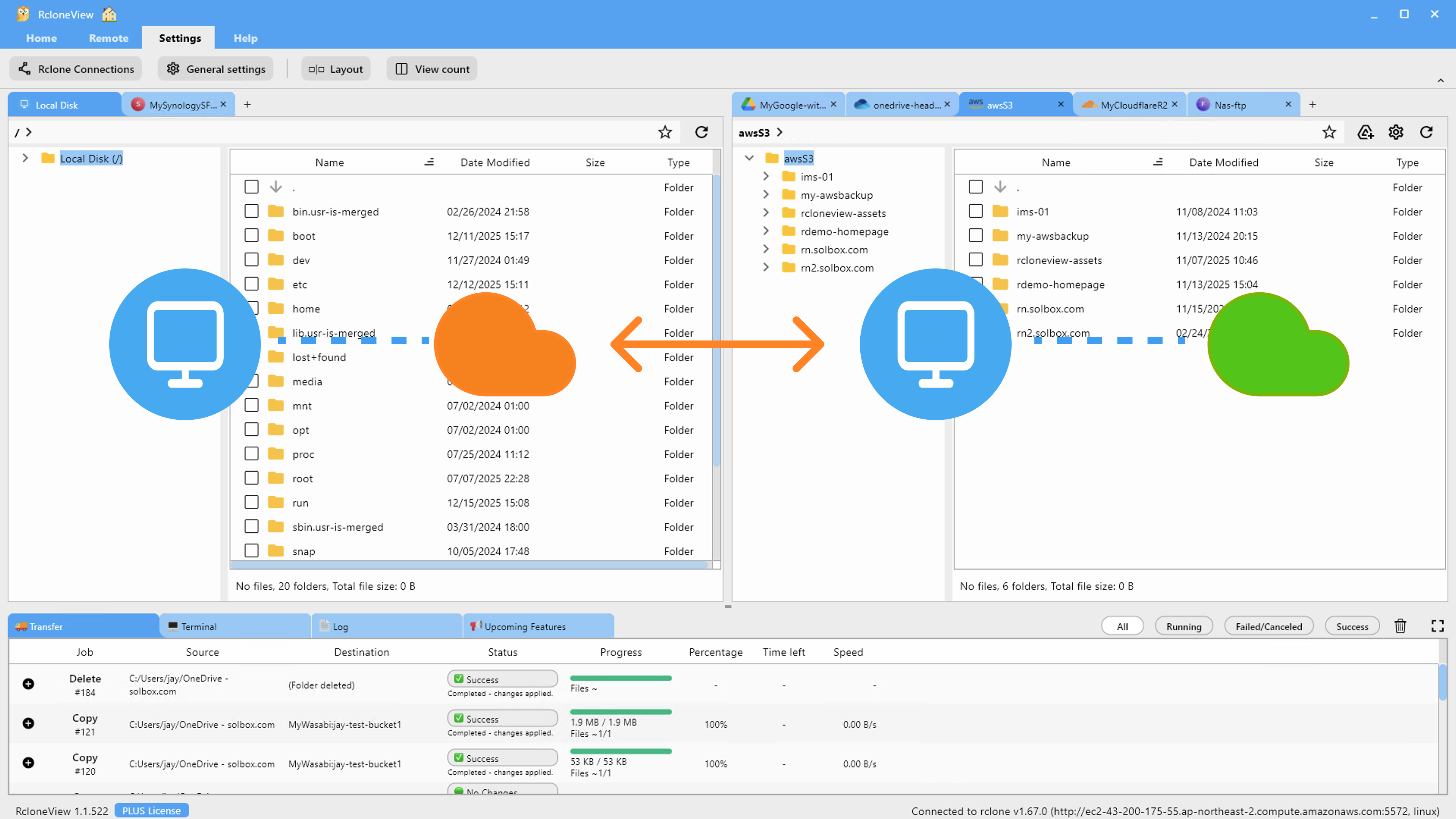
Enabling checksum comparison adds hash work on top of size checks, so use it only when integrity matters more than speed. Keep the retry setting at its default of 3 so transient errors do not abort a long run.
Shrink the Work
Step 3 filters cut the listing load. Use max file age to skip old objects, exclude folders you do not need, and use predefined filters to leave out file types. Splitting one giant job into per-prefix jobs also makes failures easier to isolate and rerun.
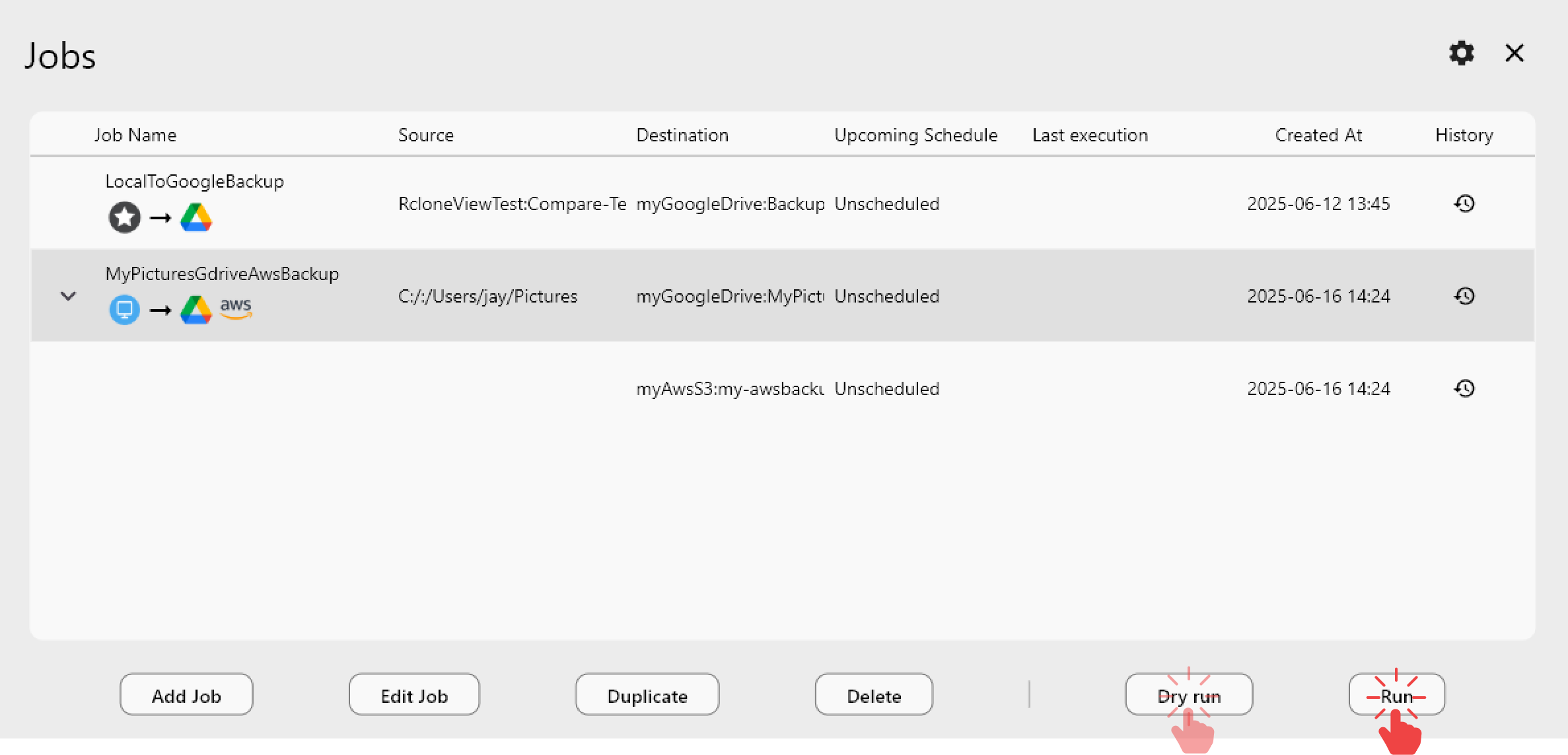
Always run a Dry Run after changing filters, so you see exactly which files will be copied or deleted before the real run.
Getting Started
- Download RcloneView from rcloneview.com.
- Open your slow job and watch the Transferring tab to confirm it is request-bound.
- Adjust transfers and checkers one at a time, and add filters to reduce scope.
- Compare timings in Job History and keep the best-performing settings.
Small, methodical changes turn an overnight sync into a routine one.
Related Guides:
Supported Cloud Providers